Sharing and Managing SharePoint Link Access
Sometimes it's useful to share files/folders with usersanother staff member or even an user outside of the Grace Church staff. Sharepoint has this ability.
Disclaimer: Be careful that you aren't sharing anything sensitive with users outside the organization. If you have any doubts,doubts or questions, please ask IT.
To give access to edit a file
While staff typically have access to read and edit files within their campus SharePoint site, you will only be able to view files on other SharePoint sites (if it's a file like a Word doc or Excel sheet, you can open it up in a desktop app and save a local copy if you are wanting to borrow another file from a different campus) In order to collaborate and edit a file within SharePoint the owner of the file or folder will need to add your Grace Church account to have editing access.
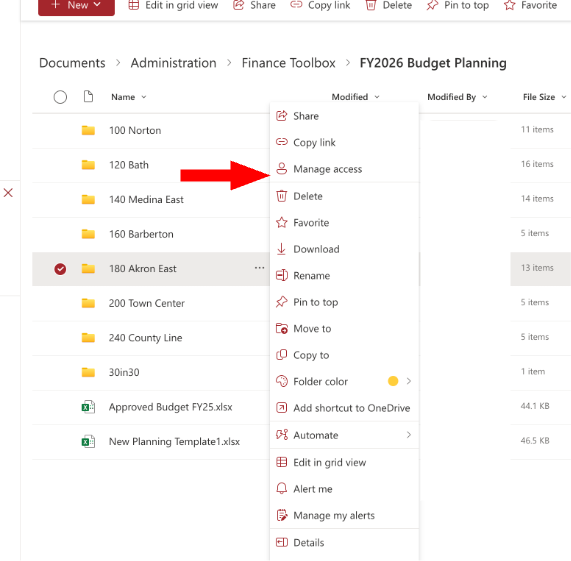
- Find the file or folder on SharePoint. Right click it and select "Manage Access."
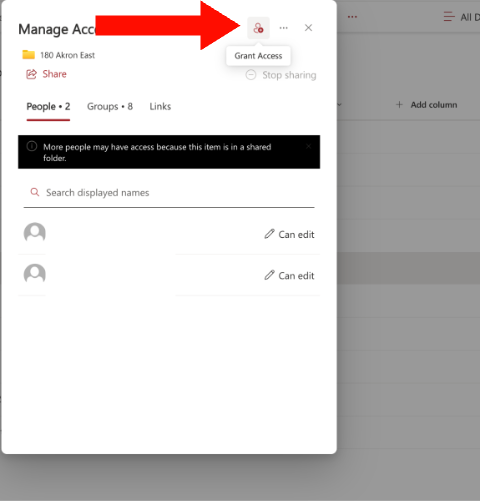
- You'll see a small window pop up in the middle of your screen. In the top right corner of that window click the person icon with a small plus sign.
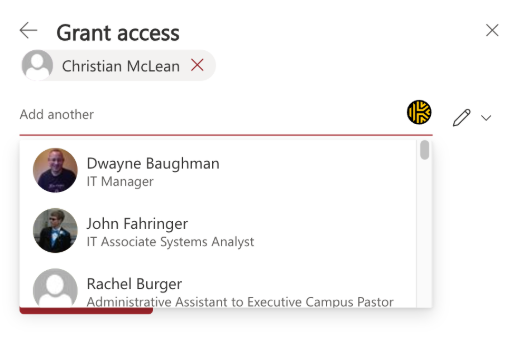
- Add the people the you wish to have access to that file or folder and make sure they are set to "Can Edit" (pencil icon)
If you're looking for a volunteer to upload or edit files within a folder, you'll need to be sure to set the sharing link to edit instead of view. They will also need to sign into or create a personal Microsoft account to gain access. Be sure you are not giving access to a large amounts of files (ie the entire 30-in-30 SharePoint site) but instead very specific files or folders. Best practice is to set a password at the very least and ideally an expiration date.
- When you have everyone you'd like share the file with, you can type up a quick message to let them know what they have access to as well as select the "Notify People" box to send them an email once they have access.
- After double checking the people added, click "Grant Access" to share the file/folder with them.
(To share a file with anyone) To Share a link:link for view:
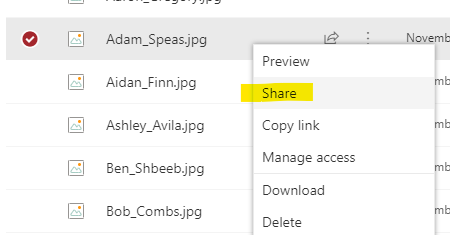
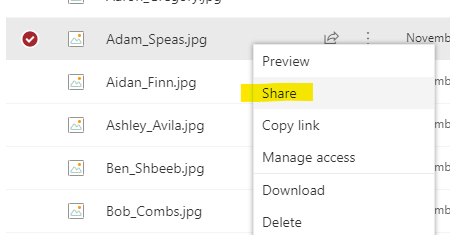
- Find the file on Sharepoint and right click and select Share:
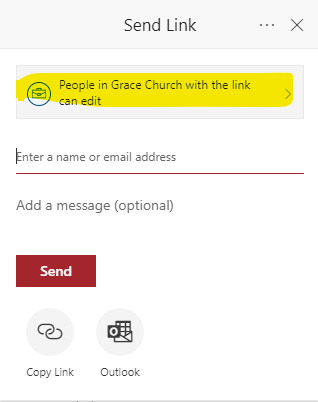
- A Send Link Window will pop up. Select the top button highlighted below:
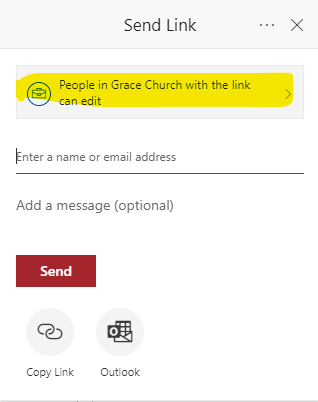
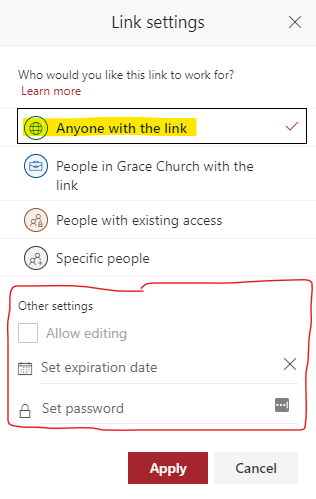
- In the Link Settings Window Select Anyone with the link. Consider using and expiration or password to add a little more security if needed.
Then click Apply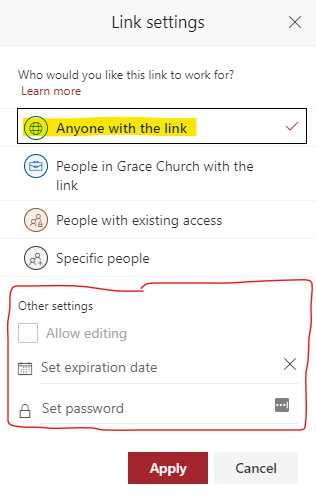
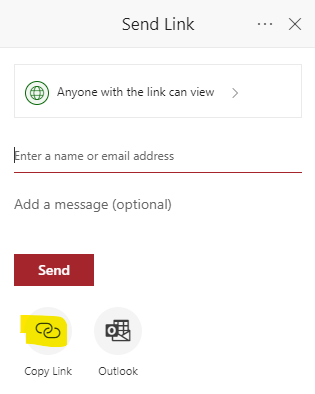
- Finally, click Copy Link to copy the link.
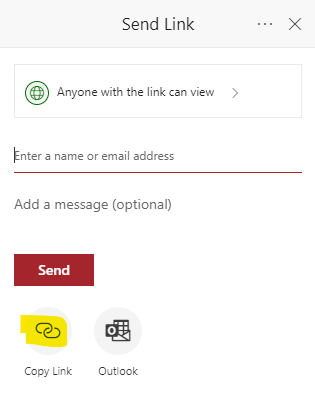
- Now you can paste this link in an email or use it to share a file on the website.