Set Personal Outlook Calendar "My Organization" Viewing Privileges
To change your Calendar viewing permissions,permissions so that your Calendar details are visible to everyone one staff, you'll need to access your Outlook settings.

Windows
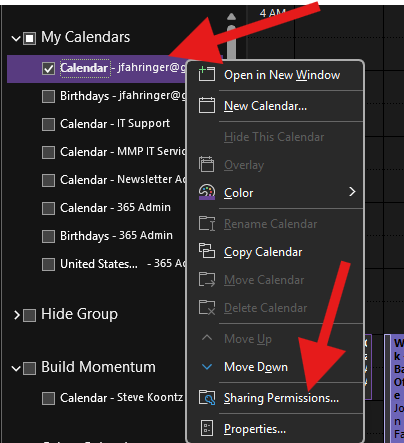
- In the calendar view, Right Click your user Grace Church calendar. Then click on Sharing Permissions:
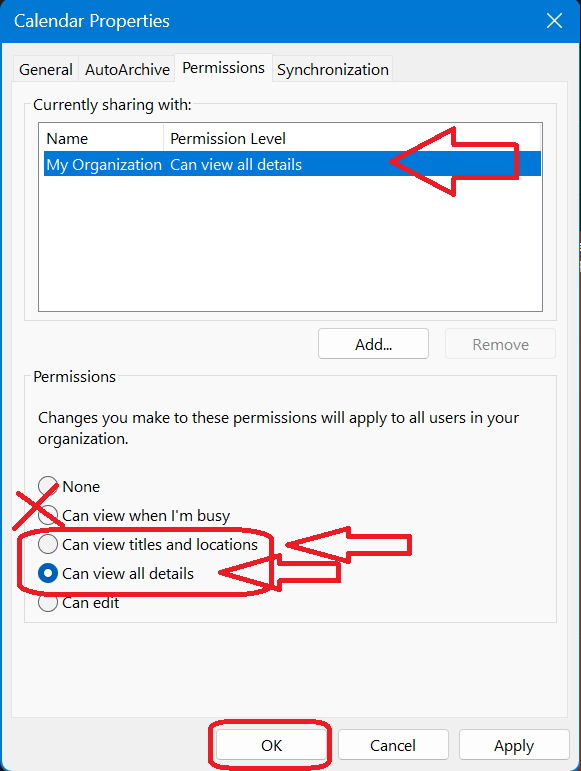
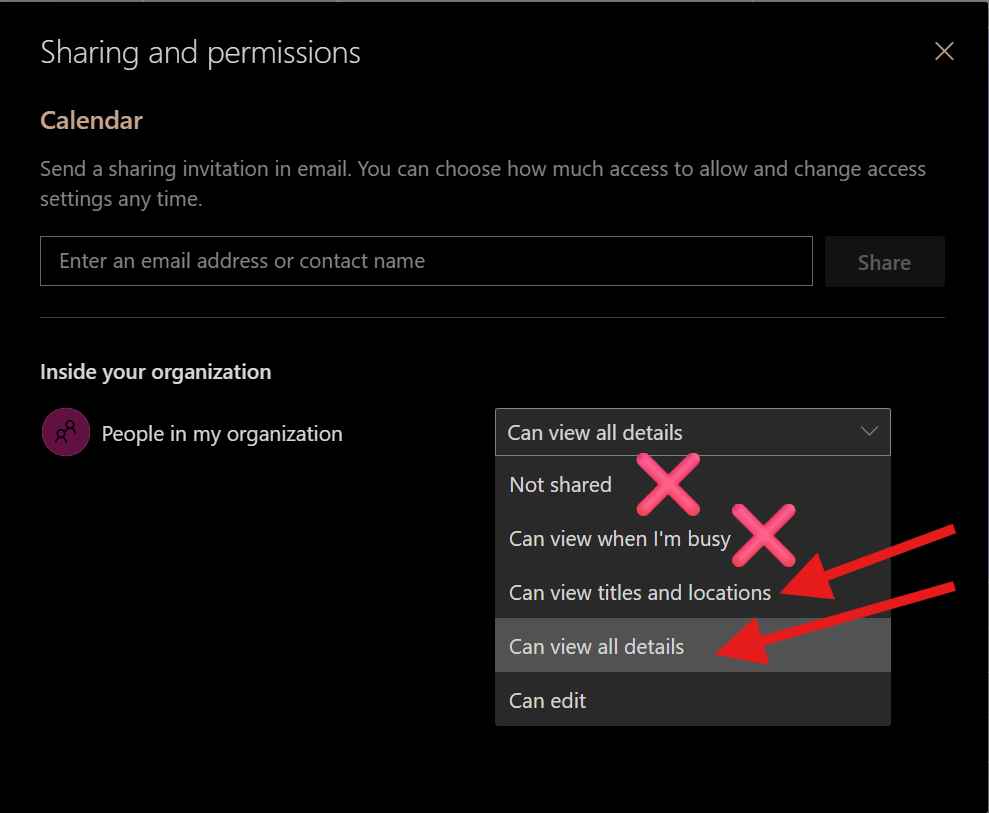
- Set My Organization permission off from "None"/"Can view when I'm busy", to either "Can view titles and locations" or "Can view all details". Then hit Apply, and OK:
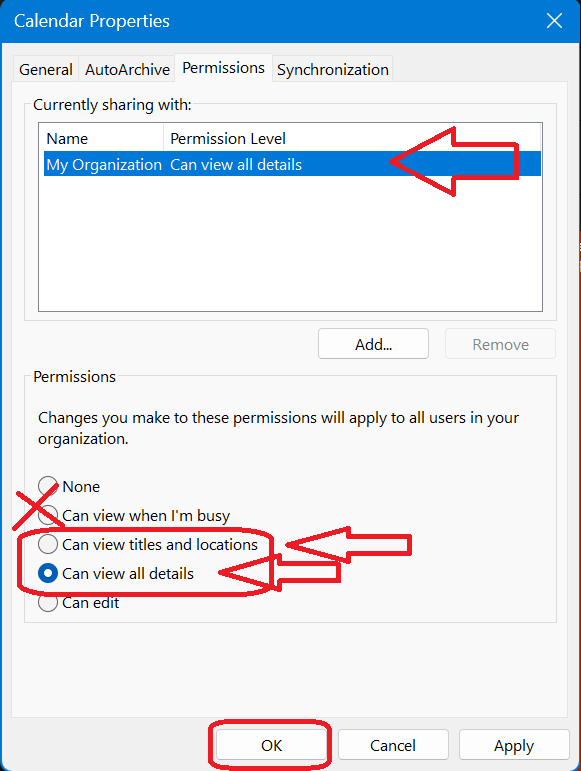
- You can also add additional privileges in this same window for individual users if you want to.
WebOutlook / NewOutlook (and macOS)
This looks very similar to Windows Classic Outlook.
-
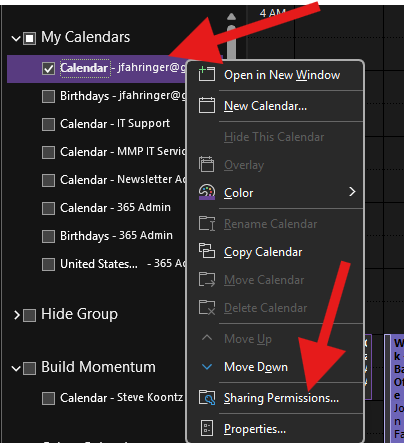
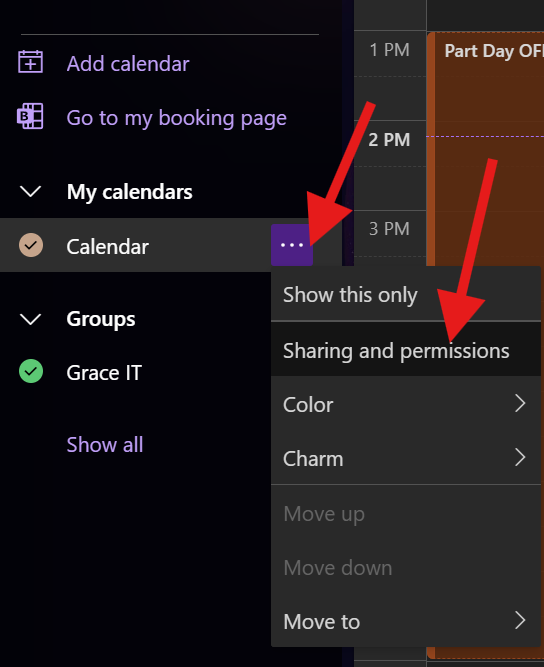
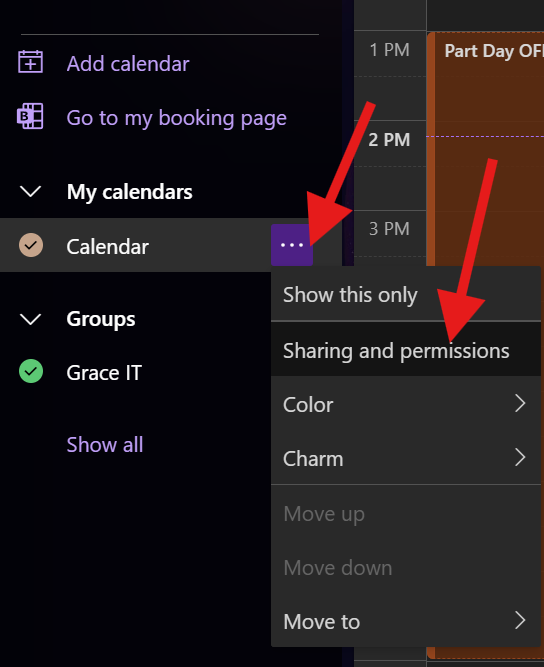
In the calendar view, Right Click your user Grace Church calendar. Then click on Sharing Permissions:
- Set My Organization permission off from "None"/"Can view when I'm busy", to either "Can view titles and locations" or "Can view all details". Then hit Apply, and OK:
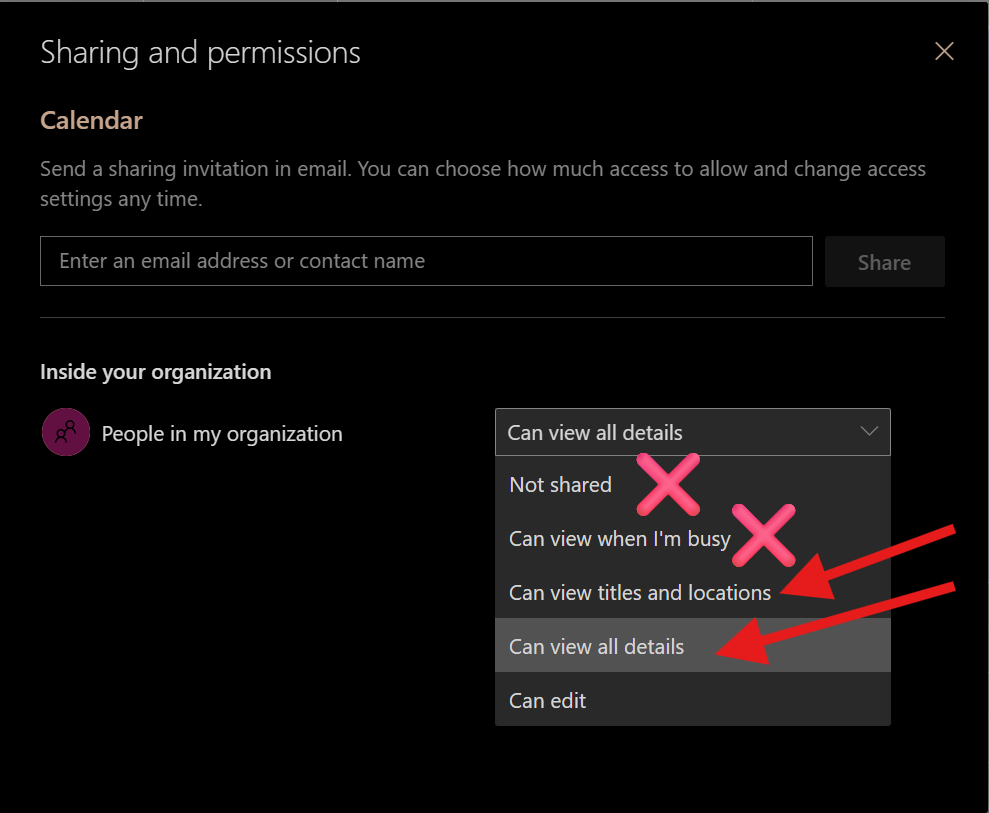
- You can also add additional privileges in this same window for individual users if you want to.
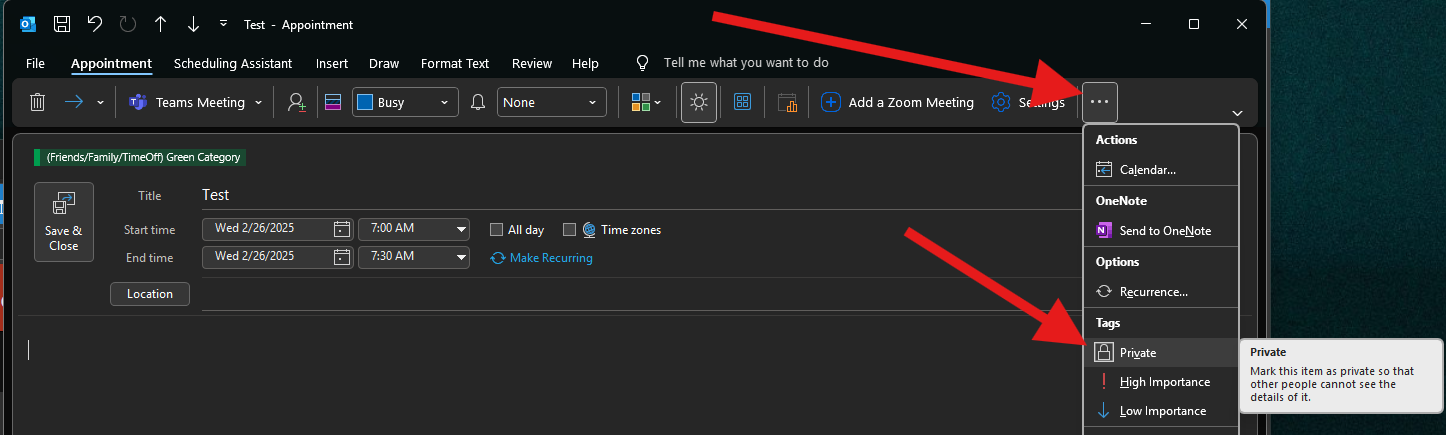
TIP: You can still create private-to-you appointments that will only appear as blocked off appointments to everyone else when they look at your calendar: