Set Personal Outlook Calendar Privileges
To change your Calendar viewing permissions, you'll need to access your Outlook settings.
Windows
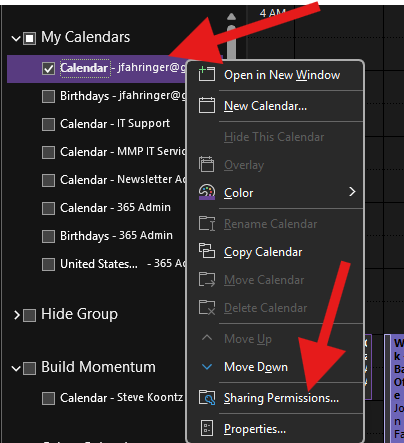
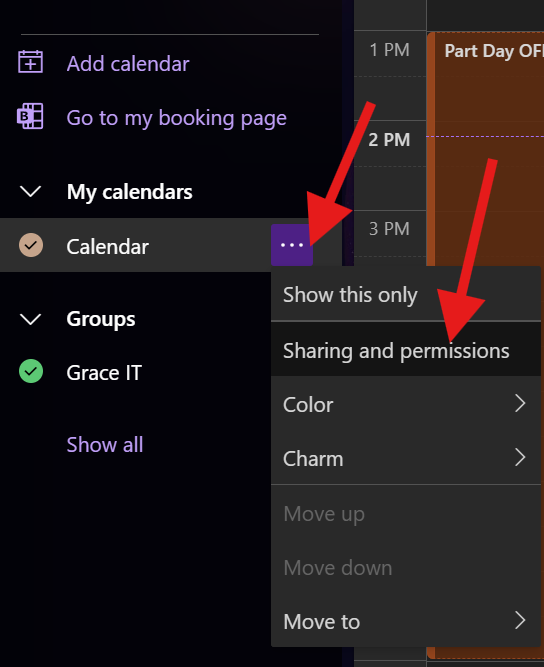
- In the calendar view, Right Click your user Grace Church calendar. Then click on Sharing Permissions:
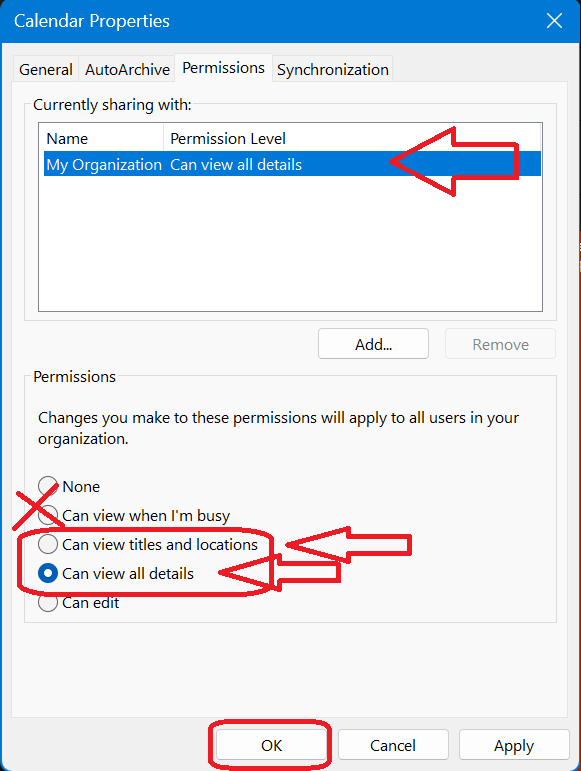
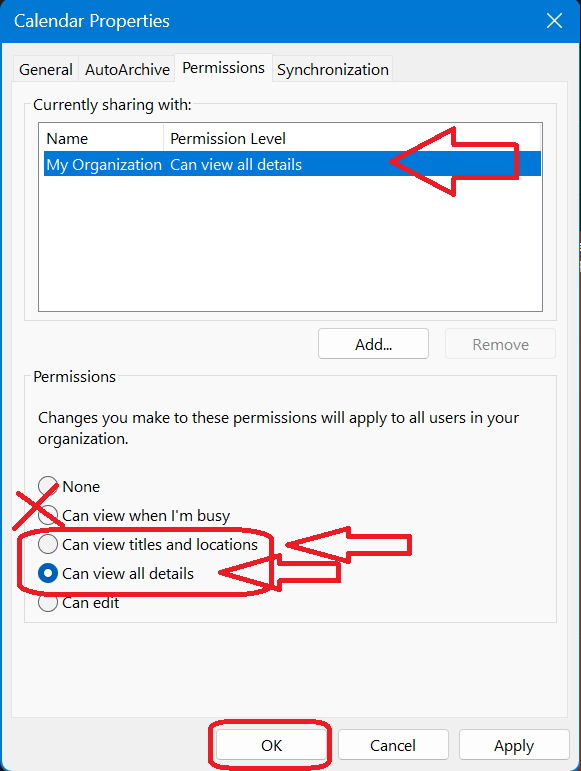
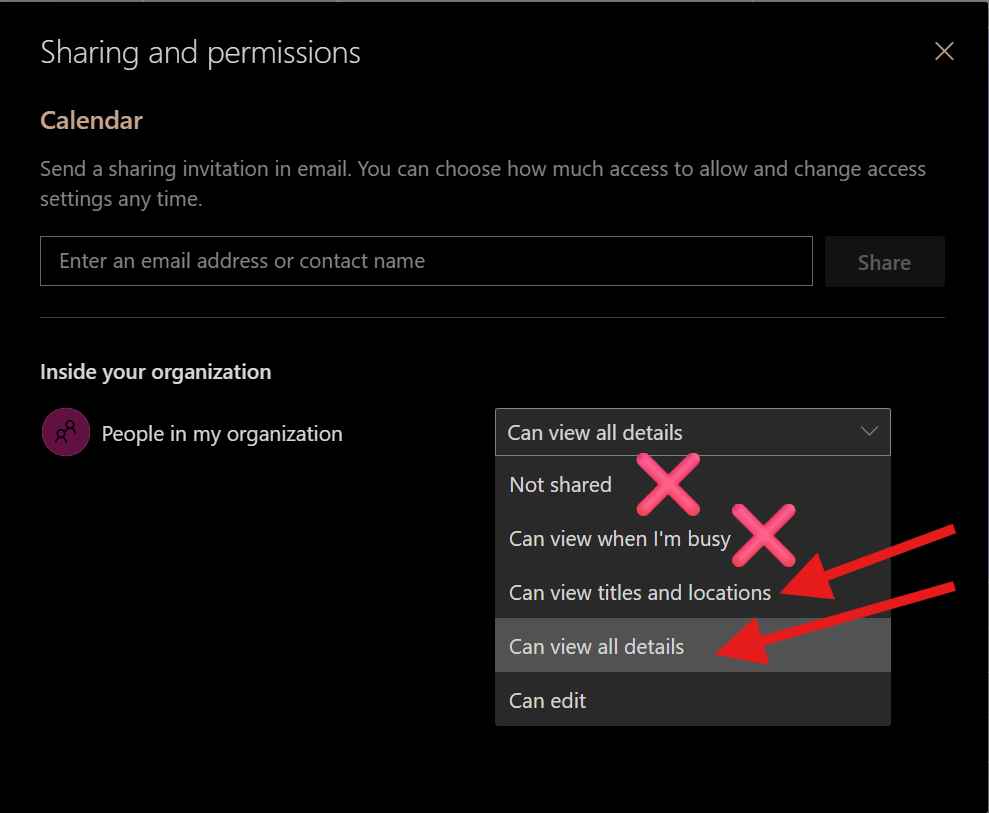
- Set My Organization permission off from "None"/"Can view when I'm busy", to either "Can view titles and locations" or "Can view all details". Then hit Apply, and OK:
- You can also add additional privileges in this same window for individual users if you want to.
WebOutlook / NewOutlook (and macOS)
This looks very similar to Windows Classic Outlook.
-
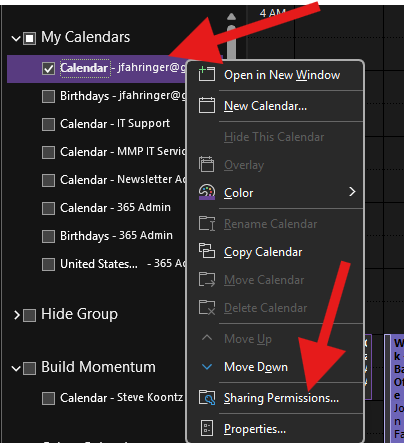
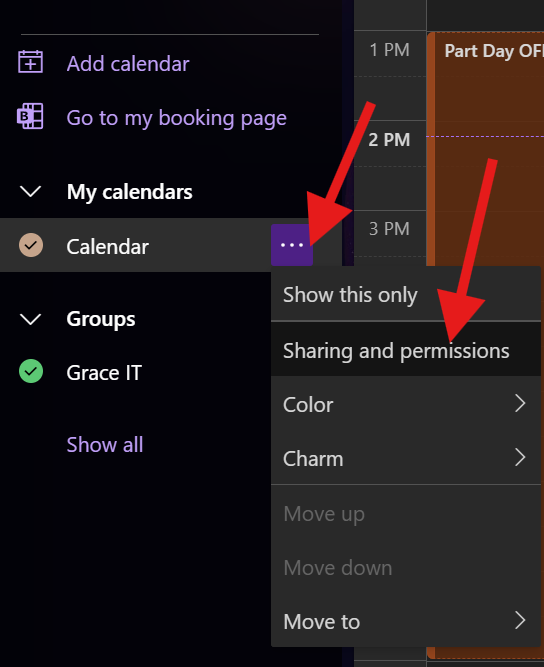
In the calendar view, Right Click your user Grace Church calendar. Then click on Sharing Permissions:
- Set My Organization permission off from "None"/"Can view when I'm busy", to either "Can view titles and locations" or "Can view all details". Then hit Apply, and OK:
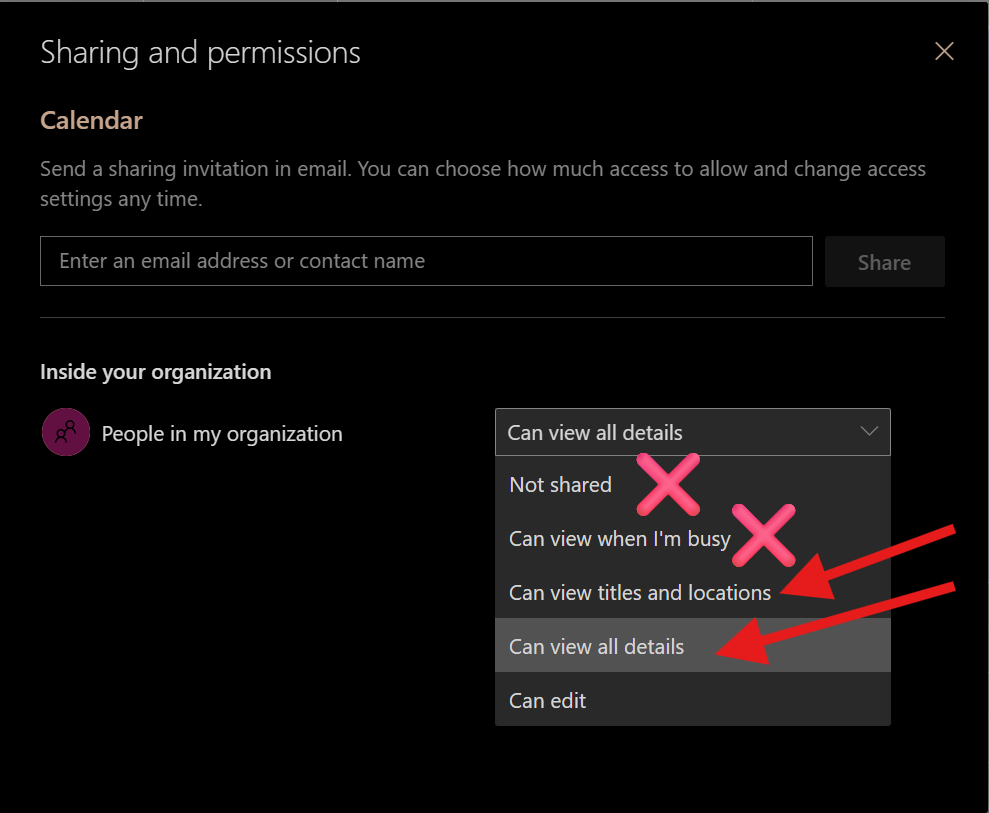
- You can also add additional privileges in this same window for individual users if you want to.
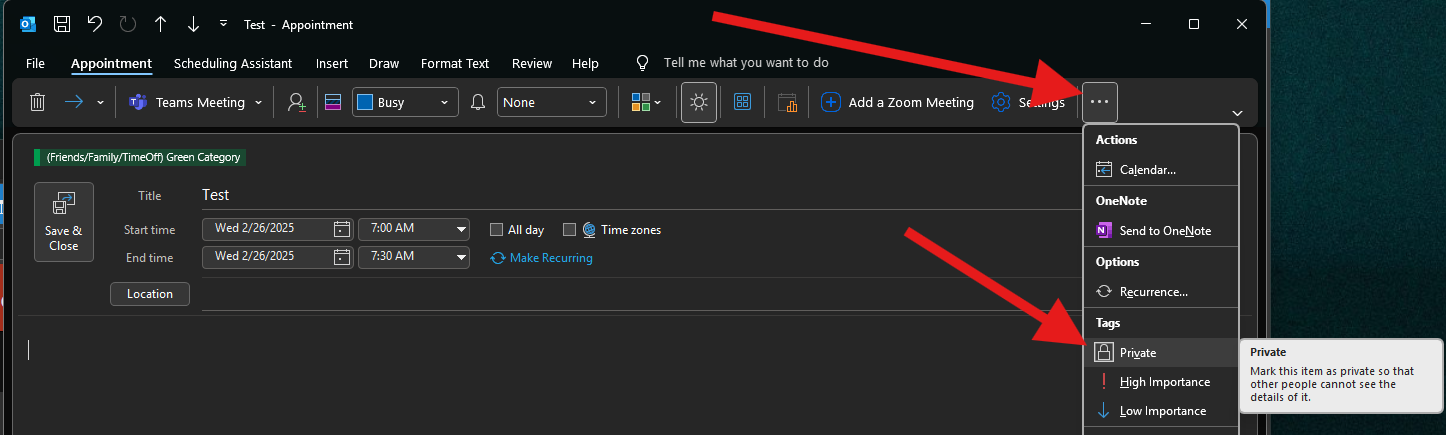
TIP: You can still create private-to-you appointments that will only appear as blocked off appointments to everyone else when they look at your calendar: