# How to Update MacOS and Other Applications

**<span data-contrast="auto">How to update Mac-OS, </span><span data-contrast="none">Safari, Messages, Mail, Music, Photos, FaceTime, and Calendar.</span>**<span data-ccp-props="{"201341983":0,"335559739":160,"335559740":259}"> </span>

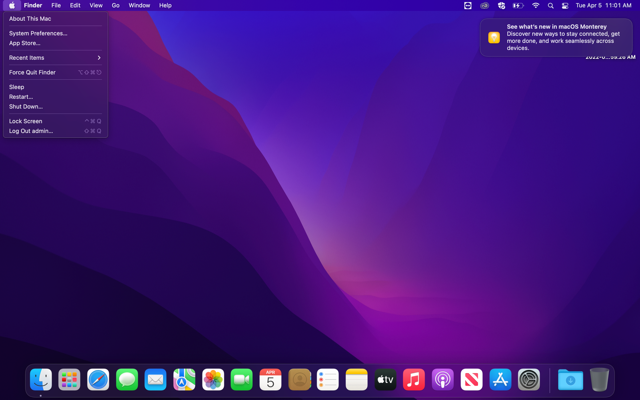
- <span data-contrast="auto">Click the apple menu icon on the top left corner of the screen.</span><span data-ccp-props="{"201341983":0,"335559739":160,"335559740":259}"> </span>

<span data-ccp-props="{"201341983":0,"335559739":160,"335559740":259}"> [![4-5-5.png](https://kb.gracechurches.org/uploads/images/gallery/2022-04/scaled-1680-/4-5-5.png)](https://kb.gracechurches.org/uploads/images/gallery/2022-04/4-5-5.png)</span>

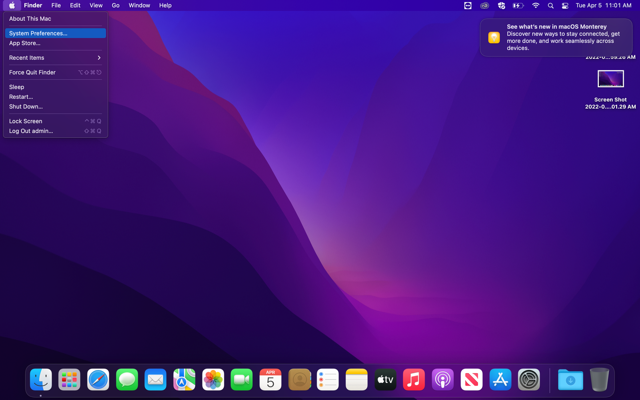
- <span data-contrast="none">Click on system preferences.</span><span data-ccp-props="{"201341983":0,"335559739":160,"335559740":259}"> </span>

<span data-ccp-props="{"201341983":0,"335559739":160,"335559740":259}"> [![4-5-6.png](https://kb.gracechurches.org/uploads/images/gallery/2022-04/scaled-1680-/4-5-6.png)](https://kb.gracechurches.org/uploads/images/gallery/2022-04/4-5-6.png)</span>

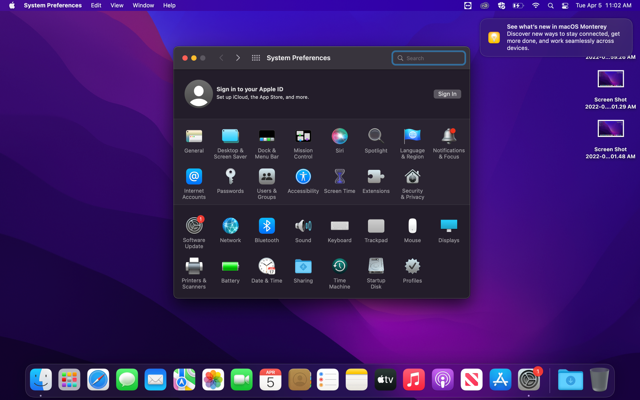
- <span data-contrast="none">In the new window, click on Software Update.</span><span data-ccp-props="{"201341983":0,"335559739":160,"335559740":259}"> </span>

<span data-ccp-props="{"201341983":0,"335559739":160,"335559740":259}"> [![4-5-7.png](https://kb.gracechurches.org/uploads/images/gallery/2022-04/scaled-1680-/4-5-7.png)](https://kb.gracechurches.org/uploads/images/gallery/2022-04/4-5-7.png)</span>

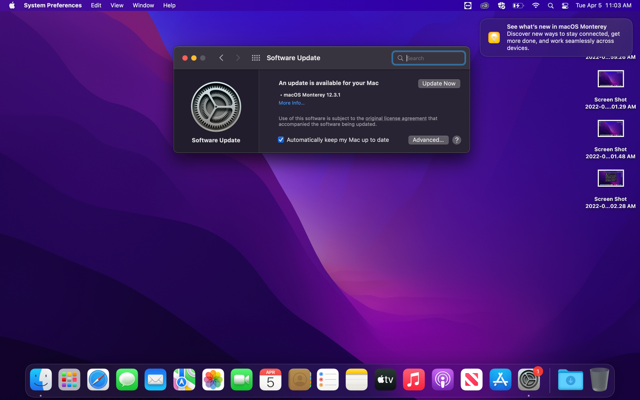
- <span data-contrast="none">If an update is available, click on upgrade now.</span><span data-ccp-props="{"201341983":0,"335559739":160,"335559740":259}"> </span>

<span data-ccp-props="{"201341983":0,"335559739":160,"335559740":259}"> [![4-5-8.png](https://kb.gracechurches.org/uploads/images/gallery/2022-04/scaled-1680-/4-5-8.png)](https://kb.gracechurches.org/uploads/images/gallery/2022-04/4-5-8.png)</span>

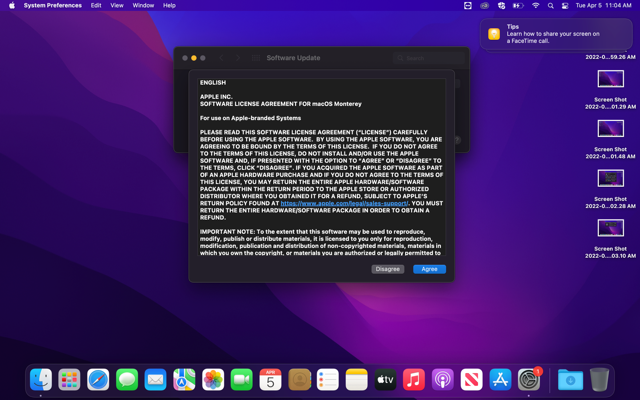
- <span data-contrast="none">Click Agree. </span><span data-ccp-props="{"201341983":0,"335559739":160,"335559740":259}"> </span>

<span data-ccp-props="{"201341983":0,"335559739":160,"335559740":259}"> [![4-5-9.png](https://kb.gracechurches.org/uploads/images/gallery/2022-04/scaled-1680-/4-5-9.png)](https://kb.gracechurches.org/uploads/images/gallery/2022-04/4-5-9.png)</span>

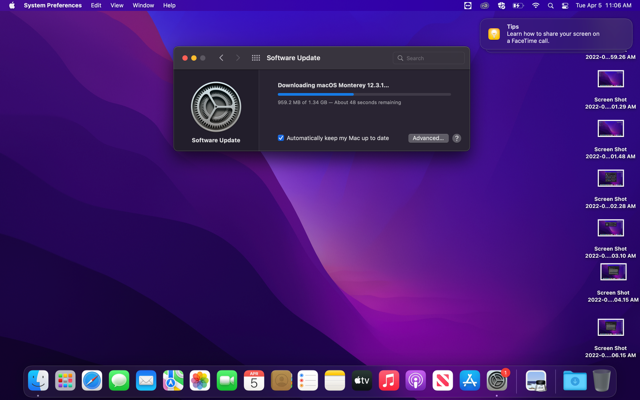
- <span data-contrast="none">Allow the program to download. </span>**<span data-contrast="none">Make sure any important documents are saved and closed during this process.</span>**<span data-ccp-props="{"201341983":0,"335559739":160,"335559740":259}"> </span>

<span data-ccp-props="{"201341983":0,"335559739":160,"335559740":259}">[![4-5-1.png](https://kb.gracechurches.org/uploads/images/gallery/2022-04/scaled-1680-/4-5-1.png)](https://kb.gracechurches.org/uploads/images/gallery/2022-04/4-5-1.png)</span>

- <span data-contrast="none">Once the download is complete, the computer will restart to complete the download.</span><span data-ccp-props="{"201341983":0,"335559739":160,"335559740":259}"> </span>
- <span data-contrast="none">After some loading, you will need to login back onto your computer. Your OS will be updated, along with the stated applications.</span><span data-ccp-props="{"201341983":0,"335559739":160,"335559740":259}"> </span>