Ghent Mondopad Setup - Community Room
The Mondopad (also known as the Zoom/Video Conferencing Station) is a transportable system that enables internet conferencing. It consists of a mounted computer and remote controlled pan-tilt camera, keyboard and mouse, TV, bundled ethernet cable, battery powered speakerphones that can play and record sound, and charging cables to charge them.
Preliminary
- Currently, one unit lives in the main building and is stored in classroom C between the TV and wall. Another one lives in the Student Center and is stored in the closet of the Student Center Auditorium. If your event is in the church building, please use the one stored in the church building. If your event is in the Student Center, please use the one stored in the Student Center.
- Check to see if the Unit you need to use is reserved or not on GraceLink. Please first check and reserve it there, or receive permission from our Facilities Manager before setting either Unit up.
Setup
I.E. Community Room:
- Move unit up the isle in front of closet to the second row of tables. Ensure there is a clear view to speaker location
- Plug power cord into to outlet to left of closet door.
- Plug one end of CAT 6 ethernet cable into PC and then run cable through door next to closet and into kitchen area. Plug other end of cable into wall jack to right of door as you enter room next to refrigerator.
Power On and Running Zoom
- Power monitor on, power button is on right edge of monitor at the bottom
- Power PC on
- Log into PC
- user: Zoom
- Password: Meetings4Grace!
- Get the 2 speakerphones from the shelf
- Place one on the speaker's table in front of room
- Place the other on one of the tables
- Start Zoom application
- Log into Zoom
- user: 30in30zoom1@gracechurches.org
- Password: Meetings4Grace!
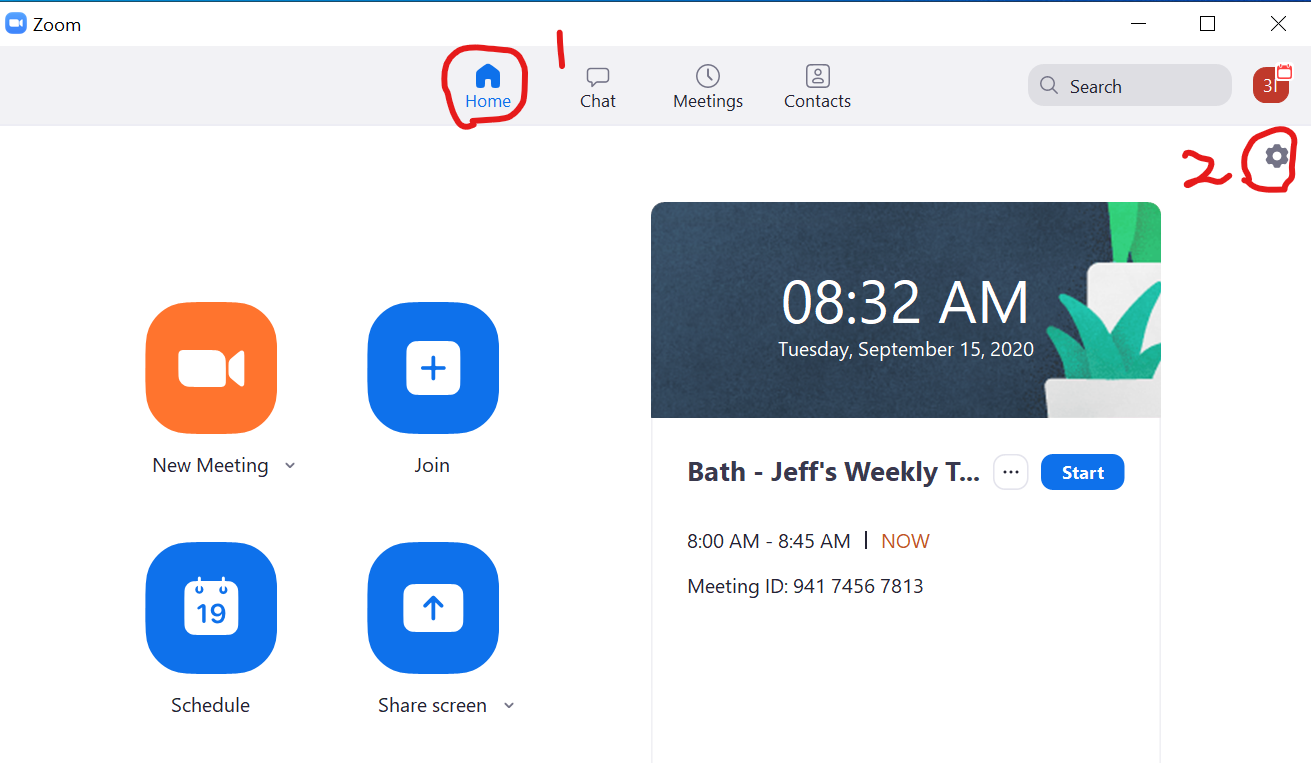
- Select (1) "Home" from the menu
- Then select the (2) settings gear in the tope right corner
-
 Inside the setup menu, select (1) "Video".
- use the camera remote to align and zoom the camera in on the speaker location
 I
I
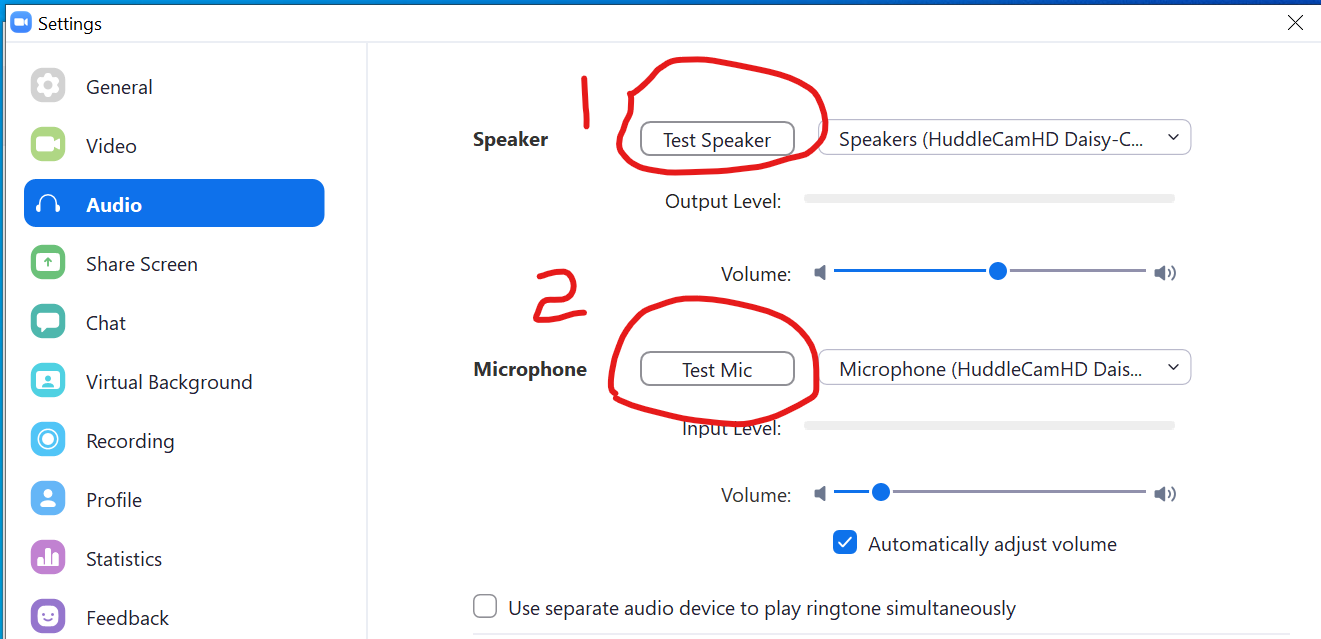
- Inside the setup menu, select "Audio
- Then select (1) "Test Speaker" verify you can hear sound out of both speakerphones
- Then select (2) "Test Mic", speak into the speakerphone at the speaker's desk and then wait for it to play back. If it sound ok then you are done with video and sound
- Close the Settings window by clicking the "X" in the right corner.
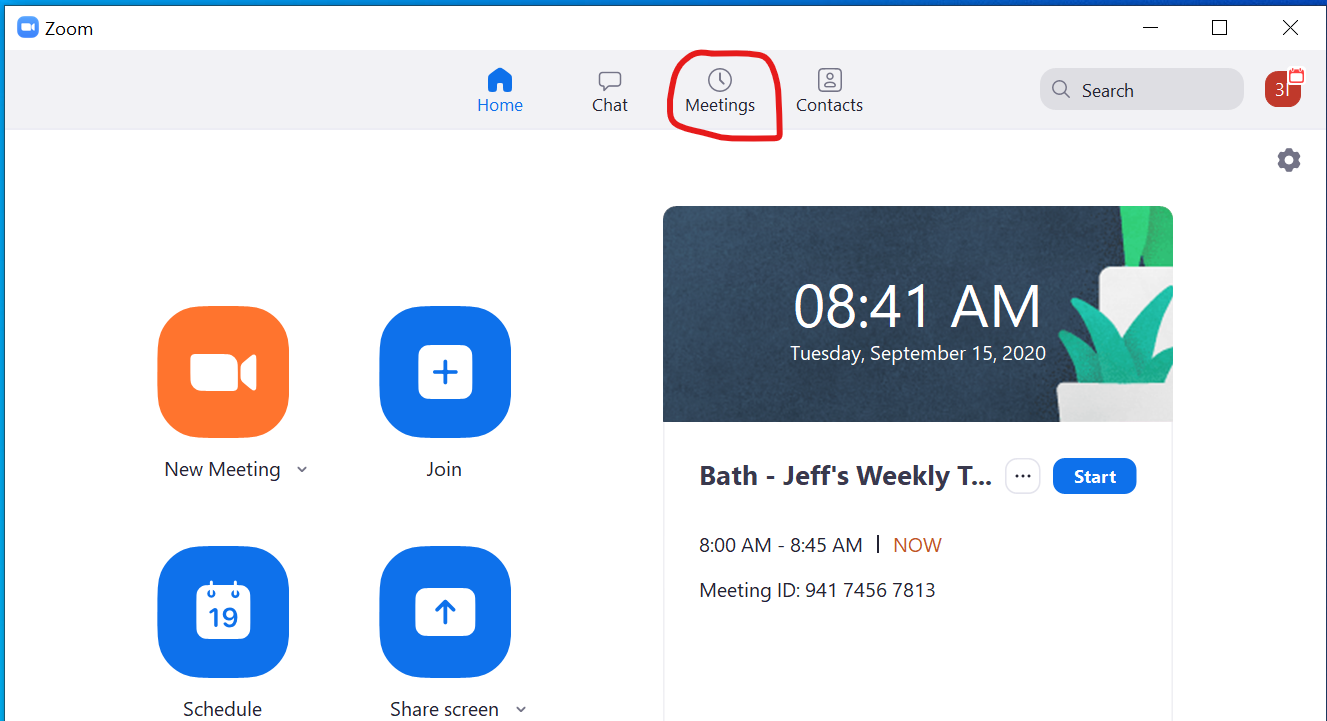
- From Zoom "Home" Screen select (1) "Meetings"
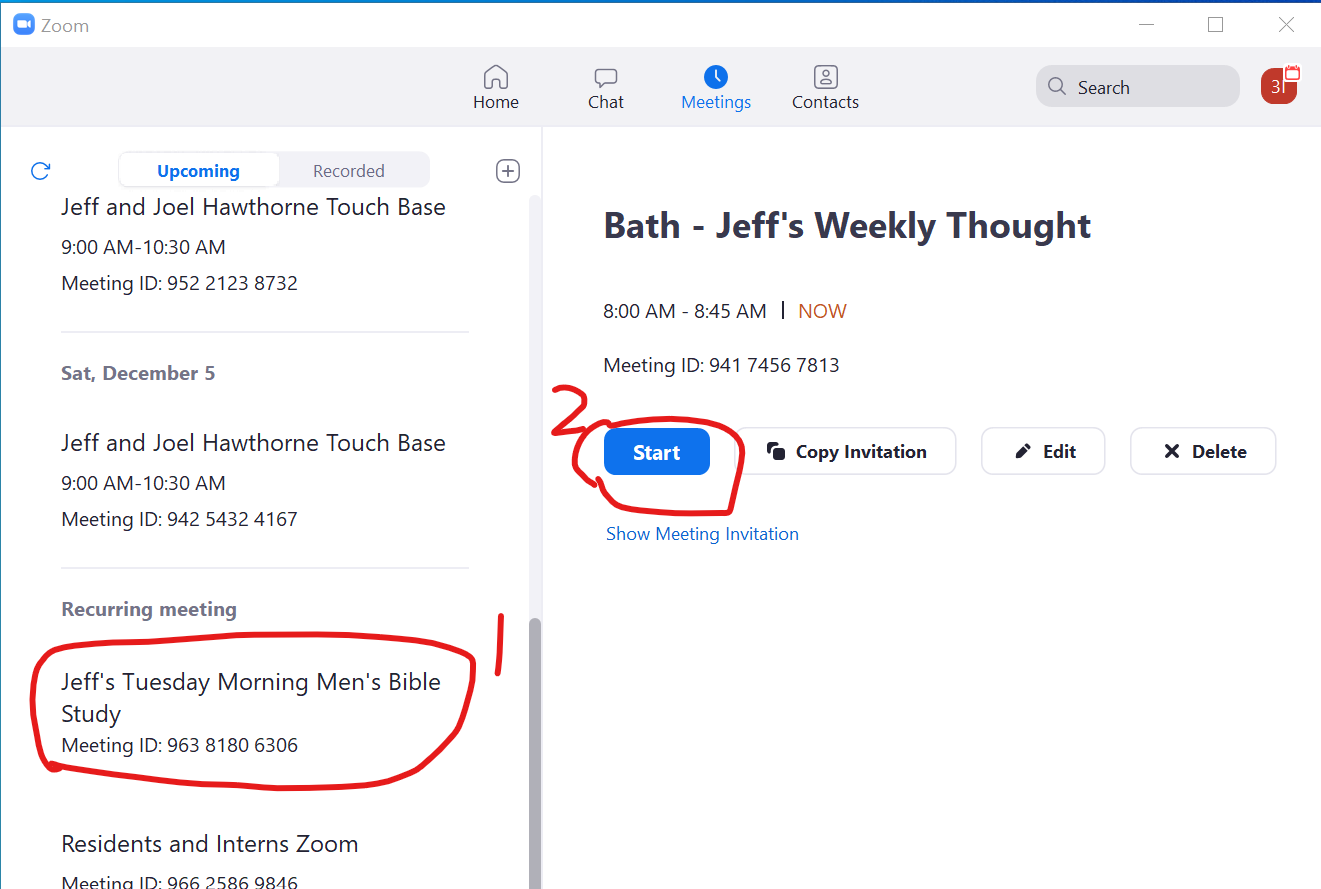
- Then scroll down the left column until you find (1) "Jeff's Tuesday Morning Men's Bible Study" and select it.
- Then click on the (2) "Start"
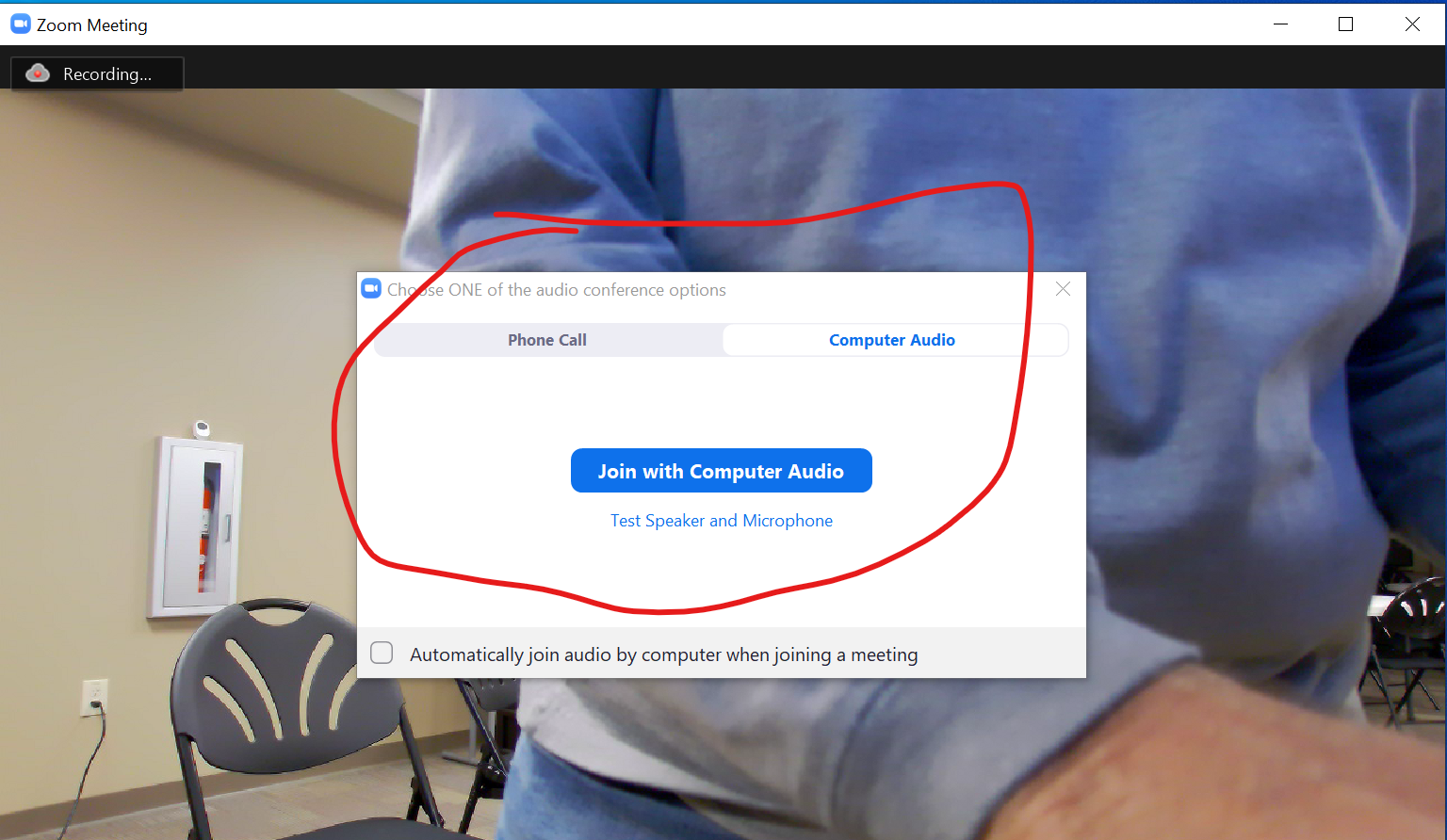
- Then in the "Choose ONE of the audio conference Options" window select "Join with Computer Audio"
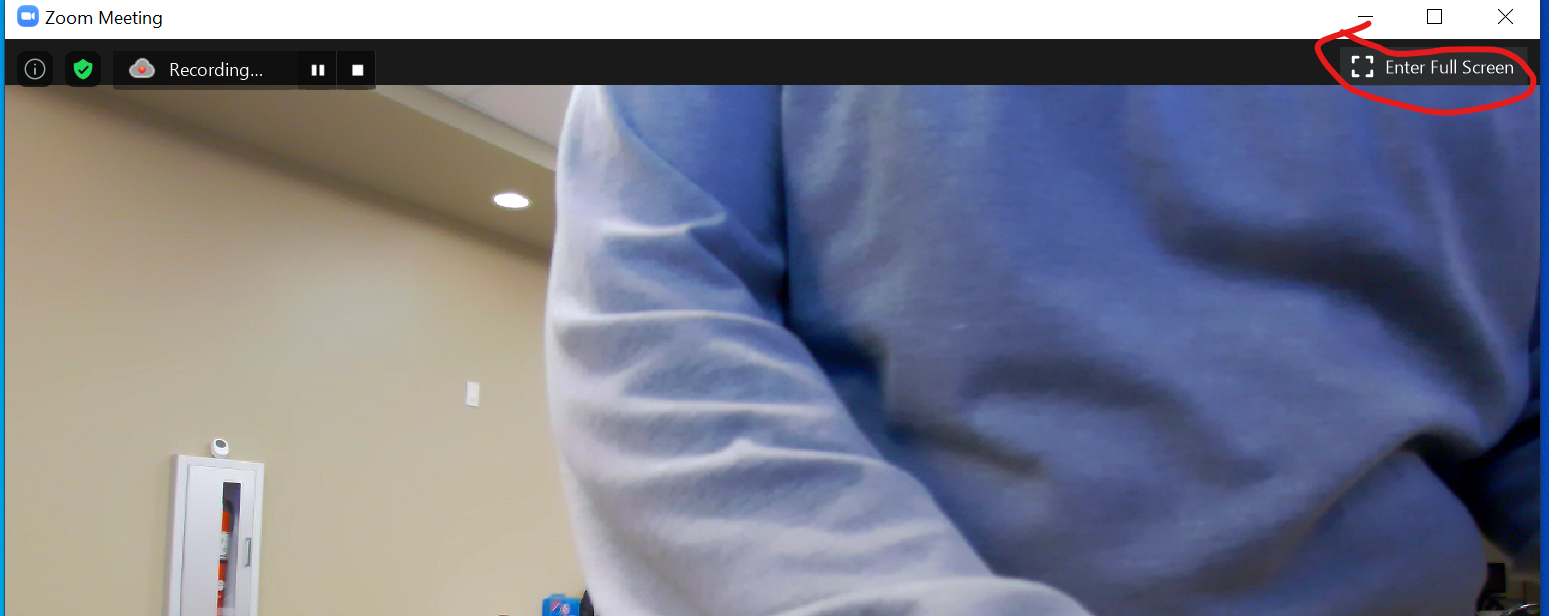
- Then select the "Enter Full Screen" mode.
Tear Down
- Select "End Meeting" lower right corner of Zoom window. Then select "End Meeting for All"
- Shutdown the PC by selecting "Shutdown" in the Windows Menu
- Power off Speakerphones
- Disconnect the CAT 6 cable from the wall jack and the PC. Then roll it up
- Unplug unit and roll up power cord.
- Roll unit back.
- Charge the speakerphones with the micro USB cables so that they are ready for the next time the conference station is used.