# TeamViewer
## Installation Instructions (w/ Windows and MacOS)
#### TeamViewer (HOST) for Windows
These instructions will walk you through the process of installing TeamViewer for the purposes of helping the IT Department better serve you. Remote users who are not regularly in an office location will be required to install this application or it will be installed prior to receiving your computer.
**Install**
Follow this link to begin the download of the TeamViewer installer:
[https://get.teamviewer.com/gracechurch](https://get.teamviewer.com/gracechurch)
**Once the download is complete double click the install file:**
Install TeamViewer\_Host\_Setup.exe
Follow the below steps as you progress through the installation:
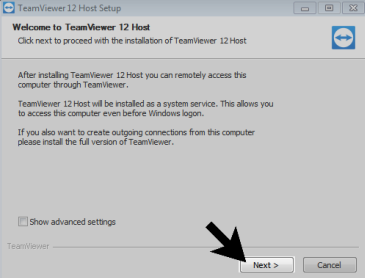
1\. CLICK “NEXT”
[](https://kb.gracechurches.org/uploads/images/gallery/2022-11/image-1668973711810.png)
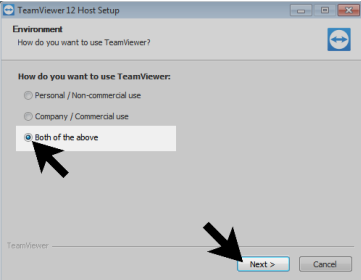
2\. SELECT THE “Both of the above” OPTION
CLICK “NEXT”
[](https://kb.gracechurches.org/uploads/images/gallery/2022-11/image-1668973768836.png)
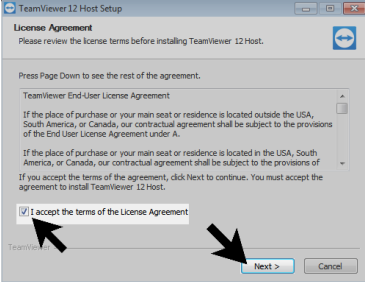
3\. CHECK THE BOX NEXT TO
“I accept the terms of the License Agreement”
CLICK “NEXT”
[](https://kb.gracechurches.org/uploads/images/gallery/2022-11/image-1668973806211.png)
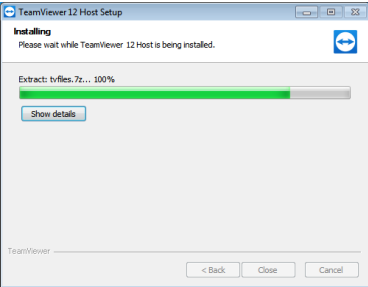
4\. THIS WINDOW WILL CLOSE
WHEN INSTALL IS COMPLETE.
[](https://kb.gracechurches.org/uploads/images/gallery/2022-11/image-1668973975731.png)
5\. INSTALLATION IS COMPLETE!
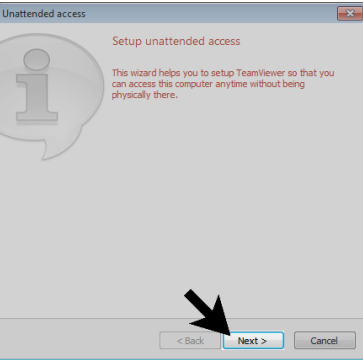
**A new window will open to complete the initial setup of TeamViewer.**
1\. CLICK “NEXT”
[](https://kb.gracechurches.org/uploads/images/gallery/2022-11/image-1668974021130.png)
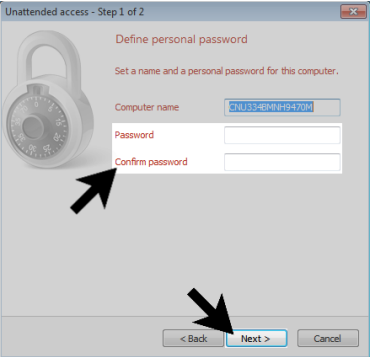
2\. ENTER THE PASSWORD:
GraceChurch1
CLICK “NEXT”
[](https://kb.gracechurches.org/uploads/images/gallery/2022-11/image-1668974076882.png)
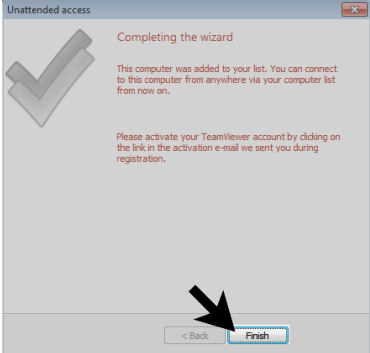
3\. CLICK “FINISH”
[](https://kb.gracechurches.org/uploads/images/gallery/2022-11/image-1668974100818.png)
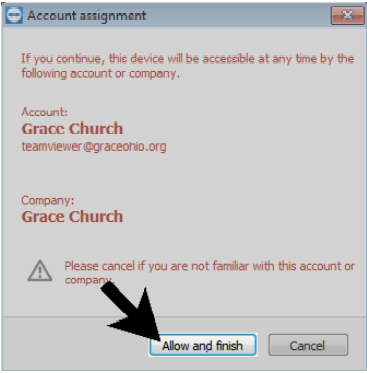
4\. VERIFY THAT THE ACCOUNT
INFO MATCHES THE IMAGE
CLICK “OK”
[](https://kb.gracechurches.org/uploads/images/gallery/2022-11/image-1668974112074.png)
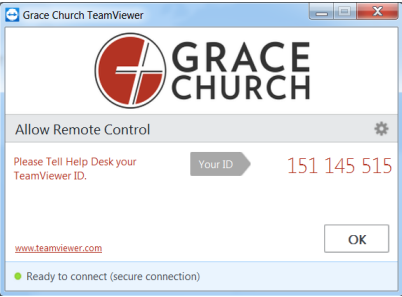
5\. PLEASE CONTACT HELP DESK WITH THE TeamViewer ID LISTED ON THIS FINAL SCREEN.
CLICK “OK”
[](https://kb.gracechurches.org/uploads/images/gallery/2022-11/image-1668974135584.png)
Contact Help Desk
Once the install and setup are complete please contact the Help Desk by email at
[Requesting IT Help Gra... | Grace Church KB (gracechurches.org)](https://kb.gracechurches.org/books/it-helpdesk/page/requesting-it-help-grace-church-and-ce-national). In the email please provide to the Help Desk the TeamViewer ID.
---
#### **TeamViewer (HOST) for MAC**
These instructions will walk you through the process of installing TeamViewer for the purposes
of helping the IT Department better serve you. Remote users who are not regularly in an office
location will be required to install this application or it will be installed prior to receiving your
computer.
**Install**
Follow this link to begin the download of the TeamViewer installer:
[https://get.teamviewer.com/gracechurch](https://get.teamviewer.com/gracechurch)
Once the download is complete double click the install file:
Install TeamViewerHost-idc2bhaw5x.pkg
Follow the below steps as you progress through the installation:
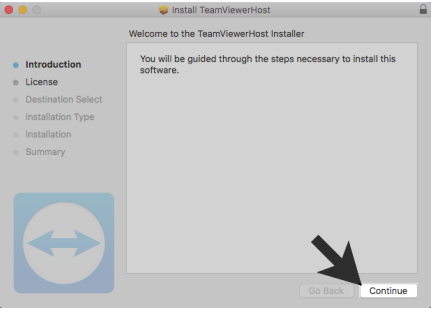
1\. CLICK “CONTINUE”
[](https://kb.gracechurches.org/uploads/images/gallery/2022-11/image-1668974782088.png)
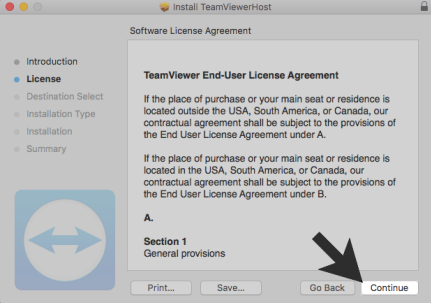
2\. CLICK “CONTINUE”
[](https://kb.gracechurches.org/uploads/images/gallery/2022-11/image-1668974795383.png)
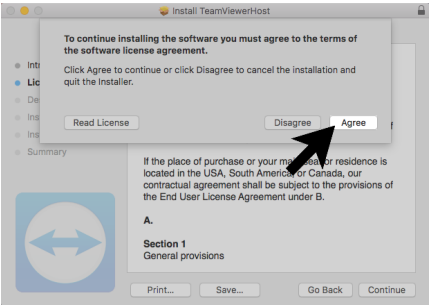
3\. CLICK “AGREE”
[](https://kb.gracechurches.org/uploads/images/gallery/2022-11/image-1668974807557.png)
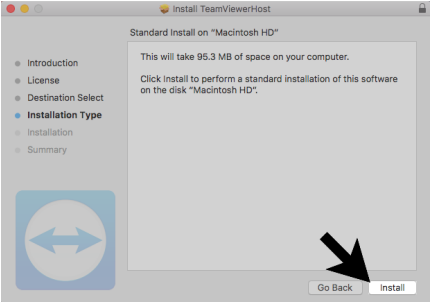
4\. CLICK “INSTALL”
[](https://kb.gracechurches.org/uploads/images/gallery/2022-11/image-1668974821361.png)
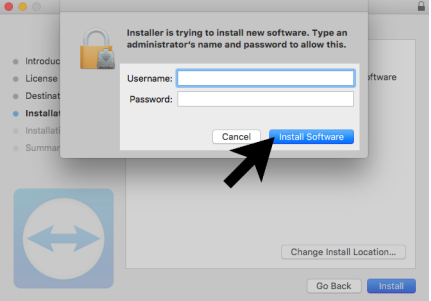
5\. ENTER YOUR USERNAME AND PASSWORD.
CLICK “INSTALL SOFTWARE”
[](https://kb.gracechurches.org/uploads/images/gallery/2022-11/image-1668974848145.png)
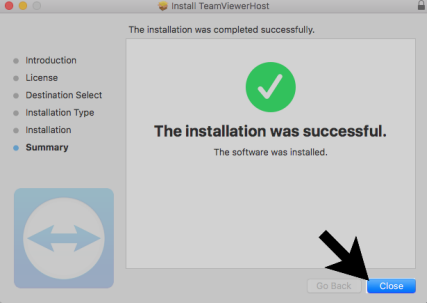
6\. INSTALLATION IS COMPLETE!
[](https://kb.gracechurches.org/uploads/images/gallery/2022-11/image-1668974867912.png)
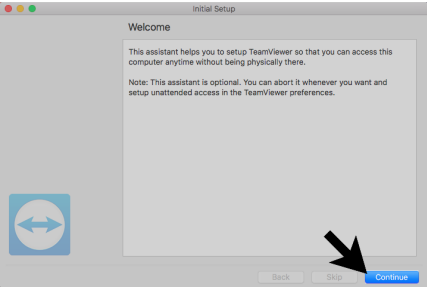
A new window will open to complete the initial setup of TeamViewer.
1\. CLICK “CONTINUE”
[](https://kb.gracechurches.org/uploads/images/gallery/2022-11/image-1668974884589.png)
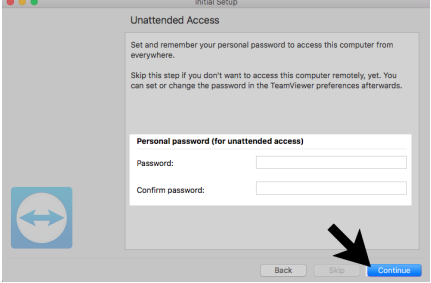
2\. ENTER THE PASSWORD:
GraceChurch1
CLICK “CONTINUE”
[](https://kb.gracechurches.org/uploads/images/gallery/2022-11/image-1668974900407.png)
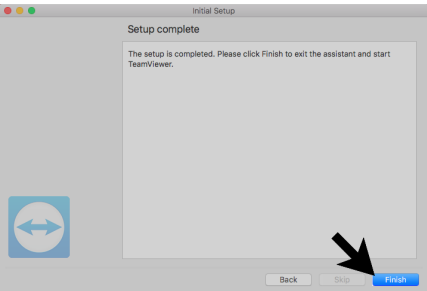
3\. CLICK “FINISH”
[](https://kb.gracechurches.org/uploads/images/gallery/2022-11/image-1668974911829.png)
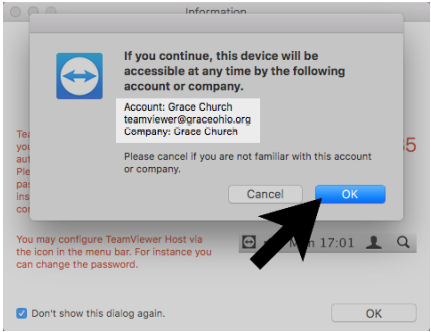
4\. VERIFY THAT THE ACCOUNT
INFO MATCHES THE IMAGE
CLICK “OK”
[](https://kb.gracechurches.org/uploads/images/gallery/2022-11/image-1668974928301.png)
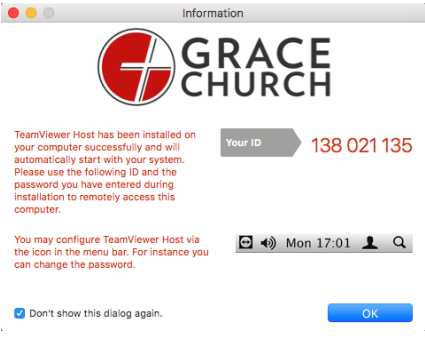
5\. PLEASE CONTACT HELP DESK
WITH THE TeamViewer ID LISTED ON THIS FINAL SCREEN.
VERIFY THE “Don’t show this dialog again.” CHECKBOX IS CHECKED.
CLICK “OK”
[](https://kb.gracechurches.org/uploads/images/gallery/2022-11/image-1668974970990.png)
Contact Help Desk
Once the install and setup are complete please contact the Help Desk by email at
[Requesting IT Help Gra... | Grace Church KB (gracechurches.org)](https://kb.gracechurches.org/books/it-helpdesk/page/requesting-it-help-grace-church-and-ce-national). In the email please provide to the Help Desk the TeamViewer ID.