Your calendar in Teams is connected to your Exchange calendar. In other words, when you schedule a meeting in Outlook, it'll show up in Teams, and vice versa.
Every meeting scheduled in Teams is automatically made into an online meeting. Scheduling from Outlook? [Learn how to add Teams to your Outlook meeting.](https://kb.gracechurches.org/books/applications-98f/page/schedule-a-teams-meeting-from-outlook "Schedule a Teams meeting from Outlook")
There are several ways to schedule a meeting in Teams:
### Schedule a meeting from the Chat
While in a chat with one or more people select **Schedule a meeting**  from the area below the box where you type a new message. This will bring up the new meeting window to book a meeting with the people in the chat. You can also add extra required/Optional attendees.
Fill out the day, time, details, et al as normal.
### Schedule a meeting with a Team
Go to **Calendar**  on the left side of the app and select **New meeting** in the top right corner or select a range of time in the calendar. A scheduling form will pop open.
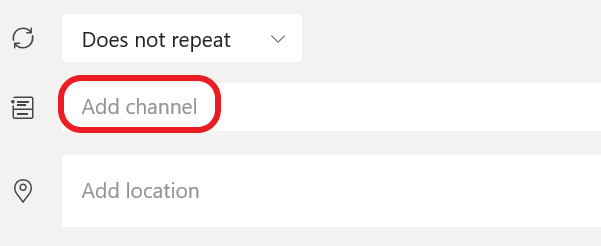
Click in the **Add channel** field, this will give you a list of all the Teams/Channels you are a member of. Choose the Team/Channel you would like to schedule the meeting with.
If you want to invite other people who are not in your Team you can add them in the **Add required/optional attendees** field.
Once you're done filling out the details, select **Save**. This will close the scheduling form and send an invite to everyone's Outlook inbox.
### Invite people outside your organization
Teams lets you invite people outside your organization, including those who don't have a Teams license. You'll need their full email address to invite them.
1. Go to where it says **Add required attendees**. If anyone is an optional attendee, select **Optional** instead.
2. Type the person's full email address (ex: Joe@example.com).
3. Select **Invite**. They'll receive an email with a link to the meeting.
By default, you'll be shown your work week and can be changed from the dropdown menu at the top right of your calendar. Here are your current view options:
- **Day** gives you an agenda view focused on one day at a time.
- **Work week** shows you Monday through Friday.
- **Week** shows you the entire week.
In the top left corner you'll find the month and year. Select the month to change your calendar view to any date— past or future. Select the arrows next to the month to scroll by day or week depending on your calendar view.
Select **Today** to get back to the current date.
**Note:** The calendar shows you everything that was scheduled in Teams, Exchange, or Outlook.
### Right-click for more options
Right-click an event in your calendar to RSVP, remove it if it's canceled, or open the invitation to view the meeting details. If the event is a Teams meeting, you'll also get options to **Join online** and **Chat with participants**.

Teams meetings will show a join button on an event in your calendar five minutes before the start of a meeting. Once someone joins the meeting, the event will change colors to let you know they're online.
Select **Join** to open the meeting settings window to confirm your preferred camera and mic settings before joining the online meeting.
**Note:** If you have overlapping meetings in your calendar, the join button won't be available. But you can still right-click the event and select **Join online**.