# How to Update Zoom

**<span data-contrast="auto">How to update Zoom Desktop for Windows 10 and MacOS</span>**<span data-ccp-props="{"201341983":0,"335559739":160,"335559740":259}"> </span>

- <span data-contrast="auto">Open the Zoom Desktop application.</span><span data-ccp-props="{"201341983":0,"335559739":160,"335559740":259}"> </span>
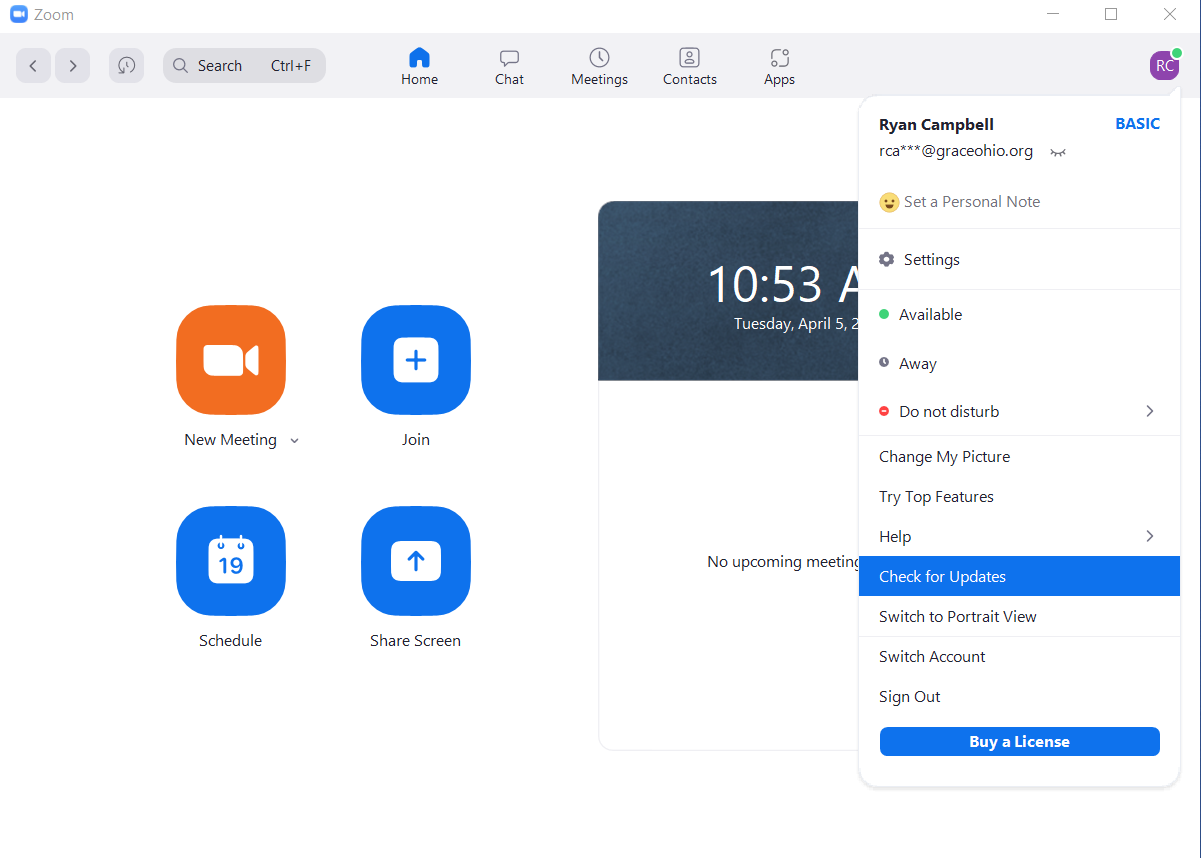
- <span data-contrast="auto">Click on the profile icon on the top right corner of the page.</span><span data-ccp-props="{"201341983":0,"335559739":160,"335559740":259}"> </span>
- <span data-contrast="auto">Click Check for Updates.</span><span data-ccp-props="{"201341983":0,"335559739":160,"335559740":259}"> </span>

<span data-ccp-props="{"201341983":0,"335559739":160,"335559740":259}"> [![Screenshot 2022-04-05 105345.png](https://kb.gracechurches.org/uploads/images/gallery/2022-04/scaled-1680-/screenshot-2022-04-05-105345.png)](https://kb.gracechurches.org/uploads/images/gallery/2022-04/screenshot-2022-04-05-105345.png)</span>

- <span data-contrast="auto">If a new version is available, Zoom will automatically begin to download the update.</span><span data-ccp-props="{"201341983":0,"335551550":1,"335551620":1,"335559685":720,"335559737":0,"335559739":160,"335559740":259,"335559991":360}"> </span>

- <span data-contrast="auto">Once the update has finished, click install. </span>**<span data-contrast="auto">Zoom will reset after this.</span>**<span data-ccp-props="{"201341983":0,"335559739":160,"335559740":360}"> </span>
- <span data-contrast="auto">Once the log in page displays, enter in your login credentials.</span><span data-ccp-props="{"201341983":0,"335559739":160,"335559740":360}"> </span>