# Applications

# Microsoft Teams

# Schedule a meeting in Teams

<div data-bi-area="content" id="bkmrk-your-calendar-in-tea"><article class="ocpArticleContent"><section class="ocpSection">Your calendar in Teams is connected to your Exchange calendar. In other words, when you schedule a meeting in Outlook, it'll show up in Teams, and vice versa.

Every meeting scheduled in Teams is automatically made into an online meeting. Scheduling from Outlook? [Learn how to add Teams to your Outlook meeting.](https://kb.gracechurches.org/books/applications-98f/page/schedule-a-teams-meeting-from-outlook "Schedule a Teams meeting from Outlook")

<div><section class="ocpSection">There are several ways to schedule a meeting in Teams:

### Schedule a meeting from the Chat

While in a chat with one or more people select **Schedule a meeting** ![Schedule a meeting button](https://support.content.office.net/en-us/media/fd1b3652-61b7-4822-b631-cf71577a241a.png) from the area below the box where you type a new message. This will bring up the new meeting window to book a meeting with the people in the chat. You can also add extra required/Optional attendees.

Fill out the day, time, details, et al as normal.

### Schedule a meeting with a Team

Go to **Calendar** ![Meetings button](https://support.content.office.net/en-us/media/f788fe72-7168-45df-98c8-58ceac0a9aac.png) on the left side of the app and select **New meeting** in the top right corner or select a range of time in the calendar. A scheduling form will pop open.

Click in the **Add channel** field, this will give you a list of all the Teams/Channels you are a member of. Choose the Team/Channel you would like to schedule the meeting with.

![Add channel to a Teams meeting.](https://support.content.office.net/en-us/media/bcf6ca65-831b-43b5-b8bb-7d43ece1cff6.png)

If you want to invite other people who are not in your Team you can add them in the **Add required/optional attendees** field.

Once you're done filling out the details, select **Save**. This will close the scheduling form and send an invite to everyone's Outlook inbox.

</section><section class="ocpSection">### Invite people outside your organization 

Teams lets you invite people outside your organization, including those who don't have a Teams license. You'll need their full email address to invite them.

1. Go to where it says **Add required attendees**. If anyone is an optional attendee, select **Optional** instead.
2. Type the person's full email address (ex: Joe@example.com).
3. Select **Invite**. They'll receive an email with a link to the meeting.

</section><section class="ocpSection"><span style="color: #222222; font-size: 2.333em; font-weight: 400;">Change the calendar view</span>

</section><section class="ocpSection">By default, you'll be shown your work week and can be changed from the dropdown menu at the top right of your calendar. Here are your current view options:

- **Day** gives you an agenda view focused on one day at a time.
- **Work week** shows you Monday through Friday.
- **Week** shows you the entire week.

In the top left corner you'll find the month and year. Select the month to change your calendar view to any date— past or future. Select the arrows next to the month to scroll by day or week depending on your calendar view.

Select **Today** to get back to the current date.

**Note:** The calendar shows you everything that was scheduled in Teams, Exchange, or Outlook.

</section><section class="ocpSection">### Right-click for more options

Right-click an event in your calendar to RSVP, remove it if it's canceled, or open the invitation to view the meeting details. If the event is a Teams meeting, you'll also get options to **Join online** and **Chat with participants**.

![Context menu of a calendar event in Teams.](https://support.content.office.net/en-us/media/3af70cc7-2c62-42f0-ad50-0f9aa5978a7f.png)

Teams meetings will show a join button on an event in your calendar five minutes before the start of a meeting. Once someone joins the meeting, the event will change colors to let you know they're online.

Select **Join** to open the meeting settings window to confirm your preferred camera and mic settings before joining the online meeting.

**Note:** If you have overlapping meetings in your calendar, the join button won't be available. But you can still right-click the event and select **Join online**.

</section></div></section></article></div><div id="bkmrk-"></div>

# Schedule a Teams meeting from Outlook

**Note:** Currently, you can schedule Teams meetings from Outlook, but not choose a channel to have them in.

#### Desktop Outlook

Microsoft Teams includes the Outlook add-in, which lets you create new Teams meetings directly from Outlook. It also lets people view, accept, or join meetings in either app.

To schedule a meeting, open Outlook and switch to the calendar view. Click **New Teams Meeting** at the top of the view.

![New Teams Meeting button in Outlook](https://support.content.office.net/en-us/media/09255471-b811-4396-a7cb-11e6cefb030f.png)

In the **To** field add your invitees - here you can add search for and add your Team you can also add other teams, groups, or individuals. Add your meeting subject, location, start time, and end time. Then click **Send**.

You can also invite people from outside your organization from Outlook. Just be sure to [add them as guests](https://support.office.com/en-us/article/add-guests-to-a-team-in-teams-fccb4fa6-f864-4508-bdde-256e7384a14f) before the meeting starts or they will have to join anonymously.

#### Web Outlook

To schedule a meeting, open [https://outlook.office.com/](https://outlook.office.com/) and switch to the calendar view. Click **New Event** at the top of the view.

From the **Add online meeting** dropdown choose **Teams meeting**

![](https://kb.gracechurches.org/uploads/images/gallery/2020-03/scaled-1680-/image-1584977643433.png)

In the **To** field add your invitees - here you can add search for and add your Team you can also add other teams, groups, or individuals. Add your meeting subject, location, start time, and end time. Then click **Send**.

You can also invite people from outside your organization from Outlook. Just be sure to [add them as guests](https://support.office.com/en-us/article/add-guests-to-a-team-in-teams-fccb4fa6-f864-4508-bdde-256e7384a14f) before the meeting starts or they will have to join anonymously.

#### iOS/Android Outlook App

1. In Outlook, tap on the calendar icon in the bottom right of the app, then tap ![Add button](https://support.content.office.net/en-us/media/8410fdac-0d94-46b0-84cb-a944c53e455e.png) .
2. Scroll down to **Teams Meeting** and turn the toggle switch on.
3. Fill out your meeting details, and then tap the check mark in the top right of the app.

In the **To** field add your invitees - here you can add search for and add your Team you can also add other teams, groups, or individuals. Add your meeting subject, location, start time, and end time. Then click **Send**.

You can also invite people from outside your organization from Outlook. Just be sure to [add them as guests](https://support.office.com/en-us/article/add-guests-to-a-team-in-teams-fccb4fa6-f864-4508-bdde-256e7384a14f) before the meeting starts or they will have to join anonymously.

# Creating Teams

Microsoft Teams is the hub for teamwork. It allows for collaboration, chat, calls, meetings, and so much more. SharePoint is primarily a file management and intranet platform where you store, collaborate, and share information seamlessly across the organization, and is also part of Microsoft 365.

  
When you create a team (or a Microsoft 365 group), it automatically comes with a SharePoint site for storing team files. You can customize the site to add lists, images, and other info to help the team work together. You can access and share team files and open the team’s SharePoint site right from Teams.

  
Watch this video to learn more  
**Video: [When to use Teams and SharePoint](https://www.microsoft.com/en-US/videoplayer/embed/RW10GYm?pid=RW10GYm-player-container-oneplayer&amp;postJsllMsg=true&amp;autoplay=true&amp;autoCaptions=en-us&amp;mute=false&amp;loop=false&amp;market=en-US&amp;playFullScreen=false)**

# Zoom

# Zoom - Claiming the Host Role

## Claiming host using the desktop client

Follow these steps if you need to claim the host role when you join a meeting and [join before host](https://support.zoom.us/hc/en-us/articles/202828525) is enabled.

1. Join the meeting.
2. Click **Participants.  
    ![](https://assets.zoom.us/images/en-us/desktop/generic/in-meeting/meeting-controls-participant.png)**
3. Click **Claim Host** at the bottom of the participants list.  
    ![](https://assets.zoom.us/images/en-us/desktop/generic/in-meeting/participants-list-as-participant.png)
4. Enter your host key.
5. Click **Claim Host.** Once the host key is verified, you will have host controls in the meeting.

# Creating Zoom meetings & add appointments in Outlook - Instructions

Here is the link for how to make Zoom meetings and organize them in our Outlook Environment:

ZoomInstructions - Copy.docx  
[ZoomInstructions - Copy.docx (sharepoint.com)](https://gracechurchohio.sharepoint.com/:w:/r/sites/30-in-30Files/_layouts/15/Doc.aspx?sourcedoc=%7B37100E1E-7BC6-491E-A0B1-475EE6E0BD20%7D&file=ZoomInstructions%20-%20Copy.docx&action=default&mobileredirect=true)

# How to Update Zoom

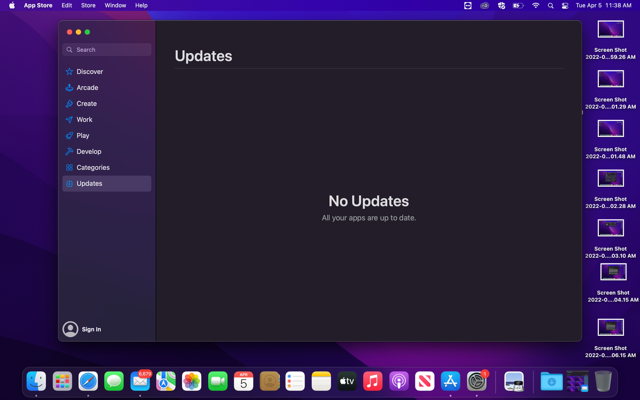
**<span data-contrast="auto">How to update Zoom Desktop for Windows 10 and MacOS</span>**<span data-ccp-props="{"201341983":0,"335559739":160,"335559740":259}"> </span>

- <span data-contrast="auto">Open the Zoom Desktop application.</span><span data-ccp-props="{"201341983":0,"335559739":160,"335559740":259}"> </span>
- <span data-contrast="auto">Click on the profile icon on the top right corner of the page.</span><span data-ccp-props="{"201341983":0,"335559739":160,"335559740":259}"> </span>
- <span data-contrast="auto">Click Check for Updates.</span><span data-ccp-props="{"201341983":0,"335559739":160,"335559740":259}"> </span>

<span data-ccp-props="{"201341983":0,"335559739":160,"335559740":259}"> [![Screenshot 2022-04-05 105345.png](https://kb.gracechurches.org/uploads/images/gallery/2022-04/scaled-1680-/screenshot-2022-04-05-105345.png)](https://kb.gracechurches.org/uploads/images/gallery/2022-04/screenshot-2022-04-05-105345.png)</span>

- <span data-contrast="auto">If a new version is available, Zoom will automatically begin to download the update.</span><span data-ccp-props="{"201341983":0,"335551550":1,"335551620":1,"335559685":720,"335559737":0,"335559739":160,"335559740":259,"335559991":360}"> </span>

- <span data-contrast="auto">Once the update has finished, click install. </span>**<span data-contrast="auto">Zoom will reset after this.</span>**<span data-ccp-props="{"201341983":0,"335559739":160,"335559740":360}"> </span>
- <span data-contrast="auto">Once the log in page displays, enter in your login credentials.</span><span data-ccp-props="{"201341983":0,"335559739":160,"335559740":360}"> </span>

# Grab Zoom Account MFA Code - From Zoom Mailbox

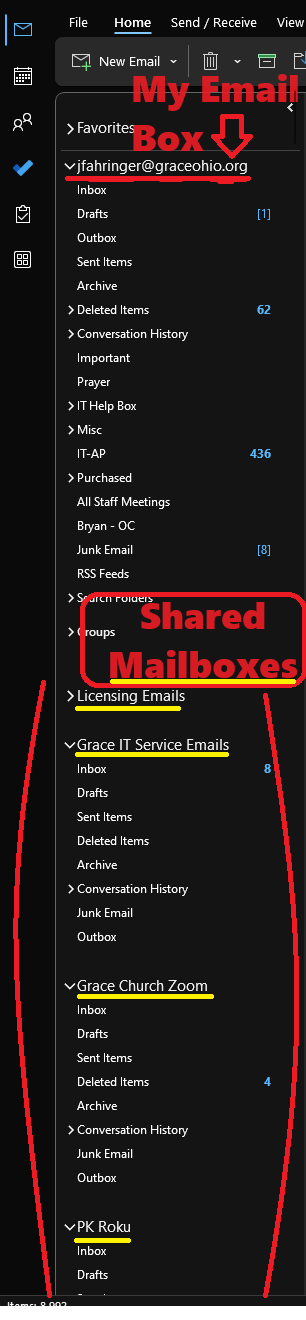
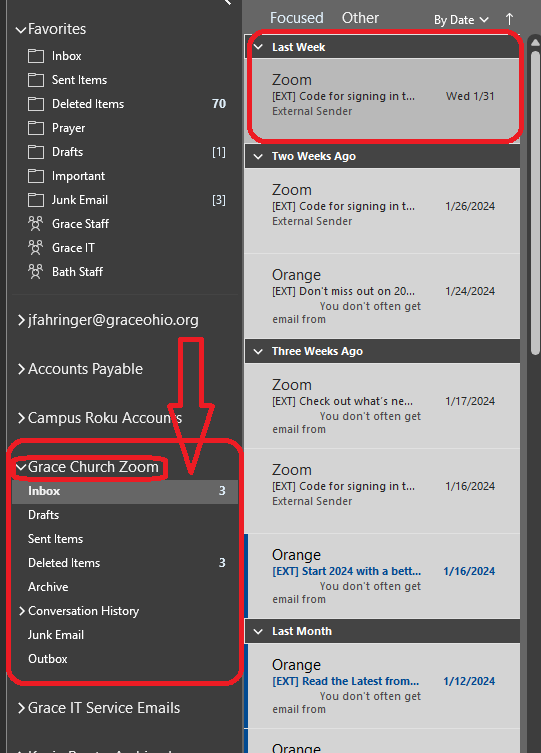
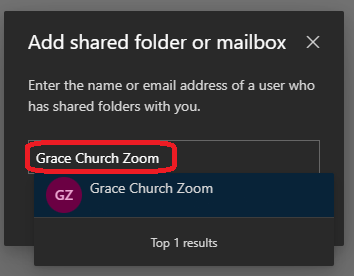
Because our Church uses Zoom accounts sort of in an unintended way, **Zoom will frequently require MFA sign-ins with our licensed Campus Zoom accounts.** This is because more than one person will often login from <span style="text-decoration: underline;">different</span> locations when they are trying to setup Zoom meetings. These Zoom accounts are managed by Grace IT, and all the MFA codes are sent over email to a Shared Mailbox: **Grace Church Zoom**. All of Grace Staff can request access to this mailbox (we do need to add you manually to it), so that you can grab the MFA code if you need it.

#### **MFA Code Expiration**

<p class="callout info">Be aware that when a MFA code is generated, <span style="text-decoration: underline;">the code is only valid for 10 minutes</span>. Be sure to have your Outlook client ready so that you can find the code to complete sign in to a Zoom account. </p>

### **Windows Outlook Application**

By default, the Grace Church Zoom Mailbox shows up as an additional mailbox under your GraceOhio mailbox. For example:

[![image.png](https://kb.gracechurches.org/uploads/images/gallery/2024-02/scaled-1680-/Zpbimage.png)](https://kb.gracechurches.org/uploads/images/gallery/2024-02/Zpbimage.png)
### **Web Outlook / macOS**

On the Web Outlook [Mail - Outlook (office.com)](https://outlook.office.com/mail/), or on the macOS client, any Shared Mailbox you want to view you will have to add yourself. Please follow this guide for instructions on how to [Add Shared Mailbox to ... | Grace Church KB (gracechurches.org)](https://kb.gracechurches.org/books/applications-98f/page/add-shared-mailbox-to-your-outlook).

[![image.png](https://kb.gracechurches.org/uploads/images/gallery/2024-02/scaled-1680-/EVgimage.png)](https://kb.gracechurches.org/uploads/images/gallery/2024-02/EVgimage.png)
# Printing / Copier

# Copier-Printer Service and Support Information - All Campuses

#### <span style="text-decoration: underline;">**Supplies and Service**</span>

Supplies - All Campuses 800-443-4583 https://lakebusinessproducts.com/order-supplies Lake Business Products  
Service - All Campuses except TCC 440-953-9758 https://lakebusinessproducts.com/request-service Lake Business Products  
Service - Town Center Campus 800-347-1955 https://customers.rjyoung.com/Gateway/Login?ReturnUrl=%2f RJ Young

#### <span style="text-decoration: underline;">**Printer Information**</span>

<table id="bkmrk-campus-location-mode" style="height: 850.078px; width: 803px;" width="1048"><tbody><tr style="height: 63.3906px;"><td style="width: 84.1858px; height: 63.3906px;" width="91">Campus</td><td style="width: 91.1858px; height: 63.3906px;" width="121">Location</td><td style="width: 96.1858px; height: 63.3906px;" width="127">Model</td><td style="width: 93.1858px; height: 63.3906px;" width="79">Serial #</td><td style="width: 69.1858px; height: 63.3906px;" width="65">Identifier</td><td style="width: 65.1858px; height: 63.3906px;" width="64">Toner  
Cartridge  
Model</td><td style="width: 113.186px; height: 63.3906px;" width="198">Unit Location</td><td style="width: 103.233px; height: 63.3906px;" width="195">Toner Ship to</td><td style="width: 96.1858px; height: 63.3906px;" width="77">IP Address</td></tr><tr style="height: 46.5938px;"><td style="width: 84.1858px; height: 46.5938px;">Akron East</td><td style="width: 91.1858px; height: 46.5938px;">Office</td><td style="width: 96.1858px; height: 46.5938px;"> Canon DX C3826i </td><td style="width: 93.1858px; height: 46.5938px;">3GA10014</td><td style="width: 69.1858px; height: 46.5938px;">A11490</td><td style="width: 65.1858px; height: 46.5938px;">GPR-53</td><td style="width: 113.186px; height: 46.5938px;" width="198">2330 E. Market St.  
Akron, OH 44312</td><td style="width: 103.233px; height: 46.5938px;" width="195">2330 E. Market St.  
Akron, OH 44312</td><td style="width: 96.1858px; height: 46.5938px;">10.11.10.40</td></tr><tr style="height: 63.3906px;"><td style="width: 84.1858px; height: 63.3906px;">Akron East</td><td style="width: 91.1858px; height: 63.3906px;">Church</td><td style="width: 96.1858px; height: 63.3906px;"> Canon iR-ADV C255 /P </td><td style="width: 93.1858px; height: 63.3906px;">WKN05144</td><td style="width: 69.1858px; height: 63.3906px;">A10849</td><td style="width: 65.1858px; height: 63.3906px;">GPR-51</td><td style="width: 113.186px; height: 63.3906px;" width="198">737 George Washington Blvd  
Akron, OH 44312</td><td style="width: 103.233px; height: 63.3906px;" width="195">2330 E. Market St.  
Akron, OH 44312</td><td style="width: 96.1858px; height: 63.3906px;">10.7.10.40</td></tr><tr style="height: 46.5938px;"><td style="width: 84.1858px; height: 46.5938px;">Barberton</td><td style="width: 91.1858px; height: 46.5938px;">Office</td><td style="width: 96.1858px; height: 46.5938px;"> Canon DX C3826i </td><td style="width: 93.1858px; height: 46.5938px;">3GA10011</td><td style="width: 69.1858px; height: 46.5938px;">A11495</td><td style="width: 65.1858px; height: 46.5938px;">GPR-53</td><td style="width: 113.186px; height: 46.5938px;" width="198">629 Wesleyan Ave  
Barberton, OH 44203</td><td style="width: 103.233px; height: 46.5938px;" width="195">629 Wesleyan Ave  
Barberton, OH 44203</td><td style="width: 96.1858px; height: 46.5938px;">10.6.10.40</td></tr><tr style="height: 46.5938px;"><td style="width: 84.1858px; height: 46.5938px;">Bath</td><td style="width: 91.1858px; height: 46.5938px;">Ghent</td><td style="width: 96.1858px; height: 46.5938px;"> Canon DX C5840i </td><td style="width: 93.1858px; height: 46.5938px;">2YJ15395</td><td style="width: 69.1858px; height: 46.5938px;">A11492</td><td style="width: 65.1858px; height: 46.5938px;">GPR-61</td><td style="width: 113.186px; height: 46.5938px;" width="198">754 Ghent Rd.  
Akron, OH 44333</td><td style="width: 103.233px; height: 46.5938px;" width="195">211 N. Cleveland Massillon Rd.  
Akron, OH 44333</td><td style="width: 96.1858px; height: 46.5938px;">10.2.10.43</td></tr><tr style="height: 63.3906px;"><td style="width: 84.1858px; height: 63.3906px;">Bath</td><td style="width: 91.1858px; height: 63.3906px;">Montrose</td><td style="width: 96.1858px; height: 63.3906px;"> Canon DX C3826i </td><td style="width: 93.1858px; height: 63.3906px;">3GA08600</td><td style="width: 69.1858px; height: 63.3906px;">A11489</td><td style="width: 65.1858px; height: 63.3906px;">GPR-53</td><td style="width: 113.186px; height: 63.3906px;" width="198">565 S. Cleveland Massillon Rd.  
Akron, OH 44333</td><td style="width: 103.233px; height: 63.3906px;" width="195">211 N. Cleveland Massillon Rd.  
Akron, OH 44333</td><td style="width: 96.1858px; height: 63.3906px;">10.2.10.44</td></tr><tr style="height: 63.3906px;"><td style="width: 84.1858px; height: 63.3906px;">Bath</td><td style="width: 91.1858px; height: 63.3906px;">Annex</td><td style="width: 96.1858px; height: 63.3906px;"> Canon DX C257iF </td><td style="width: 93.1858px; height: 63.3906px;">4QS01001</td><td style="width: 69.1858px; height: 63.3906px;">A11484</td><td style="width: 65.1858px; height: 63.3906px;">GPR-58</td><td style="width: 113.186px; height: 63.3906px;" width="198">211 N. Cleveland Massillon Rd.  
Akron, OH 44333</td><td style="width: 103.233px; height: 63.3906px;" width="195">211 N. Cleveland Massillon Rd.  
Akron, OH 44333</td><td style="width: 96.1858px; height: 63.3906px;">10.2.10.42</td></tr><tr style="height: 63.3906px;"><td style="width: 84.1858px; height: 63.3906px;">Bath</td><td style="width: 91.1858px; height: 63.3906px;">Office - Downstairs</td><td style="width: 96.1858px; height: 63.3906px;"> Canon DX C5860i </td><td style="width: 93.1858px; height: 63.3906px;">2XK05290</td><td style="width: 69.1858px; height: 63.3906px;">A11372</td><td style="width: 65.1858px; height: 63.3906px;">GPR-61</td><td style="width: 113.186px; height: 63.3906px;" width="198">211 N. Cleveland Massillon Rd.  
Akron, OH 44333</td><td style="width: 103.233px; height: 63.3906px;" width="195">211 N. Cleveland Massillon Rd.  
Akron, OH 44333</td><td style="width: 96.1858px; height: 63.3906px;">10.2.10.41</td></tr><tr style="height: 63.3906px;"><td style="width: 84.1858px; height: 63.3906px;">Bath</td><td style="width: 91.1858px; height: 63.3906px;">Office - Upstairs</td><td style="width: 96.1858px; height: 63.3906px;"> Canon DX C3826i </td><td style="width: 93.1858px; height: 63.3906px;">3GA10176</td><td style="width: 69.1858px; height: 63.3906px;">A11487</td><td style="width: 65.1858px; height: 63.3906px;">GPR-53</td><td style="width: 113.186px; height: 63.3906px;" width="198">211 N. Cleveland Massillon Rd.  
Akron, OH 44333</td><td style="width: 103.233px; height: 63.3906px;" width="195">211 N. Cleveland Massillon Rd.  
Akron, OH 44333</td><td style="width: 96.1858px; height: 63.3906px;">10.2.10.40</td></tr><tr style="height: 46.5938px;"><td style="width: 84.1858px; height: 46.5938px;">County Line</td><td style="width: 91.1858px; height: 46.5938px;">Office</td><td style="width: 96.1858px; height: 46.5938px;">Canon DX C3530i</td><td style="width: 93.1858px; height: 46.5938px;">WSB00735</td><td style="width: 69.1858px; height: 46.5938px;">A11553</td><td style="width: 65.1858px; height: 46.5938px;">GPR-53</td><td style="width: 113.186px; height: 46.5938px;" width="198">14960 Seville Rd,   
Sterling, OH 44276</td><td style="width: 103.233px; height: 46.5938px;" width="195">14960 Seville Rd,   
Sterling, OH 44276</td><td style="width: 96.1858px; height: 46.5938px;">10.9.10.40</td></tr><tr style="height: 46.5938px;"><td style="width: 84.1858px; height: 46.5938px;">Medina East</td><td style="width: 91.1858px; height: 46.5938px;">Green Room</td><td style="width: 96.1858px; height: 46.5938px;"> Canon DX C5860i </td><td style="width: 93.1858px; height: 46.5938px;">2XK06327</td><td style="width: 69.1858px; height: 46.5938px;">A11498</td><td style="width: 65.1858px; height: 46.5938px;">GPR-61</td><td style="width: 113.186px; height: 46.5938px;" width="198">2325 Medina Road  
Medina, OH 44256</td><td style="width: 103.233px; height: 46.5938px;" width="195">2325 Medina Road  
Medina, OH 44256</td><td style="width: 96.1858px; height: 46.5938px;">10.4.10.40</td></tr><tr style="height: 63.3906px;"><td style="width: 84.1858px; height: 63.3906px;">Norton</td><td style="width: 91.1858px; height: 63.3906px;">Office</td><td style="width: 96.1858px; height: 63.3906px;"> Canon DX C5860i </td><td style="width: 93.1858px; height: 63.3906px;">2XK05882</td><td style="width: 69.1858px; height: 63.3906px;">A11499</td><td style="width: 65.1858px; height: 63.3906px;">GPR-61</td><td style="width: 113.186px; height: 63.3906px;" width="198">3970 Cleveland Massillon Rd.  
Norton, OH 44203</td><td style="width: 103.233px; height: 63.3906px;" width="195">3970 Cleveland Massillon Rd.  
Norton, OH 44203</td><td style="width: 96.1858px; height: 63.3906px;">10.1.10.40</td></tr><tr style="height: 63.3906px;"><td style="width: 84.1858px; height: 63.3906px;">Norton</td><td style="width: 91.1858px; height: 63.3906px;">Power Kids</td><td style="width: 96.1858px; height: 63.3906px;"> Canon DX C3826i </td><td style="width: 93.1858px; height: 63.3906px;">3GA09814</td><td style="width: 69.1858px; height: 63.3906px;">A11488</td><td style="width: 65.1858px; height: 63.3906px;">GPR-53</td><td style="width: 113.186px; height: 63.3906px;" width="198">3970 Cleveland Massillon Rd.  
Norton, OH 44203</td><td style="width: 103.233px; height: 63.3906px;" width="195">3970 Cleveland Massillon Rd.  
Norton, OH 44203</td><td style="width: 96.1858px; height: 63.3906px;">10.1.10.42</td></tr><tr style="height: 63.3906px;"><td style="width: 84.1858px; height: 63.3906px;">Norton</td><td style="width: 91.1858px; height: 63.3906px;">Reception</td><td style="width: 96.1858px; height: 63.3906px;"> Canon DX C257iF </td><td style="width: 93.1858px; height: 63.3906px;">4QS01143</td><td style="width: 69.1858px; height: 63.3906px;">A11485</td><td style="width: 65.1858px; height: 63.3906px;">GPR-58</td><td style="width: 113.186px; height: 63.3906px;" width="198">3970 Cleveland Massillon Rd.  
Norton, OH 44203</td><td style="width: 103.233px; height: 63.3906px;" width="195">3970 Cleveland Massillon Rd.  
Norton, OH 44203</td><td style="width: 96.1858px; height: 63.3906px;">10.1.10.41</td></tr><tr style="height: 46.5938px;"><td style="width: 84.1858px; height: 46.5938px;">Town Center</td><td style="width: 91.1858px; height: 46.5938px;">Office</td><td style="width: 96.1858px; height: 46.5938px;">Canon iR-ADV C3530 /P</td><td style="width: 93.1858px; height: 46.5938px;">WSB01406</td><td style="width: 69.1858px; height: 46.5938px;">A11555</td><td style="width: 65.1858px; height: 46.5938px;">GPR-53</td><td style="width: 113.186px; height: 46.5938px;" width="198">3005 Ring Rd   
Kennesaw, GA 30144</td><td style="width: 103.233px; height: 46.5938px;" width="195">3005 Ring Rd   
Kennesaw, GA 30144</td><td style="width: 96.1858px; height: 46.5938px;">10.8.10.40</td></tr></tbody></table>

#### **Finishing Capabilities**  


- [**Canon DX C3826i**](https://oip.manual.canon/USRMA-6098-zz-CS-3800-enUS/)[<sup class="citation-sup">1</sup>](https://oip.manual.canon/USRMA-6098-zz-CS-3800-enUS/)[<sup class="citation-sup">2</sup>](https://oip.manual.canon/USRMA-6097-zz-CS-3800-enGB/contents/devu-mainte-prt_finish_quality.html)[<sup class="citation-sup">3</sup>](https://www.usa.canon.com/bin/canon/downloadasset?path=/content/dam/canon-assets/brochures/business/copiers-and-mfp/imagerunner-advance-dx/Enterprise_iR-ADV-DX-3800-Series_Brochure.pdf)[<sup class="citation-sup">4</sup>](https://www.canon-europe.com/business/products/office-printers/multifunction/colour/imagerunner-advance-dx-c3800-series/specifications/)[<sup class="citation-sup">5</sup>](https://oip.manual.canon/USRMA-0403-zz-DR-enGB/contents/dwu-finish-method.html):
    
    
    - Collate
    - Group
    - Offset
    - Staple
    - Saddle-Stitch
    - Hole Punch
    - Eco Staple
    - Staple On Demand
- [**Canon iR-ADV C255/p**](https://oip.manual.canon/USRMA-0403-zz-DR-enGB/contents/dwu-finish-method.html)[<sup class="citation-sup">5</sup>](https://oip.manual.canon/USRMA-0403-zz-DR-enGB/contents/dwu-finish-method.html)[<sup class="citation-sup">6</sup>](https://en.canon-me.com/business/products/office-printers/multifunction/colour/imagerunner-advance-c255-c355-series/specifications/):
    
    
    - Collate
    - Group
    - Offset
    - Staple
- [**Canon DXC3826i**](https://oip.manual.canon/USRMA-6098-zz-CS-3800-enUS/)[<sup class="citation-sup">3</sup>](https://www.usa.canon.com/bin/canon/downloadasset?path=/content/dam/canon-assets/brochures/business/copiers-and-mfp/imagerunner-advance-dx/Enterprise_iR-ADV-DX-3800-Series_Brochure.pdf)[<sup class="citation-sup">5</sup>](https://oip.manual.canon/USRMA-0403-zz-DR-enGB/contents/dwu-finish-method.html)[<sup class="citation-sup">7</sup>](https://www.manua.ls/canon/imagerunner-advance-dx-c3826i/manual):
    
    
    - Collate
    - Group
    - Offset
    - Staple
    - Saddle-Stitch
    - Hole Punch
    - Eco Staple
    - Staple On Demand
- [**Canon DX C5840i**](https://oip.manual.canon/USRMA-6098-zz-CS-3800-enUS/)[<sup class="citation-sup">5</sup>](https://oip.manual.canon/USRMA-0403-zz-DR-enGB/contents/dwu-finish-method.html)[<sup class="citation-sup">8</sup>](https://www.canon.co.uk/business/products/office-printers/multifunction/colour/imagerunner-advance-dx-c5800-series/specifications/)[<sup class="citation-sup">9</sup>](https://oip.manual.canon/USRMA-5488-zz-CS-5800-enUS/contents/devu-copy-crea_mng-stap.html)[<sup class="citation-sup">10</sup>](https://oip.manual.canon/USRMA-5488-zz-CS-5800-enUS/contents/devu-copy-crea_mng-other.html)[<sup class="citation-sup">11</sup>](https://oip.manual.canon/USRMA-5488-zz-CS-5800-enUS/contents/devu-mainte-prt_finish_quality.html):
    
    
    - Collate
    - Group
    - Offset
    - Staple
    - Saddle Stitch
    - Hole Punch
    - Eco Staple
    - Staple On Demand
    - V-fold
    - C-fold
    - Z-fold
- [**Canon DX C257iF**](https://oip.manual.canon/USRMA-6098-zz-CS-3800-enUS/)[<sup class="citation-sup">5</sup>](https://oip.manual.canon/USRMA-0403-zz-DR-enGB/contents/dwu-finish-method.html)[<sup class="citation-sup">12</sup>](https://oip.manual.canon/USRMA-4831-zz-CS-357-enUS/)[<sup class="citation-sup">13</sup>](https://www.canon-europe.com/business/products/office-printers/multifunction/colour/imagerunner-advance-dx-c257-c357-series/specifications/)[<sup class="citation-sup">14</sup>](https://copiersonsale.com/wp-content/uploads/brochures/Canon-imageRUNNER-ADVANCE-DX-C257iF-Brochure.pdf)[<sup class="citation-sup">15</sup>](https://oip.manual.canon/USRMA-0944-zz-CS-5500-enUS/contents/devu-copy-crea_mng-stap.html):
    
    
    - Collate
    - Group
    - Offset
    - Staple
- [**Canon DX C5860i**](https://oip.manual.canon/USRMA-6098-zz-CS-3800-enUS/)[<sup class="citation-sup">5</sup>](https://oip.manual.canon/USRMA-0403-zz-DR-enGB/contents/dwu-finish-method.html)[<sup class="citation-sup">8</sup>](https://www.canon.co.uk/business/products/office-printers/multifunction/colour/imagerunner-advance-dx-c5800-series/specifications/)[<sup class="citation-sup">9</sup>](https://oip.manual.canon/USRMA-5488-zz-CS-5800-enUS/contents/devu-copy-crea_mng-stap.html)[<sup class="citation-sup">10</sup>](https://oip.manual.canon/USRMA-5488-zz-CS-5800-enUS/contents/devu-copy-crea_mng-other.html)[<sup class="citation-sup">11</sup>](https://oip.manual.canon/USRMA-5488-zz-CS-5800-enUS/contents/devu-mainte-prt_finish_quality.html):
    
    
    - Collate
    - Group
    - Offset
    - Staple
    - Saddle Stitch
    - Hole Punch
    - Eco Staple
    - Staple On Demand
    - V-fold
    - C-fold
    - Z-fold
- [**Canon iR-ADV C3530/P**](https://oip.manual.canon/USRMA-0403-zz-DR-enGB/contents/dwu-finish-method.html)[<sup class="citation-sup">5</sup>](https://oip.manual.canon/USRMA-0403-zz-DR-enGB/contents/dwu-finish-method.html)[<sup class="citation-sup">16</sup>](https://www.youtube.com/watch?v=trNuS_2DuzE)[<sup class="citation-sup">17</sup>](https://oip.manual.canon/USRMA-4438-zz-CS-3500-enUV/contents/devu-copy-crea_mng-stap.html)[<sup class="citation-sup">18</sup>](https://www.canon-europe.com/business/products/office-printers/multifunction/colour/imagerunner-advance-c3530i-es/specifications/)[<sup class="citation-sup">19</sup>](https://www.canon-europe.com/business/products/office-printers/multifunction/colour/imagerunner-advance-c3530i-es/):
    
    
    - Collate
    - Group
    - Offset
    - Staple

# Uniflow Cloud Printing Software

<span style="background-color: #e03e2d;">[![image-1675090968168.png](https://kb.gracechurches.org/uploads/images/gallery/2023-01/scaled-1680-/image-1675090968168.png)](https://gracechurch.us.uniflowonline.com/)</span>

The Canon Printers we have received from Lake Business Products (LDP) don't use local printer drivers like we have used with the Konica Minolta printers in the past. In order to use these printers on staff, <span style="text-decoration: underline;">**you will need to use**</span> either the Uniflow SmartClient software or use Uniflow Online in the web browser. This lets you send print jobs through the new cloud queue, which will let you manage several print jobs at once—either at the printer itself or through Uniflow Online.

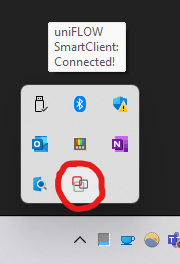
<p class="callout warning">When going to make print jobs, you will need to make sure that the Uniflow SmartClient is running in the background on your computer. Nothing will happen if the software is not running on your computer, and you try to print something. The software is automatically deployed to all licensed staff computers. It will look something like this in your system tray or your menu bar when it is running:</p>

[![image-1675090093623.png](https://kb.gracechurches.org/uploads/images/gallery/2023-01/scaled-1680-/image-1675090093623.png)](https://kb.gracechurches.org/uploads/images/gallery/2023-01/image-1675090093623.png)[![image-1675197066020.png](https://kb.gracechurches.org/uploads/images/gallery/2023-01/scaled-1680-/image-1675197066020.png)](https://kb.gracechurches.org/uploads/images/gallery/2023-01/image-1675197066020.png)
<p class="callout warning">If you are using the Direct Printer option from the SmartClient, please also make sure that you are on the "Grace Staff" Network, and not the public Grace Church Network when making prints. If you were assigned a laptop, it was automatically assigned to the Staff network when it was given to you. </p>

#### **Get Started**

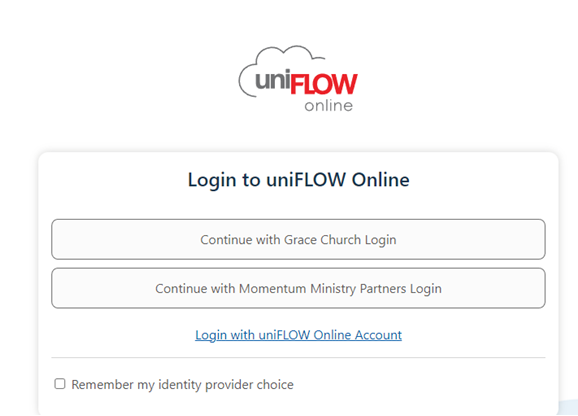
You can initialize your Uniflow account by going to [https://gracechurch.us.uniflowonline.com/](https://nam10.safelinks.protection.outlook.com/?url=https%3A%2F%2Fgracechurch.us.uniflowonline.com%2F&data=05%7C01%7Cjfahringer%40graceohio.org%7C8425928262d949bd1b0308dad474e375%7Cf80469b65a81464fa6f14ad8e4ac448a%7C0%7C0%7C638055895772201929%7CUnknown%7CTWFpbGZsb3d8eyJWIjoiMC4wLjAwMDAiLCJQIjoiV2luMzIiLCJBTiI6Ik1haWwiLCJXVCI6Mn0%3D%7C3000%7C%7C%7C&sdata=tj69sbpaT6hPQBDEeeQQyfYLDqj9dzRDh2mqgu%2BPSxY%3D&reserved=0). You will need to do this before you can start printing or scanning. When you login you will be taken to the UniflowOnline Dashboard. Your account will be initialized with Single Sign On (SSO), or in other words it will be attached to your Office365 account (GraceOhio / BuildMomentum). If you are on Grace Church staff, click on the "Continue with Grace Church Login" button. If you are on the Momentum Staff located at the Bath Offices, click on the "Continue with Momentum Ministry Partners Login" button.  
[![image-1675091834891.png](https://kb.gracechurches.org/uploads/images/gallery/2023-01/scaled-1680-/image-1675091834891.png)](https://gracechurch.us.uniflowonline.com/)
You will receive a four digit PIN which you will need in order to access the printers for Secure Prints, or for copy and scanning functionality. You can find it anytime in the UniflowOnline Dashboard under your account identities info.

[![image-1675092694777.png](https://kb.gracechurches.org/uploads/images/gallery/2023-01/scaled-1680-/image-1675092694777.png)](https://gracechurch.us.uniflowonline.com/#Dashboard/)

### **Printing**

##### **Setup the SmartClient on your Computer**  


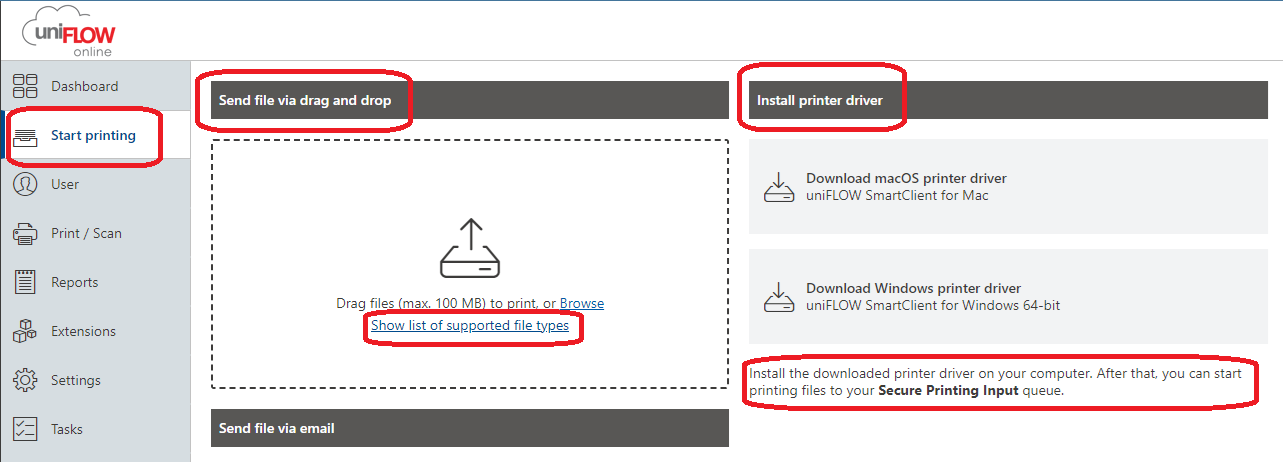
If you don't happen to have the SmartClient installed, or if it is not running correctly and you need to reinstall it, you can download Windows or macOS drivers anytime from the "Start Printing" option in the left pane. You can also get started with your print jobs right away using the drag and drop option on the Uniflow Online web interface shown in this location.

[![image-1675094109282.png](https://kb.gracechurches.org/uploads/images/gallery/2023-01/scaled-1680-/image-1675094109282.png)](https://gracechurch.us.uniflowonline.com/#StartPrinting/)
<p class="callout info">Note: when downloading the Windows printer driver, it might ask you a few times for you to keep/run or mark the application as safe. Allow each time the prompt is brought up.</p>

The first time you are running the Smart Client on your computer, *you will* *need to initialize it* before you can start sending print jobs to the Cloud queue or make direct print jobs. If it needs initialized, it may pop up as a separate window whenever you start your computer and look like this:

[![image-1675095036607.png](https://kb.gracechurches.org/uploads/images/gallery/2023-01/scaled-1680-/image-1675095036607.png)](https://kb.gracechurches.org/uploads/images/gallery/2023-01/image-1675095036607.png)
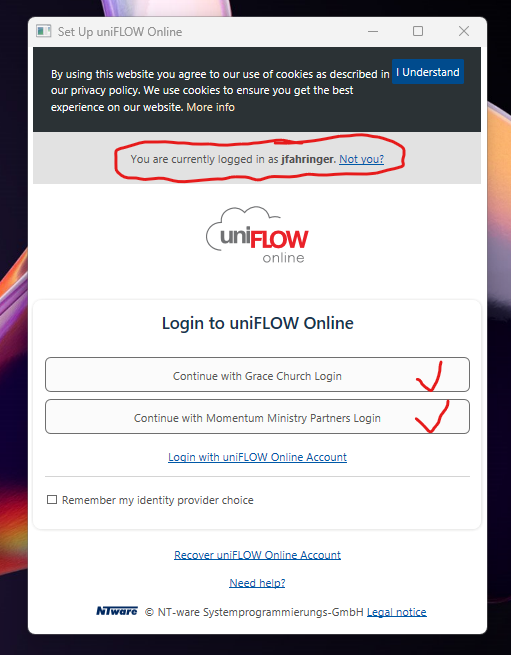
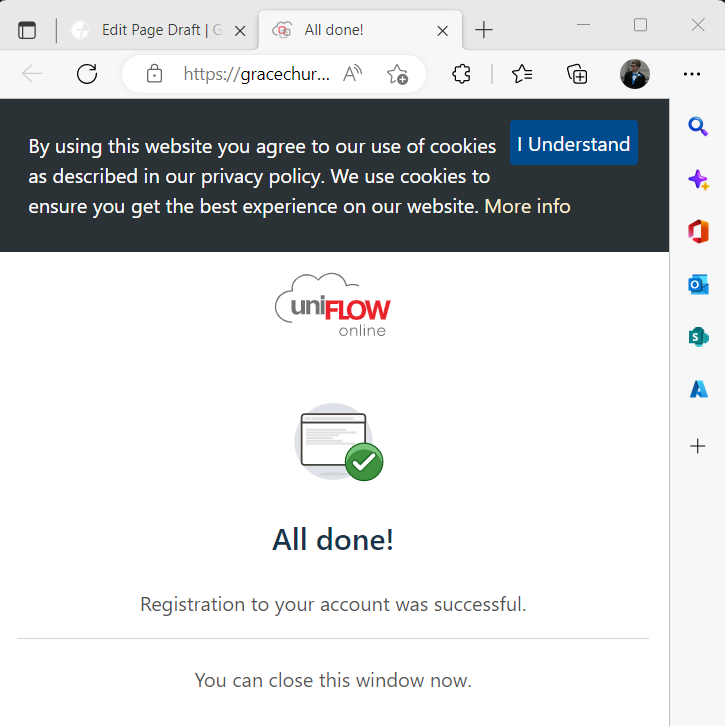
When you click on either the corresponding Grace Church (Staff) or Momentum Ministry Partners (Staff) option, it will open your default browser to authenticate your client. It does this with your Office 365 account that is currently signed into your browser. If you are not signed into the browser with your Office 365 account it will prompt you to do so. Otherwise, the initialization process goes very quickly, and will look like this when done (1. The Browser window, 2. The SmartClient prompt):

[**1)** ![image-1675095321799.png](https://kb.gracechurches.org/uploads/images/gallery/2023-01/scaled-1680-/image-1675095321799.png) **2)**](https://kb.gracechurches.org/uploads/images/gallery/2023-01/image-1675095321799.png)[![image-1675096747263.png](https://kb.gracechurches.org/uploads/images/gallery/2023-01/scaled-1680-/image-1675096747263.png)](https://kb.gracechurches.org/uploads/images/gallery/2023-01/image-1675096747263.png)
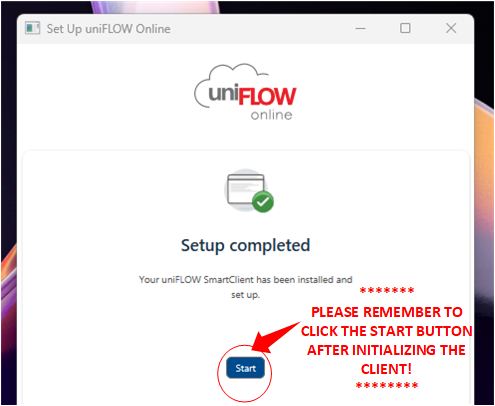
<p class="callout danger">IMPORTANT: DON'T SKIP THIS STEP!!! Make sure to click on **"Start"** in the "Set Up uniFLOW Online window after the setup is complete! Otherwise, the SmartClient won't run in the background automatically, and you won't be able to send print jobs!</p>

Once you click *Start* in the Uniflow window, the Client will automatically run in the background, and you will now be able to setup print jobs from your computer!

#### **Two Printing Options**

With the cloud printing capabilities we have now with the Canon printers, you can either print from your computer (using the Uniflow SmartClient software) or from the web (using the Uniflow Online Site).

##### **Uniflow SmartClient**  


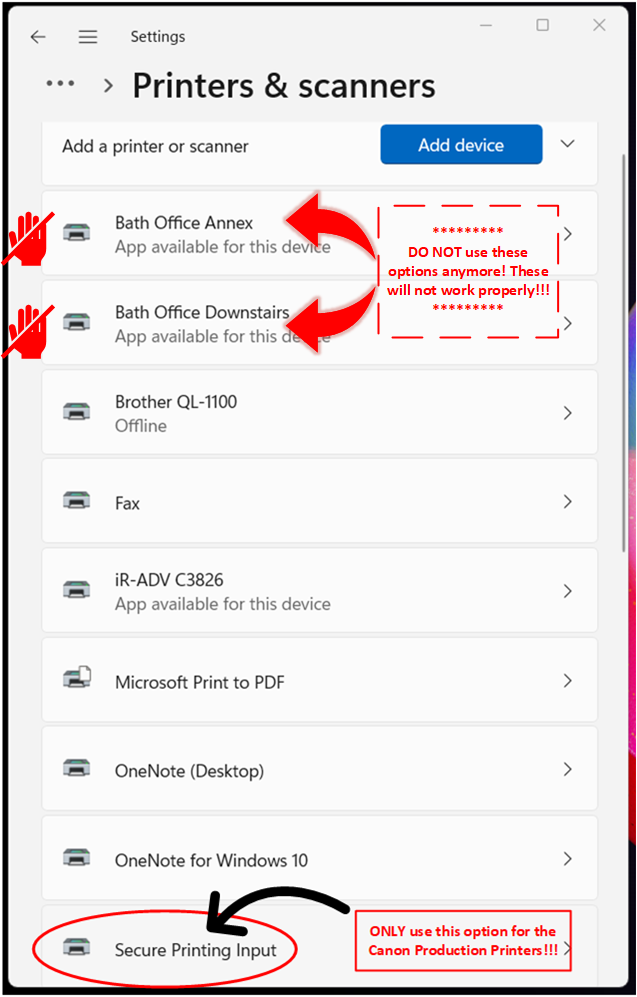
You can print to the SmartClient from you word processing program of choice (Adobe, Excel, Word, PowerPoint, Chrome, etc). If you are going to be printing to a Canon Production Printer, use the Secure Printing Input option from the list of Printers.

[![image-1675100579879.png](https://kb.gracechurches.org/uploads/images/gallery/2023-01/scaled-1680-/image-1675100579879.png)](https://kb.gracechurches.org/uploads/images/gallery/2023-01/image-1675100579879.png)
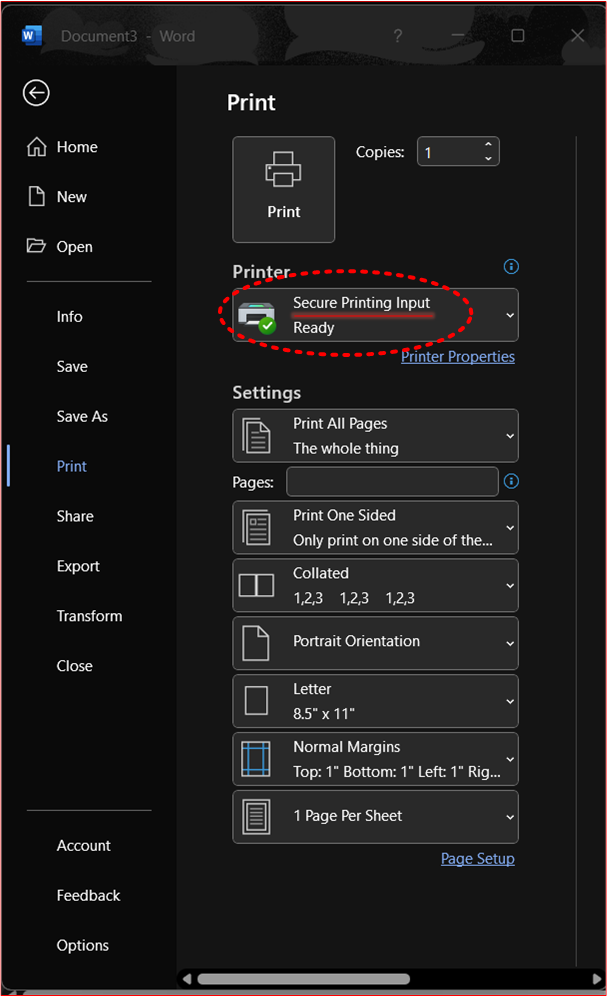
<p class="callout warning">If you have been on staff when we still had the old Konica Minolta printers, we removed the local print drivers for the old printers through group policy. If for some reason you still have these in your list of printers (like below), please do not use these printer options as they will not work properly and aren't recorded for print auditing purposes. The Secure Printing Input printer option shown below is the only one that will let you print to any Grace Church Canon production printer.</p>

[![image-1675101995614.png](https://kb.gracechurches.org/uploads/images/gallery/2023-01/scaled-1680-/image-1675101995614.png)](https://kb.gracechurches.org/uploads/images/gallery/2023-01/image-1675101995614.png)

After clicking *Print* from your Word Processing Application, a Uniflow Window will momentarily pop up to give you a few options. You can either select the Secure Print option, which lets you send your print job to the Uniflow Cloud Queue. Using this option, to receive your print you can walk up to *any* Canon printer and sign in using your associated Uniflow PIN code and test your print jobs and make any necessary adjustments from there. This is the recommended option if you need to print discretely or print any sensitive documents, or if you need to print at a campus that you aren't assigned to. Or, you can select any of the direct print options for the printers available for your campus. This will send the print job directly to the printer you choose and the selected printer will execute the job immediately. (See the below picture to see what the Uniflow Window will look like. It also shows the Direct Print options available to the Bath Campus)

[![image-1675102415666.png](https://kb.gracechurches.org/uploads/images/gallery/2023-01/scaled-1680-/image-1675102415666.png)](https://kb.gracechurches.org/uploads/images/gallery/2023-01/image-1675102415666.png)
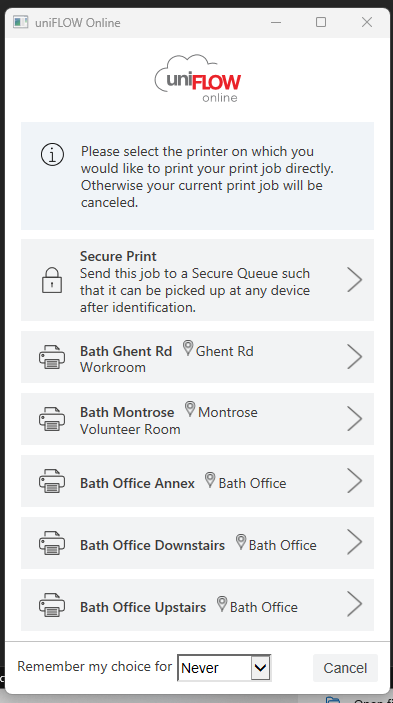
<p class="callout success">Make sure that you are on the Grace Staff network when doing Direct Print options. Otherwise, the SmartClient will be unable to communicate with the printers.</p>

##### **Printer Settings**

[![image-1675195283233.png](https://kb.gracechurches.org/uploads/images/gallery/2023-01/scaled-1680-/image-1675195283233.png)](https://kb.gracechurches.org/uploads/images/gallery/2023-01/image-1675195283233.png)

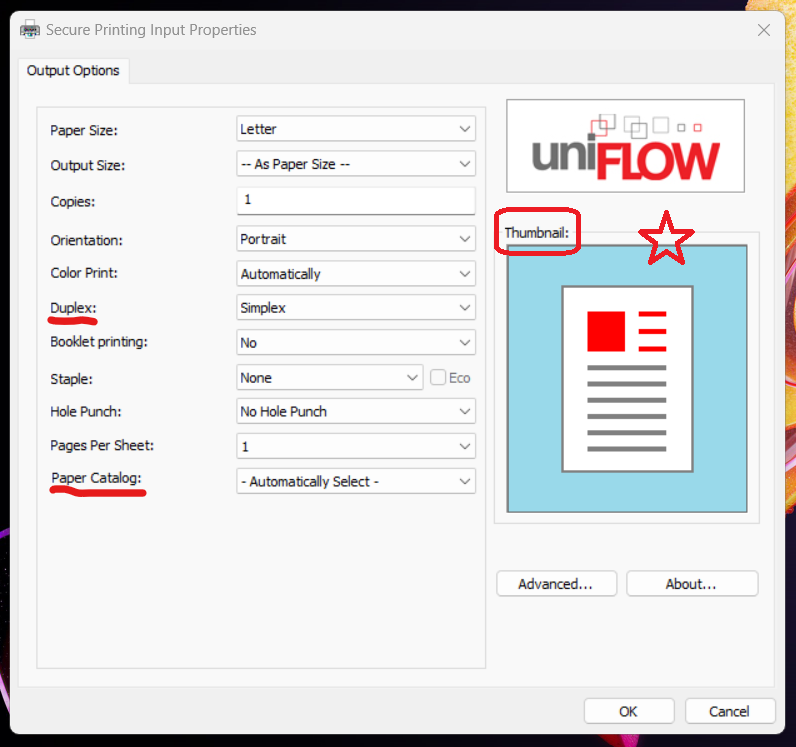
The Secure Printing Input driver printer properties/settings window comes as a simple interface with all the features that you can use with nearly all the printers. Most of these settings are self-explanatory, but it will help to point out a couple of settings that are not.

- **Duplex:** This controls the 1-sided / 2-sided settings for your print job. There are 3 choices to choose from the Duplex Setting: 
    - Simplex: This only prints one-sided paper. Only the front of the page is printed. When more than one page needs to be printed in a job, the printer will print on the next piece of paper.
    - Short Edge: This will print two-sided paper. **The pages are flipped or bound along the<span style="text-decoration: underline;"> short </span>edge of the page.**
    - Long Edge: This will print two-sided paper. **The pages are flipped or bound along the<span style="text-decoration: underline;"> long </span>edge of the page.**
    - **Note:** The Edges changes place depending on which orientation you choose. You can see an illustration of where the long or short edge is by referring to the thumbnail image as you are adjusting your settings.
- **Paper Catalog:**
    - This setting will let you choose which tray to print to, including the normal and bypass trays.

##### **Reopen / Update the Client**  


Sometimes the client may fail to load. IF the client isn't running in the background, you will notice you won't be able to choose a direct print option nor the Secure Print option from the Smart Client. Usually, a quick fix can be done by searching and launching the application from Windows Search or macOS Launchpad.

[![image-1675097315078.png](https://kb.gracechurches.org/uploads/images/gallery/2023-01/scaled-1680-/image-1675097315078.png)](https://kb.gracechurches.org/uploads/images/gallery/2023-01/image-1675097315078.png)
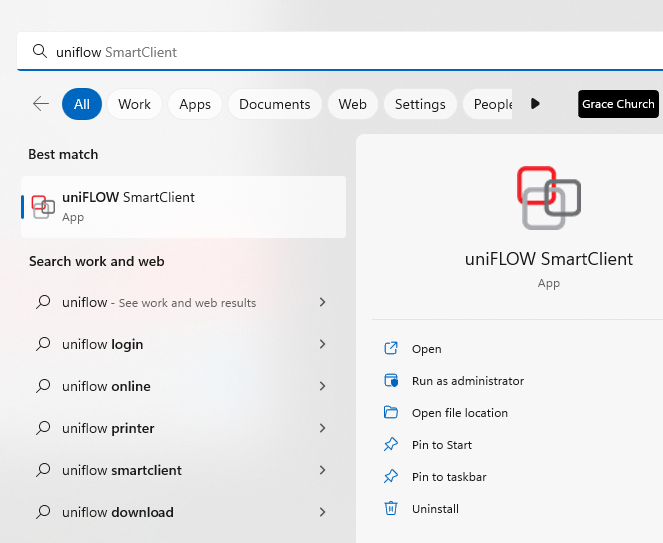
Another troubleshooting step you can take if you are still having printing issues even though the SmartClient is running is to update or reauthenticate your SmartClient. In the system tray or on the task bar right click the Uniflow SmartClient. In the submenu that appears, click on *About*.

[![image-1675090093623.png](https://kb.gracechurches.org/uploads/images/gallery/2023-01/scaled-1680-/image-1675090093623.png)](https://kb.gracechurches.org/uploads/images/gallery/2023-01/image-1675090093623.png) **<span style="background-color: #f8cac6; color: #e03e2d;">(Make sure this application icon shows up, it lets you know the smartclient is running and is ready to process your print jobs for you).</span>**

In the window that appears, if there is an option to update, click the update button. You can also click on *Re-register* to further diagnose. Then click OK.

[![image-1675190541559.png](https://kb.gracechurches.org/uploads/images/gallery/2023-01/scaled-1680-/image-1675190541559.png)](https://kb.gracechurches.org/uploads/images/gallery/2023-01/image-1675190541559.png)
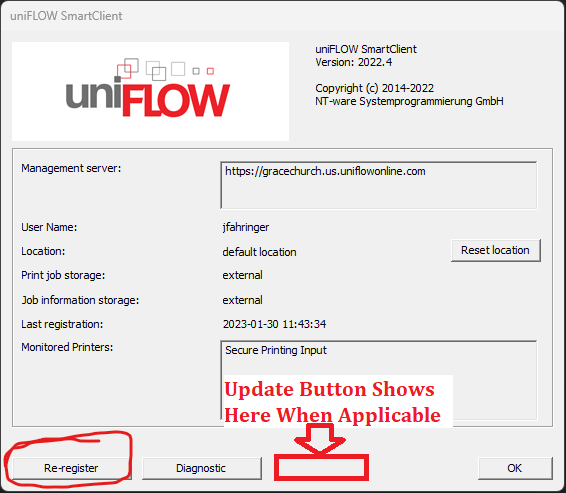
If you are still having issues loading up the Secure Print prompt, you can try to uninstall and reinstall the program using the SmartClient driver available for download from the Uniflow Dashboard mentioned earlier. You can also reach out to the IT Helpdesk: [Requesting IT Help Gra... | Grace Church KB (gracechurches.org)](https://kb.gracechurches.org/books/it-helpdesk/page/requesting-it-help-grace-church-and-momentum-ministry-partners)

<p class="callout info">Note: Currently, the macOS Smartclient does require a more High level uninstallation method. If you need to reinstall the client on a Mac, please reach out to Grace IT to help you with this. This isn't an issue with Windows PC's.</p>

---

##### **Uniflow Online - Web Browser**

This online dashboard will let you find and access anything printing or scanning. You can access it at [https://gracechurch.us.uniflowonline.com/](https://nam10.safelinks.protection.outlook.com/?url=https%3A%2F%2Fgracechurch.us.uniflowonline.com%2F&data=05%7C01%7Cjfahringer%40graceohio.org%7C8425928262d949bd1b0308dad474e375%7Cf80469b65a81464fa6f14ad8e4ac448a%7C0%7C0%7C638055895772201929%7CUnknown%7CTWFpbGZsb3d8eyJWIjoiMC4wLjAwMDAiLCJQIjoiV2luMzIiLCJBTiI6Ik1haWwiLCJXVCI6Mn0%3D%7C3000%7C%7C%7C&sdata=tj69sbpaT6hPQBDEeeQQyfYLDqj9dzRDh2mqgu%2BPSxY%3D&reserved=0), and the signin will be your GraceOhio.org credentials (or buildmomentum.org if you are MMP). The Dashboard view by default gives you a few widgets related to your account. There are additional widgets to choose from if you want to add them to your dashboard. Click the toggle box below to see what these widgets are.

<details id="bkmrk-uniflow-dashboard-in"><summary>Uniflow Dashboard Interface</summary>

[![image-1675093042281.png](https://kb.gracechurches.org/uploads/images/gallery/2023-01/scaled-1680-/image-1675093042281.png) ](https://kb.gracechurches.org/uploads/images/gallery/2023-01/image-1675093042281.png)

[![image-1675093100798.png](https://kb.gracechurches.org/uploads/images/gallery/2023-01/scaled-1680-/image-1675093100798.png) ](https://kb.gracechurches.org/uploads/images/gallery/2023-01/image-1675093100798.png)[ ![image-1675092480476.png](https://kb.gracechurches.org/uploads/images/gallery/2023-01/scaled-1680-/image-1675092480476.png) ](https://kb.gracechurches.org/uploads/images/gallery/2023-01/image-1675092480476.png)

[![image-1675093537170.png](https://kb.gracechurches.org/uploads/images/gallery/2023-01/scaled-1680-/image-1675093537170.png)](https://kb.gracechurches.org/uploads/images/gallery/2023-01/image-1675093537170.png)

</details>To do printing online, Go to *Start Printing* in the Uniflow Dashboard. There is an option for you to drag and drop any word processing files you want. Uniflow will then send that file as a print job to your Cloud Queue, as if you selected the Secure Print option from the Uniflow Smartclient. To configure your print settings, you can then do this at the printer for the print job after logging in with your Uniflow PIN.

[![image-1675104547210.png](https://kb.gracechurches.org/uploads/images/gallery/2023-01/scaled-1680-/image-1675104547210.png)](https://gracechurch.us.uniflowonline.com/#StartPrinting/)

uniFLOW Online supports the following file types as email attachments for Email print:

<div class="table-responsive noheader noborders shading bodytext bodytext" id="bkmrk--13"></div><details id="bkmrk-supported-file-types"><summary>Supported File Types | Online</summary>

- Portable Document Format (.pdf)
- Web Pages (.htm, .html)
- Text File (.txt, .text, .csv)
- XML Files (.xml)
- Rich Text Format (.rtf)
- Microsoft® Excel Files (.xlsx, .xlsm, .xlsb, .xltx, .xltm, .xls, .xlt, .xlm, .xlw)
- Microsoft® Word Documents (.docx, .doc, .docm, .dotx, .dotm, .dot)
- Microsoft® PowerPoint Presentations (.pptx, .ppt, .pptm, .ppsx, .pps, .ppsm, .potx, .potm)
- WordPerfect® Documents (.wpd)
- Bitmap Image File (.bmp)
- CompuServe Graphics Interchange Format (.gif)
- Icon Files (.ico)
- JPEG 2000 JP2 File Format Syntax (.jp2)
- Joint Photographic Experts Group Image Format (.jpeg, .jpg)
- Portable Network Graphics (.png)
- Tagged Image File Format (.tiff, .tif)

</details><p class="callout info">The parameter <span class="screentext">Support non-PDF file formats</span> under <span class="crossreference_ufoui_">[Print/Scan &gt; Email print](https://gracechurch.us.uniflowonline.com/#Devices/MobilePrint)</span><span class="screentext"> </span>needs to be enabled to support file types other than PDF.</p>

<div class="table-responsive noheader noborders shading bodytext" id="bkmrk--14"></div><p class="callout info">Email print jobs with unsupported file types are deleted. Therefore, they do not appear in the print job list.</p>

### **Scanning**  


There are a few options you can choose from the printer directly when it comes to scanning.

When you login to the printer with your Uniflow PIN, you see options to (please pay attention to the notes for the Scan to Exchange Online, Background Checks, Incident Report options):

- ##### **Scan to Myself** 
    
    [![image-1675106353143.png](https://kb.gracechurches.org/uploads/images/gallery/2023-01/scaled-1680-/image-1675106353143.png)](https://kb.gracechurches.org/uploads/images/gallery/2023-01/image-1675106353143.png)
    
    
    - This first option just sends the scan to your graceohio.org email address.
    - You can rename the document before sending if you need to.
- ##### **Scan to OneDrive**
    
    ##### [![image-1675781284041.png](https://kb.gracechurches.org/uploads/images/gallery/2023-02/scaled-1680-/image-1675781284041.png)](https://kb.gracechurches.org/uploads/images/gallery/2023-02/image-1675781284041.png)
    
    
    - This option will save the scan to your laptop through OneDrive.
    - Use this if you are scanning a large job that would be too big to be an email attachment.
    - <span style="background-color: #f8cac6;">**<span style="color: #e03e2d;"><span style="text-decoration: underline;">NOTE: You will need to authorize Uniflow to use this function</span> </span>**</span>
        - Log in to Uniflow here: [https://gracechurch.us.uniflowonline.com/](https://gracechurch.us.uniflowonline.com/)
        - There will be a link under Dashboard &gt; Notifications &gt; Connect with OneDrive for Business (will be in a banner like this:)  
            [![image-1675781501088.png](https://kb.gracechurches.org/uploads/images/gallery/2023-02/scaled-1680-/image-1675781501088.png)](https://kb.gracechurches.org/uploads/images/gallery/2023-02/image-1675781501088.png)
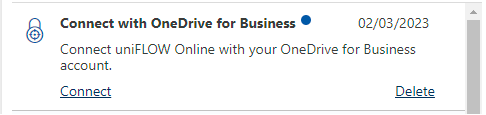
        - Sign in with your Office 365 credentials
- ##### **Scan to Exchange Online** 
    
    [![image-1675106260111.png](https://kb.gracechurches.org/uploads/images/gallery/2023-01/scaled-1680-/image-1675106260111.png)](https://kb.gracechurches.org/uploads/images/gallery/2023-01/image-1675106260111.png)
    
    
    - This option will let you send the scan as an email to anyone in the Grace Global Outlook Address Book, either directly or carbon copied.
    - <span style="background-color: #f8cac6;">**<span style="color: #e03e2d;"><span style="text-decoration: underline;">NOTE: You will need to authorize Uniflow to use this function</span> </span>**</span>
        - Log in to Uniflow here: [https://gracechurch.us.uniflowonline.com/](https://gracechurch.us.uniflowonline.com/)
        - There will be a link under Dashboard &gt; Notifications &gt; Connect with Exchange Online
        - Sign in with your Office 365 credentials
- ##### **Scan to Background Checks** 
    
    [![image-1675106322464.png](https://kb.gracechurches.org/uploads/images/gallery/2023-01/scaled-1680-/image-1675106322464.png)](https://kb.gracechurches.org/uploads/images/gallery/2023-01/image-1675106322464.png)
- This option will let you send your scan to the Background Checks SharePoint site. 
    - <span style="color: #e03e2d; background-color: #f8cac6;">**<span style="text-decoration: underline;">NOTE: Will also need authorized for you to scan to them</span>**</span>
        - Log in to Uniflow here: [https://gracechurch.us.uniflowonline.com/](https://gracechurch.us.uniflowonline.com/)
        - There will be a link under Dashboard &gt; Notifications &gt; Connect with SharePoint Online
        - Sign in with your Office 365 credentials
- ##### **Scan to Incident Reports** 
    
    [![image-1675106340203.png](https://kb.gracechurches.org/uploads/images/gallery/2023-01/scaled-1680-/image-1675106340203.png)](https://kb.gracechurches.org/uploads/images/gallery/2023-01/image-1675106340203.png)
    
    
    - This option will let you send your scan to the Incident Reports SharePoint site location.
    - <span style="background-color: #f8cac6; color: #e03e2d;">**<span style="text-decoration: underline;">NOTE: Will also need authorized for you to scan to them</span>**</span>
        - Log in to Uniflow here: [https://gracechurch.us.uniflowonline.com/](https://gracechurch.us.uniflowonline.com/)
        - There will be a link under Dashboard &gt; Notifications &gt; Connect with SharePoint Online
        - Sign in with your Office 365 credentials

<p class="callout success">If you don't sign into uniFLOW and authorize Exchange &amp; SharePoint the first time you go to use them, you will get an email with a link in it to authorize these connections, like the one below:</p>

[![Uniflow OneDrive For Business Authorization Email.png](https://kb.gracechurches.org/uploads/images/gallery/2024-11/scaled-1680-/uniflow-onedrive-for-business-authorization-email.png)](https://kb.gracechurches.org/uploads/images/gallery/2024-11/uniflow-onedrive-for-business-authorization-email.png)

<p class="callout success">If you click on the link you will be able to click on "Authorize" in the Uniflow Dashboard to get started. Use your graceohio.org Office365 account to authorize Uniflow when you do this:</p>

[![Unilow OneDrive For Business Authorization.png](https://kb.gracechurches.org/uploads/images/gallery/2024-11/scaled-1680-/unilow-onedrive-for-business-authorization.png)](https://kb.gracechurches.org/uploads/images/gallery/2024-11/unilow-onedrive-for-business-authorization.png)

[![image.png](https://kb.gracechurches.org/uploads/images/gallery/2024-11/scaled-1680-/mm3image.png)](https://kb.gracechurches.org/uploads/images/gallery/2024-11/mm3image.png)

# Set uniFLOW Printer Device Settings

#### Set Secure Printing Input Driver

In order to use advanced printing options with the uniFLOW SmartClient/Secure Printing Input printer we need to change the printer driver and configure it to use all the options on our printers.

To change the Print Driver either contact IT to be added to the Print Driver Deployment group or download and run the following script. You may need to Right-click the link and choose "Save Link As".  
[uniFLOW\_Cannon\_Driver](https://gracewebv3storage.blob.core.windows.net/drivers/uniFLOW_Cannon_Driver.ps1)

#### Set the Finishing Options on the Canon driver

After changing to the new Print Driver you'll need to import the correct print settings in order to have options for hole punch, stapling, folding, and more.

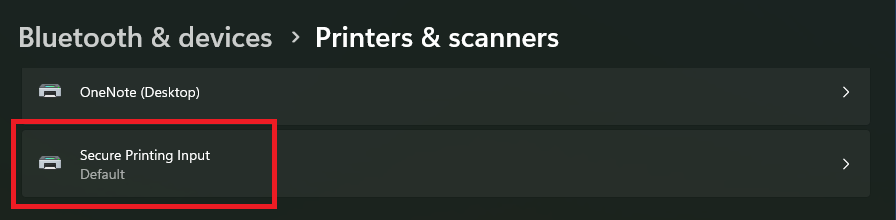
To set the Finishing Settings; Open your Settings menu and select **<span style="text-decoration: underline;">Bluetooth &amp; devices</span>** &gt; **<span style="text-decoration: underline;">Printers &amp; scanners</span>** then:

1\. Choose <span style="text-decoration: underline;">**Secure Printing Input**</span>

[![image.png](https://kb.gracechurches.org/uploads/images/gallery/2023-10/scaled-1680-/oikimage.png)](https://kb.gracechurches.org/uploads/images/gallery/2023-10/oikimage.png)

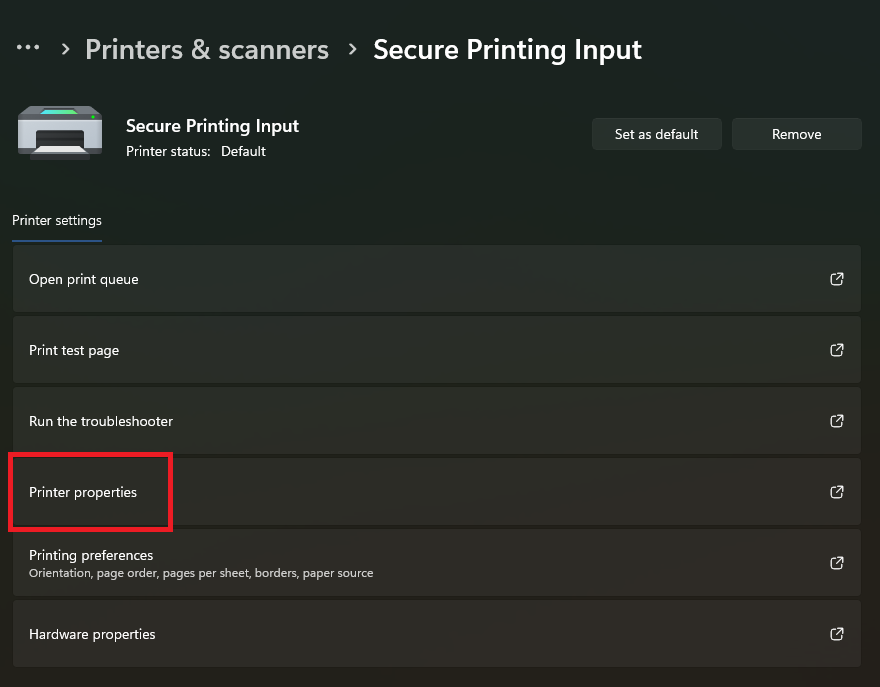
2\. Select <span style="text-decoration: underline;">**Printer properties**</span>

[![image.png](https://kb.gracechurches.org/uploads/images/gallery/2023-10/scaled-1680-/g6Limage.png)](https://kb.gracechurches.org/uploads/images/gallery/2023-10/g6Limage.png)

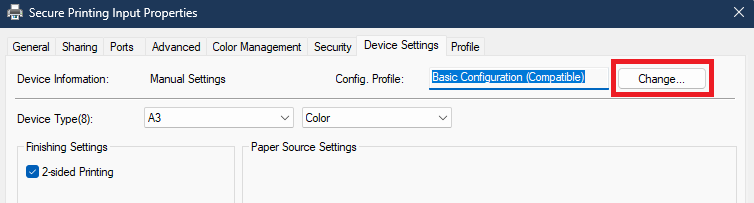
3\. Go to the <span style="text-decoration: underline;">**Device Settings**</span> tab and click the <span style="text-decoration: underline;">**Change...**</span> button

[![image.png](https://kb.gracechurches.org/uploads/images/gallery/2023-10/scaled-1680-/yEIimage.png)](https://kb.gracechurches.org/uploads/images/gallery/2023-10/yEIimage.png)

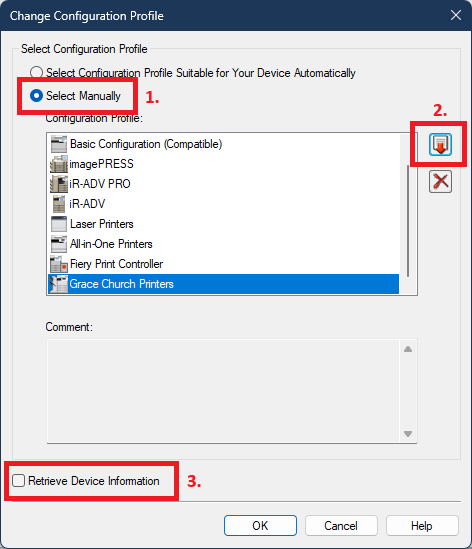
4\. On the <span style="text-decoration: underline;">**Change Configuration Profile**</span> window:

1. Choose <span style="text-decoration: underline;">**Select Manually**</span>
2. Click the <span style="text-decoration: underline;">**Import Configuration Profile**</span> button 
    - Look for the file named: **Grace\_Church\_Printers.typ**
    - The file should be located in either you <span style="text-decoration: underline;">Documents</span> folder or in <span style="text-decoration: underline;">C:\\temp</span>
3. Clear the box next to <span style="text-decoration: underline;">**Retrieve Device Information**</span>
4. Click <span style="text-decoration: underline;">**OK**</span>

[![image.png](https://kb.gracechurches.org/uploads/images/gallery/2023-10/scaled-1680-/dgzimage.png)](https://kb.gracechurches.org/uploads/images/gallery/2023-10/dgzimage.png)

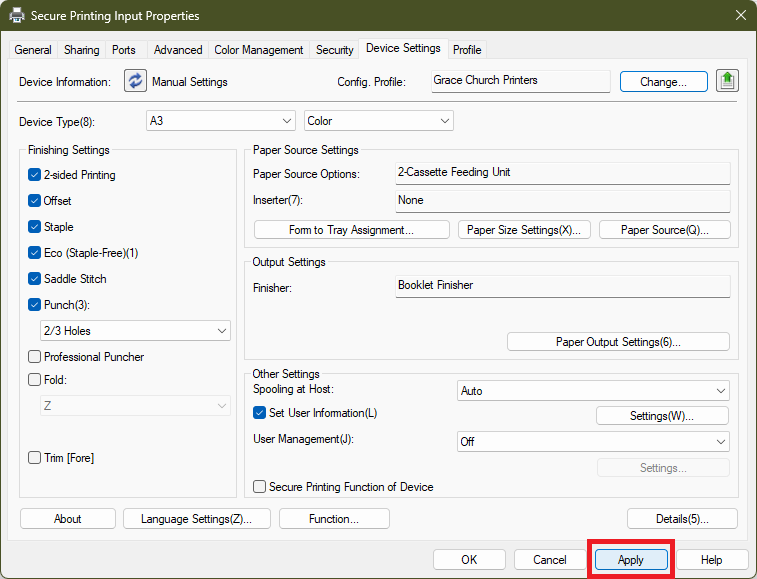
5\. Click <span style="text-decoration: underline;">**Apply**</span> to apply the profile

[![image.png](https://kb.gracechurches.org/uploads/images/gallery/2023-10/scaled-1680-/Pxzimage.png)](https://kb.gracechurches.org/uploads/images/gallery/2023-10/Pxzimage.png)

# How to Update Uniflow Smart Client

##### **<span data-contrast="auto">How to update Uniflow SmartClient on Windows and MacOS</span>**

We don't have the ability to automate updates to the SmartClient for you. These updates are necessary to let you continue sending print jobs to our Canon Production Printers, and to pull down printing privileges that may have updated. Thankfully, it is easy to accomplish.

- Find the Uniflow SmartClient from the Taskbar / Menu Bar (bottom bar on Windows 11 or in the System Tray, top bar on macOS)  
    [![image.png](https://kb.gracechurches.org/uploads/images/gallery/2023-10/scaled-1680-/cAoimage.png)](https://kb.gracechurches.org/uploads/images/gallery/2023-10/cAoimage.png)
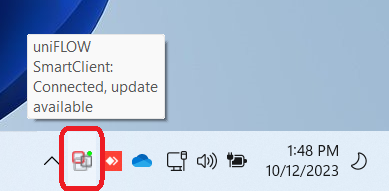


    - <span style="color: rgb(53, 152, 219);">If you can't locate the Client Icon on the Taskbar or running in the System Tray, try searching and run the Uniflow SmartClient App from Windows search or macOS Launchpad.</span>
        - <span style="color: rgb(53, 152, 219);"><span style="text-decoration: underline;">If after trying this you see a Status Window pop up like this</span>:</span>  
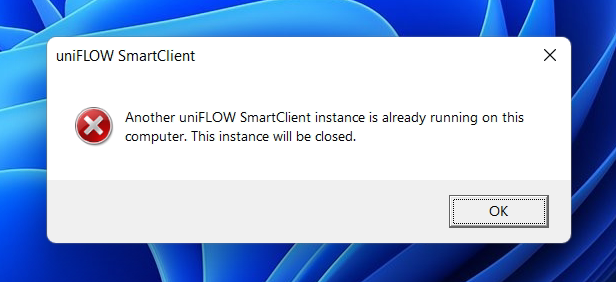
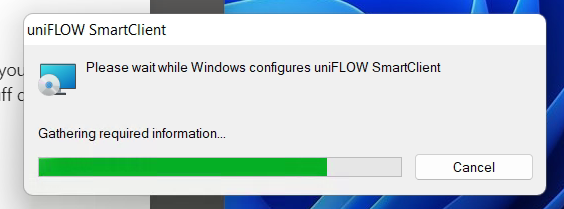
            [![image.png](https://kb.gracechurches.org/uploads/images/gallery/2023-10/scaled-1680-/8Coimage.png)](https://kb.gracechurches.org/uploads/images/gallery/2023-10/8Coimage.png)  
              
            <span style="color: rgb(53, 152, 219);">You can try quickly restart your computer and log back into your Desktop, and see if the SmartClient opens back up then. If not, reach out to Grace IT</span>
- Right click on the SmartClient System Icon in the Taskbar / Menu Bar. If there is an applicable update, you might see the option and simply select ***Update***.   
    [![image.png](https://kb.gracechurches.org/uploads/images/gallery/2023-10/scaled-1680-/WYyimage.png)](https://kb.gracechurches.org/uploads/images/gallery/2023-10/WYyimage.png)  
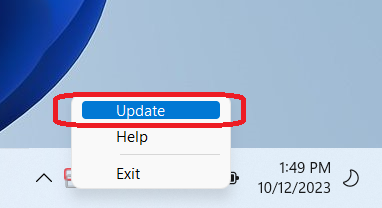
    If you don't see that option, ***About*** will show instead. Click on ***About*** instead. If there is an applicable update, you can click the ***Update*** button that shows up:  
    [![image.png](https://kb.gracechurches.org/uploads/images/gallery/2023-10/scaled-1680-/PItimage.png)](https://kb.gracechurches.org/uploads/images/gallery/2023-10/PItimage.png)
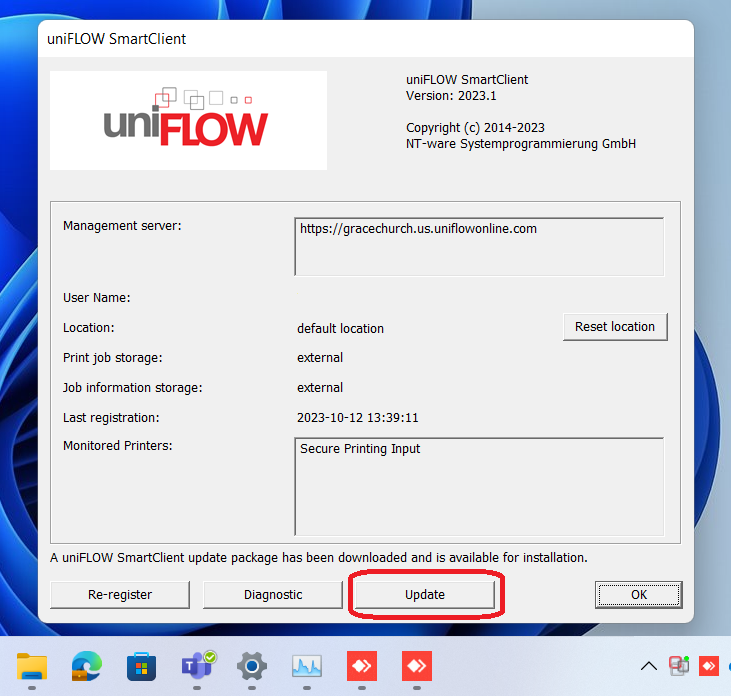
- You will be brought up a prompt to provide administrative privileges to execute the update.  
    [![image.png](https://kb.gracechurches.org/uploads/images/gallery/2023-10/scaled-1680-/O8Limage.png)](https://kb.gracechurches.org/uploads/images/gallery/2023-10/O8Limage.png)
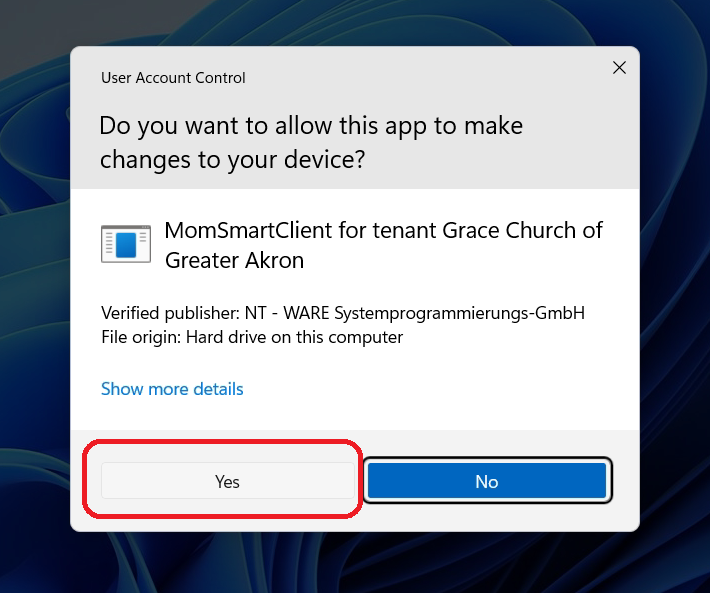
    
    [![image.png](https://kb.gracechurches.org/uploads/images/gallery/2023-10/scaled-1680-/ylFimage.png)](https://kb.gracechurches.org/uploads/images/gallery/2023-10/ylFimage.png)
#### <span style="text-decoration: underline;">Re-Register the Application</span>

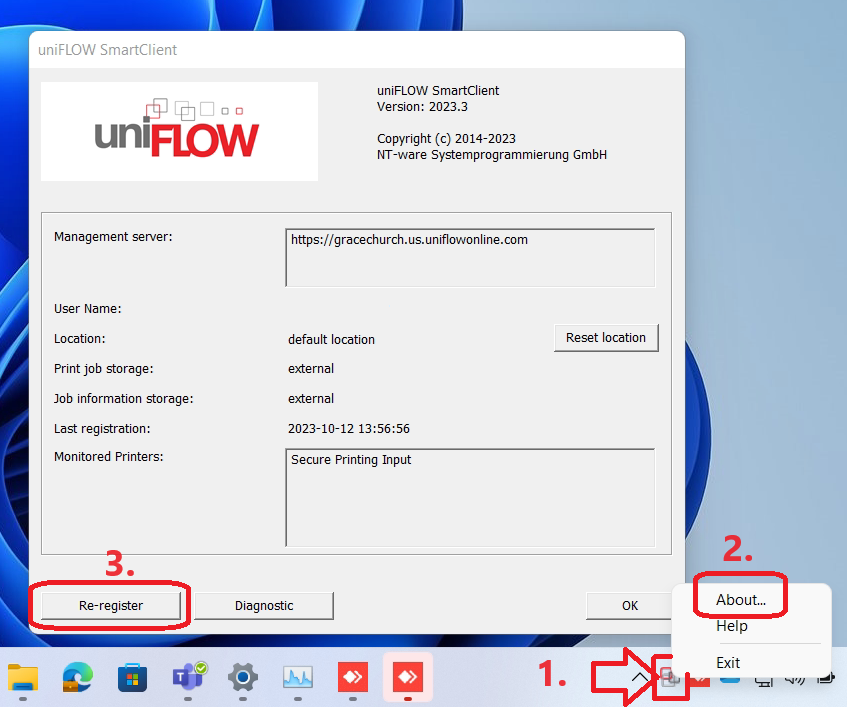
You can tell Uniflow to pull down any configuration changes that IT may have pushed out. Right click on the System Tray or Menu Bar icon for the SmartClient like we did earlier, select ***About***, and then click on Re-register.

[![image.png](https://kb.gracechurches.org/uploads/images/gallery/2023-10/scaled-1680-/NYximage.png)](https://kb.gracechurches.org/uploads/images/gallery/2023-10/NYximage.png)
# Printing Cardstock Paper and Finishing (Booklets)

#### **Pre-Reqs**

<details id="bkmrk-open-me%21-you-must-in"><summary>Open Me!</summary>

- You MUST initialize your Uniflow account to use the Grace Church copiers. Please refer to [Uniflow Cloud Printing... | Grace Church KB (gracechurches.org)](https://kb.gracechurches.org/books/applications-98f/page/uniflow-cloud-printing-software#bkmrk-reopen-%2F-update-the-)
- In order to send print jobs to Secure Print Input queue, which we will be using in the below tutorial, you MUST be using the current version of the Uniflow SmartClient Software on your computer, and it needs to be running in the background: [How to Update Uniflow ... | Grace Church KB (gracechurches.org)](https://kb.gracechurches.org/books/applications-98f/page/how-to-update-uniflow-smart-client)
- Make sure you understand all the supported functionalities of the printer you intend to print to before executing your print job. While all of our Copiers support cardstock, not all of them have the same finishing capabilities (stapling, folding, etc): [Copier-Printer Service... | Grace Church KB (gracechurches.org)](https://kb.gracechurches.org/books/applications-98f/page/copier-printer-service-and-support-information-all-campuses)
- If doing a big print job, consider letting people in the office know so that they don't accidentally use the tray you are using for your job.
- On Windows, to get every finishing option / paper selection option, you need to add the Print Profile to your Uniflow Print Driver to enable the options as documented here: [Set uniFLOW Printer De... | Grace Church KB (gracechurches.org)](https://kb.gracechurches.org/books/applications-98f/page/set-uniflow-printer-device-settings)

</details>## **Cardstock - Intro**

Cardstock is thicker paper, which requires it to be treated differently than normal computer paper. The Canon Production Printers can print on cardstock, but you will need to tell it when you are wanting to print in cardstock and which tray to print from.

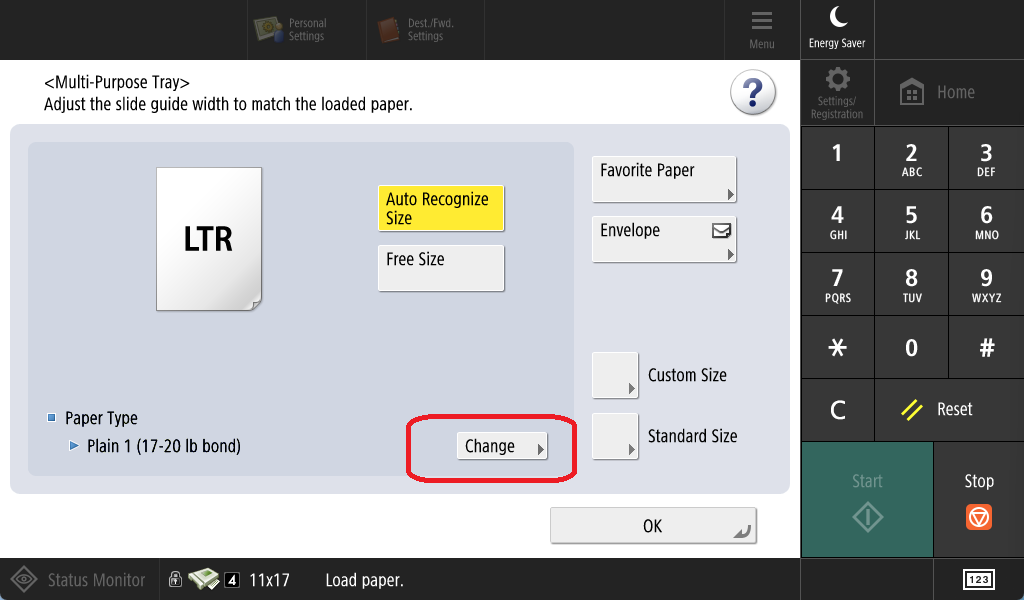
The way to tell our Canon printers when to print on Cardstock printer is relatively straightforward on the Copier touchscreen interface. Since computer paper is what's normally loaded in the paper trays, I recommend loading up the bypass (also called Multi-Purpose) tray with cardstock (this tray is usually to the side of the printer). When you load up the bypass tray, the sensor will detect this action and will forward a prompt like the one below on the Copier touchscreen:

[![viewer_IvYihUZqLq.png](https://kb.gracechurches.org/uploads/images/gallery/2023-06/scaled-1680-/viewer-ivyihuzqlq.png)](https://kb.gracechurches.org/uploads/images/gallery/2023-06/viewer-ivyihuzqlq.png)

By DEFAULT, the printer expects just plain paper as can be seen in the above picture. This prompt will let you tell the printer to change the type of paper from the tray you want to print from.

<p class="callout info">You need this prompt to show up in order to tell the copier to change the paper type to print on using bypass. If this prompt doesn't show up for you, make sure that the paper is loaded into the bypass tray correctly and that the sensor is able to detect that the paper is there. It is not required to be logged into the printer to be able to bring up the prompt.</p>

##### Bath Campus Copiers - Bypass Tray

At the Bath Campus, our Copiers are set to anticipate that you print Cardstock <span style="text-decoration: underline;">ON THE BYPASS TRAY</span>. As long as you use the Bypass for this, you don't have to worry about changing the paper type on the Copier touchscreen.

### **Select Paper Type on Bypass Tray - Step By Step**

1. Load in the cardstock into the Bypass Tray.
2. A prompt should show up on the Copier TouchScreen. Hit "Change" next to Paper Type.   
    [![image.png](https://kb.gracechurches.org/uploads/images/gallery/2023-06/scaled-1680-/image.png)](https://kb.gracechurches.org/uploads/images/gallery/2023-06/image.png)
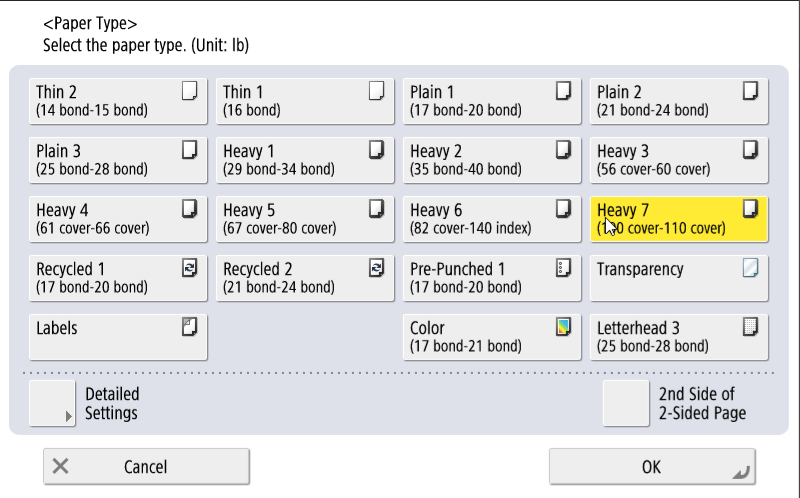
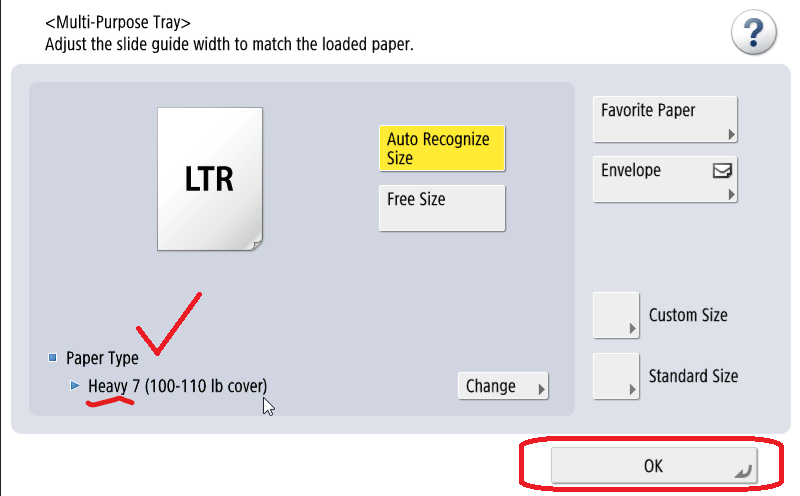
3. Choose one of the heavy paper options in the next screen. Here I tap Heavy 7, which is the heaviest paper available, but your campus might use a different cardstock (i.e., Bath SHOULD be using <span style="text-decoration: underline;">Heavy 7</span> paper). Tap Okay to Confirm. [![1 Heavy.png](https://kb.gracechurches.org/uploads/images/gallery/2023-06/scaled-1680-/1-heavy.png)](https://kb.gracechurches.org/uploads/images/gallery/2023-06/1-heavy.png)
4. Then tap Okay again, verifying that Heavy is loaded in as the paper type. You have now told the printer that the Bypass Tray is loaded with Cardstock paper (or Heavy).   
      
    [![2 Confirm Heavy Type.png](https://kb.gracechurches.org/uploads/images/gallery/2023-06/scaled-1680-/H2P2-confirm-heavy-type.png)](https://kb.gracechurches.org/uploads/images/gallery/2023-06/H2P2-confirm-heavy-type.png)
**Below are some animations of examples of how you may be printing Cardstock:**

### **Making Cardstock Copies using Bypass Tray**

[![viewer_ZTMZ5fW3gj.gif](https://kb.gracechurches.org/uploads/images/gallery/2023-06/viewer-ztmz5fw3gj.gif)](https://kb.gracechurches.org/uploads/images/gallery/2023-06/viewer-ztmz5fw3gj.gif)
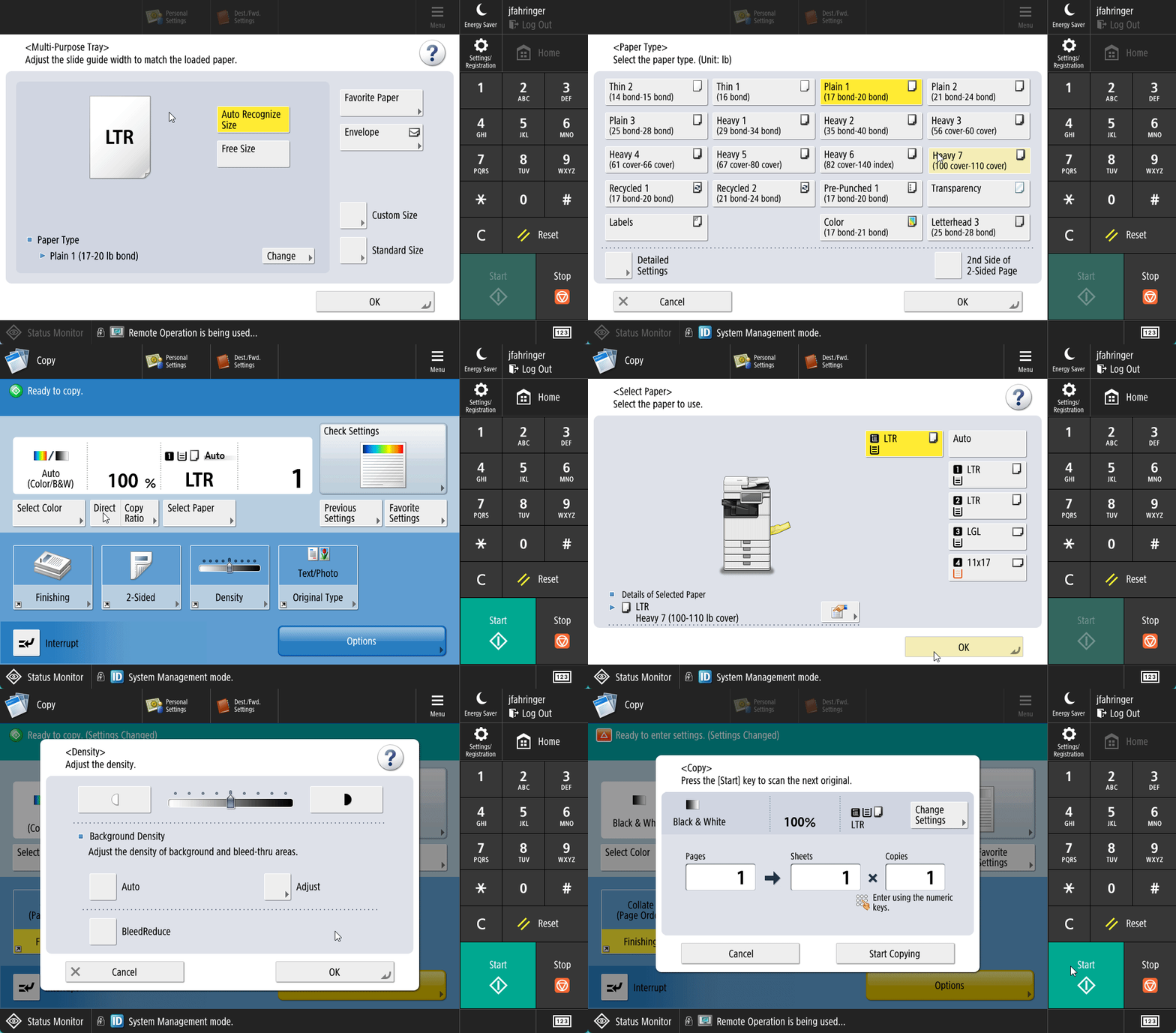
### **Cardstock Print to Secure Print using Bypass Tray**

[![viewer_6wJS3vCH92.gif](https://kb.gracechurches.org/uploads/images/gallery/2023-06/viewer-6wjs3vch92.gif)](https://kb.gracechurches.org/uploads/images/gallery/2023-06/viewer-6wjs3vch92.gif)

### **Direct Print (On Windows)**

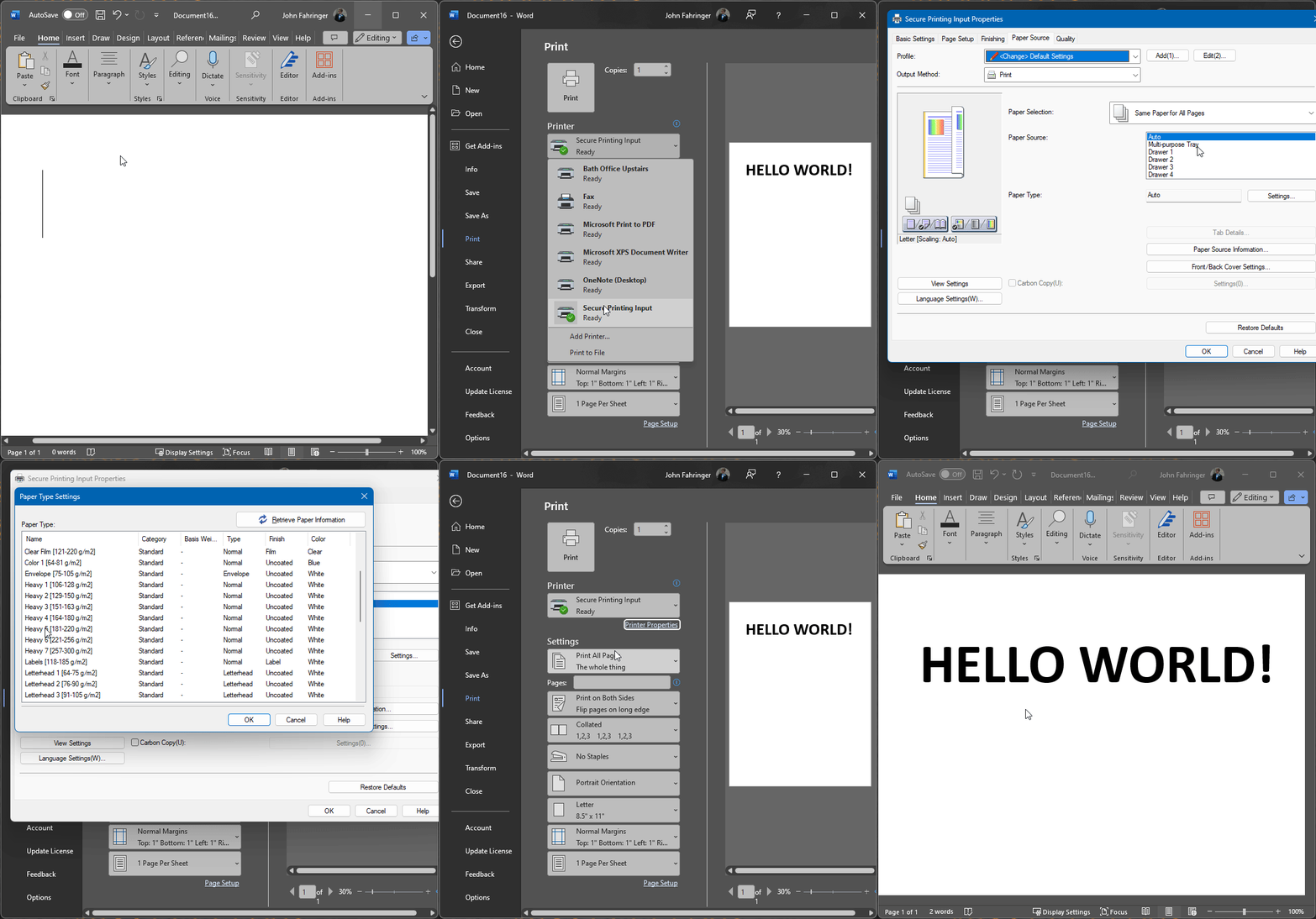
<p class="callout warning">Remember: You need to add the Print Profile to the Secure Print Driver in order to change paper type on the Windows driver!!!! OTHERWISE YOU WON'T BE PRINTING CARDSTOCK PROPERLY</p>

<p class="callout warning">Note: Currently as of April 2024, while they do have most of the finishing options the macOS Uniflow Print drivers do not support selecting Cardstock as your paper type. If printing from a mac, please use the Secure Print Queue method to do cardstock printing. </p>

To Direct Print Cardstock instead of doing it all in Secure Print, prepare the printer bypass tray with cardstock, and then you just need to change the following print settings under the Paper Source Tab in the Print Driver window:

- Paper Source: Multipurpose Tray (the bypass)
- Paper Type: Heavy Setting (select Heavy corresponding to the cardstock density your campus uses)
- Use one of the Printer Options, Secure Print or Direct Print.

[![NVIDIA_Share_XatAHeglz0.gif](https://kb.gracechurches.org/uploads/images/gallery/2024-04/nvidia-share-xataheglz0.gif)](https://kb.gracechurches.org/uploads/images/gallery/2024-04/nvidia-share-xataheglz0.gif)
## **Tutorials**

### **Printing (Cardstock) Booklets**  


In addition to cardstock, <span style="text-decoration: underline;">some</span> of our Production printers have finishing abilities like staple, holepunch, folding, saddle stich printing, etc. The most recent version of our Uniflow Secure Print Driver allows you to use most of these finishing options; however, the driver assumes that you will be printing on a printer that supports those finishing options that you select. Not all of our printers have all the finishing options, so the best way to set your options is to

- From your computer, submit your print job to the Secure Print Queue printer instead of Direct Print
- Load up the appropriate tray for the paper you will be using 
    - I still recommend using the Bypass tray for Cardstock paper, and using the above instructions for changing paper type on the bypass tray.
- Login and open the Secure Print app on the Copier. Find your print job you uploaded.
- Finalize your print settings and finishing options on the Copier Touchscreen interface. 
    - The Copier screen will confirm which finishing options it supports by displaying the options.
- Do a Test print to make sure that the copier will print what you expect it to.
- Make any necessary adjustments and then execute your entire print job.

This tutorial we will use the Copier to set the settings our print job for a 3 page double-sided booklet. It is a journaling pamphlet PDF that the Collective Young Adult ministry printed for their spring retreat which you can download from here and take a look at: [Collective 2024 Spring Retreat.pdf](https://kb.gracechurches.org/attachments/23)

#### **Pre-Req**

- Please make sure you checked the above Pre-Req's.

#### **Secure Print Queue Method:**  


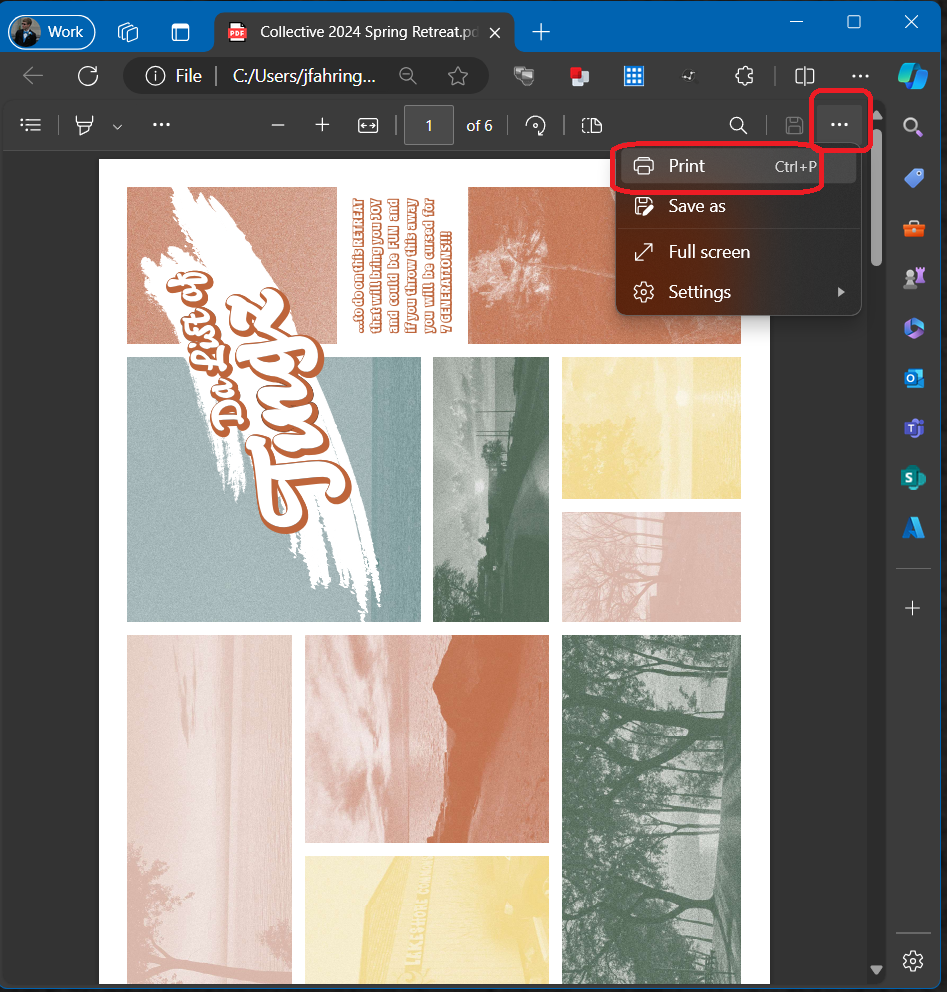
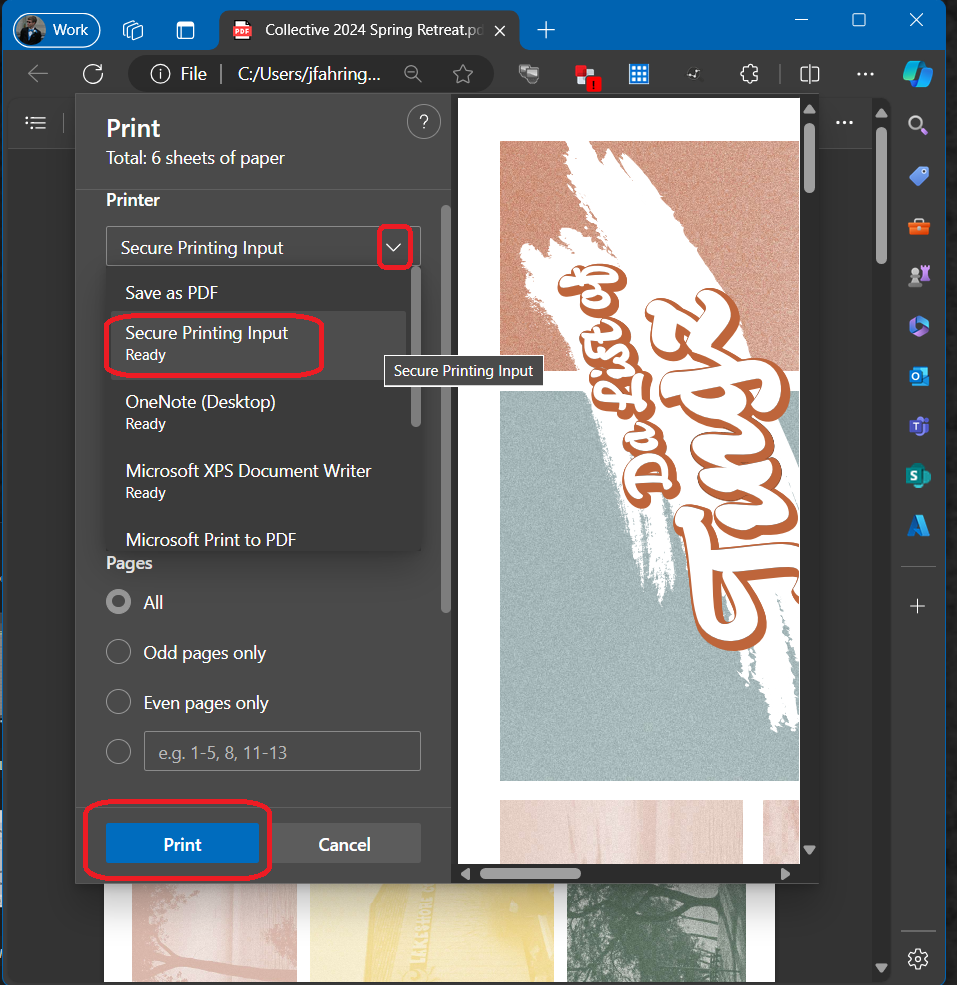
This is what we recommend everyone to use. This method applies to both Windows and Mac's. Open your favorite PDF viewing tool (Adobe Acrobat \[without McAfee Security\], Microsoft Edge, or Google Chrome should work) and load the PDF on it. Hit the option to Print or hit the Ctrl+P hotkey. Then, select the Secure Printing Input Printer and hit Print:

<table border="1" id="bkmrk--4" style="border-collapse: collapse; width: 100.247%;"><colgroup><col style="width: 50.0618%;"></col><col style="width: 50.0618%;"></col></colgroup><tbody><tr><td>[![image.png](https://kb.gracechurches.org/uploads/images/gallery/2024-04/scaled-1680-/aNkimage.png)](https://kb.gracechurches.org/uploads/images/gallery/2024-04/aNkimage.png)</td><td>[![image.png](https://kb.gracechurches.org/uploads/images/gallery/2024-04/scaled-1680-/GLTimage.png)](https://kb.gracechurches.org/uploads/images/gallery/2024-04/GLTimage.png)</td></tr></tbody></table>

As long as your Uniflow SmartClient is initialized and running, this prompt will come up. For this method, please select the Secure Print option, and not any of the direct print options:

[![image.png](https://kb.gracechurches.org/uploads/images/gallery/2024-04/scaled-1680-/b5ximage.png)](https://kb.gracechurches.org/uploads/images/gallery/2024-04/b5ximage.png)

Then run over to the copier that has the finishing options you need. I'll use the <span style="text-decoration: underline;">Bath Office Downstairs Copier</span> since it has Saddle Stitching (Folding and Staples). First we will be using the instructions above for [**loading up cardstock on the bypass tray**](https://kb.gracechurches.org/books/applications-98f/page/printing-cardstock-paper-and-finishing-booklets#bkmrk-select-paper-type-on). After that, login the copier with your PIN and then open the Secure Print app:

[![image.png](https://kb.gracechurches.org/uploads/images/gallery/2024-04/scaled-1680-/Prqimage.png)](https://kb.gracechurches.org/uploads/images/gallery/2024-04/Prqimage.png)

Find your Print Job you submitted (it will be the same name as the file name), select it to highlight it. And then tap Options.

[![image.png](https://kb.gracechurches.org/uploads/images/gallery/2024-04/scaled-1680-/Jomimage.png)](https://kb.gracechurches.org/uploads/images/gallery/2024-04/Jomimage.png)

The Copier screen may now look something like this:

[![image.png](https://kb.gracechurches.org/uploads/images/gallery/2024-04/scaled-1680-/KIyimage.png)](https://kb.gracechurches.org/uploads/images/gallery/2024-04/KIyimage.png)

Ok, so let us try to investigate how the Booklet is prepared and is intended to print out. Take a look at how the booklet should come out as the final product with this handy GIF:

[![PXL_20240407_114015428 (Large).jpg](https://kb.gracechurches.org/uploads/images/gallery/2024-04/CollectiveGIF.gif)](https://kb.gracechurches.org/uploads/images/gallery/2024-04/pxl-20240407-114015428-large.jpg)

If we take a look at the PDF ([Collective 2024 Spring Retreat.pdf](https://kb.gracechurches.org/attachments/23)), we will see it is structured a bit differently than what we might normally be used to for a word document. The PDF is setup for 3 physical double-sided 8.5x11in pages (6 virtual pages), with each page <span style="text-decoration: underline;">sectioned</span> to where the page is to be folded (creating 12 booklet pages). Also, the virtual pages are rotated landscape on top of the physical portrait pages.

We need to fold between the sections using the fold line marked in <span style="text-decoration: underline; color: rgb(224, 62, 45);">red</span>. When we are ready to print on the other side of the physical paper for double sided printing, we need to flip on the <span style="text-decoration: underline; color: rgb(45, 194, 107);">short edge</span> to match the rotated state of the document. (The Below image points these out on the first page):

[![image.png](https://kb.gracechurches.org/uploads/images/gallery/2024-04/scaled-1680-/Qpbimage.png)](https://kb.gracechurches.org/uploads/images/gallery/2024-04/Qpbimage.png)

And then we repeat for each double sided physical page. When the physical page is fully printed double-side, it gets placed on top of the previous page. Once all pages are printed, the papers are folded and then stapled.

So for this project, we need to change the following settings on the printer:

- Change Duplex setting to "Duplex Short Edge" (setting to let us print double sided by flipping over the short edge)  
    [![image.png](https://kb.gracechurches.org/uploads/images/gallery/2024-04/scaled-1680-/Xjwimage.png)](https://kb.gracechurches.org/uploads/images/gallery/2024-04/Xjwimage.png)
- Change Stapling to "Saddle Stitch" (this will fold down the middle line marked in <span style="color: rgb(224, 62, 45);">red </span>between the long sides of our document that we see in the above figure)  
    [![image.png](https://kb.gracechurches.org/uploads/images/gallery/2024-04/scaled-1680-/gFiimage.png)](https://kb.gracechurches.org/uploads/images/gallery/2024-04/gFiimage.png)
- Change Paper Catalog to "Stack Bypass" (this where we want to grab our cardstock paper from)  
    [![image.png](https://kb.gracechurches.org/uploads/images/gallery/2024-04/scaled-1680-/kVcimage.png)](https://kb.gracechurches.org/uploads/images/gallery/2024-04/kVcimage.png)
- Now we have this screen. Once all those settings are set, we can now do a test print before we execute all the copies we need. Set the <span style="color: rgb(224, 62, 45);">**Copy count to 1**</span> to just do one copy, and then hit <span style="color: rgb(224, 62, 45);">**Print + Keep**</span>. Verify it comes out how you expect it, using the Bypass tray and everything else. Then select the Print Job again like we did earlier, highlight it and hit "Options". Make any necessary adjustments, change the <span style="color: rgb(45, 194, 107);">**Copy Count to the number you need**</span>, and then hit <span style="color: rgb(45, 194, 107);">**Print + Delete**</span>!  
    [![image.png](https://kb.gracechurches.org/uploads/images/gallery/2024-04/scaled-1680-/IVFimage.png)](https://kb.gracechurches.org/uploads/images/gallery/2024-04/IVFimage.png)

# PureLink (Discipleship Wing Tech)

Purelink helps you run your presentation through the Discipleship Screens/TV's and speakers seamlessly, and even multiple of these simultaneously

# PureLink (Classrooms and Community Room Presenting Technology)

#### **Introduction**

PureLink is a Presentation Tech service that handles the projection of media to the rooms in the Ghent Road Discipleship Wing: namely the Classrooms and the Community room. Each room has one HDMI wall input close to the floor (see Fig. 1) you can interact with that can be used to project your media to any room, any screen you want. It comes with an HDMI cable that you can connect your device with. (Look at end of page for diagram)

##### **Fig. 1** [![InkedIMG_5012_LI.jpg](https://kb.gracechurches.org/uploads/images/gallery/2021-04/scaled-1680-/inkedimg-5012-li.jpg)](https://kb.gracechurches.org/uploads/images/gallery/2021-04/inkedimg-5012-li.jpg)

#### **Quick HOW TO:**

1. Turn on TV/Projector (It should already be on the proper HDMI input, but you may need to double check/adjust this).
2. Make sure the provided HDMI cable is present and plugged in below TV on the floor (See Fig 1 above).
3. Connect HDMI cable to presentation laptop. If necessary, use provided converters that are tethered to the HDMI Cable. If using DVD Player, hookup HDMI cable to DVD player. 
    - You may need to adjust your laptop display settings so that your laptop "extends" to the TV.
4. Adjust sound volume from Touch Screen Sound Panel AND your computer appropriately.

<span style="text-decoration: underline;">Please read through the rest of the guide for more instructions and details</span>.

<p class="callout warning">Please be sure to arrive 30 minutes prior to your class, training, or group. This will give you ample time to set up your computer and troubleshoot any immediate issues.</p>

#### **PureLink Dashboard**

Currently the PureLink Dashboard for the **Bath Campus** is publicly accessible at this address: [http://purelink.graceohio.org/](http://purelink.graceohio.org/).

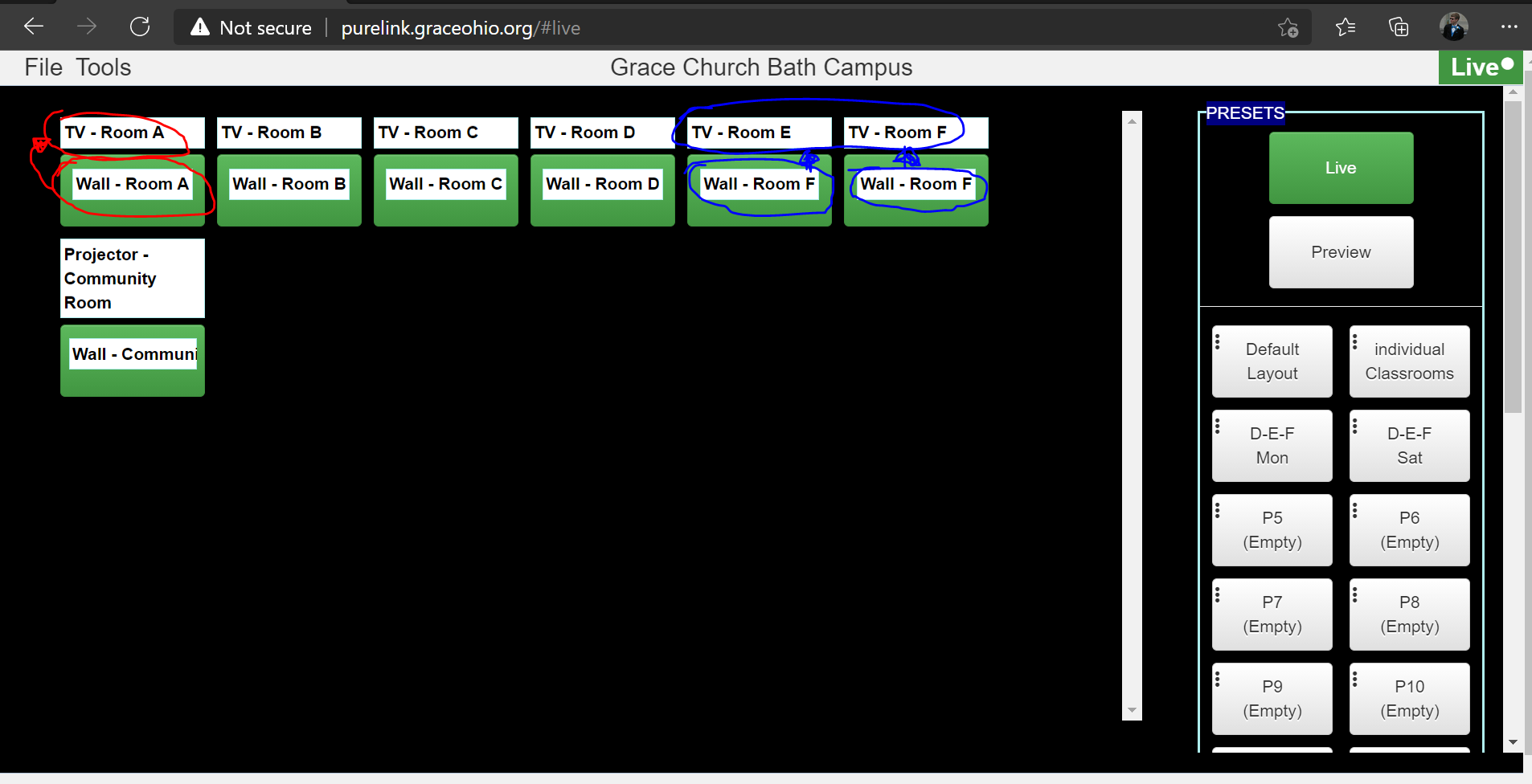
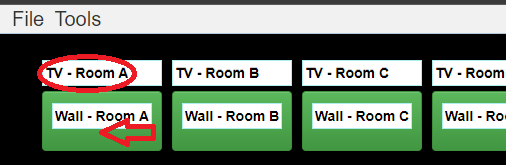
Here, you can configure how you want the inputs to project to the outputs you want. To be able to push changes live, ensure that you are in the *Live* mode. The *Live* button will be highlighted green if you are in *Live* mode. The left window of the dashboard shows all the TV's/Projectors that are connected on the PureLink network (i.e. ***TV - Room A***) in white boxes above green boxes. Inside the corresponding green boxes is the source that the screen is grabbing its media from (i.e. ***Wall - Room A***, which is the physical HDMI port on the wall in the room we saw in Figure 1).

I outlined a couple examples illustrating specific TV's and what their corresponding sources are in Figure 2 below. According to Figure 2, currently the **<span style="color: #ff0000;">TV in Room A</span>** is getting media from the port on the **<span style="text-decoration: underline; color: #ff0000;">Wall in Room A</span>**. The**<span style="color: #0000ff;"> TVs in Room E and Room F</span>** are <span style="text-decoration: underline;">both</span> getting their media from the port on the **<span style="text-decoration: underline;"><span style="color: #0000ff; text-decoration: underline;">Wall in Room F</span></span>**.

##### **Fig. 2**

[![image-1618099010639.png](https://kb.gracechurches.org/uploads/images/gallery/2021-04/scaled-1680-/image-1618099010639.png)](https://kb.gracechurches.org/uploads/images/gallery/2021-04/image-1618099010639.png)

##### **Change Sources of Screens**

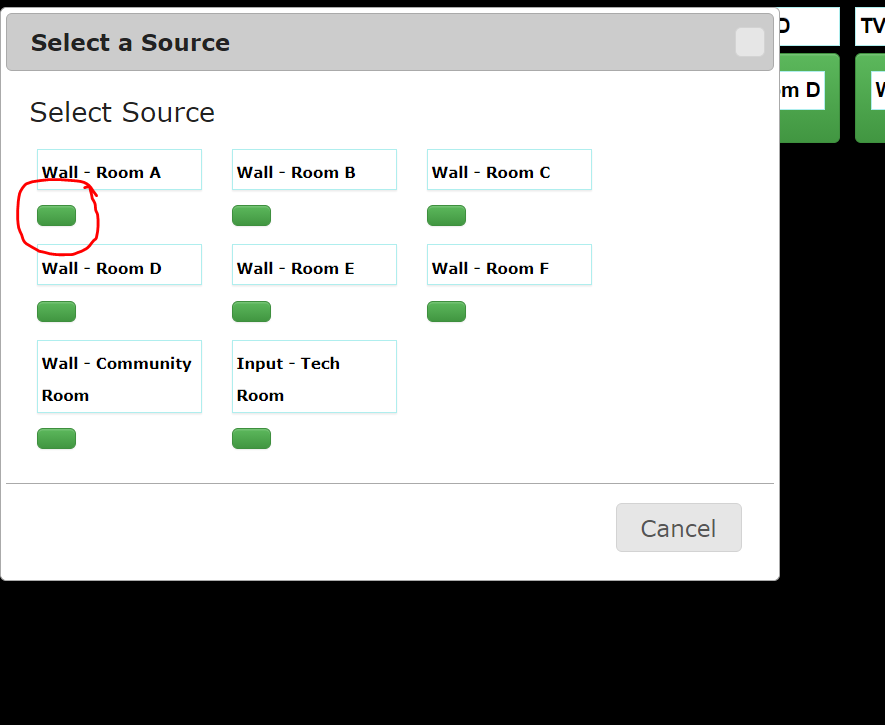
You can also individually change the source of just one screen at a time. To change the source for a single display, on the main dashboard page click on the green box below the display you want to edit. Choose the source that you need to be projected on this screen by clicking on the corresponding green box. In this example below, I clicked and selected the ***TV in Room A*** in Figure 3 and am changing its source to have it use the port on the **<span style="text-decoration: underline; color: #ff0000;">Wall in Room A</span>** in Figure 4.

##### **Fig. 3**

[![image-1638717888976.png](https://kb.gracechurches.org/uploads/images/gallery/2021-12/scaled-1680-/image-1638717888976.png)](https://kb.gracechurches.org/uploads/images/gallery/2021-12/image-1638717888976.png)

---

##### **Fig. 4**

[![image-1618151531058.png](https://kb.gracechurches.org/uploads/images/gallery/2021-04/scaled-1680-/image-1618151531058.png)](https://kb.gracechurches.org/uploads/images/gallery/2021-04/image-1618151531058.png)
Additionally, you can load a *preset* that can load sources to multiple screens in just one click for you. For the weekend services, in most situations, you will be fine to click on *Default Layout*. Below in Figure 5 is what the layout of screens and sources looks like for this specific preset.

##### **Fig. 5**

[![Purelink.png](https://kb.gracechurches.org/uploads/images/gallery/2020-10/scaled-1680-/Purelink.png)](https://kb.gracechurches.org/uploads/images/gallery/2020-10/Purelink.png)
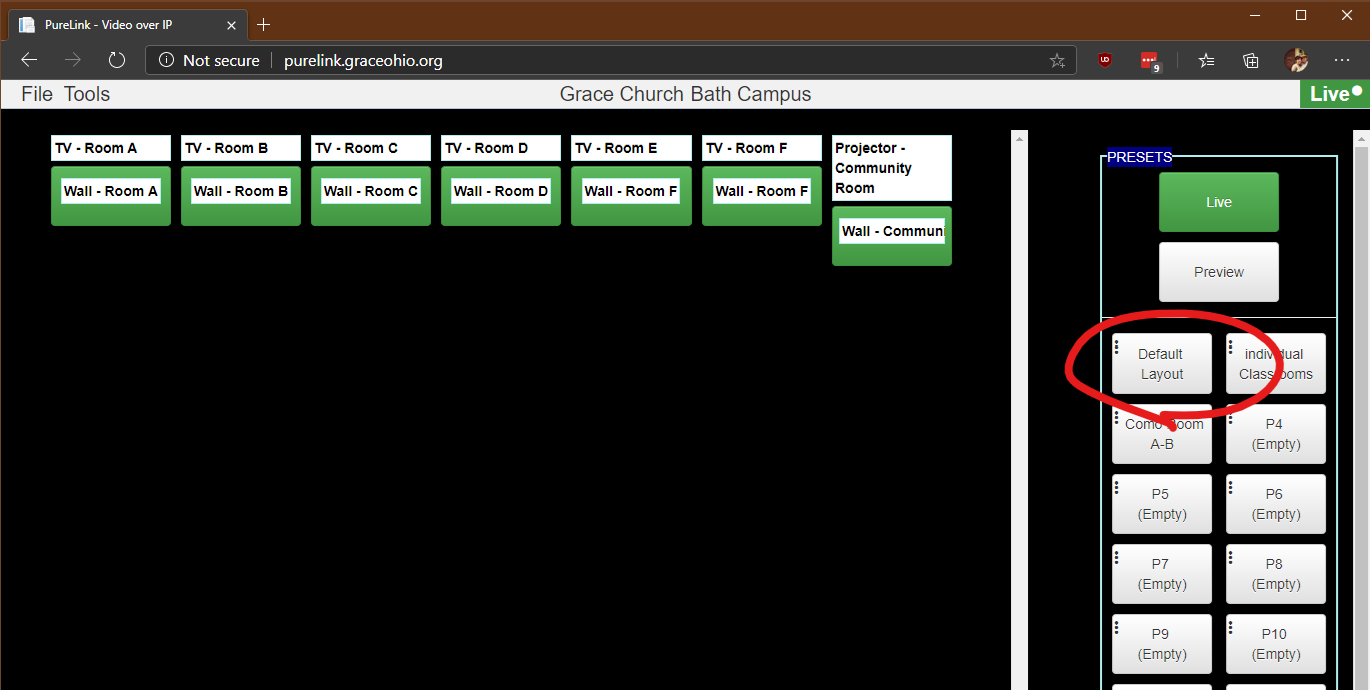
<p class="callout success">If you think you would benefit from having a preset for your event (For example, Say you want to project to the TV’s in Classrooms A, B, C and the Community Room Projector while being hooked up in Room B), you can ask Grace IT to make a preset that represents that for you. Of course, just specify the event time, the classroom for the wall port(s) you will be plugging into and the screen(s) you would like to project to. </p>

#### **How to Project to the TV with your device**

<details id="bkmrk-click-to-show-commun"><summary>Click to show Community Room Projector Instructions</summary>

1. Turn the Projector on. There is a hand sized, white remote that you can use and grab either from the front or the back of the room. Press the power button while pointing towards the projector.
2. Locate the 25 ft HDMI Cable on the floor. Verify it is plugged into the wall port next to PK Clubhouse.  
    This cable <u>should</u> already be connected to OR located near the floor level wall port (see the above Picture). The port will be labeled with the classroom it is associated with: Example: **<u>Wall – Community Room Front</u>**. If it is not already, please plug it in to the floor level wall port. ***<u>If it is missing, OR you need to use a different hookup location (for the Community Room the default is the Front wall), please let a Grace Staff member know</u>***. If you asked to use the Wall – Community Room Back Port, you may move the cable there if necessary.

</details>1. Turn the TV ON. (Located on Bottom right corner, backside of the TV has a circular button pad. Center button is power button. Left/Right buttons are the <span style="text-decoration: underline;">**Channel Navigators**</span>. Up/Down is <span style="text-decoration: underline;">**TV Volume ONLY**</span>)
2. In the classroom, Locate HDMI Cable below the TV.  
    [![image-1624478673370.png](https://kb.gracechurches.org/uploads/images/gallery/2021-06/scaled-1680-/image-1624478673370.png)](https://kb.gracechurches.org/uploads/images/gallery/2021-06/image-1624478673370.png)  
    The cable <span style="text-decoration: underline;">should</span> already be connected to the floor level wall port (see the above Picture). The port will be labeled with the classroom it is associated with. Example: <span style="text-decoration: underline; color: #ff0000;">**Wall - Classroom** **B**</span>. If it is not already please plug it in to the floor level wall port. ***<span style="text-decoration: underline;">Please do not plug it directly into the TV in an effort to prevent user confusion. </span>***Please use the channel Navigators to set the TV to HDMI 1 or the proper HDMI input.
3. Identify what type of video port your computer has: HDMI, Display Port, or Mini Display Port.
4. Connect HDMI cable to your computer. If your Computer has *a*: 
    1. HDMI Port- Connect HDMI cable directly to your HDMI port.
    2. Display Port- Connect HDMI cable to Display port adapter and then plug adapter into your computer. (See picture below)
    3. Mini Display Port- Connect HDMI cable to Mini-Display port adapter and then plug adapter into your computer.  
        [![image-1624479063172.png](https://kb.gracechurches.org/uploads/images/gallery/2021-06/scaled-1680-/image-1624479063172.png)](https://kb.gracechurches.org/uploads/images/gallery/2021-06/image-1624479063172.png)

<p class="callout danger">**<span style="text-decoration: underline;">Important</span>! When you are done with the cables and want to remove them from your computer:**</p>

<p class="callout danger"><span style="text-decoration: underline;">**DO NOT PULL/YANK**</span> ADAPTER OUT OF COMPUTER PORT!!!   
THERE IS A RELEASE BUTTON YOU MUST HOLD AND PULL TO RELEASE THE ADAPTER!!!</p>

<p class="callout info">Your computer screen should now be projecting to the TV. If not, or if it is projecting incorrectly please follow additional computer display setting instructions below.</p>

#### **How To Extend Your Computer Screen To The TV** 

##### <span style="color: #ff0000;">**WINDOWS INSTRUCTIONS:**</span>

This is the quickest way to extend the computer screen to the TV:

Press the Windows Key + P hotkey combination. Choose "Extend" from the list that appears if you want the TV and computer screen to be different from each other. Choose “Duplicate” if you want them to be the same.

Windows 7

[![image-1624477344905.png](https://kb.gracechurches.org/uploads/images/gallery/2021-06/scaled-1680-/image-1624477344905.png)](https://kb.gracechurches.org/uploads/images/gallery/2021-06/image-1624477344905.png)
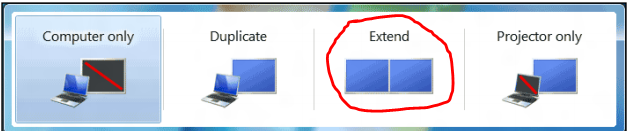
  
Windows 10 / 11

[![image-1624477376220.png](https://kb.gracechurches.org/uploads/images/gallery/2021-06/scaled-1680-/image-1624477376220.png)](https://kb.gracechurches.org/uploads/images/gallery/2021-06/image-1624477376220.png)
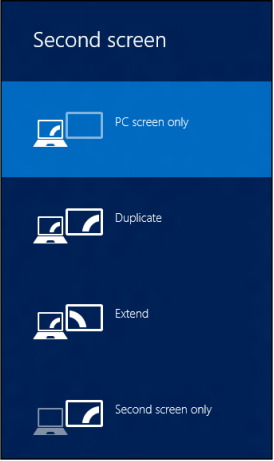
<p class="callout info">The TV screen will now be extended from your computer screen.  
(This means viewers will not see what is viewable on your <span style="text-decoration: underline;">**laptop screen**</span>: you will have to manually drag over the windows   
you want your viewers to see <span style="text-decoration: underline;">**onto the TV**</span> with your mouse)</p>

##### **<span style="color: #ff0000;">MAC INSTRUCTIONS:</span>**

Open/Search "System Preferences":

- Select "Displays".
- Select "Arrangement".
- Un-Select "Mirror Displays" (If you want your computer screen and TV to be different screens)

[![image-1624478023728.png](https://kb.gracechurches.org/uploads/images/gallery/2021-06/scaled-1680-/image-1624478023728.png)](https://kb.gracechurches.org/uploads/images/gallery/2021-06/image-1624478023728.png)
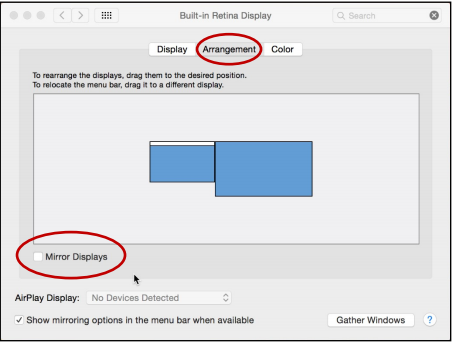
An additional "Display" window will appear for the TV after un-selecting “Mirror Displays". If you can't see it click the "Gather Windows" button. In your Display window select "Scaled". A drop-down box will appear; select "1080i". Also make sure your "Refresh Rate" is set to "60Hertz (NTSC)" if applicable.

[![image-1624478186990.png](https://kb.gracechurches.org/uploads/images/gallery/2021-06/scaled-1680-/image-1624478186990.png)](https://kb.gracechurches.org/uploads/images/gallery/2021-06/image-1624478186990.png)
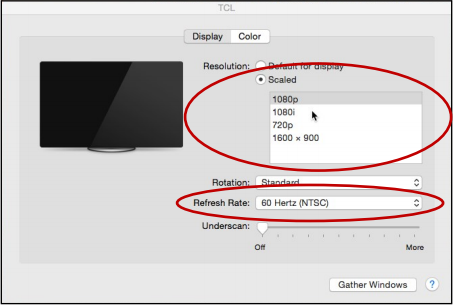
<p class="callout info">The TV screen will now be extended from your computer screen.  
(This means viewers will not see what is viewable on your <span style="text-decoration: underline;">**desktop**</span>, you will have to manually drag over the windows   
you want your viewers to <span style="text-decoration: underline;">**see on the TV**</span> with your mouse)</p>

#### **Adjust the Room Sound and Control**

If you need to adjust the volume in your room please use the touch screen panel nearest your computer/TV. Tap on **Computer Volume** to select it, and adjust the volume up by rotating the knob clockwise. Decrease the volume by turning the knob counter clockwise. This controls the room ceiling speakers system.

[![image-1672865282664.png](https://kb.gracechurches.org/uploads/images/gallery/2023-01/scaled-1680-/image-1672865282664.png) ](https://kb.gracechurches.org/uploads/images/gallery/2023-01/image-1672865282664.png) [![image-1673205670207.png](https://kb.gracechurches.org/uploads/images/gallery/2023-01/scaled-1680-/image-1673205670207.png)](https://kb.gracechurches.org/uploads/images/gallery/2023-01/image-1673205670207.png)
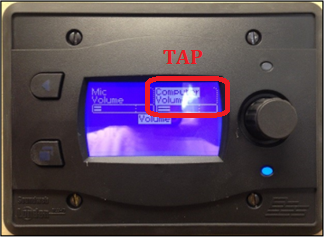
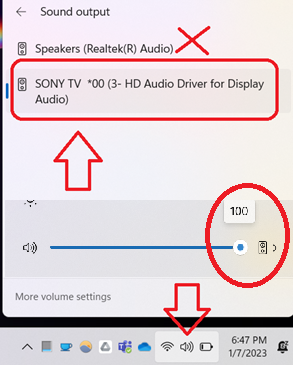
If you need to play sound to the room, just make sure that the volume on the touch screen panel is not all the way off, and ensure that volume on your computer is also not off or muted. (Note: Also, you <span style="text-decoration: underline;">need</span> to be using the Wall port with the HDMI cable to be able to broadcast the sound to the room ceiling speakers system.) You will *also* need to change your sound device to use the sound system and not your computer speakers (See picture above)

<p class="callout info">Please be **mindful** of other classrooms or services when adjusting your volume level!</p>

#### **Troubleshooting: TV(s) / Projectors displays only a PureLink splash screen, or nothing**

- <span style="text-decoration: underline;">Please do not disconnect cables behind the TVs</span>. Return all provided cables and dongles if you move them from their original location so that the setup is consistent for the next user. Disconnecting these cables has caused confusion and more issues.
- Make sure that your computer is plugged into the correct "Room Wall". It will be labeled according to its room. Example:   
    <span style="text-decoration: underline; color: #ff0000;">**Wall - Room A**</span> (also remember, you need to use the <span style="text-decoration: underline;">bottom wall HDMI connection</span> with the provided HDMI cable shown in **<span style="text-decoration: underline;">Figure 1</span>**: you are not supposed to disconnect or reconnect anything other than directly to your computer), and that the dashboard shows it is grabbing the corresponding wall as a source for the TV's you want.
- Ensure the TV/Projector is powered on. 
    - If the TV is turned on but your media is not displaying still and you verified you have enabled the proper display settings on your computer, make sure the TV is set on the correct HDMI source (please make sure the HDMI cable connections are secure). Using the left and right cardinal direction buttons on the back of the TV, channel through HDMI 1, 2, or 3 if necessary. (Note: There should only be one source that the TV is set to since there should only be one HDMI cable that connects to the TV, which is connected to our PureLink box on the wall).
    - If the Community Room Projector is turned on but your media is not displaying still and you verified you have enabled the proper display settings on your computer, make sure the Projector is set on the correct HDMI source. You can either push the buttons on the Projector directly, or use the remote that is usually located in the Wooden ClubHouse above the doorframe.
- Please ensure that you have followed the steps from earlier for extending your computer screen to the TV.

#### **PureLink Dashboard Won't Show Up**

- Please ensure you are connected to the internet. The churches' public Wi-Fi access point is *Grace Church* and does not require a password to connect. If you are on staff, the Grace Staff access point will also work so please use that if you are using staff equipment. 
    - If the dashboard still doesn't show up or is not responding, please let IT know by [submitting an issue through the helpdesk or calling on Telzio.](https://kb.gracechurches.org/books/it-helpdesk/page/requesting-it-help-grace-church-and-ce-national)

### <span style="text-decoration: underline;">Please do not disconnect cables behind the TVs</span>. Thank you for your understanding!

#### **ClassRooms PureLink Connections Diagram**

[![image-1673470608995.png](https://kb.gracechurches.org/uploads/images/gallery/2023-01/scaled-1680-/image-1673470608995.png)](https://kb.gracechurches.org/uploads/images/gallery/2023-01/image-1673470608995.png)
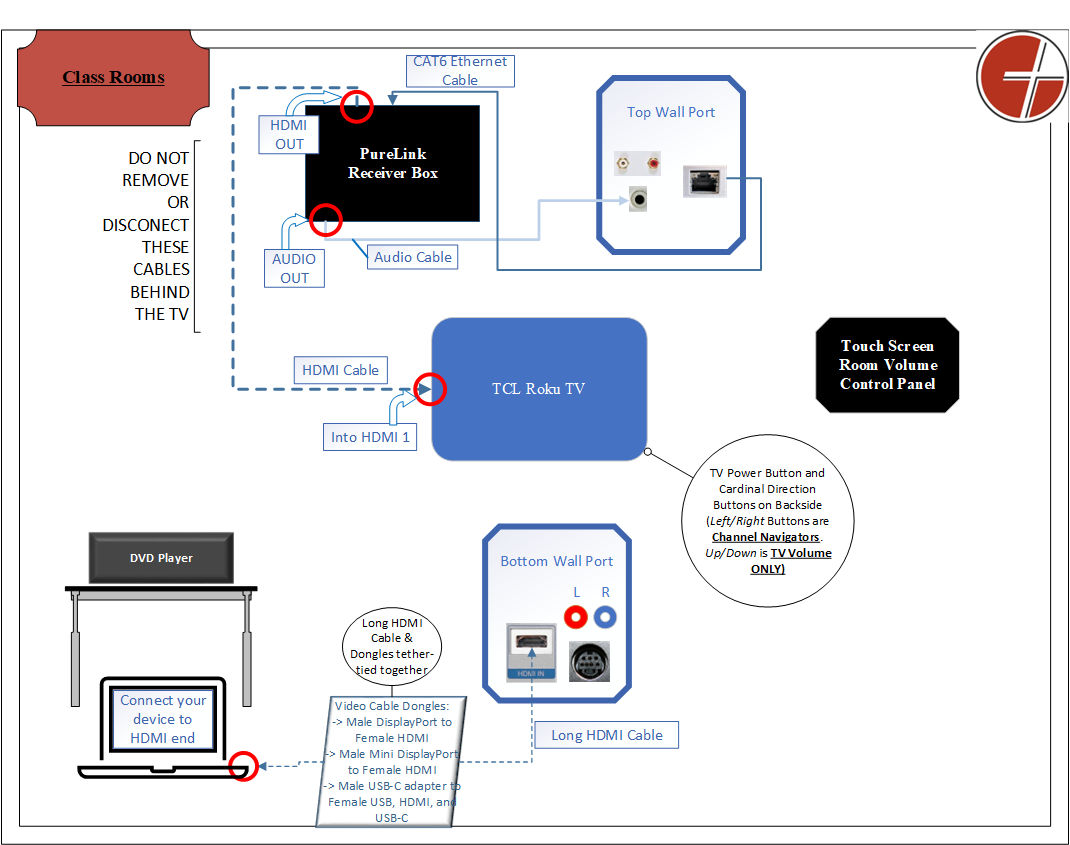
#### **Community Room PureLink Connections Diagram**

[![image-1673796947837.png](https://kb.gracechurches.org/uploads/images/gallery/2023-01/scaled-1680-/image-1673796947837.png)](https://kb.gracechurches.org/uploads/images/gallery/2023-01/image-1673796947837.png)
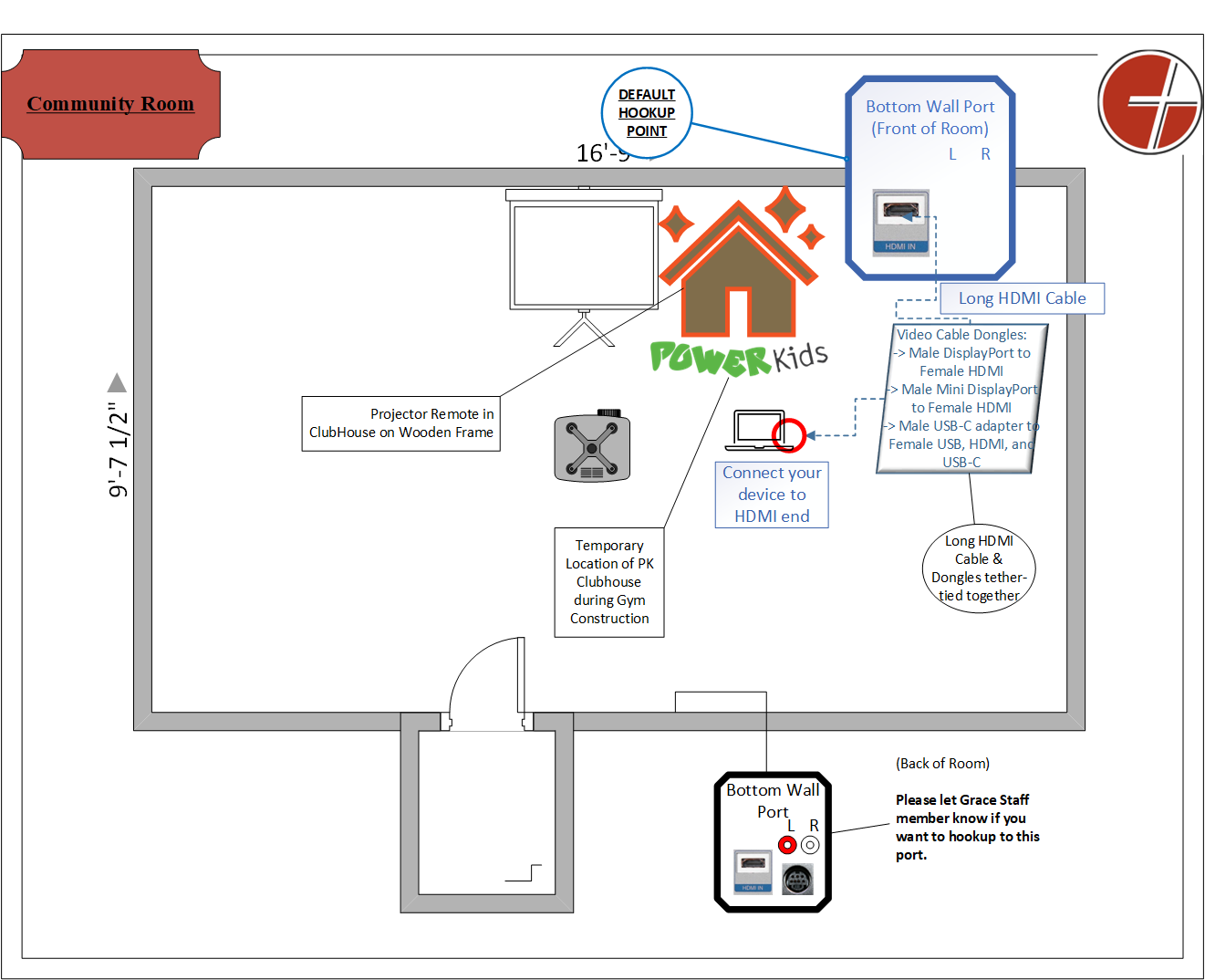
# Grace Finance

# Citrix Workspace only showing on half of screen or mouse clicks are misaligned

How to fix Citrix Workspace if an app window displays the application in half of it and a black screen in the other half or if the mouse isn't clicking where the cursor is.

1\. Right click on the Citrix Workspace icon in the system tray

<div id="bkmrk-"></div><div id="bkmrk-%C2%A0-%C2%A0%C2%A0"> ![](https://kb.wisc.edu/images/group28/105614/rightclickworkspace.png)</div><div id="bkmrk--0"></div><div id="bkmrk-2.-click-on-%22advance">2. Click on "Advanced Preferences"</div><div id="bkmrk--1"></div><div id="bkmrk-%C2%A0-%C2%A0-%C2%A0"> ![](https://kb.wisc.edu/images/group28/105614/AdvancedPreferences.png)</div><div id="bkmrk--2"></div><div id="bkmrk-3.-when-the-advanced">3. When the Advanced Preferences window pops up, click "High DPI"</div><div id="bkmrk--3"></div><div id="bkmrk-%C2%A0-%C2%A0%C2%A0-0"> ![](https://kb.wisc.edu/images/group28/105614/SelectHighDPI.png)</div><div id="bkmrk--4"></div><div id="bkmrk-4.-select-%22no%2C-use-t">4. Select "No, Use the Native Resolution" and click Save.</div><div id="bkmrk--5"></div><div id="bkmrk-%C2%A0-%C2%A0%C2%A0-1"> ![](https://kb.wisc.edu/images/group28/105614/UseNativeResolution.png)</div><div id="bkmrk--6"></div><div id="bkmrk-5.-close-the-advance">5. Close the Advanced Preferences window</div><div id="bkmrk--7"></div><div id="bkmrk-6.%C2%A0-right-click-on-t">6. Right click on the Workspace icon in the system tray again, then click exit.</div><div id="bkmrk--8"></div><div id="bkmrk-%C2%A0-%C2%A0-%C2%A0-0"> ![](https://kb.wisc.edu/images/group28/105614/Exit.png)</div><div id="bkmrk--9"></div><div id="bkmrk-7.-re-launch-citrix-">7. Re-launch Citrix Workspace</div><div id="bkmrk--10"></div><div id="bkmrk--11"></div><div id="bkmrk-if-you-continue-to-e">If you continue to encounter this issue, please see Citrix's documentation here: [https://support.citrix.com/article/CTX224400](https://support.citrix.com/article/CTX224400)</div>

# Epson TM - S1000 | Setup to Deposit Checks

The finance team uses this scanner to deposit checks online in their internet browser. However, it requires a bit of undocumented setup to get the scanner to communicate with their deposit site. You will need the scanner drivers AND a complimentary piece of service software to go alongside it.

<p class="callout info">Before installing drivers, Epson recommends that you *do not* have the scanner connected to the computer while installing drivers. Connect it once all installations have completed.</p>

You can manually download the model's drivers here: [SPT\_A41A266111 | Epson TM-S1000 Series | Check Scanners | Point of Sale | Support | Epson US](https://epson.com/Support/Point-of-Sale/Check-Scanners/Epson-TM-S1000-Series/s/SPT_A41A266111)

You'll need to install:

- TMUSB Device Driver (at least v8.00b)
- Epson TM-S1000 Driver for Windows (at least v1.06)
- Epson Adjustment Program (at least v1.20)

Complimentary Service Software:

- EPS (Enterprise Payment Solutions) Device Control

You can also download all the files from SharePoint: [Epson TM - S1000 Scanner Drivers](https://gracechurchohio.sharepoint.com/:u:/s/GraceIT/EUtryYnzyjZIlFjpdIfWPD8B3vIovy2DZoqX9ehJdnhu6A)

---

Might not need?

- *Epson Connect Printer Setup Utility (v1.41) (Might not need it?)*

# Microsoft Office

# How to Update Office for Windows 10

**<span data-contrast="auto">How to update Microsoft Office on Windows 10</span>**<span data-ccp-props="{"201341983":0,"335559739":160,"335559740":259}"> </span>

- <span data-contrast="auto">Open any Microsoft Office document (Word, Excel, etc).</span><span data-ccp-props="{"201341983":0,"335559739":160,"335559740":259}"> **Make sure any important documents are saved before proceeding.**</span>
- <span data-contrast="auto">Click on File at the top left corner of the document.</span><span data-ccp-props="{"201341983":0,"335559739":160,"335559740":259}"> </span>

<span data-ccp-props="{"201341983":0,"335559739":160,"335559740":259}"> [![Office-Widowas-1.png](https://kb.gracechurches.org/uploads/images/gallery/2022-04/scaled-1680-/office-widowas-1.png)](https://kb.gracechurches.org/uploads/images/gallery/2022-04/office-widowas-1.png)</span>

- <span data-contrast="auto">Click on Account.</span><span data-ccp-props="{"201341983":0,"335559739":160,"335559740":259}"> </span>

<span data-ccp-props="{"201341983":0,"335559739":160,"335559740":259}"> [![Office-WIndows-2.png](https://kb.gracechurches.org/uploads/images/gallery/2022-04/scaled-1680-/office-windows-2.png)](https://kb.gracechurches.org/uploads/images/gallery/2022-04/office-windows-2.png)</span>

- <span data-contrast="auto">Click on the Update Options box, left of Office Updates.</span><span data-ccp-props="{"201341983":0,"335559739":160,"335559740":259}"> </span>

<span data-ccp-props="{"201341983":0,"335559739":160,"335559740":259}"> [![Ofice-Windows-3.png](https://kb.gracechurches.org/uploads/images/gallery/2022-04/scaled-1680-/ofice-windows-3.png)](https://kb.gracechurches.org/uploads/images/gallery/2022-04/ofice-windows-3.png)</span>

- <span data-contrast="auto">Click Update Now.</span><span data-ccp-props="{"201341983":0,"335559739":160,"335559740":259}"> </span>

# How to Update Office for MacOS

**<span data-contrast="auto">How to update Microsoft Office on MacOS</span>**<span data-ccp-props="{"201341983":0,"335559739":160,"335559740":259}"> </span>

- <span data-contrast="auto">Open the applications store.</span><span data-ccp-props="{"201341983":0,"335559739":160,"335559740":259}"> </span>

<span data-ccp-props="{"201341983":0,"335559739":160,"335559740":259}"> [![4-5-4.png](https://kb.gracechurches.org/uploads/images/gallery/2022-04/scaled-1680-/4-5-4.png)](https://kb.gracechurches.org/uploads/images/gallery/2022-04/4-5-4.png)</span>

- <span data-contrast="auto">Click on Updates.</span><span data-ccp-props="{"201341983":0,"335559739":160,"335559740":259}"> </span>

<span data-ccp-props="{"201341983":0,"335559739":160,"335559740":259}"> [![4-5-3.png](https://kb.gracechurches.org/uploads/images/gallery/2022-04/scaled-1680-/4-5-3.png)](https://kb.gracechurches.org/uploads/images/gallery/2022-04/4-5-3.png)</span>

- <span data-contrast="auto">If an update is available for Microsoft office apps, e</span><span data-contrast="none">ither click the update button next to each of the apps that you want to update or click update all in order to update all apps.</span><span data-ccp-props="{"201341983":0,"335559739":160,"335559740":259}"> **Make sure all open documents are saved and closed before proceeding with this step.**</span>

# Outlook | Calendar Group Following in Inbox

Ever since we converted our Campus Staff groups (i.e. Bath, Medina East ) into Office365 groups, some people have had issues with personal calendars being cluttered with calendar appointments from the respective campus staff group, including PTO / OOO events. You can turn off this “auto group calendar forwarding” feature by following Microsoft’s Outlook guide for the [Windows app](https://support.microsoft.com/en-us/office/follow-a-group-in-outlook-e147fc19-f548-4cd2-834f-80c6235b7c36#ID0EBBF=Windows), or the [Browser app](https://support.microsoft.com/en-us/office/follow-a-group-in-outlook-e147fc19-f548-4cd2-834f-80c6235b7c36#ID0EBBF=Web).

Outlook refers to this forwarding as “Follow in Inbox”. To stop following PTO events to your calendar inbox, you will want to choose a different option than “All Email and Events” under the “Group Settings” of your Staff Campus Group (picture below).. Turning this off in MacOS outlook should be similar process to the Windows Outlook app. I personally have it set so that I only get replies to me sent straight to my inbox. Then I can open the Group Calendar and add any staff calendar events to my calendar as I need to.

[![image-1658156661773.png](https://kb.gracechurches.org/uploads/images/gallery/2022-07/scaled-1680-/image-1658156661773.png)](https://kb.gracechurches.org/uploads/images/gallery/2022-07/image-1658156661773.png)
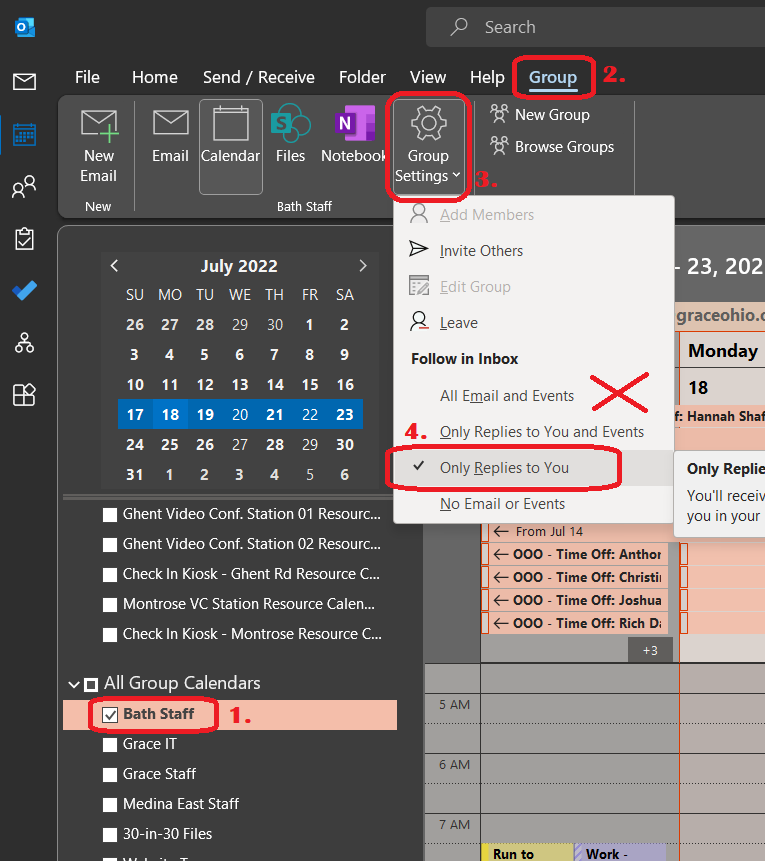
1\. Open up Outlook, Goto Calendar, and choose your Campus Staff Group Calendar.

2\. With your Group Calendar selected and highlighted, click on the Group tab

3\. Click on Group Settings.

4\. You can choose a setting that makes sense to you. I personally only follow Replies to me, as shown in the picture above.

# Add delegate for your Calendar, Mail, Contacts

### General Info

#### [Allow someone else to manage your mail and calendar (microsoft.com)](https://support.microsoft.com/en-us/office/allow-someone-else-to-manage-your-mail-and-calendar-41c40c04-3bd1-4d22-963a-28eafec25926)

---

### Delegate Methods (Depending on your Outlook Platform):

##### How to add in **[New Outlook ](https://support.microsoft.com/en-us/office/share-and-access-a-calendar-with-edit-or-delegate-permissions-in-outlook-532e6410-ee80-42b5-9b1b-a09345ccef1b#picktab=new_outlook)**

##### How to add in [**Classic Outlook**](https://support.microsoft.com/en-us/office/share-and-access-a-calendar-with-edit-or-delegate-permissions-in-outlook-532e6410-ee80-42b5-9b1b-a09345ccef1b#picktab=classic_outlook) (This is the Recommended way to get access to all delegate settings, but you'll need to be on Windows.)

##### How to add in [**Outlook on the Web**](https://support.microsoft.com/en-us/office/share-and-access-a-calendar-with-edit-or-delegate-permissions-in-outlook-532e6410-ee80-42b5-9b1b-a09345ccef1b#picktab=outlook_on_the_web)

##### How to add in **[Outlook on macOS](https://support.microsoft.com/en-us/office/add-and-manage-delegates-in-outlook-for-mac-49ba7631-1984-453e-8a8f-c78fd43475e4#:~:text=1%20On%20the%20Tools%20menu%2C%20click%20Accounts.%202,6%20In%20the%20Permissions%20box%2C%20...%20See%20More.)**

# Add Shared Mailbox to your Outlook

Someone on staff can give you delegate access to their email or calendar, or we can give you access to a shared mailbox account so that you can manage the account's email (The account may be either an offboarded user that was converted into a shared mailbox for the manager, or a general account to receive emails for an application). Depending on whether you are trying to use your delegate rights or directly access a shared mailbox, there are certain steps you may need to take in order to be able to view these mailboxes / calendars.

- If you were given **Delegate** Permissions to a Staff member's Mailbox, this mailbox will automatically appear in the Outlook Client on **Windows** below your mailbox in the left column of the program. This may take several minutes, but it usually occurs the next time your restart Outlook or your computer. 
    - If you are using the **Outlook.com** Web Client ([Mail - Outlook (office.com)](https://outlook.office.com/mail/)) or **the MacOS** Outlook Client you will need to add the mailbox manually. 
        - How to open a delegated mail account on **MacOS Outlook**: [Open a shared Mail, Calendar or People folder in Outlook for Mac - Microsoft Support](https://support.microsoft.com/en-us/office/open-a-shared-mail-calendar-or-people-folder-in-outlook-for-mac-6ecc39c5-5577-4a1d-b18c-bbdc92972cb2)
        - How to open a delegated mail account on the **Outlook.com** Web Client: [Access another person's mailbox - Microsoft Support](https://support.microsoft.com/en-us/office/access-another-person-s-mailbox-a909ad30-e413-40b5-a487-0ea70b763081#__toc372388945)
- If you were given permissions to a **Shared Mailbox**, this mailbox will automatically appear in the Outlook Client on **Windows** below your mailbox in the left column of the program. This may take several minutes if it was recently shared to you, but it usually occurs the next time you restart Outlook or your computer. 
    - How to add shared mailbox on the **Outlook.com** Web Client: [Open and use a shared mailbox in Outlook on the web - Microsoft Support](https://support.microsoft.com/en-us/office/open-and-use-a-shared-mailbox-in-outlook-on-the-web-98b5a90d-4e38-415d-a030-f09a4cd28207)
    - How to add a Shared Mailbox on **MacOS Outlook**: [Open a Shared or Delegated Mailbox](https://support.microsoft.com/en-us/office/open-a-shared-mail-calendar-or-people-folder-in-outlook-for-mac-6ecc39c5-5577-4a1d-b18c-bbdc92972cb2)

Since the **Windows Outlook** Client will usually automatically add a shared or delegated mailbox for you, normally you don't need to do anything on your end to view these mailboxes. However, if you want to have the option to manually add a box, you can use this guide: [https://support.microsoft.com/en-us/office/manage-another-person-s-mail-and-calendar-items-afb79d6b-2967-43b9-a944-a6b953190af5#\_\_toc370369831](https://support.microsoft.com/en-us/office/manage-another-person-s-mail-and-calendar-items-afb79d6b-2967-43b9-a944-a6b953190af5#__toc370369831)


##### **Example showing difference between your work *<span style="text-decoration: underline;">EmailBox</span>* and <span style="text-decoration: underline;">*Shared Mailbox(es)*</span>:**  


[![image.png](https://kb.gracechurches.org/uploads/images/gallery/2023-12/scaled-1680-/vbCimage.png)](https://kb.gracechurches.org/uploads/images/gallery/2023-12/vbCimage.png)

# Download Outlook Emails older than 1 year

By Default, the Outlook Client on Windows Desktop will only download emails from an Office's user's account newer than one year. You can change this by changing the "Cached Exchange Mode". Be warned though as this can cause Outlook to take a performance hit or have other issues. This chance increases the more or larger email items you have.

To turn on Cached Exchange Mode, open Outlook. Go to File, Info, Account Settings, Manage Profiles.

[![image.png](https://kb.gracechurches.org/uploads/images/gallery/2024-05/scaled-1680-/r5yimage.png)](https://kb.gracechurches.org/uploads/images/gallery/2024-05/r5yimage.png)
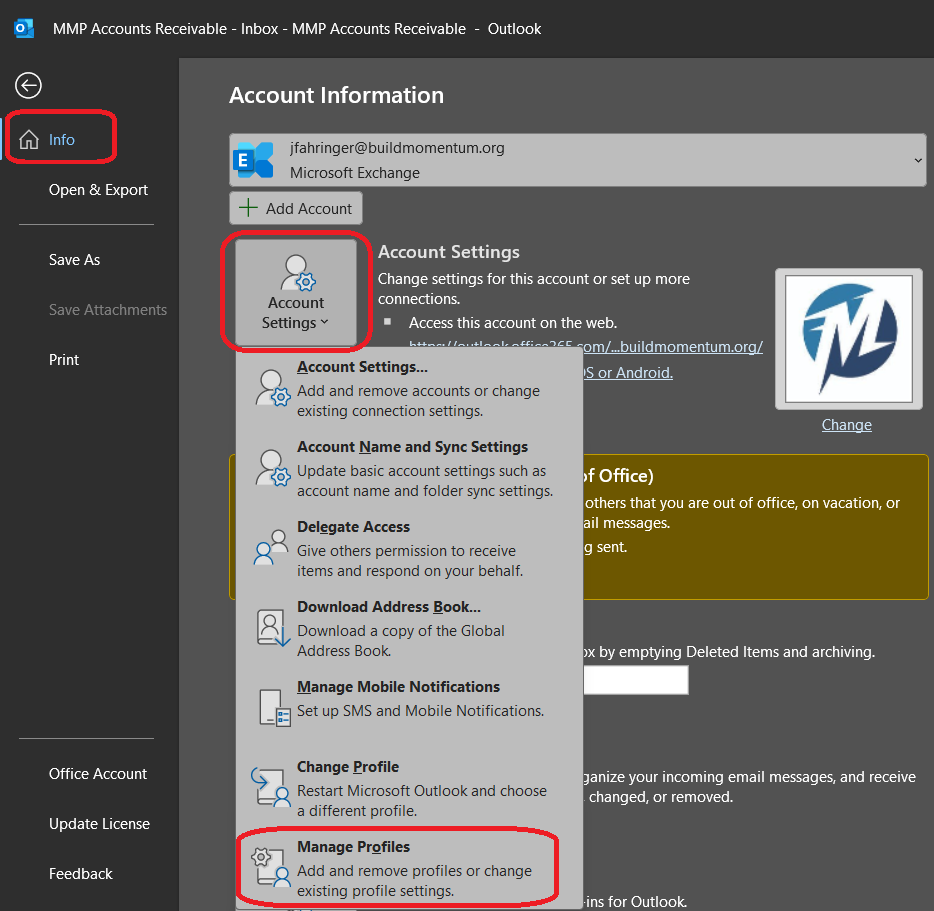
In the Mail Setup window, Click on Email Accounts...

[![image.png](https://kb.gracechurches.org/uploads/images/gallery/2024-05/scaled-1680-/h4Wimage.png)](https://kb.gracechurches.org/uploads/images/gallery/2024-05/h4Wimage.png)
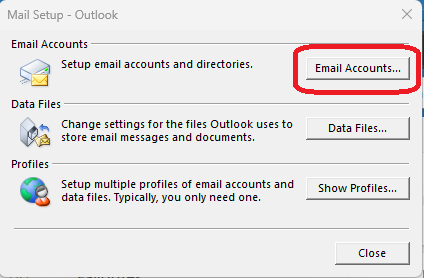
In the Account Settings Window, double click on your Profile that you want to adjust:

[![image.png](https://kb.gracechurches.org/uploads/images/gallery/2024-05/scaled-1680-/lepimage.png)](https://kb.gracechurches.org/uploads/images/gallery/2024-05/lepimage.png)
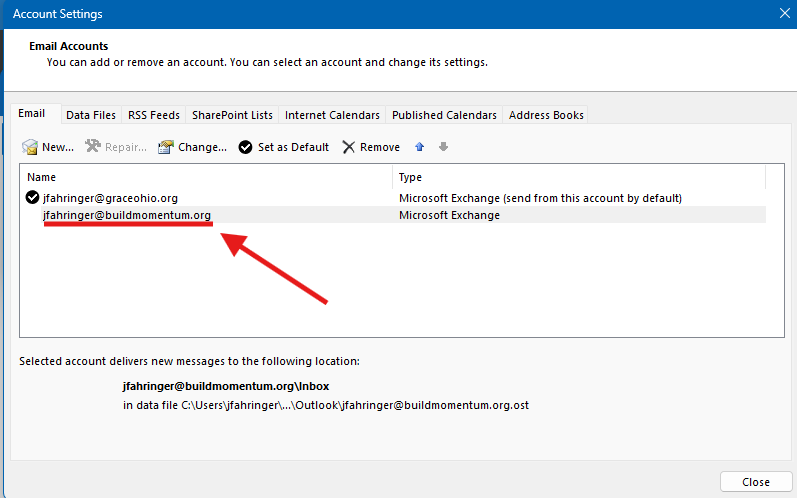
Then check the box to enable Cached Exchange Mode. Adjust the slider to your preference (carefully).   
Examples:

[![image.png](https://kb.gracechurches.org/uploads/images/gallery/2024-05/scaled-1680-/Cfzimage.png)](https://kb.gracechurches.org/uploads/images/gallery/2024-05/Cfzimage.png)
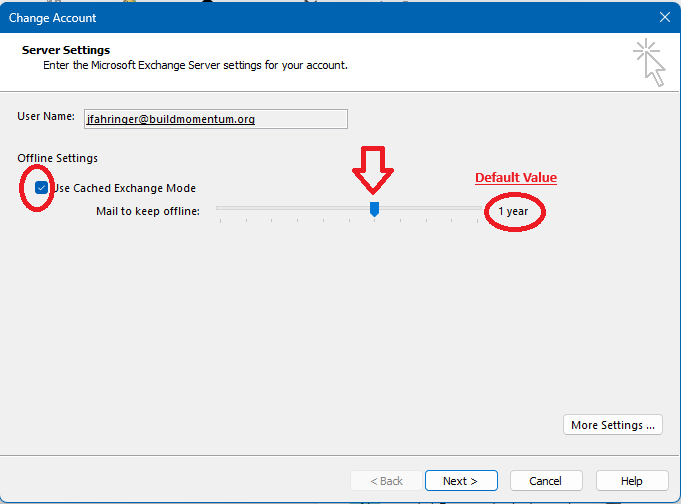
[![image.png](https://kb.gracechurches.org/uploads/images/gallery/2024-05/scaled-1680-/Z6Kimage.png)](https://kb.gracechurches.org/uploads/images/gallery/2024-05/Z6Kimage.png)
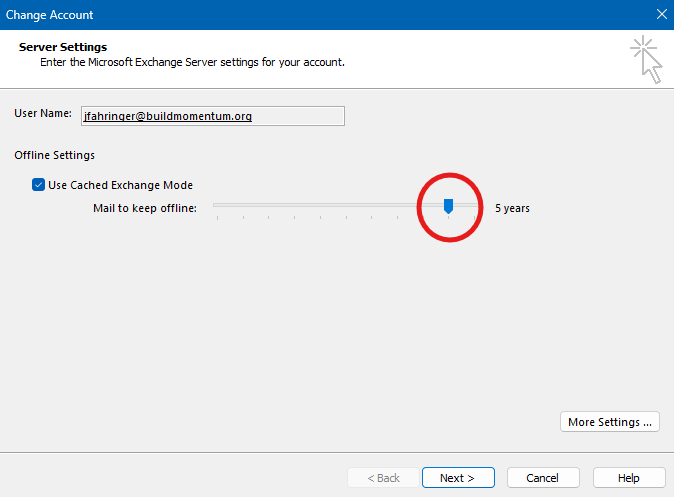
# Editing Group Membership of M365 Group

#### In Classic Outlook

<div dir="ltr" id="bkmrk-find-and-select-the-">Find and select the group on the left-hand column under the "Groups" heading.  
![](https://attachment.freshdesk.com/inline/attachment?token=eyJ0eXAiOiJKV1QiLCJhbGciOiJIUzI1NiJ9.eyJpZCI6MTUwMDg1ODQ2MzAzLCJkb21haW4iOiJncmFjZWNodXJjaC5mcmVzaGRlc2suY29tIiwiYWNjb3VudF9pZCI6MjczNTA1Nn0.f-feF1hYSoi-vdg4Le_elZAx3wW5o6BmLnBH8Fwpd0E)</div><div id="bkmrk-">  
</div><div dir="ltr" id="bkmrk-then-in-the-ribbon-b">Then in the Ribbon Bar click on "Group Settings" then choose "Edit Group"</div><div dir="ltr" id="bkmrk--1">![](https://attachment.freshdesk.com/inline/attachment?token=eyJ0eXAiOiJKV1QiLCJhbGciOiJIUzI1NiJ9.eyJpZCI6MTUwMDg1ODQ2NDI2LCJkb21haW4iOiJncmFjZWNodXJjaC5mcmVzaGRlc2suY29tIiwiYWNjb3VudF9pZCI6MjczNTA1Nn0.8LJqEr29pwAL4xa0AZqj9yK3zmIax61i6R-OLTdTUJ8)</div><div dir="ltr" id="bkmrk-from-this-screen-you">From this screen you can Add users from the "add people" field and remove members by hovering over their name and clicking the red "x".</div><div id="bkmrk--2">  
</div>#### In New Outlook

<div dir="ltr" id="bkmrk-on-the-left-side-of-">On the left side of the window Choose "Groups" or "More Apps" &gt; "Groups". Then choose "Credit Card Participants" then click on "Members"</div><div dir="ltr" id="bkmrk-%C2%A0">![](https://attachment.freshdesk.com/inline/attachment?token=eyJ0eXAiOiJKV1QiLCJhbGciOiJIUzI1NiJ9.eyJpZCI6MTUwMDg1ODQ4MzY3LCJkb21haW4iOiJncmFjZWNodXJjaC5mcmVzaGRlc2suY29tIiwiYWNjb3VudF9pZCI6MjczNTA1Nn0.BRC-CPiIi2_fMKGcUI8_BBFF8EwR5Kq1mte3WO2MHqQ) </div><div dir="ltr" id="bkmrk--3"></div><div dir="ltr" id="bkmrk-from-this-window-you">From this window you can remove members and if you want to add a member select "Add members" from the ribbon bar.</div><div dir="ltr" id="bkmrk--4">![](https://attachment.freshdesk.com/inline/attachment?token=eyJ0eXAiOiJKV1QiLCJhbGciOiJIUzI1NiJ9.eyJpZCI6MTUwMDg1ODQ4ODMyLCJkb21haW4iOiJncmFjZWNodXJjaC5mcmVzaGRlc2suY29tIiwiYWNjb3VudF9pZCI6MjczNTA1Nn0.sOa4iAL8vFK1QTBqfzl3oOnWq7ZDdo85-HMekZ_KvlI)  
</div>

# Set Personal Outlook Calendar "My Organization" Viewing Privileges

source: [Share an Outlook calendar as view-only with others - Microsoft Support](https://support.microsoft.com/en-us/office/share-an-outlook-calendar-as-view-only-with-others-353ed2c1-3ec5-449d-8c73-6931a0adab88)

To change your Calendar viewing permissions so that your Calendar details are visible to everyone one staff, you'll need to access your Outlook settings.

[![image.png](https://kb.gracechurches.org/uploads/images/gallery/2025-02/scaled-1680-/MPKimage.png)](https://kb.gracechurches.org/uploads/images/gallery/2025-02/MPKimage.png)

#### **Windows** 

1. In the calendar view, Right Click your user Grace Church calendar. Then click on Sharing Permissions:  
    [![image.png](https://kb.gracechurches.org/uploads/images/gallery/2025-02/scaled-1680-/DL2image.png)](https://kb.gracechurches.org/uploads/images/gallery/2025-02/DL2image.png)
2. Set My Organization permission off from "None"/"Can view when I'm busy", to either "Can view titles and locations" or "Can view all details". Then hit Apply, and OK:  
    [![image.png](https://kb.gracechurches.org/uploads/images/gallery/2025-02/scaled-1680-/rV8image.png)](https://kb.gracechurches.org/uploads/images/gallery/2025-02/rV8image.png)
3. You can also add additional privileges in this same window for individual users if you want to.

#### **WebOutlook / NewOutlook (and macOS)**

This looks very similar to Windows Classic Outlook.

1. In the calendar view, Right Click your user Grace Church calendar. Then click on Sharing Permissions:  
    [![image.png](https://kb.gracechurches.org/uploads/images/gallery/2025-02/scaled-1680-/lsGimage.png)](https://kb.gracechurches.org/uploads/images/gallery/2025-02/lsGimage.png)
2. Set My Organization permission off from "None"/"Can view when I'm busy", to either "Can view titles and locations" or "Can view all details". Then hit Apply, and OK:  
    [![image.png](https://kb.gracechurches.org/uploads/images/gallery/2025-02/scaled-1680-/rp5image.png)](https://kb.gracechurches.org/uploads/images/gallery/2025-02/rp5image.png)
3. You can also add additional privileges in this same window for individual users if you want to.

<p class="callout success">TIP: You can still create private-to-you appointments that will only appear as blocked off appointments to everyone else when they look at your calendar:</p>

[![image.png](https://kb.gracechurches.org/uploads/images/gallery/2025-02/scaled-1680-/1Hqimage.png)](https://kb.gracechurches.org/uploads/images/gallery/2025-02/1Hqimage.png)

# Adobe Acrobat

# How to Update Adobe Acrobat

**<span data-contrast="auto">How to update Acrobat Reader DC on Windows 10 and MacOS</span>**<span data-ccp-props="{"201341983":0,"335559739":160,"335559740":259}"> </span>

- <span data-contrast="auto">Open Adobe Acrobat Reader DC if you have not done so already.</span><span data-ccp-props="{"201341983":0,"335559739":160,"335559740":259}"> </span>
- <span data-contrast="auto">Click on the help option on the top left corner.</span><span data-ccp-props="{"201341983":0,"335559739":160,"335559740":259}"> </span>
- <span data-contrast="auto">Click Check for Updates.</span><span data-ccp-props="{"201341983":0,"335559739":160,"335559740":259}"> </span>

<span data-ccp-props="{"201341983":0,"335559739":160,"335559740":259}"> [![Screenshot 2022-04-05 105233.png](https://kb.gracechurches.org/uploads/images/gallery/2022-04/scaled-1680-/screenshot-2022-04-05-105233.png)](https://kb.gracechurches.org/uploads/images/gallery/2022-04/screenshot-2022-04-05-105233.png)</span>

- <span data-contrast="auto">If an update is available, it will automatically be downloaded and installed.</span><span data-ccp-props="{"201341983":0,"335559739":160,"335559740":259}"> </span>

[![Screenshot 2022-04-26 094828.png](https://kb.gracechurches.org/uploads/images/gallery/2022-04/scaled-1680-/screenshot-2022-04-26-094828.png)](https://kb.gracechurches.org/uploads/images/gallery/2022-04/screenshot-2022-04-26-094828.png)

- <span data-contrast="auto">If needed, restart your computer. </span>**<span data-contrast="auto">Ensure that all open files are saved before proceeding with this step.</span>**<span data-ccp-props="{"201341983":0,"335559739":160,"335559740":259}"> </span>

# Google Chrome

# How to Update Google Chrome

**<span data-contrast="auto">How to update Google Chrome on Windows 10 and MacOS</span>**<span data-ccp-props="{"201341983":0,"335559739":160,"335559740":259}"> </span>

- <span data-contrast="auto">Open the Google Chrome web browser if you have not done so already.</span><span data-ccp-props="{"201341983":0,"335559739":160,"335559740":259}"> </span>
- <span data-contrast="auto">Click on the more button (three vertical dots on the top right corner of the web page).</span><span data-ccp-props="{"201341983":0,"335559739":160,"335559740":259}"> </span>

<span data-ccp-props="{"201341983":0,"335559739":160,"335559740":259}"> [![Screenshot 2022-04-05 104846.png](https://kb.gracechurches.org/uploads/images/gallery/2022-04/scaled-1680-/screenshot-2022-04-05-104846.png)](https://kb.gracechurches.org/uploads/images/gallery/2022-04/screenshot-2022-04-05-104846.png)</span>

- <span data-contrast="auto">Hover over the help option.</span><span data-ccp-props="{"201341983":0,"335559739":160,"335559740":259}"> </span>

- <span data-contrast="auto">Click About Google Chrome in the new menu.</span><span data-ccp-props="{"201341983":0,"335559739":160,"335559740":259}"> </span>

<span data-ccp-props="{"201341983":0,"335559739":160,"335559740":259}"> [![Screenshot 2022-04-05 104944.png](https://kb.gracechurches.org/uploads/images/gallery/2022-04/scaled-1680-/screenshot-2022-04-05-104944.png)](https://kb.gracechurches.org/uploads/images/gallery/2022-04/screenshot-2022-04-05-104944.png)</span>

- <span data-contrast="auto">If an update is available, click Update Google Chrome (If the button is not available, it means that you are already up to date.</span><span data-ccp-props="{"201341983":0,"335559739":160,"335559740":259}"> </span>

<span data-ccp-props="{"201341983":0,"335559739":160,"335559740":259}"> [![Screenshot 2022-04-05 105018.png](https://kb.gracechurches.org/uploads/images/gallery/2022-04/scaled-1680-/screenshot-2022-04-05-105018.png)](https://kb.gracechurches.org/uploads/images/gallery/2022-04/screenshot-2022-04-05-105018.png)</span>

- <span data-contrast="auto">Click Relaunch. </span>**<span data-contrast="none">Please ensure that all important web pages are properly saved and closed before proceeding with this step.</span>**<span data-ccp-props="{"201341983":0,"335559739":160,"335559740":259}"> </span>

# Clear Cache & Cookies - Google Chrome

[Clear cache &amp; cookies - Computer - Google Account Help](https://support.google.com/accounts/answer/32050?hl=en&co=GENIE.Platform%3DDesktop)

# Clear cache / cookies

When you use a browser, like Chrome, it saves some information from websites in its cache and cookies. Clearing them fixes certain problems, like loading or formatting issues on sites.

<p class="callout info">Clearing browser cache and cookies can also help solve GraceLink loading incorrectly.</p>

## In Chrome

1. On your computer, open Chrome.
2. At the top right, click More ![More](https://lh3.googleusercontent.com/oLoRPrHJd7m46sWijX6zBWnEnfslP62AxJSwt5Nj0bNbpaYHz2pyscExleiofsH2kQ=h36).
3. Click **More tools** ![and then](https://lh3.googleusercontent.com/QbWcYKta5vh_4-OgUeFmK-JOB0YgLLoGh69P478nE6mKdfpWQniiBabjF7FVoCVXI0g=h36) **Clear browsing data**.
4. At the top, choose a time range. To delete everything, select **All time**.
5. Next to "Cookies and other site data" and "Cached images and files," check the boxes for the ones you want cleared.
6. Click **Clear data**.

[Learn how to change more cookie settings in Chrome](https://support.google.com/chrome/answer/95647). For example, you can delete cookies for a specific site.

## In other browsers

If you use Safari, Firefox, or another browser, check its support site for instructions.

## What happens after you clear this info

After you clear cache and cookies:

- Some settings on sites get deleted. For example, if you were signed in, you’ll need to sign in again.
- If you [turn sync on in Chrome](https://support.google.com/chrome/answer/185277), you’ll stay signed into the Google Account you’re syncing to in order to delete your data across all your devices.
- Some sites can seem slower because content, like images, needs to load again.

## How cache &amp; cookies work

- Cookies are files created by sites you visit. They make your online experience easier by saving browsing data.
- The cache remembers parts of pages, like images, to help them open faster during your next visit.

# Turn off Site Notifications / Banners

You might see unexpected notifications pop up on your computer when you enable site notifications from your web browser. These can pose as random scam or product deal notifications that are meant to tempt you to click on them. You don't normally need to enable site notifications, but to change these settings in Chrome you can reference Google's guide: [https://support.google.com/chrome/answer/3220216?hl=en&amp;co=GENIE.Platform%3DDesktop&amp;oco=0#zippy=%2Cblock-pop-ups-from-a-site](https://support.google.com/chrome/answer/3220216?hl=en&co=GENIE.Platform%3DDesktop&oco=0#zippy=%2Cblock-pop-ups-from-a-site)

# Stop Chrome from Saving Passwords

Steps to stop Chrome from saving passwords.

1. Click on Menu ellipses.
2. Click on Autofill and passwords.
3. Click on Google Password Manager new window.

[![image.png](https://kb.gracechurches.org/uploads/images/gallery/2024-03/scaled-1680-/wwsimage.png)](https://kb.gracechurches.org/uploads/images/gallery/2024-03/wwsimage.png)
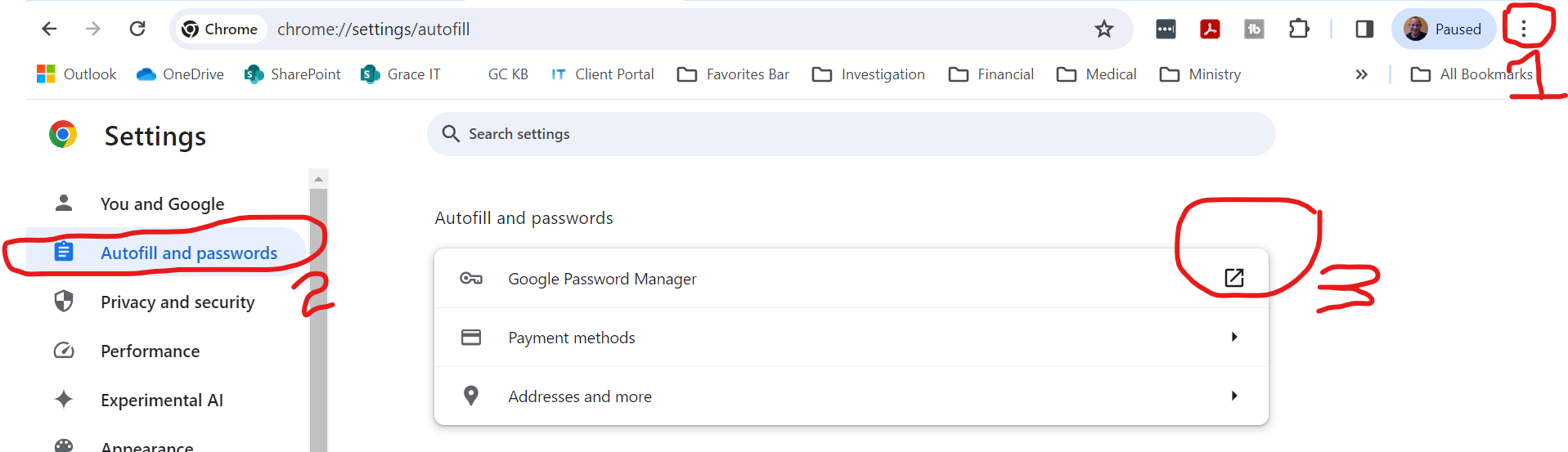
On Password Manager page

Make sure all three of these switches are off. This will disable the Google Password Manager.

[![image.png](https://kb.gracechurches.org/uploads/images/gallery/2024-03/scaled-1680-/z8uimage.png)](https://kb.gracechurches.org/uploads/images/gallery/2024-03/z8uimage.png)
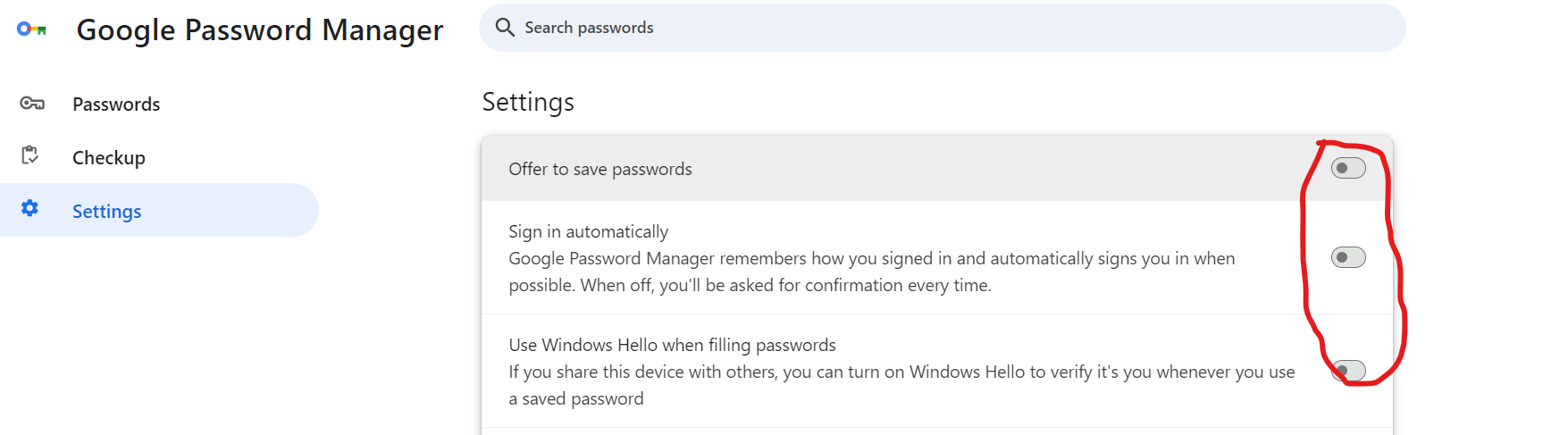
# Delete All Saved Passwords in Chrome

Steps to delete all saved passwords in Chrome

1. Click on Menu ellipses.
2. Click on Privacy and security
3. Click on Clear browsing data.

[![image.png](https://kb.gracechurches.org/uploads/images/gallery/2024-03/scaled-1680-/80Cimage.png)](https://kb.gracechurches.org/uploads/images/gallery/2024-03/80Cimage.png)
1. Click on Advanced
2. Set Time Range to All Time
3. Uncheck all boxes except Passwords.
4. Click on Clear Data

This will delete all passwords stored in Chrome.

[![image.png](https://kb.gracechurches.org/uploads/images/gallery/2024-03/scaled-1680-/0UMimage.png)](https://kb.gracechurches.org/uploads/images/gallery/2024-03/0UMimage.png)
# Microsoft Edge

# How to Update Microsoft Edge

**<span data-contrast="auto">How to update Microsoft Edge on Windows 10 and MacOS</span>**<span data-ccp-props="{"201341983":0,"335559739":160,"335559740":259}"> </span>

- <span data-contrast="auto">Open the Microsoft Edge browser if you have not done so already.</span><span data-ccp-props="{"201341983":0,"335559739":160,"335559740":259}"> </span>
- <span data-contrast="auto">Click on the menu button (three horizontal dots on the top right corner of your browser page).</span><span data-ccp-props="{"201341983":0,"335559739":160,"335559740":259}"> </span>

<span data-ccp-props="{"201341983":0,"335559739":160,"335559740":259}"> [![Screenshot 2022-04-05 104537.png](https://kb.gracechurches.org/uploads/images/gallery/2022-04/scaled-1680-/screenshot-2022-04-05-104537.png)](https://kb.gracechurches.org/uploads/images/gallery/2022-04/screenshot-2022-04-05-104537.png)</span>

- <span data-contrast="auto">Hover your mouse over the Help and Feedback option.</span><span data-ccp-props="{"201341983":0,"335559739":160,"335559740":259}"> </span>

- <span data-contrast="auto">Click on About Microsoft Edge in the new menu.</span><span data-ccp-props="{"201341983":0,"335559739":160,"335559740":259}"> </span>

<span data-ccp-props="{"201341983":0,"335559739":160,"335559740":259}"> [![Screenshot 2022-04-05 104614.png](https://kb.gracechurches.org/uploads/images/gallery/2022-04/scaled-1680-/screenshot-2022-04-05-104614.png)](https://kb.gracechurches.org/uploads/images/gallery/2022-04/screenshot-2022-04-05-104614.png)</span>

- <span data-contrast="auto">Microsoft edge will automatically download and update itself to the latest version if it is not already.</span><span data-ccp-props="{"201341983":0,"335559739":160,"335559740":259}"> </span>

<span data-ccp-props="{"201341983":0,"335559739":160,"335559740":259}"> [![4-26-22.png](https://kb.gracechurches.org/uploads/images/gallery/2022-04/scaled-1680-/4-26-22.png)](https://kb.gracechurches.org/uploads/images/gallery/2022-04/4-26-22.png)</span>

- <span data-contrast="auto">If an update requires you to restart your browser, click on restart browser. </span>**<span data-contrast="auto">Please ensure that all important web pages are properly saved and closed before proceeding with this step.</span>**<span data-ccp-props="{"201341983":0,"335559739":160,"335559740":259}"> </span>

# Clear Cache - Microsoft Edge

[Delete cookies in Microsoft Edge - Microsoft Support](https://support.microsoft.com/en-us/microsoft-edge/delete-cookies-in-microsoft-edge-63947406-40ac-c3b8-57b9-2a946a29ae09)

[How to Manage and Clear Your Cache and Cookies | Edge Learning Center (microsoft.com)](https://www.microsoft.com/en-us/edge/learning-center/how-to-manage-and-clear-your-cache-and-cookies?form=MA13I2)

<header aria-labelledby="page-header" class="ocpArticleTitleSection" id="bkmrk-delete-cookies-in-mi-0" role="banner"># Delete cookies / cache in Microsoft Edge

</header><section aria-label="Products this article applies to" class="supAppliesToSection" dir="ltr" id="bkmrk-microsoft-edge%C2%A0edge-"><div id="bkmrk-microsoft-edge%C2%A0edge--0"><div class="appliesTo collapsed" id="bkmrk-microsoft-edge%C2%A0edge--1"><span class="appliesToItem">Microsoft Edge</span> <span class="appliesToItem">Edge for Mac</span> <span class="appliesToItem">Windows 11</span> <span class="appliesToItem">Windows 10</span> <span class="appliesToItem">Windows 8.1</span> <span class="appliesToItem">Windows 7</span></div></div></section><article class="ocpArticleContent" id="bkmrk-in-microsoft-edge%C2%A0%2C-"><section class="ocpIntroduction">In Microsoft Edge , you can delete all cookies or cookies from a specific website. You can also set Edge to automatically delete cookies every time you close your Edge browser.

<p class="callout info">Clearing Cookies and Cache can help solve GraceLink site issues not loading correctly.</p>

</section><section aria-label="Delete all cookies" class="ocpSection" role="region">## Delete all cookies (&amp; cache)

1. In Edge, select **Settings and more** in the upper right corner of your browser window.   
      
    ![An image showing the Settings and more menu in Microsoft Edge.](https://support.content.office.net/en-us/media/223ad21e-b979-41f5-bf2d-d14016b50687.png)
2. Select **Settings**  &gt; **Privacy, search, and services**.
    
    
    1. Another option to getting here is hitting the Hotkey *Ctrl+Shift+Del*. You can also type "edge://settings/clearbrowserdata" in your address bar to access this function. You’ll be able to select the dates you want to clear, so you can keep some of your browsing history intact if you’d like.
3. Select **Choose what to clear** under **Clear browsing data** &gt; **Clear browsing data now**.
4. Under **Time range**, choose a time range from the list.
5. Select **Cookies and other site data**, or also select **Cached images and files**, and then select **Clear now**.

All your cookies / other site data will now be deleted for the time range you selected. This signs you out of most sites.

</section><section aria-label="Delete cookies from a specific site" class="ocpSection" role="region">## Delete cookies from a specific site

1. In Edge, select **Settings and more** &gt; **Settings**  &gt; **Cookies and site permissions**.
    
    
    1. Under **Cookies and data stored**, select **Manage and delete cookies and site data** &gt; **See all cookies and site data** and search for the site whose cookies you want to delete.
2. Select the down arrow  to the right of the site whose cookies you want to delete and select **Delete** .

Cookies for the site you selected will now be deleted. Repeat this step for any site whose cookies you want to delete.

</section><section aria-label="Delete cookies every time you close the browser" class="ocpSection" role="region">## Delete cookies every time you close the browser

1. In Edge, select **Settings and more** &gt; **Settings**  &gt; **Privacy, search, and services**.
2. Under **Clear browsing data**, select **Choose what to clear every time you close the browser**.
3. Turn on the **Cookies and other site data** toggle. You can also turn on **Cached Images and files** if you want.

Once this feature is turned on, every time you close your Edge browser all cookies and other site data will be deleted. This signs you out of most sites.

**Note**: This topic is for the new Microsoft Edge . Get help for [the legacy version of Microsoft Edge](https://support.microsoft.com/hub/4522743/microsoft-edge-help).

</section></article>

# Turn off Site Notifications / Banners in Edge

You might see unexpected notifications pop up on your computer when you enable site notifications from your web browser. These can pose as random scam or product deal notifications that are meant to tempt you to click on them. You don't normally need to enable site notifications, but to change these settings in Edge you can reference Microsoft's guide: [https://support.microsoft.com/en-us/microsoft-edge/manage-website-notifications-in-microsoft-edge-0c555609-5bf2-479d-a59d-fb30a0b80b2b](https://support.microsoft.com/en-us/microsoft-edge/manage-website-notifications-in-microsoft-edge-0c555609-5bf2-479d-a59d-fb30a0b80b2b)

# Stop Edge from Saving Passwords

Steps to stop Edge from saving passwords.

1. Click on Menu ellipses.
2. Click Settings
3. Click Profiles
4. Scroll down until you see Passwords under Micrsoft Wallet, Click on Passwords

[![image.png](https://kb.gracechurches.org/uploads/images/gallery/2024-04/scaled-1680-/F7dimage.png)](https://kb.gracechurches.org/uploads/images/gallery/2024-04/F7dimage.png)

1. Click on Settings

[![image.png](https://kb.gracechurches.org/uploads/images/gallery/2024-04/scaled-1680-/4h6image.png)](https://kb.gracechurches.org/uploads/images/gallery/2024-04/4h6image.png)

1. Scroll down to the Passwords section
2. Turnoff circled switches 
    - Offer to save passwords.
    - Autofill passwords and passkeys.
    - Scan for leaked passwords.
    - Show the "Reveal password" button in passwords field.
3. Done, you can close settings tabs

[![image.png](https://kb.gracechurches.org/uploads/images/gallery/2024-04/scaled-1680-/51eimage.png)](https://kb.gracechurches.org/uploads/images/gallery/2024-04/51eimage.png)

# Delete All Saved Passwords in Edge

1. Click on Menu ellipses.
2. Click on Settings
3. Click on Privacy and security
4. Scroll down and Click on Clear browsing data.

[![image.png](https://kb.gracechurches.org/uploads/images/gallery/2024-04/scaled-1680-/YGyimage.png)](https://kb.gracechurches.org/uploads/images/gallery/2024-04/YGyimage.png)

1. Change Time Range to "All time"
2. Check the Passwords box and uncheck all other boxes
3. Click on Clear Now

[![image.png](https://kb.gracechurches.org/uploads/images/gallery/2024-04/scaled-1680-/tnJimage.png)](https://kb.gracechurches.org/uploads/images/gallery/2024-04/tnJimage.png)

# Firefox

# How to update Mozilla Firefox

[Update Firefox to the latest release | Firefox Help (mozilla.org)](https://support.mozilla.org/en-US/kb/update-firefox-latest-release)

1. <span class="for" data-for="win,linux">Click the menu button ![Fx89menuButton](https://user-media-prod-cdn.itsre-sumo.mozilla.net/uploads/gallery/images/2021-05-15-11-18-38-e5b736.png) at the right side of the Firefox toolbar, go to <span class="menu">Help</span>, and select <span class="menu">About Firefox</span>.</span> The <span class="for" data-for="win,linux">*About Mozilla Firefox*</span> window will open.
2. Firefox will check for updates automatically. If an update is available, it will be downloaded. <dl><dt><span class="for" data-for="win">![fx91AboutDownloadingUpdate](https://user-media-prod-cdn.itsre-sumo.mozilla.net/uploads/gallery/images/2021-09-02-13-51-35-2e231e.png)</span></dt></dl>
3. When the download is complete, click <span class="button">Restart to update Firefox</span>. <dl><dt><span class="for" data-for="win">![fx91AboutRestartUpdate](https://user-media-prod-cdn.itsre-sumo.mozilla.net/uploads/gallery/images/2021-09-02-13-53-23-381f1c.png)</span></dt></dl>

# Clear Cookies and Cache - Mozilla Firefox

[How to clear the Firefox cache | Firefox Help (mozilla.org)](https://support.mozilla.org/en-US/kb/how-clear-firefox-cache)

<p class="callout info">Clearing browser cache and cookies can also help solve GraceLink loading incorrectly.</p>

The Firefox [cache](http://wikipedia.org/wiki/Web_cache) temporarily stores images, scripts, and other parts of websites you visit in order to speed up your browsing experience. This article describes how to clear the cache.

- To clear your history (cookies, browsing history, cache, etc.) all at once, see [Delete browsing, search and download history on Firefox](https://support.mozilla.org/en-US/kb/delete-browsing-search-download-history-firefox).

## Table of Contents

<div id="bkmrk-clear-the-cache-auto">- [<span class="toctext">Clear the cache</span>](https://support.mozilla.org/en-US/kb/how-clear-firefox-cache#w_clear-the-cache)
- [<span class="toctext">Automatically clear the cache</span>](https://support.mozilla.org/en-US/kb/how-clear-firefox-cache#w_automatically-clear-the-cache)

</div># Clear the cache (or Cookies)

1. <span class="for" data-for="win,linux"><span class="for" data-for="win,linux">Click the menu button [![image.png](https://kb.gracechurches.org/uploads/images/gallery/2023-11/scaled-1680-/1o8image.png)](https://kb.gracechurches.org/uploads/images/gallery/2023-11/1o8image.png) </span></span><span class="for" data-for="win,linux">and select <span class="menu">Settings</span>.</span>
2. Select the <span class="menu">Privacy &amp; Security</span> panel.
3. In the **Cookies and Site Data** section, click <span class="button">Clear Data…</span>. <dl><dt>[![image.png](https://kb.gracechurches.org/uploads/images/gallery/2023-11/scaled-1680-/ySBimage.png)](https://kb.gracechurches.org/uploads/images/gallery/2023-11/ySBimage.png)
    
    </dt></dl>
4. Remove the check mark in front of **Cookies and Site Data** <span style="text-decoration: underline;">IF you want to only delete cache</span>. Checkmark it if you want to also delete Cookies and Site Data. 
    - For more information about managing site data, see [Manage local site storage settings](https://support.mozilla.org/en-US/kb/storage).
5. With *Cached Web Content* check marked, click the <span class="button">Clear</span> button.
6. Close the *about:preferences* page. Any changes you've made will automatically be saved.

<div class="note" id="bkmrk-tip%3A%C2%A0here%27s-another-">**Tip:** Here's another way to clear the Firefox cache: 1. Click the menu button [![image.png](https://kb.gracechurches.org/uploads/images/gallery/2023-11/scaled-1680-/dgPimage.png)](https://kb.gracechurches.org/uploads/images/gallery/2023-11/dgPimage.png) to open the menu panel.
2. Click <span class="menu">History</span> and select <span class="menu">Clear Recent History…</span>.
3. Next to **Time range to clear**, choose **Everything** from the drop-down menu, select **Cache** in the items list, make sure other items you want to keep are not selected and then click the <span class="button">OK</span> button. You can also select Cookies if you want to clear them.

See [this article](https://support.mozilla.org/en-US/kb/delete-browsing-search-download-history-firefox#w_how-do-i-clear-my-history) for details.</div># Automatically clear the cache (or cookies)

You can set Firefox to automatically clear the cache when Firefox closes:

1. <span class="for" data-for="win,linux"><span class="for" data-for="win,linux">Click the menu button [![image.png](https://kb.gracechurches.org/uploads/images/gallery/2023-11/scaled-1680-/VLwimage.png)](https://kb.gracechurches.org/uploads/images/gallery/2023-11/VLwimage.png) </span></span><span class="for" data-for="win,linux">and select <span class="menu">Settings</span>.</span>
2. Select the <span class="menu">Privacy &amp; Security</span> panel and go to the **History** section.
3. In the drop-down menu next to **Firefox will**, choose <span class="menu">Use custom settings for history</span>. <dl><dt>[![image.png](https://kb.gracechurches.org/uploads/images/gallery/2023-11/scaled-1680-/RMdimage.png)](https://kb.gracechurches.org/uploads/images/gallery/2023-11/RMdimage.png)
    
    </dt></dl>
4. Select the check box for **Clear history when Firefox closes**.
5. Click the <span class="button">Settings…</span> button. The *Settings for Clearing History* window will open.
6. Put a check mark next to **Cache (or Cookies)** and make sure other items you want to keep are not selected. <dl><dt>[![image.png](https://kb.gracechurches.org/uploads/images/gallery/2023-11/scaled-1680-/EKyimage.png)](https://kb.gracechurches.org/uploads/images/gallery/2023-11/EKyimage.png)
    
    </dt></dl>
    - For more information about other settings, see [Delete browsing, search and download history on Firefox](https://support.mozilla.org/en-US/kb/delete-browsing-search-download-history-firefox).
7. Click <span class="button">OK</span> to close the *Settings for Clearing History* window.
8. Close the *about:preferences* page. Any changes you've made will automatically be saved.

<div class="note" id="bkmrk-tip%3A-there-are-sever">**Tip**: There are several add-ons available that allow you to clear the cache using an icon on your toolbar. Go to the [Mozilla Add-ons Web Page](https://addons.mozilla.org/firefox/) to do a search. The Mozilla community is not responsible for maintaining and supporting third-party add-ons. Please contact the add-on developer directly if you need assistance with an add-on.</div>

# Enable TouchScreen KeyBoard in FireFox

source: [How to Display On-Screen Keyboard in Mozilla Firefox (trishtech.com)](https://www.trishtech.com/2015/12/how-to-display-on-screen-keyboard-in-mozilla-firefox/)

Enabling this setting is useful for our Touchscreen enabled GraceLink CheckIn stations:

- First Go into the settings App in Windows. On Windows 10, Navigate to Devices, Typing.
- Enable "Show the touch keyboard when not in tablet mode and there's no keyboard attached" setting.  
    [![image.png](https://kb.gracechurches.org/uploads/images/gallery/2023-11/scaled-1680-/RXbimage.png)](https://kb.gracechurches.org/uploads/images/gallery/2023-11/RXbimage.png)
- Now Open Firefox
- enter in the address field *about:config*
- search for *detect*  or *keyboard*. You will need to change the ui.osk.detect\_physical\_keyboard config to *<span style="text-decoration: underline;">**false**</span>*.   
      
    [![image.png](https://kb.gracechurches.org/uploads/images/gallery/2023-11/scaled-1680-/image.png)](https://kb.gracechurches.org/uploads/images/gallery/2023-11/image.png)
- Restart Firefox and the onscreen Keyboard should show up when you tap on a text field in FireFox.

# Safari

Safari is kept up to date through MacOS system updates. Check how this done here: https://kb.gracechurches.org/books/laptop-operating-systems/page/how-to-update-macos-and-other-applications

# Clear Cache and Cookies - Safari

[Clear cookies in Safari on Mac - Apple Support](https://support.apple.com/guide/safari/manage-cookies-sfri11471/16.1/mac/13.0)

You can see all the websites that have stored [cookies and website data](https://support.apple.com/guide/safari/aside/glos0126d795/16.1/mac/13.0) on your Mac, and you can remove some or all of it.

<p class="callout info">Clearing browser cache and cookies can also help solve GraceLink loading incorrectly.</p>

<div class="Task no-header" id="bkmrk-in-the-safari-app%C2%A0%C2%A0o"><div aria-hidden="false" class="TaskBody" id="bkmrk-in-the-safari-app%C2%A0%C2%A0o-0" role="region">1. In the Safari app ![](https://help.apple.com/assets/61E89DC80E28571E5079A0BC/61E89DC90E28571E5079A0C3/en_US/6846073fc6f766d1ad3f66ae757c5e24.png) on your Mac, choose Safari &gt; Settings, then click Privacy.
    
    <figure><picture><source media="(not all)" srcset="https://help.apple.com/assets/61E89DC80E28571E5079A0BC/61E89DC90E28571E5079A0C3/en_US/6c84d9508f263a13be6b37250821c512.png"></source>![The Privacy pane of Safari settings.](https://help.apple.com/assets/61E89DC80E28571E5079A0BC/61E89DC90E28571E5079A0C3/en_US/449daca6e01a087af652d0460ac87529.png)</picture></figure>
2. Click Manage Website Data.
3. [Select](https://support.apple.com/guide/safari/aside/glos3b057c3a/16.1/mac/13.0) one or more websites, then click Remove or Remove All.
    
    Removing the data may reduce tracking, but may also log you out of websites or change website behavior.

</div></div>*Note:* Removing cookies and website data in Safari may change or remove them in other apps.

# Turn off Site Notifications / Banners in macOS / Safari

You might see unexpected notifications pop up on your computer when you enable site notifications from your web browser. These can pose as random scam or product deal notifications that are meant to tempt you to click on them. You don't normally need to enable site notifications, but to change these settings for Safari on macOS you can reference Apple's guide: [Turn off notifications for an app or website on Mac - Apple Support](https://support.apple.com/guide/mac-help/turn-off-notifications-for-an-app-mchl39cc046c/mac)

# Remote Access

# TeamViewer

## Installation Instructions (w/ Windows and MacOS)

#### TeamViewer (HOST) for Windows  


These instructions will walk you through the process of installing TeamViewer for the purposes of helping the IT Department better serve you. Remote users who are not regularly in an office location will be required to install this application or it will be installed prior to receiving your computer.

<span style="text-decoration: underline;">**Install**</span>  
Follow this link to begin the download of the TeamViewer installer:  
[https://get.teamviewer.com/gracechurch](https://get.teamviewer.com/gracechurch)  
**Once the download is complete double click the install file:**  
Install TeamViewer\_Host\_Setup.exe

  
Follow the below steps as you progress through the installation:  
1\. CLICK “NEXT”

[![image-1668973711810.png](https://kb.gracechurches.org/uploads/images/gallery/2022-11/scaled-1680-/image-1668973711810.png)](https://kb.gracechurches.org/uploads/images/gallery/2022-11/image-1668973711810.png)

  
2\. SELECT THE “Both of the above” OPTION  
CLICK “NEXT”

[![image-1668973768836.png](https://kb.gracechurches.org/uploads/images/gallery/2022-11/scaled-1680-/image-1668973768836.png)](https://kb.gracechurches.org/uploads/images/gallery/2022-11/image-1668973768836.png)

  
3\. CHECK THE BOX NEXT TO   
“I accept the terms of the License Agreement”  
CLICK “NEXT”

[![image-1668973806211.png](https://kb.gracechurches.org/uploads/images/gallery/2022-11/scaled-1680-/image-1668973806211.png)](https://kb.gracechurches.org/uploads/images/gallery/2022-11/image-1668973806211.png)

  
4\. THIS WINDOW WILL CLOSE   
WHEN INSTALL IS COMPLETE.

[![image-1668973975731.png](https://kb.gracechurches.org/uploads/images/gallery/2022-11/scaled-1680-/image-1668973975731.png)](https://kb.gracechurches.org/uploads/images/gallery/2022-11/image-1668973975731.png)

5\. INSTALLATION IS COMPLETE!

  
**A new window will open to complete the initial setup of TeamViewer.**  
1\. CLICK “NEXT”

[![image-1668974021130.png](https://kb.gracechurches.org/uploads/images/gallery/2022-11/scaled-1680-/image-1668974021130.png)](https://kb.gracechurches.org/uploads/images/gallery/2022-11/image-1668974021130.png)

  
2\. ENTER THE PASSWORD:   
GraceChurch1  
CLICK “NEXT”

[![image-1668974076882.png](https://kb.gracechurches.org/uploads/images/gallery/2022-11/scaled-1680-/image-1668974076882.png)](https://kb.gracechurches.org/uploads/images/gallery/2022-11/image-1668974076882.png)

  
3\. CLICK “FINISH”

[![image-1668974100818.png](https://kb.gracechurches.org/uploads/images/gallery/2022-11/scaled-1680-/image-1668974100818.png)](https://kb.gracechurches.org/uploads/images/gallery/2022-11/image-1668974100818.png)

  
4\. VERIFY THAT THE ACCOUNT   
INFO MATCHES THE IMAGE  
CLICK “OK”

[![image-1668974112074.png](https://kb.gracechurches.org/uploads/images/gallery/2022-11/scaled-1680-/image-1668974112074.png)](https://kb.gracechurches.org/uploads/images/gallery/2022-11/image-1668974112074.png)

  
5\. PLEASE CONTACT HELP DESK WITH THE TeamViewer ID LISTED ON THIS FINAL SCREEN.  
CLICK “OK”

[![image-1668974135584.png](https://kb.gracechurches.org/uploads/images/gallery/2022-11/scaled-1680-/image-1668974135584.png)](https://kb.gracechurches.org/uploads/images/gallery/2022-11/image-1668974135584.png)

  
Contact Help Desk  
Once the install and setup are complete please contact the Help Desk by email at   
[Requesting IT Help Gra... | Grace Church KB (gracechurches.org)](https://kb.gracechurches.org/books/it-helpdesk/page/requesting-it-help-grace-church-and-ce-national). In the email please provide to the Help Desk the TeamViewer ID.

---

#### **TeamViewer (HOST) for MAC**  


These instructions will walk you through the process of installing TeamViewer for the purposes   
of helping the IT Department better serve you. Remote users who are not regularly in an office   
location will be required to install this application or it will be installed prior to receiving your   
computer.

<span style="text-decoration: underline;">**Install**</span>

Follow this link to begin the download of the TeamViewer installer:  
[https://get.teamviewer.com/gracechurch](https://get.teamviewer.com/gracechurch)  
Once the download is complete double click the install file:  
Install TeamViewerHost-idc2bhaw5x.pkg

  
Follow the below steps as you progress through the installation:

  
1\. CLICK “CONTINUE”

[![image-1668974782088.png](https://kb.gracechurches.org/uploads/images/gallery/2022-11/scaled-1680-/image-1668974782088.png)](https://kb.gracechurches.org/uploads/images/gallery/2022-11/image-1668974782088.png)

  
2\. CLICK “CONTINUE”

[![image-1668974795383.png](https://kb.gracechurches.org/uploads/images/gallery/2022-11/scaled-1680-/image-1668974795383.png)](https://kb.gracechurches.org/uploads/images/gallery/2022-11/image-1668974795383.png)

  
3\. CLICK “AGREE”

[![image-1668974807557.png](https://kb.gracechurches.org/uploads/images/gallery/2022-11/scaled-1680-/image-1668974807557.png)](https://kb.gracechurches.org/uploads/images/gallery/2022-11/image-1668974807557.png)

  
4\. CLICK “INSTALL”

[![image-1668974821361.png](https://kb.gracechurches.org/uploads/images/gallery/2022-11/scaled-1680-/image-1668974821361.png)](https://kb.gracechurches.org/uploads/images/gallery/2022-11/image-1668974821361.png)

  
5\. ENTER YOUR USERNAME AND PASSWORD.  
CLICK “INSTALL SOFTWARE”

[![image-1668974848145.png](https://kb.gracechurches.org/uploads/images/gallery/2022-11/scaled-1680-/image-1668974848145.png)](https://kb.gracechurches.org/uploads/images/gallery/2022-11/image-1668974848145.png)

  
6\. INSTALLATION IS COMPLETE!

[![image-1668974867912.png](https://kb.gracechurches.org/uploads/images/gallery/2022-11/scaled-1680-/image-1668974867912.png)](https://kb.gracechurches.org/uploads/images/gallery/2022-11/image-1668974867912.png)

  
A new window will open to complete the initial setup of TeamViewer.

  
1\. CLICK “CONTINUE”

[![image-1668974884589.png](https://kb.gracechurches.org/uploads/images/gallery/2022-11/scaled-1680-/image-1668974884589.png)](https://kb.gracechurches.org/uploads/images/gallery/2022-11/image-1668974884589.png)

  
2\. ENTER THE PASSWORD:   
GraceChurch1  
CLICK “CONTINUE”

[![image-1668974900407.png](https://kb.gracechurches.org/uploads/images/gallery/2022-11/scaled-1680-/image-1668974900407.png)](https://kb.gracechurches.org/uploads/images/gallery/2022-11/image-1668974900407.png)

  
3\. CLICK “FINISH”

[![image-1668974911829.png](https://kb.gracechurches.org/uploads/images/gallery/2022-11/scaled-1680-/image-1668974911829.png)](https://kb.gracechurches.org/uploads/images/gallery/2022-11/image-1668974911829.png)

  
4\. VERIFY THAT THE ACCOUNT   
INFO MATCHES THE IMAGE  
CLICK “OK”

[![image-1668974928301.png](https://kb.gracechurches.org/uploads/images/gallery/2022-11/scaled-1680-/image-1668974928301.png)](https://kb.gracechurches.org/uploads/images/gallery/2022-11/image-1668974928301.png)

  
5\. PLEASE CONTACT HELP DESK   
WITH THE TeamViewer ID LISTED ON THIS FINAL SCREEN.  
VERIFY THE “Don’t show this dialog again.” CHECKBOX IS CHECKED.  
CLICK “OK”

[![image-1668974970990.png](https://kb.gracechurches.org/uploads/images/gallery/2022-11/scaled-1680-/image-1668974970990.png)](https://kb.gracechurches.org/uploads/images/gallery/2022-11/image-1668974970990.png)

  
Contact Help Desk  
Once the install and setup are complete please contact the Help Desk by email at   
[Requesting IT Help Gra... | Grace Church KB (gracechurches.org)](https://kb.gracechurches.org/books/it-helpdesk/page/requesting-it-help-grace-church-and-ce-national). In the email please provide to the Help Desk the TeamViewer ID.

# AnyDesk

<div id="bkmrk-"></div><div class="align-center" id="bkmrk--0">  
</div><div class="align-center" id="bkmrk-windows-download-mac"><table border="1" style="border-collapse: collapse; width: 100%;"><tbody><tr><td style="width: 49.9506%;">**Windows Download**</td><td style="width: 49.9506%;">**macOS Download**</td></tr><tr><td style="width: 49.9506%;">[![Download AnyDesk for Windows 10/11](https://get.anydesk.com/_static/dl-btn-wr-large.png)](https://my.anydesk.com/v2/api/v2/custom-clients/downloads/CUYV2NR5G7ZM/AnyDesk_Win.msi)

[https://my.anydesk.com/v2/api/v2/custom-clients/downloads/public/CUYV2NR5G7ZM/AnyDesk\_Win.msi](https://my.anydesk.com/v2/api/v2/custom-clients/downloads/public/CUYV2NR5G7ZM/AnyDesk_Win.msi)

</td><td style="width: 49.9506%;">[![Download AnyDesk for macOS](https://get.anydesk.com/_static/dl-btn-wr-large.png)](https://my.anydesk.com/v2/api/v2/custom-clients/downloads/VCZSHSRWHSTG/AnyDesk_macOS_Client.dmg)

[https://my.anydesk.com/v2/api/v2/custom-clients/downloads/public/VCZSHSRWHSTG/anydesk\_macos\_client.dmg](https://my.anydesk.com/v2/api/v2/custom-clients/downloads/public/VCZSHSRWHSTG/anydesk_macos_client.dmg)

</td></tr></tbody></table>

</div>AnyDesk is a remote access/desktop tool that helps the IT teams take a look at your screen and take control of your computer for remote help. We may be switching to this over TeamViewer soon.

<p class="callout info">For downloading on Windows, if you use an "Edge" browser it may detect the download as dangerous. You can just mark it as safe as follows:</p>

[![image-1675780626044.png](https://kb.gracechurches.org/uploads/images/gallery/2023-02/scaled-1680-/image-1675780626044.png)](https://kb.gracechurches.org/uploads/images/gallery/2023-02/image-1675780626044.png)

[![image-1675780705907.png](https://kb.gracechurches.org/uploads/images/gallery/2023-02/scaled-1680-/image-1675780705907.png)](https://kb.gracechurches.org/uploads/images/gallery/2023-02/image-1675780705907.png)
### macOS Configuration

On macOS, you will need to enable a view system privacy and security settings in order to let the Grace IT team to remote control your computer. You will want to enable "Screen Recording" and "Accessiblity" priviliges for AnyDesk. You can do this by either going to the Settings app, and navigating to "Privacy &amp; Security" Settings, and then go to both Accessiblity and Screen Recording to toggle on AnyDesk setting in each setting and then restart AnyDesk. Or, you can do this by clicking on the prompt in AnyDesk to "Configure Permissions" shown below, or another one with 3 buttons that prompt you to open the preferences directly also shown below. This should first take you to the Screen Recording page and you will be able to enable AnyDesk (see below)

[![image-1676160702331.png](https://kb.gracechurches.org/uploads/images/gallery/2023-02/scaled-1680-/image-1676160702331.png)](https://kb.gracechurches.org/uploads/images/gallery/2023-02/image-1676160702331.png)  
( You might also see this prompt with the three buttons)

[![image-1677348542889.40.28 PM.png](https://kb.gracechurches.org/uploads/images/gallery/2023-02/scaled-1680-/image-1677348542889-40-28-pm.png)](https://kb.gracechurches.org/uploads/images/gallery/2023-02/image-1677348542889-40-28-pm.png)
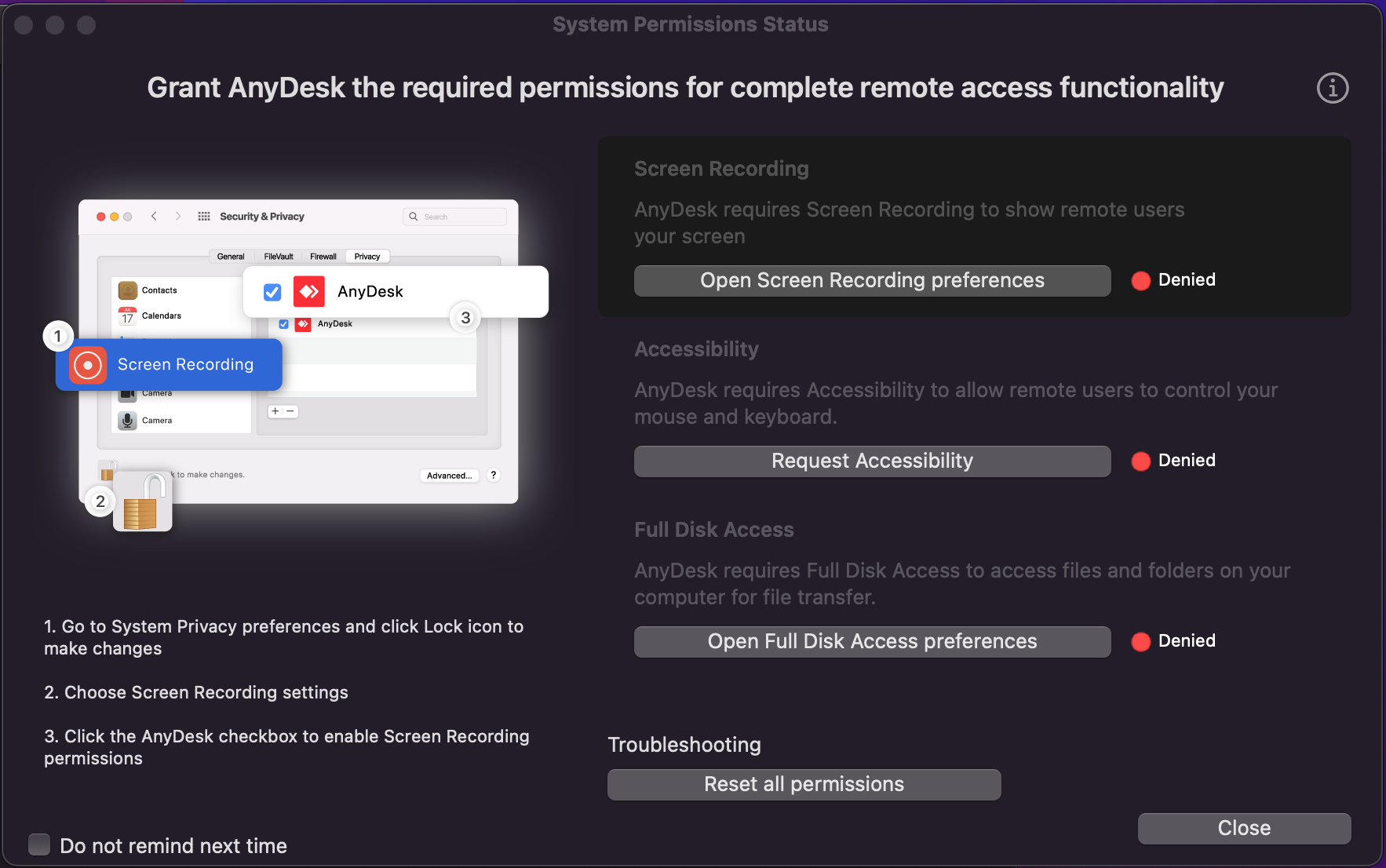
After toggling on the permission, reload AnyDesk and then click on the "Configure Permissions" prompt again. You will get a prompt like the one below to open up System Settings: click that button

[![image-1676160963752.png](https://kb.gracechurches.org/uploads/images/gallery/2023-02/scaled-1680-/image-1676160963752.png)](https://kb.gracechurches.org/uploads/images/gallery/2023-02/image-1676160963752.png)
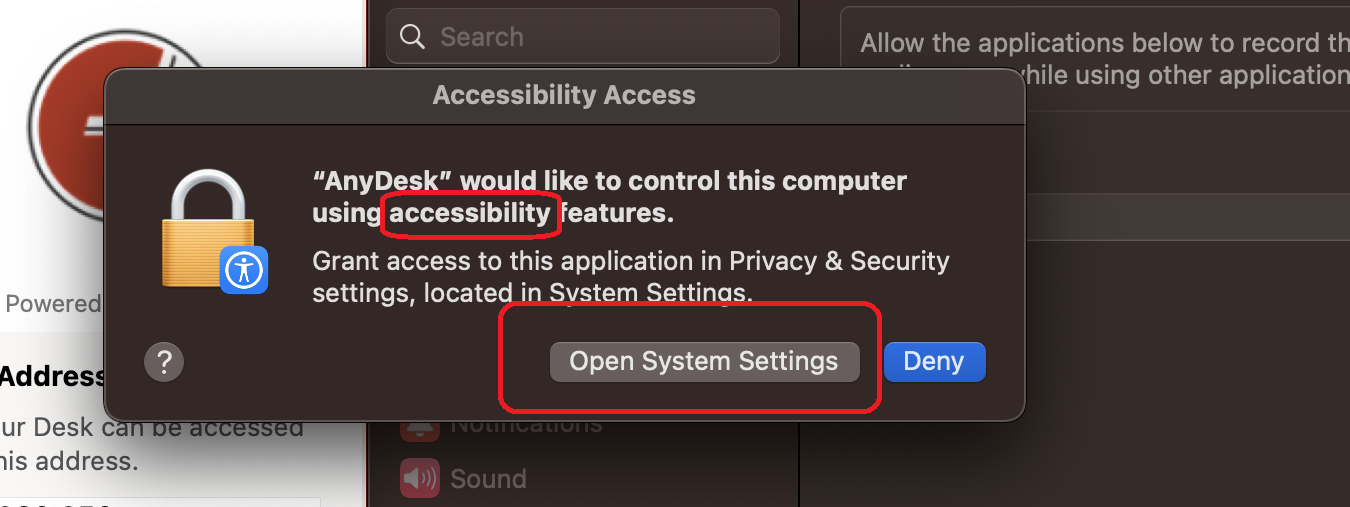
And that takes you to the Accessbility page where you can enable the final permission for AnyDesk.

[![image-1676161781447.png](https://kb.gracechurches.org/uploads/images/gallery/2023-02/scaled-1680-/image-1676161781447.png)](https://kb.gracechurches.org/uploads/images/gallery/2023-02/image-1676161781447.png)
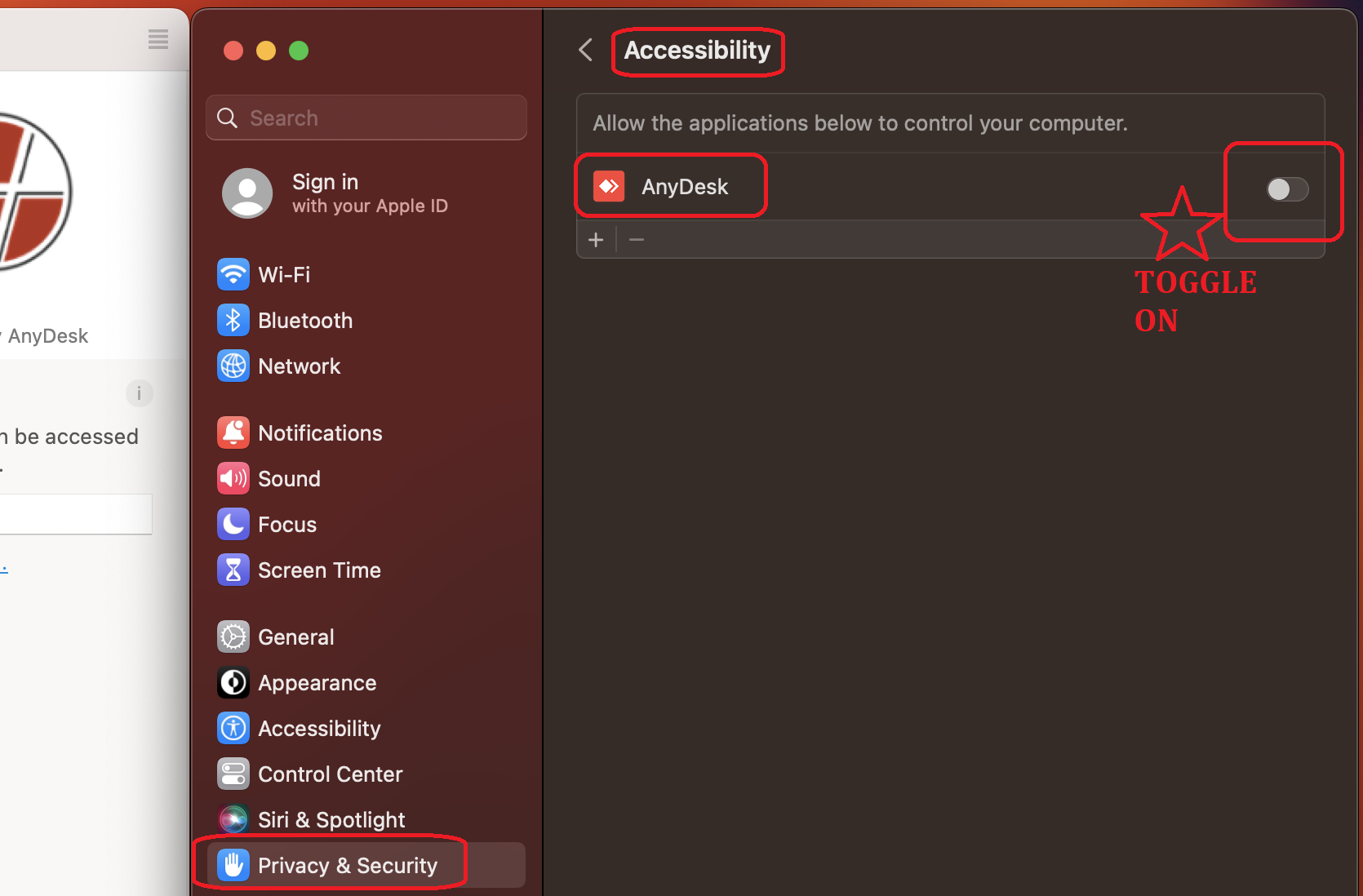
You can restart AnyDesk or restart your Computer. Once the install and setup are complete please contact the Help Desk by email at [Requesting IT Help Gra... | Grace Church KB (gracechurches.org)](https://kb.gracechurches.org/books/it-helpdesk/page/requesting-it-help-grace-church-and-ce-national). In the email please provide to the Help Desk the AnyDesk address, and then be ready to accept the remote in request from Grace IT.

<div class="align-center" id="bkmrk--7"></div>

# Dragon NaturallySpeaking (11)

Jeff Bogue's assistants use this program

# Back up and Restore Jeff Bogue Profile

When upgrading Jeff's Assistant's computers, be sure to back up their software profiles so that they can be brought over to their new computer. There is one for Jeff, and one for the admin assistant.

---

[Working with user profiles (nuance.com)](https://www.nuance.com/products/help/dragon15/dragon-for-pc/enx/dpg-cp/Content/Users/working_with_user_profiles.htm#:~:text=Dragon%20creates%20your%20upgraded%20user,Nuance%20Management%20Center%2FNMS%20mode.)

These profiles are located under: C:\\ProgramData\\Nuance\\NaturallySpeaking15\\Users directory. Put the profile from this location to the same location on the other computer once you reinstall the program. A backup ISO of Dragon NaturallySpeaking is in our SharePoint storage.

# Phone Desk / Calling & Messaging & Fax

Currently all of our campuses use Telzio for making Church phone calls and sending out text messages. This is a web app and a phone app.

# Telzio

[![image-1677011496157.png](https://kb.gracechurches.org/uploads/images/gallery/2023-02/scaled-1680-/image-1677011496157.png)](https://telzio.com/dashboard)

Telzio is used at Grace for Phone desk calls, messaging, and faxing. You can get ahold of other people directly by calling them at their extension number (a four digit number), referenced in the Telzio Company Directory. The Office number for each campus is a Telzio registered Number and can be monitored from the Telzio Dashboard. You can either use Telzio in the browser at [Dashboard - Telzio](https://telzio.com/dashboard), using a desk phone assigned to you, or you can download the app onto your phone from:

- [Telzio on the App Store (apple.com)](https://apps.apple.com/us/app/telzio/id954687677)
- [Telzio - Apps on Google Play](https://play.google.com/store/apps/details?id=com.telzio.app.android&gl=US)

If you are a New Hire, one of the first emails you should have received is this welcome email from Telzio. The link provided in this email will let you initialize your Telzio account and let you create your Telzio password. An extension is assigned already for you. The email will be sent from <no-reply@telzio.com>. If you can't find it, Grace IT can resend the Welcome email to you. This is what the welcome email will generally look like below:

<details id="bkmrk-sample-telzio-welcom"><summary>Sample Telzio Welcome Email</summary>

**<span style="color: black;">From:<span style="mso-tab-count: 1;">�������������������������������������������� </span></span>**<span style="color: black;">Telzio &lt;no-reply@telzio.com&gt;</span>

**<span style="color: black;">Sent:<span style="mso-tab-count: 1;">���������������������������������������������� </span></span>**<span style="color: black;">Tuesday, February 21, 2023 3:11 PM</span>

**<span style="color: black;">To:<span style="mso-tab-count: 1;">������������������������������������������������� </span></span>**<span style="color: black;">John Doe</span>

**<span style="color: black;">Subject:<span style="mso-tab-count: 1;">���������������������������������������� </span></span>**<span style="color: black;">\[EXT\] Telzio User Registration</span>

<div class="WordSection1"><div class="WordSection1"><table align="left" border="0" cellpadding="0" cellspacing="0" class="MsoNormalTable" style="width: 100.0%; mso-cellspacing: 0in; mso-yfti-tbllook: 1184; mso-table-lspace: 2.25pt; mso-table-rspace: 2.25pt; mso-table-anchor-vertical: paragraph; mso-table-anchor-horizontal: column; mso-table-left: left; mso-padding-alt: 0in 0in 0in 0in;" width="100%"><tbody><tr style="mso-yfti-irow: 0; mso-yfti-firstrow: yes; mso-yfti-lastrow: yes;"><td style="background: #A6A6A6; padding: 5.25pt 1.5pt 5.25pt 1.5pt;">  
</td><td style="width: 100.0%; background: #EAEAEA; padding: 5.25pt 3.75pt 5.25pt 11.25pt;" width="100%"><span style="font-size: 9.0pt; font-family: 'Segoe UI',sans-serif; mso-fareast-font-family: 'Times New Roman'; color: #212121;">You don't often get email from <no-reply@telzio.com>. [Learn why this is important](https://aka.ms/LearnAboutSenderIdentification)</span>

</td><td style="width: 56.25pt; background: #EAEAEA; padding: 5.25pt 3.75pt 5.25pt 3.75pt; align: left;" width="75">  
</td></tr></tbody></table>

<div><div style="border: dotted #003333 1.0pt; mso-border-alt: dotted #003333 .25pt; padding: 2.0pt 2.0pt 2.0pt 2.0pt;">  
</div></div></div></div>**<span style="font-size: 12.0pt; font-family: 'Arial',sans-serif; mso-fareast-font-family: 'Times New Roman'; color: black;">External Sender</span>**<span style="mso-fareast-font-family: 'Times New Roman'; color: black; mso-color-alt: windowtext;"> </span>

<div class="WordSection1"><div class="WordSection1"><div><div style="border: dotted #003333 1.0pt; mso-border-alt: dotted #003333 .25pt; padding: 2.0pt 2.0pt 2.0pt 2.0pt;">  
</div><div><table border="0" cellpadding="0" cellspacing="0" class="MsoNormalTable" style="width: 100.0%; mso-cellspacing: 0in; background: #F3F6F9; mso-yfti-tbllook: 1184; mso-padding-alt: 0in 0in 0in 0in;" width="100%"><tbody><tr style="mso-yfti-irow: 0; mso-yfti-firstrow: yes; mso-yfti-lastrow: yes;"><td style="padding: 0in 0in 0in 0in; min-width: 600px;" valign="top"><div align="center"><table border="0" cellpadding="0" cellspacing="0" class="MsoNormalTable" style="width: 6.25in; mso-cellspacing: 0in; mso-yfti-tbllook: 1184; mso-padding-alt: 0in 0in 0in 0in;" width="600"><tbody><tr style="mso-yfti-irow: 0; mso-yfti-firstrow: yes; mso-yfti-lastrow: yes;"><td style="width: 6.25in; padding: 0in 0in 0in 0in;" width="600"><table border="0" cellpadding="0" cellspacing="0" class="MsoNormalTable" style="width: 100.0%; mso-cellspacing: 0in; mso-yfti-tbllook: 1184; mso-padding-alt: 0in 0in 0in 0in;" width="100%"><tbody><tr style="mso-yfti-irow: 0; mso-yfti-firstrow: yes; mso-yfti-lastrow: yes;"><td style="padding: 37.5pt 0in 24.0pt 0in;"><span style="font-size: 1.0pt; mso-fareast-font-family: 'Times New Roman';">[![](https://cdn.telzio.com/img/email/telzio-logo-2021.png)](https://nam10.safelinks.protection.outlook.com/?url=http%3A%2F%2Furl8171.telzio.com%2Fls%2Fclick%3Fupn%3D1XdMxy6xbIZZUqK9Wmrk5ZLq6cr8IMd7cxboN9Ufoa4-3DMkG7_q77h3uTgiV9-2F9A4RjHmM9UKYxQl-2FMsOvn0kmCsIuTZAOOw6X5Yr50080JrN3IXWb-2Bsj8eYAWMrhTqTw8X1O25wTK0LBwT2eYcz05Ge6h-2F6z5tu7jBNIwk53IjkxDv9I-2FAcRIWlR7BRiTnTeGVHjPLcZDnVOFKANiAsmqI9BHv8eZi-2FK7tlTZkcLwxYKiKcIjJp23P1Y5dSuOShQkjIBtKA-3D-3D&data=05%7C01%7Cjdoe%40graceohio.org%7Cd31554abb506456bbaa508db1447c95c%7Cf80469b65a81464fa6f14ad8e4ac448a%7C0%7C0%7C638126070772674995%7CUnknown%7CTWFpbGZsb3d8eyJWIjoiMC4wLjAwMDAiLCJQIjoiV2luMzIiLCJBTiI6Ik1haWwiLCJXVCI6Mn0%3D%7C3000%7C%7C%7C&sdata=zk3iLh0JfvlboIr4%2F%2BnrvRAWKhLHf5a29npyAFkH%2BEg%3D&reserved=0)</span>

</td></tr></tbody></table>

<span style="font-size: 1.0pt; mso-fareast-font-family: 'Times New Roman'; display: none; mso-hide: all;"> </span>

<table border="0" cellpadding="0" cellspacing="0" class="MsoNormalTable" style="width: 100.0%; mso-cellspacing: 0in; mso-yfti-tbllook: 1184; mso-padding-alt: 0in 0in 0in 0in;" width="100%"><tbody><tr style="mso-yfti-irow: 0; mso-yfti-firstrow: yes; mso-yfti-lastrow: yes;"><td style="background: white; padding: 0in 0in 0in 0in;"><table border="0" cellpadding="0" cellspacing="0" class="MsoNormalTable" style="width: 100.0%; mso-cellspacing: 0in; mso-yfti-tbllook: 1184; mso-padding-alt: 0in 0in 0in 0in;" width="100%"><tbody><tr style="mso-yfti-irow: 0; mso-yfti-firstrow: yes; mso-yfti-lastrow: yes;"><td style="padding: 37.5pt 37.5pt 37.5pt 37.5pt; min-width: auto !important;"><table border="0" cellpadding="0" cellspacing="0" class="MsoNormalTable" style="width: 100.0%; mso-cellspacing: 0in; mso-yfti-tbllook: 1184; mso-padding-alt: 0in 0in 0in 0in;" width="100%"><tbody><tr style="mso-yfti-irow: 0; mso-yfti-firstrow: yes; mso-yfti-lastrow: yes;"><td style="padding: 0in 0in 18.75pt 0in;">**<span style="font-size: 18.0pt; font-family: 'Lato',sans-serif; mso-fareast-font-family: 'Times New Roman'; color: #063b79;">Your New Telzio User </span>**

</td></tr></tbody></table>

<span style="mso-fareast-font-family: 'Times New Roman'; display: none; mso-hide: all;"> </span>

<table border="0" cellpadding="0" cellspacing="0" class="MsoNormalTable" style="width: 100.0%; mso-cellspacing: 0in; mso-yfti-tbllook: 1184; mso-padding-alt: 0in 0in 0in 0in;" width="100%"><tbody><tr style="mso-yfti-irow: 0; mso-yfti-firstrow: yes; mso-yfti-lastrow: yes;"><td style="padding: 0in 0in 30.0pt 0in; min-width: auto !important;"><span style="font-size: 12.0pt; font-family: 'Lato',sans-serif; mso-fareast-font-family: 'Times New Roman'; color: #063b79;">Hi John,  
Grace Church has added you as a user for Telzio. </span>

</td></tr></tbody></table>

<span style="mso-fareast-font-family: 'Times New Roman'; display: none; mso-hide: all;"> </span>

<table border="0" cellpadding="0" cellspacing="0" class="MsoNormalTable" style="width: 100.0%; mso-cellspacing: 0in; mso-yfti-tbllook: 1184; mso-padding-alt: 0in 0in 0in 0in;" width="100%"><tbody><tr style="mso-yfti-irow: 0; mso-yfti-firstrow: yes; mso-yfti-lastrow: yes;"><td style="border: solid #CFDBE8 1.0pt; mso-border-alt: solid #CFDBE8 .75pt; padding: 0in 0in 0in 0in; border-radius: 16px;"><table border="0" cellpadding="0" cellspacing="0" class="MsoNormalTable" style="width: 100.0%; mso-cellspacing: 0in; mso-yfti-tbllook: 1184; mso-padding-alt: 0in 0in 0in 0in;" width="100%"><tbody><tr style="mso-yfti-irow: 0; mso-yfti-firstrow: yes; mso-yfti-lastrow: yes;"><td style="padding: 26.25pt 0in 26.25pt 0in; min-width: auto !important;"><table border="0" cellpadding="0" cellspacing="0" class="MsoNormalTable" style="width: 100.0%; mso-cellspacing: 0in; mso-yfti-tbllook: 1184; mso-padding-alt: 0in 0in 0in 0in;" width="100%"><tbody><tr style="mso-yfti-irow: 0; mso-yfti-firstrow: yes; mso-yfti-lastrow: yes;"><td style="padding: 0in 0in 0in 0in;">**<span style="font-size: 18.0pt; font-family: 'Lato',sans-serif; mso-fareast-font-family: 'Times New Roman'; mso-bidi-font-family: Calibri; color: #063b79;">Username:</span>**<span style="font-size: 18.0pt; font-family: 'Lato',sans-serif; mso-fareast-font-family: 'Times New Roman'; color: #063b79;"> jdoe </span>

</td></tr></tbody></table>

</td></tr></tbody></table>

</td></tr></tbody></table>

<span style="mso-fareast-font-family: 'Times New Roman'; display: none; mso-hide: all;"> </span>

<table border="0" cellpadding="0" cellspacing="0" class="MsoNormalTable" style="width: 100.0%; mso-cellspacing: 0in; mso-yfti-tbllook: 1184; mso-padding-alt: 0in 0in 0in 0in;" width="100%"><tbody><tr style="mso-yfti-irow: 0; mso-yfti-firstrow: yes; mso-yfti-lastrow: yes;"><td style="padding: 30.0pt 0in 60.0pt 0in;"><div align="center"><table border="0" cellpadding="0" cellspacing="0" class="MsoNormalTable" style="width: 165.0pt; mso-cellspacing: 0in; mso-yfti-tbllook: 1184; mso-padding-alt: 0in 0in 0in 0in;" width="220"><tbody><tr style="mso-yfti-irow: 0; mso-yfti-firstrow: yes; mso-yfti-lastrow: yes;"><td style="background: #3E8BFB; padding: .25in 7.5pt .25in 7.5pt; border-radius: 6px; min-width: auto !important;"><span style="font-size: 11.5pt; font-family: 'Lato',sans-serif; mso-fareast-font-family: 'Times New Roman'; color: #58595b;">**<span style="font-family: 'Lato',sans-serif; mso-bidi-font-family: Calibri; color: white;">Choose Your Password</span>** </span>

</td></tr></tbody></table>

</div></td></tr></tbody></table>

<span style="mso-fareast-font-family: 'Times New Roman'; display: none; mso-hide: all;"> </span>

<table border="0" cellpadding="0" cellspacing="0" class="MsoNormalTable" style="width: 100.0%; mso-cellspacing: 0in; mso-yfti-tbllook: 1184; mso-padding-alt: 0in 0in 0in 0in;" width="100%"><tbody><tr style="mso-yfti-irow: 0; mso-yfti-firstrow: yes; mso-yfti-lastrow: yes;"><td style="padding: 0in 0in 0in 0in; min-width: auto !important;">**<span style="font-size: 12.0pt; font-family: 'Lato',sans-serif; mso-fareast-font-family: 'Times New Roman'; mso-bidi-font-family: Calibri; color: #063b79;">How to Manage Your Account</span><span style="font-size: 12.0pt; font-family: 'Lato',sans-serif; mso-fareast-font-family: 'Times New Roman'; color: #063b79;"> </span>**

</td></tr></tbody></table>

<span style="mso-fareast-font-family: 'Times New Roman'; display: none; mso-hide: all;"> </span>

<table border="0" cellpadding="0" cellspacing="0" class="MsoNormalTable" style="width: 100.0%; mso-cellspacing: 0in; mso-yfti-tbllook: 1184; mso-padding-alt: 0in 0in 0in 0in;" width="100%"><tbody><tr style="mso-yfti-irow: 0; mso-yfti-firstrow: yes; mso-yfti-lastrow: yes;"><td style="padding: 0in 0in 30.0pt 0in; min-width: auto !important;"><span style="font-size: 12.0pt; font-family: 'Lato',sans-serif; mso-fareast-font-family: 'Times New Roman'; color: #063b79;">Log in at [telzio.com/login](https://nam10.safelinks.protection.outlook.com/?url=http%3A%2F%2Furl8171.telzio.com%2Fls%2Fclick%3Fupn%3DXK8eExFS5w1YgbjjVpWflVO6-2FVuGzphm498mi0kfYJg-3DYP22_q77h3uTgiV9-2F9A4RjHmM9UKYxQl-2FMsOvn0kmCsIuTZAOOw6X5Yr50080JrN3IXWbEHqNnAFx-2Bdw7OYrGaGtBz9WmqtiFIEdMD9sKybi2teDHOQH06LWzg6NA9XsyctFMmtEhcb0xrZk2taTbWsJV0moWX3HhHWj577BP2hlkn8nxkjeyf88ObDLOa0uZHcKKqatb-2FHVqolBeFd5lc8qXYw-3D-3D&data=05%7C01%7Cjdoe%40graceohio.org%7Cd31554abb506456bbaa508db1447c95c%7Cf80469b65a81464fa6f14ad8e4ac448a%7C0%7C0%7C638126070772674995%7CUnknown%7CTWFpbGZsb3d8eyJWIjoiMC4wLjAwMDAiLCJQIjoiV2luMzIiLCJBTiI6Ik1haWwiLCJXVCI6Mn0%3D%7C3000%7C%7C%7C&sdata=2HkwT9P16GQHbOWwc%2FCCs2Kqq1HnzA5iWc4zP%2Fz9I9E%3D&reserved=0) to get started. You can edit your preferences such as hold music, avatar, email, and password, and manage your call history, voicemail, text messages, and call recordings through the website. </span>

</td></tr></tbody></table>

<span style="mso-fareast-font-family: 'Times New Roman'; display: none; mso-hide: all;"> </span>

<table border="0" cellpadding="0" cellspacing="0" class="MsoNormalTable" style="width: 100.0%; mso-cellspacing: 0in; mso-yfti-tbllook: 1184; mso-padding-alt: 0in 0in 0in 0in;" width="100%"><tbody><tr style="mso-yfti-irow: 0; mso-yfti-firstrow: yes; mso-yfti-lastrow: yes;"><td style="padding: 0in 0in 0in 0in; min-width: auto !important;">**<span style="font-size: 12.0pt; font-family: 'Lato',sans-serif; mso-fareast-font-family: 'Times New Roman'; mso-bidi-font-family: Calibri; color: #063b79;">How to Make Calls</span><span style="font-size: 12.0pt; font-family: 'Lato',sans-serif; mso-fareast-font-family: 'Times New Roman'; color: #063b79;"> </span>**

</td></tr></tbody></table>

<span style="mso-fareast-font-family: 'Times New Roman'; display: none; mso-hide: all;"> </span>

<table border="0" cellpadding="0" cellspacing="0" class="MsoNormalTable" style="width: 100.0%; mso-cellspacing: 0in; mso-yfti-tbllook: 1184; mso-padding-alt: 0in 0in 0in 0in;" width="100%"><tbody><tr style="mso-yfti-irow: 0; mso-yfti-firstrow: yes; mso-yfti-lastrow: yes;"><td style="padding: 0in 0in 30.0pt 0in; min-width: auto !important;"><span style="font-size: 12.0pt; font-family: 'Lato',sans-serif; mso-fareast-font-family: 'Times New Roman'; color: #063b79;">You can [make and receive calls](https://nam10.safelinks.protection.outlook.com/?url=http%3A%2F%2Furl8171.telzio.com%2Fls%2Fclick%3Fupn%3D1XdMxy6xbIZZUqK9Wmrk5fBVc1wHAei-2FtG1YDu9mcwF3pmAOfblqo-2FaXY6c9JNZ3PZ2Y_q77h3uTgiV9-2F9A4RjHmM9UKYxQl-2FMsOvn0kmCsIuTZAOOw6X5Yr50080JrN3IXWbgUe9tf5h97gRO31vBuC7s4ReFQ-2Fp3kyEpJ3dVzkCCV0I1qHSnKJNmaReyfRyo6DQIgMNZ7qJIpJXZ4rdAJqGhcDtFcYVqizhMViOrd4CUsCXciw5d-2FUEZKdC6Aii-2BptrpNWIeWy45LC0bkSj8nNoWg-3D-3D&data=05%7C01%7Cjdoe%40graceohio.org%7Cd31554abb506456bbaa508db1447c95c%7Cf80469b65a81464fa6f14ad8e4ac448a%7C0%7C0%7C638126070772674995%7CUnknown%7CTWFpbGZsb3d8eyJWIjoiMC4wLjAwMDAiLCJQIjoiV2luMzIiLCJBTiI6Ik1haWwiLCJXVCI6Mn0%3D%7C3000%7C%7C%7C&sdata=j5veo1i5knJqq%2FKb3N8q5WJMtuptD%2Fwc9a%2FDE6eC51I%3D&reserved=0) and texts with Telzio's mobile app, directly from your online dashboard or with an IP phone. </span>

</td></tr></tbody></table>

<span style="mso-fareast-font-family: 'Times New Roman'; display: none; mso-hide: all;"> </span>

<table border="0" cellpadding="0" cellspacing="0" class="MsoNormalTable" style="width: 100.0%; mso-cellspacing: 0in; mso-yfti-tbllook: 1184; mso-padding-alt: 0in 0in 0in 0in;" width="100%"><tbody><tr style="mso-yfti-irow: 0; mso-yfti-firstrow: yes; mso-yfti-lastrow: yes;"><td style="padding: 0in 0in 0in 0in; min-width: auto !important;">**<span style="font-size: 12.0pt; font-family: 'Lato',sans-serif; mso-fareast-font-family: 'Times New Roman'; mso-bidi-font-family: Calibri; color: #063b79;">Download the Mobile App</span><span style="font-size: 12.0pt; font-family: 'Lato',sans-serif; mso-fareast-font-family: 'Times New Roman'; color: #063b79;"> </span>**

</td></tr></tbody></table>

<span style="mso-fareast-font-family: 'Times New Roman'; display: none; mso-hide: all;"> </span>

<table border="0" cellpadding="0" cellspacing="0" class="MsoNormalTable" style="width: 100.0%; mso-cellspacing: 0in; mso-yfti-tbllook: 1184; mso-padding-alt: 0in 0in 0in 0in;" width="100%"><tbody><tr style="mso-yfti-irow: 0; mso-yfti-firstrow: yes; mso-yfti-lastrow: yes;"><td style="padding: 0in 0in 30.0pt 0in; min-width: auto !important;"><span style="font-size: 12.0pt; font-family: 'Lato',sans-serif; mso-fareast-font-family: 'Times New Roman'; color: #063b79;">Log into Telzio's mobile app to make and receive calls and text messages. Dial \*98 from the app to record a voicemail greeting and listen to messages. [Get the mobile app.](https://nam10.safelinks.protection.outlook.com/?url=http%3A%2F%2Furl8171.telzio.com%2Fls%2Fclick%3Fupn%3D1XdMxy6xbIZZUqK9Wmrk5Y2VhYAjpThkqPwQpE-2Fb6jU-3DNgU4_q77h3uTgiV9-2F9A4RjHmM9UKYxQl-2FMsOvn0kmCsIuTZAOOw6X5Yr50080JrN3IXWbj9KGEFuslFeKFOwbHHh9BU58diGRejjAqD7WP4fji4xeGRz8fEsrNrAooiOSN9GNIRU5uLxUv8-2Bs8-2FYTRudd36GTgsDi8YO-2Bmy63mqezQDkfu7GVO3CCP7lXyOVJd5zhqOisKUFRblOneOvrH2uDyg-3D-3D&data=05%7C01%7Cjdoe%40graceohio.org%7Cd31554abb506456bbaa508db1447c95c%7Cf80469b65a81464fa6f14ad8e4ac448a%7C0%7C0%7C638126070772831215%7CUnknown%7CTWFpbGZsb3d8eyJWIjoiMC4wLjAwMDAiLCJQIjoiV2luMzIiLCJBTiI6Ik1haWwiLCJXVCI6Mn0%3D%7C3000%7C%7C%7C&sdata=zrwulJZKBKWzUy8yW7vVfhs7MKNCJ%2F6R0LxuwRoSoUI%3D&reserved=0) </span>

</td></tr></tbody></table>

<span style="mso-fareast-font-family: 'Times New Roman'; display: none; mso-hide: all;"> </span>

<table border="0" cellpadding="0" cellspacing="0" class="MsoNormalTable" style="width: 100.0%; mso-cellspacing: 0in; mso-yfti-tbllook: 1184; mso-padding-alt: 0in 0in 0in 0in;" width="100%"><tbody><tr style="mso-yfti-irow: 0; mso-yfti-firstrow: yes; mso-yfti-lastrow: yes;"><td style="padding: 0in 0in 0in 0in; min-width: auto !important;">**<span style="font-size: 12.0pt; font-family: 'Lato',sans-serif; mso-fareast-font-family: 'Times New Roman'; mso-bidi-font-family: Calibri; color: #063b79;">Get an IP Phone</span><span style="font-size: 12.0pt; font-family: 'Lato',sans-serif; mso-fareast-font-family: 'Times New Roman'; color: #063b79;"> </span>**

</td></tr></tbody></table>

<span style="mso-fareast-font-family: 'Times New Roman'; display: none; mso-hide: all;"> </span>

<table border="0" cellpadding="0" cellspacing="0" class="MsoNormalTable" style="width: 100.0%; mso-cellspacing: 0in; mso-yfti-tbllook: 1184; mso-padding-alt: 0in 0in 0in 0in;" width="100%"><tbody><tr style="mso-yfti-irow: 0; mso-yfti-firstrow: yes; mso-yfti-lastrow: yes;"><td style="padding: 0in 0in 30.0pt 0in; min-width: auto !important;"><span style="font-size: 12.0pt; font-family: 'Lato',sans-serif; mso-fareast-font-family: 'Times New Roman'; color: #063b79;">Log into an IP phone to make and receive calls. Most IP phones also support text messaging. Browse [our shop](https://nam10.safelinks.protection.outlook.com/?url=http%3A%2F%2Furl8171.telzio.com%2Fls%2Fclick%3Fupn%3D1XdMxy6xbIZZUqK9Wmrk5S6k2q59hWLe0eK7iThmsRc-3DyMkW_q77h3uTgiV9-2F9A4RjHmM9UKYxQl-2FMsOvn0kmCsIuTZAOOw6X5Yr50080JrN3IXWbEtHjy1THX23iVYGnl9UYumjFKU7xbSZvNRH-2FsaZO1theV-2FrkEhbAZhEec6yrfnckdCamuM2ayfnIX3j7deW3RMJqCBwN-2F8Drxt25nAdFaQ2B-2B-2BFXNbHltg70eLrywqTVMoptOpp0egsa41XOjJ9RjA-3D-3D&data=05%7C01%7Cjdoe%40graceohio.org%7Cd31554abb506456bbaa508db1447c95c%7Cf80469b65a81464fa6f14ad8e4ac448a%7C0%7C0%7C638126070772831215%7CUnknown%7CTWFpbGZsb3d8eyJWIjoiMC4wLjAwMDAiLCJQIjoiV2luMzIiLCJBTiI6Ik1haWwiLCJXVCI6Mn0%3D%7C3000%7C%7C%7C&sdata=%2BjM5v4q5bHhDxlu1K1wjKjLz1hKlSORizyA%2BGVEb4Q0%3D&reserved=0) for desk, cordless, and conference phones. </span>

</td></tr></tbody></table>

<span style="mso-fareast-font-family: 'Times New Roman'; display: none; mso-hide: all;"> </span>

<table border="0" cellpadding="0" cellspacing="0" class="MsoNormalTable" style="width: 100.0%; mso-cellspacing: 0in; mso-yfti-tbllook: 1184; mso-padding-alt: 0in 0in 0in 0in;" width="100%"><tbody><tr style="mso-yfti-irow: 0; mso-yfti-firstrow: yes; mso-yfti-lastrow: yes;"><td style="padding: 0in 0in 0in 0in; min-width: auto !important;">**<span style="font-size: 12.0pt; font-family: 'Lato',sans-serif; mso-fareast-font-family: 'Times New Roman'; mso-bidi-font-family: Calibri; color: #063b79;">How to Find Help</span><span style="font-size: 12.0pt; font-family: 'Lato',sans-serif; mso-fareast-font-family: 'Times New Roman'; color: #063b79;"> </span>**

</td></tr></tbody></table>

<span style="mso-fareast-font-family: 'Times New Roman'; display: none; mso-hide: all;"> </span>

<table border="0" cellpadding="0" cellspacing="0" class="MsoNormalTable" style="width: 100.0%; mso-cellspacing: 0in; mso-yfti-tbllook: 1184; mso-padding-alt: 0in 0in 0in 0in;" width="100%"><tbody><tr style="mso-yfti-irow: 0; mso-yfti-firstrow: yes; mso-yfti-lastrow: yes;"><td style="padding: 0in 0in 30.0pt 0in; min-width: auto !important;"><span style="font-size: 12.0pt; font-family: 'Lato',sans-serif; mso-fareast-font-family: 'Times New Roman'; color: #063b79;">Search our [support pages](https://nam10.safelinks.protection.outlook.com/?url=http%3A%2F%2Furl8171.telzio.com%2Fls%2Fclick%3Fupn%3D1XdMxy6xbIZZUqK9Wmrk5fBVc1wHAei-2FtG1YDu9mcwGoz-2B7R3dt6X4EF4GrMJUsL_790_q77h3uTgiV9-2F9A4RjHmM9UKYxQl-2FMsOvn0kmCsIuTZAOOw6X5Yr50080JrN3IXWbtionwP7AGC-2BONgY36vjCVusOBsTrgfeeFsWCuPMvRbSHoIyNgYt8ieEjUiGUWvsMRkD83ipXBfvlfJrHt5RxiDSkY-2BiQRbhjaL-2BxJ1eoO4bR178n62TCqizAMIvM4osqpmHH-2B7M5xHprZqG1WyoTaA-3D-3D&data=05%7C01%7Cjdoe%40graceohio.org%7Cd31554abb506456bbaa508db1447c95c%7Cf80469b65a81464fa6f14ad8e4ac448a%7C0%7C0%7C638126070772831215%7CUnknown%7CTWFpbGZsb3d8eyJWIjoiMC4wLjAwMDAiLCJQIjoiV2luMzIiLCJBTiI6Ik1haWwiLCJXVCI6Mn0%3D%7C3000%7C%7C%7C&sdata=cu%2Br4Ni8mTO2y7JDOwIjuTGLAyBfqQqVfPcHKy2WN0o%3D&reserved=0) for answers and setup guides, or [contact us](https://nam10.safelinks.protection.outlook.com/?url=http%3A%2F%2Furl8171.telzio.com%2Fls%2Fclick%3Fupn%3D1XdMxy6xbIZZUqK9Wmrk5YrcJj5iO5PQ3V3Iqjyf2uNibnN9QoG318XMPcWPgiFQod2L_q77h3uTgiV9-2F9A4RjHmM9UKYxQl-2FMsOvn0kmCsIuTZAOOw6X5Yr50080JrN3IXWbGa3hgxOw3EHY6HPp0OV47YFRtZySsNENPTk1cuv5X3OPubJVsJl1Bzvb5FHo0mNuC0-2FC3I1I4QtTaqmuFnBn7O9yuzxBHX9wexLOcB9y1mn0FrinBvSqWZaJNqg8TMOh-2FSjWH-2B-2B1pm-2Fu18kDHYDZBw-3D-3D&data=05%7C01%7Cjdoe%40graceohio.org%7Cd31554abb506456bbaa508db1447c95c%7Cf80469b65a81464fa6f14ad8e4ac448a%7C0%7C0%7C638126070772831215%7CUnknown%7CTWFpbGZsb3d8eyJWIjoiMC4wLjAwMDAiLCJQIjoiV2luMzIiLCJBTiI6Ik1haWwiLCJXVCI6Mn0%3D%7C3000%7C%7C%7C&sdata=%2FHC%2FjZojECObWLBzu7eIgE6OsKeYYUaOY9U8wGzFdHo%3D&reserved=0). </span>

</td></tr></tbody></table>

<span style="mso-fareast-font-family: 'Times New Roman'; display: none; mso-hide: all;"> </span>

<table border="0" cellpadding="0" cellspacing="0" class="MsoNormalTable" style="width: 100.0%; mso-cellspacing: 0in; mso-yfti-tbllook: 1184; mso-padding-alt: 0in 0in 0in 0in;" width="100%"><tbody><tr style="mso-yfti-irow: 0; mso-yfti-firstrow: yes; mso-yfti-lastrow: yes;"><td style="padding: 0in 0in 0in 0in; min-width: auto !important;"><span style="font-size: 11.5pt; font-family: 'Lato',sans-serif; mso-fareast-font-family: 'Times New Roman'; color: #89949f;">Sincerely, Telzio </span>

</td></tr></tbody></table>

</td></tr></tbody></table>

</td></tr></tbody></table>

<span style="font-size: 1.0pt; mso-fareast-font-family: 'Times New Roman'; display: none; mso-hide: all;"> </span>

<table border="0" cellpadding="0" cellspacing="0" class="MsoNormalTable" style="width: 100.0%; mso-cellspacing: 0in; mso-yfti-tbllook: 1184; mso-padding-alt: 0in 0in 0in 0in;" width="100%"><tbody><tr style="mso-yfti-irow: 0; mso-yfti-firstrow: yes; mso-yfti-lastrow: yes;"><td style="padding: 0in 0in 0in 0in;"><table border="0" cellpadding="0" cellspacing="0" class="MsoNormalTable" style="width: 100.0%; mso-cellspacing: 0in; mso-yfti-tbllook: 1184; mso-padding-alt: 0in 0in 0in 0in;" width="100%"><tbody><tr style="mso-yfti-irow: 0; mso-yfti-firstrow: yes; mso-yfti-lastrow: yes;"><td style="padding: 18.75pt 0in 0in 0in;"><div align="center"><table border="0" cellpadding="0" cellspacing="0" class="MsoNormalTable" style="mso-cellspacing: 0in; mso-yfti-tbllook: 1184; mso-padding-alt: 0in 0in 0in 0in;"><tbody><tr style="mso-yfti-irow: 0; mso-yfti-firstrow: yes; mso-yfti-lastrow: yes;"><td style="width: 37.5pt; padding: 0in 0in 0in 0in;" width="50"><span style="font-size: 1.0pt; mso-fareast-font-family: 'Times New Roman';">[![](https://cdn.telzio.com/img/email/facebook.png)](https://nam10.safelinks.protection.outlook.com/?url=http%3A%2F%2Furl8171.telzio.com%2Fls%2Fclick%3Fupn%3D1XdMxy6xbIZZUqK9Wmrk5cFQHk1KCtUImwUwK2Y4q3KCo-2Bby15X4-2F5cOPE1BIkrz43kK_q77h3uTgiV9-2F9A4RjHmM9UKYxQl-2FMsOvn0kmCsIuTZAOOw6X5Yr50080JrN3IXWbOuLozwlonBhNB8kRHAQIDBBWwrOr5xyx4CEVlkJx-2BkPjeVuYyck1OcxRu38MZPp56F6LxRcAWvnsSwaIM-2F458FcMPtH-2BxU0cg2aOqCTNaQonxoXqTAMAFiy4tLjOiotkKnO5Up8t-2F9NZA9Vk007oeQ-3D-3D&data=05%7C01%7Cjdoe%40graceohio.org%7Cd31554abb506456bbaa508db1447c95c%7Cf80469b65a81464fa6f14ad8e4ac448a%7C0%7C0%7C638126070772831215%7CUnknown%7CTWFpbGZsb3d8eyJWIjoiMC4wLjAwMDAiLCJQIjoiV2luMzIiLCJBTiI6Ik1haWwiLCJXVCI6Mn0%3D%7C3000%7C%7C%7C&sdata=WJlp%2BwUz9oDVoL0KcUUdlBzNh2t9FqvX0j5LS5%2FoBIQ%3D&reserved=0)</span>

</td><td style="width: 37.5pt; padding: 0in 0in 0in 0in;" width="50"><span style="font-size: 1.0pt; mso-fareast-font-family: 'Times New Roman';">[![](https://cdn.telzio.com/img/email/twitter.png)](https://nam10.safelinks.protection.outlook.com/?url=http%3A%2F%2Furl8171.telzio.com%2Fls%2Fclick%3Fupn%3D1XdMxy6xbIZZUqK9Wmrk5Uy5L28B-2F-2BzNzCC7h6qVP1DKnHjHSCusAhWrgeUDZ8OUqFKq_q77h3uTgiV9-2F9A4RjHmM9UKYxQl-2FMsOvn0kmCsIuTZAOOw6X5Yr50080JrN3IXWbfHVumgSz9pkA1r5gJ23E4hhadYyqUj9pG-2BsdC1w2JXIcY3u0TPyjQGY5yMLR9AX-2BpykC0F6J8wZg3z638jChhk1ekQtGqBB-2FB6oL8kekinUa-2F8OVHScsxQnv4Vdc5Brv1tE49nprFP63pLE0w7d9XA-3D-3D&data=05%7C01%7Cjdoe%40graceohio.org%7Cd31554abb506456bbaa508db1447c95c%7Cf80469b65a81464fa6f14ad8e4ac448a%7C0%7C0%7C638126070772831215%7CUnknown%7CTWFpbGZsb3d8eyJWIjoiMC4wLjAwMDAiLCJQIjoiV2luMzIiLCJBTiI6Ik1haWwiLCJXVCI6Mn0%3D%7C3000%7C%7C%7C&sdata=w0gBrezZlQdxYX6F5ei98sbZH6oQTwaGO9lrHPEA4Ts%3D&reserved=0)</span>

</td><td style="width: 24.0pt; padding: 0in 0in 0in 0in;" width="32"><span style="font-size: 1.0pt; mso-fareast-font-family: 'Times New Roman';">[![](https://cdn.telzio.com/img/email/instagram.png)](https://nam10.safelinks.protection.outlook.com/?url=http%3A%2F%2Furl8171.telzio.com%2Fls%2Fclick%3Fupn%3D1XdMxy6xbIZZUqK9Wmrk5Xn2X92Y81lPPR6zjq5HllYSdOMQhnlp4GIA5ilO8P5n_vqP_q77h3uTgiV9-2F9A4RjHmM9UKYxQl-2FMsOvn0kmCsIuTZAOOw6X5Yr50080JrN3IXWbWbR9mF9Q1rJ4kqF-2FrtljkMwVyWVO6MNYilMobEHKrFizxD15DPFCEoPb9xkdYw2aqULn1fdO6hlLNy0fIEVnVoQoDiipVXIR0NthsgCk9FI2HroPTdaBIqIa1Ya5R4Z9tFV04lmUh1GltExW6SyJYw-3D-3D&data=05%7C01%7Cjdoe%40graceohio.org%7Cd31554abb506456bbaa508db1447c95c%7Cf80469b65a81464fa6f14ad8e4ac448a%7C0%7C0%7C638126070772831215%7CUnknown%7CTWFpbGZsb3d8eyJWIjoiMC4wLjAwMDAiLCJQIjoiV2luMzIiLCJBTiI6Ik1haWwiLCJXVCI6Mn0%3D%7C3000%7C%7C%7C&sdata=NE286Eo%2F7jpuJGDA2SkP3uOISVYImLLqqX2kP5qnODM%3D&reserved=0)</span>

</td></tr></tbody></table>

</div></td></tr></tbody></table>

<span style="mso-fareast-font-family: 'Times New Roman'; display: none; mso-hide: all;"> </span>

<table border="0" cellpadding="0" cellspacing="0" class="MsoNormalTable" style="width: 100.0%; mso-cellspacing: 0in; mso-yfti-tbllook: 1184; mso-padding-alt: 0in 0in 0in 0in;" width="100%"><tbody><tr style="mso-yfti-irow: 0; mso-yfti-firstrow: yes; mso-yfti-lastrow: yes;"><td style="padding: 0in 0in 60.0pt 0in; min-width: auto !important;"><span style="font-size: 7.5pt; font-family: 'Lato',sans-serif; mso-fareast-font-family: 'Times New Roman'; color: #89949f;">� 2013-2023 Telzio Inc. All rights reserved </span>

</td></tr></tbody></table>

</td></tr></tbody></table>

</td></tr></tbody></table>

</div></td></tr></tbody></table>

</div></div></div></div><span style="mso-fareast-font-family: 'Times New Roman';">![](http://url8171.telzio.com/wf/open?upn=UPI1A-2FwoaOAauKyqai7-2Fkx0iWZSEO-2FM-2F4RomPZqsAY0xuW-2B8n5DWzFB050vlLH3-2B-2BtIYRWo-2FV-2FLVFvzeCFyS19np5vIbQstSUexl9chDuw8L5C5yj949gjrmiCfi-2FHKHuJ46mtki4kTw4fvALPpeVLsFkvTkuSzSrBi8ZQmInSWqZdjIYe3b9Q1xX7sfbokgwOLuwGeHKp-2BZT3TswThY3AmG62OTLDhQ8ri-2B4WGU3Vs-3D)</span>

</details><p class="callout info">For information regarding Office operations with Telzio, please refer to documentation under your Campus's SharePoint site, typically under a "Front Desk" or "Phone Toolbox" folder.</p>

#### **Troubleshooting Smartphone App**

If you suddenly have issues with sending or receiving calls through the Telzio app, you may need to reinstall the app. Sometimes this may be due to the app not being automatically updated per your phone app settings. Usually, uninstalling and reinstalling the app will fix the issue for you, and then it would be worth double checking that automatic updates for the Telzio app is enabled.

***Do a clean reinstall of the Telzio app from App Library and Home Screen:***

- Touch and hold the app in App Library,
- tap Delete App,
- then tap Delete (choose the option to remove <span style="text-decoration: underline;">all Telzio Data</span>,if there is one, to completely remove all Telzio App files from your phone)
- Now reinstall and sign back into the Telzio app with your account. Try making calls again!

# Company Portal (macOS)

# Company Portal - Management Software (macOS)

source: [https://learn.microsoft.com/en-us/mem/intune/user-help/enroll-your-device-in-intune-macos-cp](https://learn.microsoft.com/en-us/mem/intune/user-help/enroll-your-device-in-intune-macos-cp)

Grace IT uses Intune and the Company Portal app together to manage our Church owned Mac computers. This is necessary so that we can regularly push system updates, configuration changes, software patches, and anything else that you'd need.

If you already have Intune installed, you can open it and click **Sign In** to see if your device in compliance with our macOS policy.

[![image.png](https://kb.gracechurches.org/uploads/images/gallery/2023-12/scaled-1680-/0msimage.png)](https://kb.gracechurches.org/uploads/images/gallery/2023-12/0msimage.png)
Intune comes with an auto update agent called Microsoft AutoUpdate which helps keep your Microsoft/Office software up to date, like Outlook and Defender ATP. You can also see any other devices that you might be using that are being managed by Grace Church:

[![image.png](https://kb.gracechurches.org/uploads/images/gallery/2023-12/scaled-1680-/b8Iimage.png)](https://kb.gracechurches.org/uploads/images/gallery/2023-12/b8Iimage.png)
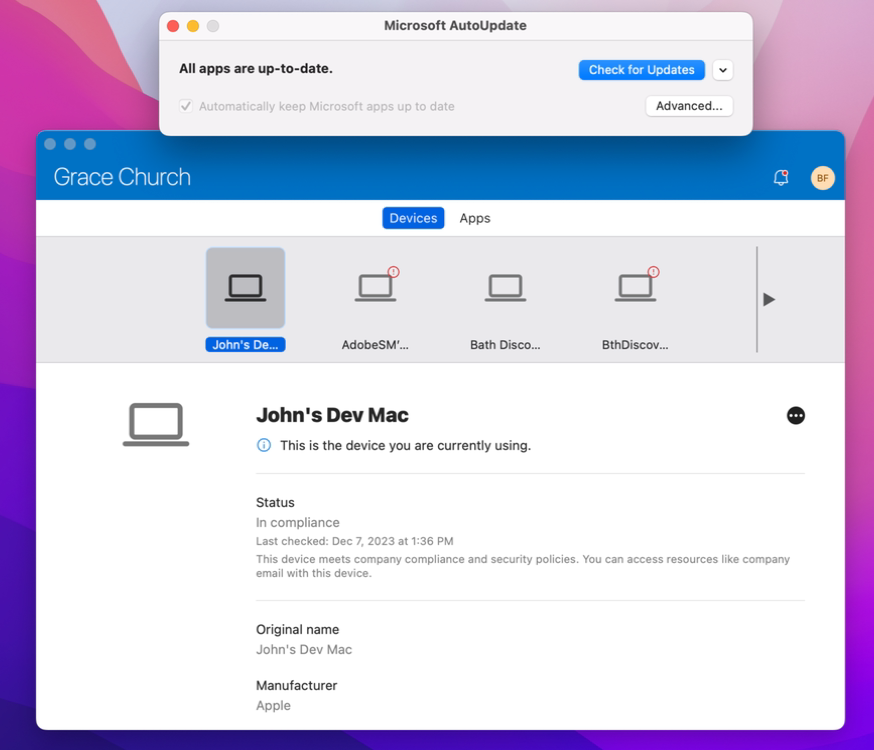
### Before you begin  


Your device <span style="text-decoration: underline;">must</span> be running macOS 11 or later.

<p class="callout info">During installation and enrollment, you might be prompted to allow Company Portal to use confidential information that's stored in your keychain. These prompts are part of Apple security. When you get the prompt, type in your login keychain password and select Always Allow. If you press Enter or Return on your keyboard, the prompt will select Allow, which means you may continue to receive prompts.</p>

### Install Company Portal app  


1. Go to [**Enroll My Mac for macOS**](https://go.microsoft.com/fwlink/?linkid=853070).
2. Wait while the Company Portal installer .pkg file downloads. Open the installer when it's ready.
3. On the Introduction page, select **Continue**.
4. On the **License** page, read through the Microsoft Application License Terms. Select **Continue**.
5. Select **Agree** to agree to the terms of the software license agreement.
6. On the **Installation** Type page, select **Install**.
7. Enter your device password or registered fingerprint. Then select **Install Software**.
8. Wait for Company Portal to finish installing.
9. Open the Company Portal app.

<p class="callout warning">Microsoft AutoUpdate might open after enrollment and update your Microsoft software. After all updates are installed, open the Company Portal app. For the best setup experience, install the latest versions of Microsoft AutoUpdate and Company Portal.</p>

### Enroll your Mac

1. Sign in to the Company Portal app with your work or school account.
2. On the **Set up access** page, select **Begin**.
3. Review the privacy information. Then select **Continue**.
4. On the **Install management profile** page, select **Download profile.**  
    [![image.png](https://kb.gracechurches.org/uploads/images/gallery/2023-12/scaled-1680-/image.png)](https://kb.gracechurches.org/uploads/images/gallery/2023-12/image.png)
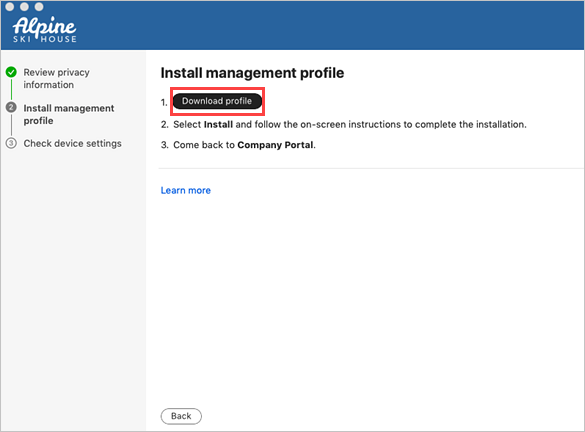
5. Your macOS system settings open in a new window. The management profile you just downloaded is shown.
    
    
    1. Select the profile to open it.
    2. Select **Install...**
    3. When asked to confirm installation, select **Install**.
    4. Enter your device password to allow the profile to enroll your device. Then select Enroll.
6. Wait while the management profile installs and then enrolls your device.
7. Return to the Company Portal app and verify that there's a green checkmark next to **Install management profile**.
8. Your organization may require you to update your device settings. On the **Checking device settings** page, review the list of settings you need to change. Select **How to resolve this** to view related help documentation in a web browser.
9. After you make all changes, select **Retry**. Wait while Company Portal rechecks your device settings.  
    [![image.png](https://kb.gracechurches.org/uploads/images/gallery/2023-12/scaled-1680-/d9limage.png)](https://kb.gracechurches.org/uploads/images/gallery/2023-12/d9limage.png)
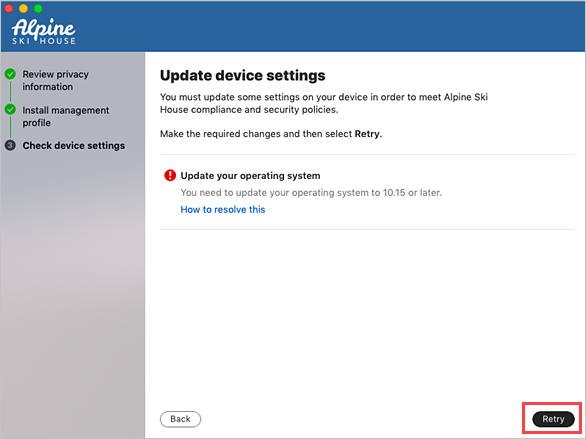
10. When setup is complete, select **Done**. Your device is ready to use for work. You can go to **Devices** in the Company Portal app to view and manage your enrolled Mac.

### Troubleshooting and feedback  


Contact your IT support person to troubleshoot problems with enrollment or the Company Portal app. If necessary, you can share your app logs with your support person via the Company Portal app.

1. In the Company Portal app, open the Help menu.
2. Select **Send diagnostic report**. Wait while Company Portal app logs are sent to Microsoft support and Intune Company Portal developers. This information is used to assist with troubleshooting should your support person need more help.
3. Copy your incident ID for future reference.
4. Select **Email Logs** to report the problem to your support person. Type in what you experienced in the body of the email.

To share your feedback and suggestions with Intune Company Portal app developers, go to **Help** &gt; **Send Feedback.**

### Updating the Company Portal app  


Updating the Company Portal app is done the same way as any other Office app, through Microsoft AutoUpdate for macOS. For more information, see [**Update Office for Mac automatically**](https://support.office.com/article/Check-for-Office-for-Mac-updates-automatically-bfd1e497-c24d-4754-92ab-910a4074d7c1).

# Addigy

[![image.png](https://kb.gracechurches.org/uploads/images/gallery/2024-03/scaled-1680-/exbimage.png)](https://kb.gracechurches.org/uploads/images/gallery/2024-03/exbimage.png)

We are looking into using Addigy for better management of Grace Church owned Mac computers. User's guide to be published...

# Keeper - Password Manager

# Keeper Security

[![image.png](https://kb.gracechurches.org/uploads/images/gallery/2024-03/scaled-1680-/kAsimage.png)](https://kb.gracechurches.org/uploads/images/gallery/2024-03/kAsimage.png "https://keepersecurity.com/vault/")

Keeper is a password manager, similar to BitWarden and others, that Grace IT is paying for. You can let Keeper manage your passwords and automatically fill out account credentials on website logins for you through the browser extension. You can also collaborate: Update passwords for your team or other people without worrying about corrupting a password entry or creating conflicts.

#### **Licensing and Setup**

We are currently prioritizing licensing to the following:

- Information Technology
- Finance
- Human Resources
- Pastors
- Directors
- Admins and Assistants to the above positions

When we license you up, you will be able to login to Keeper using SSO through your GraceOhio / GraceChurches account

##### Logging in For First Time

Go to Keeper Vault site at [Keeper® Password Manager &amp; Digital Vault (keepersecurity.com)](https://keepersecurity.com/vault/).   
Choose "Login":

[![image.png](https://kb.gracechurches.org/uploads/images/gallery/2024-03/scaled-1680-/Wzmimage.png)](https://kb.gracechurches.org/uploads/images/gallery/2024-03/Wzmimage.png)
On the next screen, enter your graceohio credentials in the email address field, and hit next.

[![image.png](https://kb.gracechurches.org/uploads/images/gallery/2024-03/scaled-1680-/vHpimage.png)](https://kb.gracechurches.org/uploads/images/gallery/2024-03/vHpimage.png)
Sign into your <span style="text-decoration: underline;">Grace Church Office365 account</span> if prompted. Keeper will walk you through setting up the import of your passwords, and Browser Extension.

##### Personal Use License

As a bonus with the Enterprise licensing, Keeper comes with a *Keeper Family License for Personal Use*. You have the option to use this if you want. It will allow you to isolate your Personal passwords from your Work passwords. We won't be able to look at these passwords stored here.

In the Keeper WebVault, click on your email to open a dropdown menu and click on Account.

[![image.png](https://kb.gracechurches.org/uploads/images/gallery/2024-03/scaled-1680-/Fr8image.png)](https://kb.gracechurches.org/uploads/images/gallery/2024-03/Fr8image.png)
You can put in your Personal Email Address you want to assign for your Personal Vault.

[![image.png](https://kb.gracechurches.org/uploads/images/gallery/2024-03/scaled-1680-/vKqimage.png)](https://kb.gracechurches.org/uploads/images/gallery/2024-03/vKqimage.png)
#### **Interfaces**

There are a few ways to utilize Keeper. These are the browser extension (KeeperFill), Web Vault, Keeper for Desktop, and Keeper for Mobile.

##### Browser Extension (KeeperFill):

KeeperFill runs as a browser extension on your internet browser. <span style="text-decoration: underline;">We recommend everyone using Keeper to at least use this</span>, as it allows Keeper to fill in login fields for you and let's you set and change passwords automatically. It is compatible on Chrome, Firefox, Safari, Edge, Opera, and Brave. Download and follow setup instructions here: [Download Keeper Password Manager for iOS, Android, Mac, PC and more (keepersecurity.com)](https://www.keepersecurity.com/download.html?t=f)

##### Web Vault

The Web Vault is the main interface view of Keeper. This view gives more functionality of managing your passwords, like creating folder structures, creating shared folders, and other personalization features.

[https://www.keepersecurity.com/vault/#/lang/en\_US](https://www.keepersecurity.com/vault/#/lang/en_US)

##### Keeper for Desktop

[Download Keeper Password Manager for iOS, Android, Mac, PC and more (keepersecurity.com)](https://www.keepersecurity.com/download.html?t=d)

##### Keeper for Mobile

[Download Keeper Password Manager for iOS, Android, Mac, PC and more (keepersecurity.com)](https://www.keepersecurity.com/download.html?t=m)

#### **Training Resources**

Check out: [Keeper Secuity - Passw... | Grace Church KB (gracechurches.org)](https://kb.gracechurches.org/books/training/chapter/keeper-secuity-password-vault) for basic Keeper Usage.

Refer to your Browser's guide for turning off passwords so that Keeper and your internet browser password manager aren't fighting with each other. For Chrome, look at [Stop Chrome from Savin... | Grace Church KB (gracechurches.org)](https://kb.gracechurches.org/books/applications-98f/page/stop-chrome-from-saving-passwords) and [Delete All Saved Passw... | Grace Church KB (gracechurches.org)](https://kb.gracechurches.org/books/applications-98f/page/delete-all-saved-passwords-in-chrome)