# Microsoft Edge

# How to Update Microsoft Edge

**<span data-contrast="auto">How to update Microsoft Edge on Windows 10 and MacOS</span>**<span data-ccp-props="{"201341983":0,"335559739":160,"335559740":259}"> </span>

- <span data-contrast="auto">Open the Microsoft Edge browser if you have not done so already.</span><span data-ccp-props="{"201341983":0,"335559739":160,"335559740":259}"> </span>
- <span data-contrast="auto">Click on the menu button (three horizontal dots on the top right corner of your browser page).</span><span data-ccp-props="{"201341983":0,"335559739":160,"335559740":259}"> </span>

<span data-ccp-props="{"201341983":0,"335559739":160,"335559740":259}"> [![Screenshot 2022-04-05 104537.png](https://kb.gracechurches.org/uploads/images/gallery/2022-04/scaled-1680-/screenshot-2022-04-05-104537.png)](https://kb.gracechurches.org/uploads/images/gallery/2022-04/screenshot-2022-04-05-104537.png)</span>

- <span data-contrast="auto">Hover your mouse over the Help and Feedback option.</span><span data-ccp-props="{"201341983":0,"335559739":160,"335559740":259}"> </span>

- <span data-contrast="auto">Click on About Microsoft Edge in the new menu.</span><span data-ccp-props="{"201341983":0,"335559739":160,"335559740":259}"> </span>

<span data-ccp-props="{"201341983":0,"335559739":160,"335559740":259}"> [![Screenshot 2022-04-05 104614.png](https://kb.gracechurches.org/uploads/images/gallery/2022-04/scaled-1680-/screenshot-2022-04-05-104614.png)](https://kb.gracechurches.org/uploads/images/gallery/2022-04/screenshot-2022-04-05-104614.png)</span>

- <span data-contrast="auto">Microsoft edge will automatically download and update itself to the latest version if it is not already.</span><span data-ccp-props="{"201341983":0,"335559739":160,"335559740":259}"> </span>

<span data-ccp-props="{"201341983":0,"335559739":160,"335559740":259}"> [![4-26-22.png](https://kb.gracechurches.org/uploads/images/gallery/2022-04/scaled-1680-/4-26-22.png)](https://kb.gracechurches.org/uploads/images/gallery/2022-04/4-26-22.png)</span>

- <span data-contrast="auto">If an update requires you to restart your browser, click on restart browser. </span>**<span data-contrast="auto">Please ensure that all important web pages are properly saved and closed before proceeding with this step.</span>**<span data-ccp-props="{"201341983":0,"335559739":160,"335559740":259}"> </span>

# Clear Cache - Microsoft Edge

[Delete cookies in Microsoft Edge - Microsoft Support](https://support.microsoft.com/en-us/microsoft-edge/delete-cookies-in-microsoft-edge-63947406-40ac-c3b8-57b9-2a946a29ae09)

[How to Manage and Clear Your Cache and Cookies | Edge Learning Center (microsoft.com)](https://www.microsoft.com/en-us/edge/learning-center/how-to-manage-and-clear-your-cache-and-cookies?form=MA13I2)

<header aria-labelledby="page-header" class="ocpArticleTitleSection" id="bkmrk-delete-cookies-in-mi-0" role="banner"># Delete cookies / cache in Microsoft Edge

</header><section aria-label="Products this article applies to" class="supAppliesToSection" dir="ltr" id="bkmrk-microsoft-edge%C2%A0edge-"><div id="bkmrk-microsoft-edge%C2%A0edge--0"><div class="appliesTo collapsed" id="bkmrk-microsoft-edge%C2%A0edge--1"><span class="appliesToItem">Microsoft Edge</span> <span class="appliesToItem">Edge for Mac</span> <span class="appliesToItem">Windows 11</span> <span class="appliesToItem">Windows 10</span> <span class="appliesToItem">Windows 8.1</span> <span class="appliesToItem">Windows 7</span></div></div></section><article class="ocpArticleContent" id="bkmrk-in-microsoft-edge%C2%A0%2C-"><section class="ocpIntroduction">In Microsoft Edge , you can delete all cookies or cookies from a specific website. You can also set Edge to automatically delete cookies every time you close your Edge browser.

<p class="callout info">Clearing Cookies and Cache can help solve GraceLink site issues not loading correctly.</p>

</section><section aria-label="Delete all cookies" class="ocpSection" role="region">## Delete all cookies (&amp; cache)

1. In Edge, select **Settings and more** in the upper right corner of your browser window.   
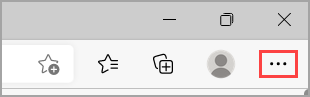
      
    ![An image showing the Settings and more menu in Microsoft Edge.](https://support.content.office.net/en-us/media/223ad21e-b979-41f5-bf2d-d14016b50687.png)
2. Select **Settings**  &gt; **Privacy, search, and services**.
    
    
    1. Another option to getting here is hitting the Hotkey *Ctrl+Shift+Del*. You can also type "edge://settings/clearbrowserdata" in your address bar to access this function. You’ll be able to select the dates you want to clear, so you can keep some of your browsing history intact if you’d like.
3. Select **Choose what to clear** under **Clear browsing data** &gt; **Clear browsing data now**.
4. Under **Time range**, choose a time range from the list.
5. Select **Cookies and other site data**, or also select **Cached images and files**, and then select **Clear now**.

All your cookies / other site data will now be deleted for the time range you selected. This signs you out of most sites.

</section><section aria-label="Delete cookies from a specific site" class="ocpSection" role="region">## Delete cookies from a specific site

1. In Edge, select **Settings and more** &gt; **Settings**  &gt; **Cookies and site permissions**.
    
    
    1. Under **Cookies and data stored**, select **Manage and delete cookies and site data** &gt; **See all cookies and site data** and search for the site whose cookies you want to delete.
2. Select the down arrow  to the right of the site whose cookies you want to delete and select **Delete** .

Cookies for the site you selected will now be deleted. Repeat this step for any site whose cookies you want to delete.

</section><section aria-label="Delete cookies every time you close the browser" class="ocpSection" role="region">## Delete cookies every time you close the browser

1. In Edge, select **Settings and more** &gt; **Settings**  &gt; **Privacy, search, and services**.
2. Under **Clear browsing data**, select **Choose what to clear every time you close the browser**.
3. Turn on the **Cookies and other site data** toggle. You can also turn on **Cached Images and files** if you want.

Once this feature is turned on, every time you close your Edge browser all cookies and other site data will be deleted. This signs you out of most sites.

**Note**: This topic is for the new Microsoft Edge . Get help for [the legacy version of Microsoft Edge](https://support.microsoft.com/hub/4522743/microsoft-edge-help).

</section></article>

# Turn off Site Notifications / Banners in Edge

You might see unexpected notifications pop up on your computer when you enable site notifications from your web browser. These can pose as random scam or product deal notifications that are meant to tempt you to click on them. You don't normally need to enable site notifications, but to change these settings in Edge you can reference Microsoft's guide: [https://support.microsoft.com/en-us/microsoft-edge/manage-website-notifications-in-microsoft-edge-0c555609-5bf2-479d-a59d-fb30a0b80b2b](https://support.microsoft.com/en-us/microsoft-edge/manage-website-notifications-in-microsoft-edge-0c555609-5bf2-479d-a59d-fb30a0b80b2b)

# Stop Edge from Saving Passwords

Steps to stop Edge from saving passwords.

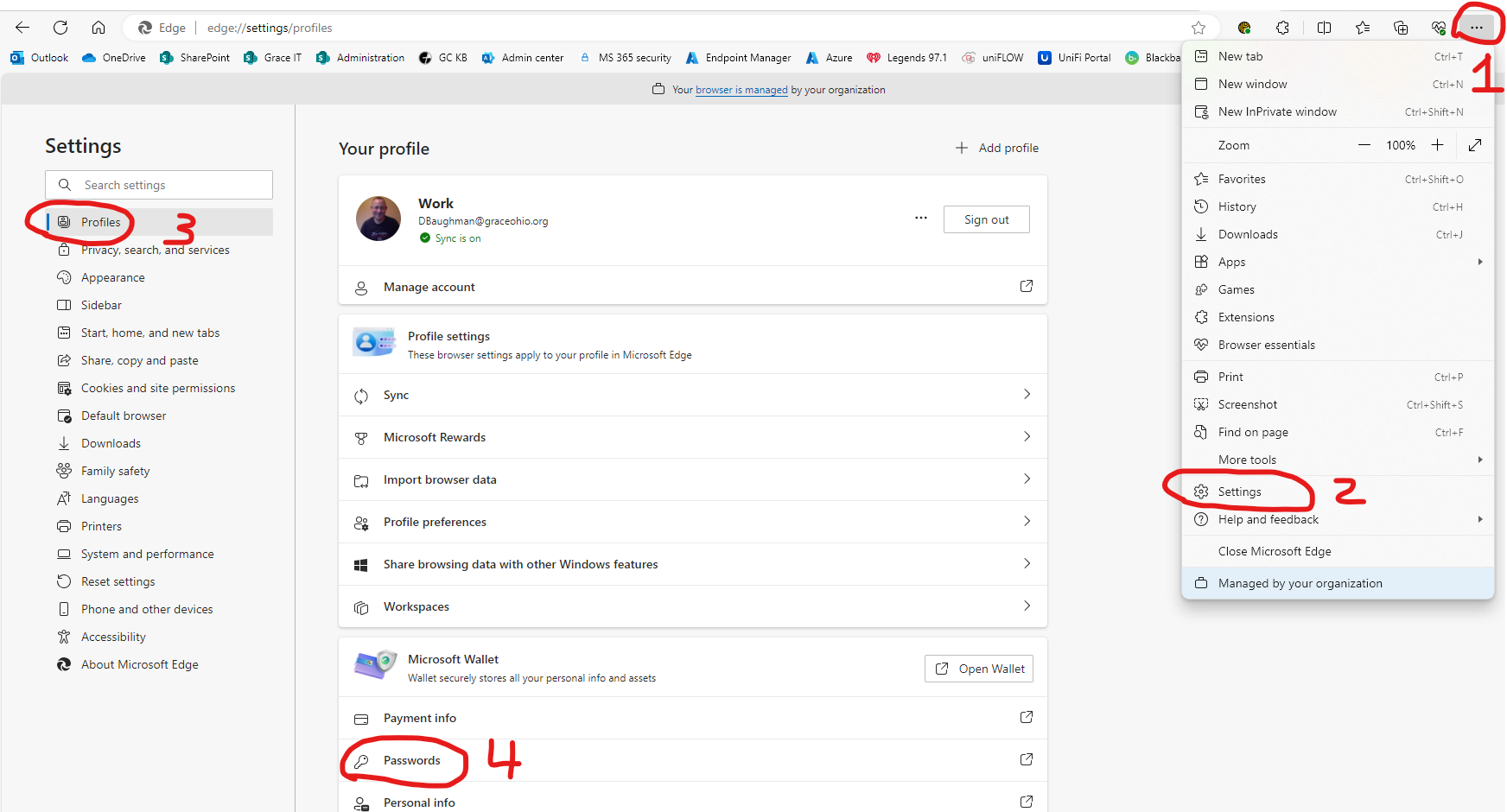
1. Click on Menu ellipses.
2. Click Settings
3. Click Profiles
4. Scroll down until you see Passwords under Micrsoft Wallet, Click on Passwords

[![image.png](https://kb.gracechurches.org/uploads/images/gallery/2024-04/scaled-1680-/F7dimage.png)](https://kb.gracechurches.org/uploads/images/gallery/2024-04/F7dimage.png)
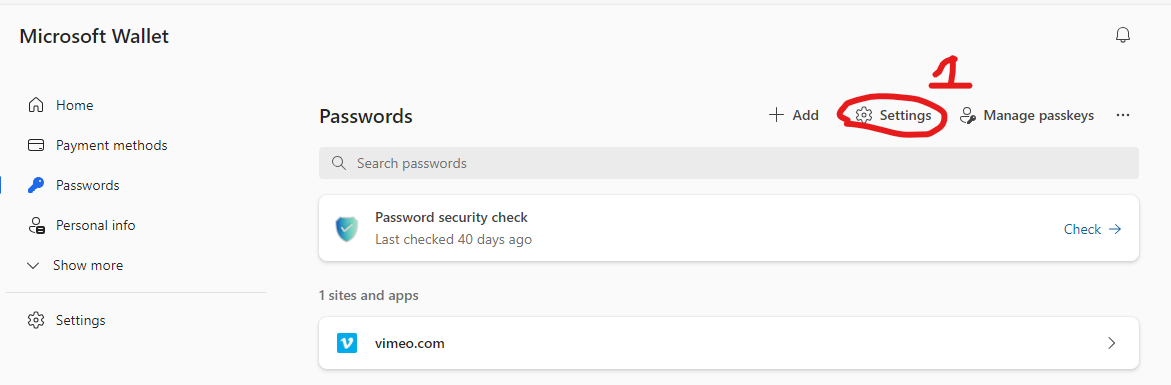
1. Click on Settings

[![image.png](https://kb.gracechurches.org/uploads/images/gallery/2024-04/scaled-1680-/4h6image.png)](https://kb.gracechurches.org/uploads/images/gallery/2024-04/4h6image.png)
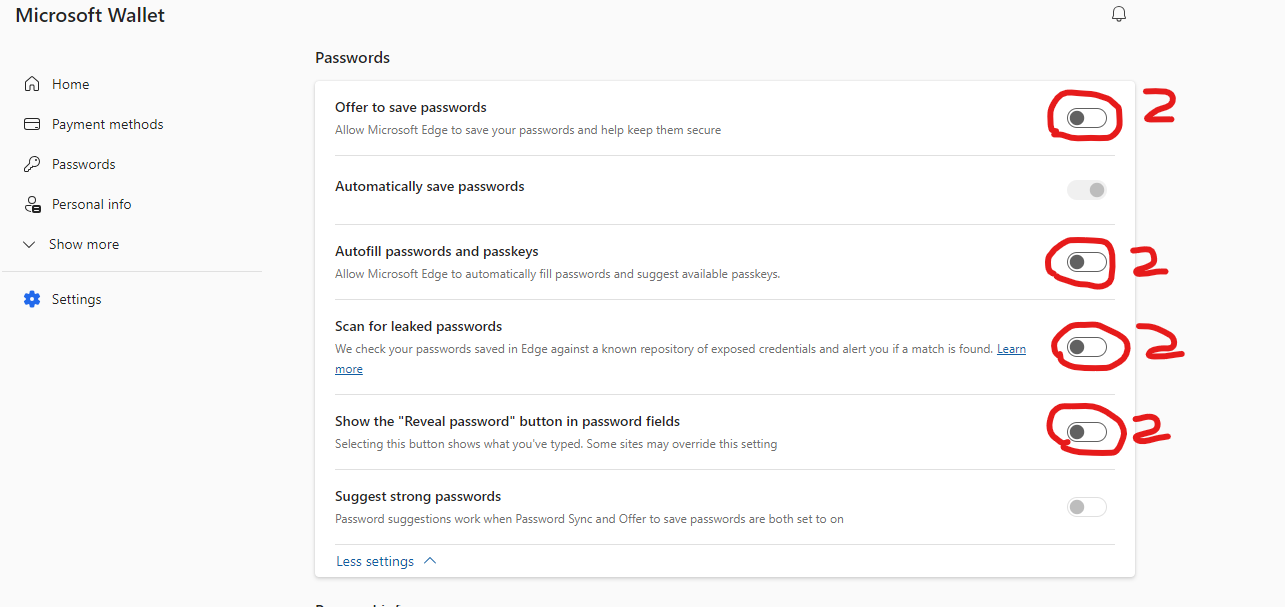
1. Scroll down to the Passwords section
2. Turnoff circled switches 
    - Offer to save passwords.
    - Autofill passwords and passkeys.
    - Scan for leaked passwords.
    - Show the "Reveal password" button in passwords field.
3. Done, you can close settings tabs

[![image.png](https://kb.gracechurches.org/uploads/images/gallery/2024-04/scaled-1680-/51eimage.png)](https://kb.gracechurches.org/uploads/images/gallery/2024-04/51eimage.png)
# Delete All Saved Passwords in Edge

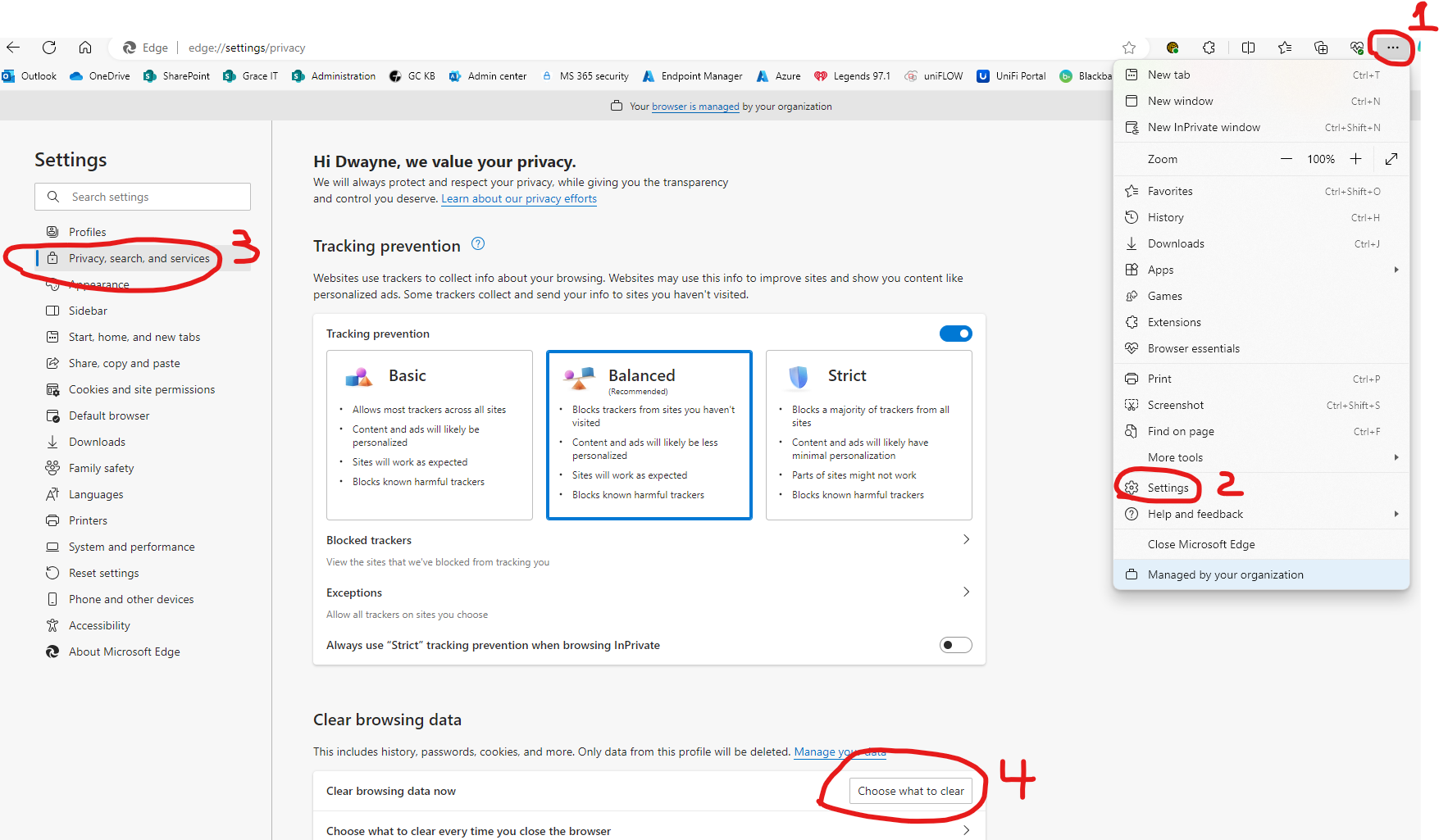
1. Click on Menu ellipses.
2. Click on Settings
3. Click on Privacy and security
4. Scroll down and Click on Clear browsing data.

[![image.png](https://kb.gracechurches.org/uploads/images/gallery/2024-04/scaled-1680-/YGyimage.png)](https://kb.gracechurches.org/uploads/images/gallery/2024-04/YGyimage.png)
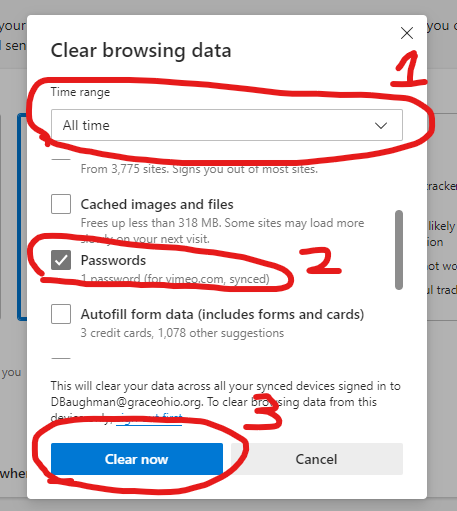
1. Change Time Range to "All time"
2. Check the Passwords box and uncheck all other boxes
3. Click on Clear Now

[![image.png](https://kb.gracechurches.org/uploads/images/gallery/2024-04/scaled-1680-/tnJimage.png)](https://kb.gracechurches.org/uploads/images/gallery/2024-04/tnJimage.png)