# Google Chrome

# How to Update Google Chrome

**<span data-contrast="auto">How to update Google Chrome on Windows 10 and MacOS</span>**<span data-ccp-props="{"201341983":0,"335559739":160,"335559740":259}"> </span>

- <span data-contrast="auto">Open the Google Chrome web browser if you have not done so already.</span><span data-ccp-props="{"201341983":0,"335559739":160,"335559740":259}"> </span>
- <span data-contrast="auto">Click on the more button (three vertical dots on the top right corner of the web page).</span><span data-ccp-props="{"201341983":0,"335559739":160,"335559740":259}"> </span>

<span data-ccp-props="{"201341983":0,"335559739":160,"335559740":259}"> [![Screenshot 2022-04-05 104846.png](https://kb.gracechurches.org/uploads/images/gallery/2022-04/scaled-1680-/screenshot-2022-04-05-104846.png)](https://kb.gracechurches.org/uploads/images/gallery/2022-04/screenshot-2022-04-05-104846.png)</span>

- <span data-contrast="auto">Hover over the help option.</span><span data-ccp-props="{"201341983":0,"335559739":160,"335559740":259}"> </span>

- <span data-contrast="auto">Click About Google Chrome in the new menu.</span><span data-ccp-props="{"201341983":0,"335559739":160,"335559740":259}"> </span>

<span data-ccp-props="{"201341983":0,"335559739":160,"335559740":259}"> [![Screenshot 2022-04-05 104944.png](https://kb.gracechurches.org/uploads/images/gallery/2022-04/scaled-1680-/screenshot-2022-04-05-104944.png)](https://kb.gracechurches.org/uploads/images/gallery/2022-04/screenshot-2022-04-05-104944.png)</span>

- <span data-contrast="auto">If an update is available, click Update Google Chrome (If the button is not available, it means that you are already up to date.</span><span data-ccp-props="{"201341983":0,"335559739":160,"335559740":259}"> </span>

<span data-ccp-props="{"201341983":0,"335559739":160,"335559740":259}"> [![Screenshot 2022-04-05 105018.png](https://kb.gracechurches.org/uploads/images/gallery/2022-04/scaled-1680-/screenshot-2022-04-05-105018.png)](https://kb.gracechurches.org/uploads/images/gallery/2022-04/screenshot-2022-04-05-105018.png)</span>

- <span data-contrast="auto">Click Relaunch. </span>**<span data-contrast="none">Please ensure that all important web pages are properly saved and closed before proceeding with this step.</span>**<span data-ccp-props="{"201341983":0,"335559739":160,"335559740":259}"> </span>

# Clear Cache & Cookies - Google Chrome

[Clear cache &amp; cookies - Computer - Google Account Help](https://support.google.com/accounts/answer/32050?hl=en&co=GENIE.Platform%3DDesktop)

# Clear cache / cookies

When you use a browser, like Chrome, it saves some information from websites in its cache and cookies. Clearing them fixes certain problems, like loading or formatting issues on sites.

<p class="callout info">Clearing browser cache and cookies can also help solve GraceLink loading incorrectly.</p>

## In Chrome

1. On your computer, open Chrome.
2. At the top right, click More ![More](https://lh3.googleusercontent.com/oLoRPrHJd7m46sWijX6zBWnEnfslP62AxJSwt5Nj0bNbpaYHz2pyscExleiofsH2kQ=h36).
3. Click **More tools** ![and then](https://lh3.googleusercontent.com/QbWcYKta5vh_4-OgUeFmK-JOB0YgLLoGh69P478nE6mKdfpWQniiBabjF7FVoCVXI0g=h36) **Clear browsing data**.
4. At the top, choose a time range. To delete everything, select **All time**.
5. Next to "Cookies and other site data" and "Cached images and files," check the boxes for the ones you want cleared.
6. Click **Clear data**.

[Learn how to change more cookie settings in Chrome](https://support.google.com/chrome/answer/95647). For example, you can delete cookies for a specific site.

## In other browsers

If you use Safari, Firefox, or another browser, check its support site for instructions.

## What happens after you clear this info

After you clear cache and cookies:

- Some settings on sites get deleted. For example, if you were signed in, you’ll need to sign in again.
- If you [turn sync on in Chrome](https://support.google.com/chrome/answer/185277), you’ll stay signed into the Google Account you’re syncing to in order to delete your data across all your devices.
- Some sites can seem slower because content, like images, needs to load again.

## How cache &amp; cookies work

- Cookies are files created by sites you visit. They make your online experience easier by saving browsing data.
- The cache remembers parts of pages, like images, to help them open faster during your next visit.

# Turn off Site Notifications / Banners

You might see unexpected notifications pop up on your computer when you enable site notifications from your web browser. These can pose as random scam or product deal notifications that are meant to tempt you to click on them. You don't normally need to enable site notifications, but to change these settings in Chrome you can reference Google's guide: [https://support.google.com/chrome/answer/3220216?hl=en&amp;co=GENIE.Platform%3DDesktop&amp;oco=0#zippy=%2Cblock-pop-ups-from-a-site](https://support.google.com/chrome/answer/3220216?hl=en&co=GENIE.Platform%3DDesktop&oco=0#zippy=%2Cblock-pop-ups-from-a-site)

# Stop Chrome from Saving Passwords

Steps to stop Chrome from saving passwords.

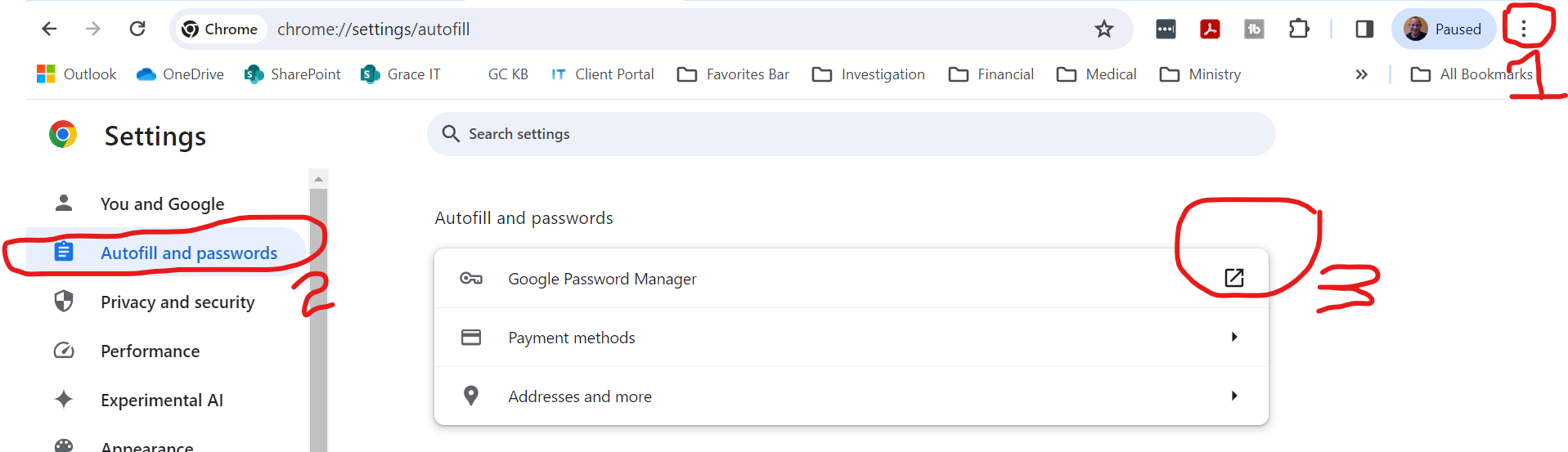
1. Click on Menu ellipses.
2. Click on Autofill and passwords.
3. Click on Google Password Manager new window.

[![image.png](https://kb.gracechurches.org/uploads/images/gallery/2024-03/scaled-1680-/wwsimage.png)](https://kb.gracechurches.org/uploads/images/gallery/2024-03/wwsimage.png)
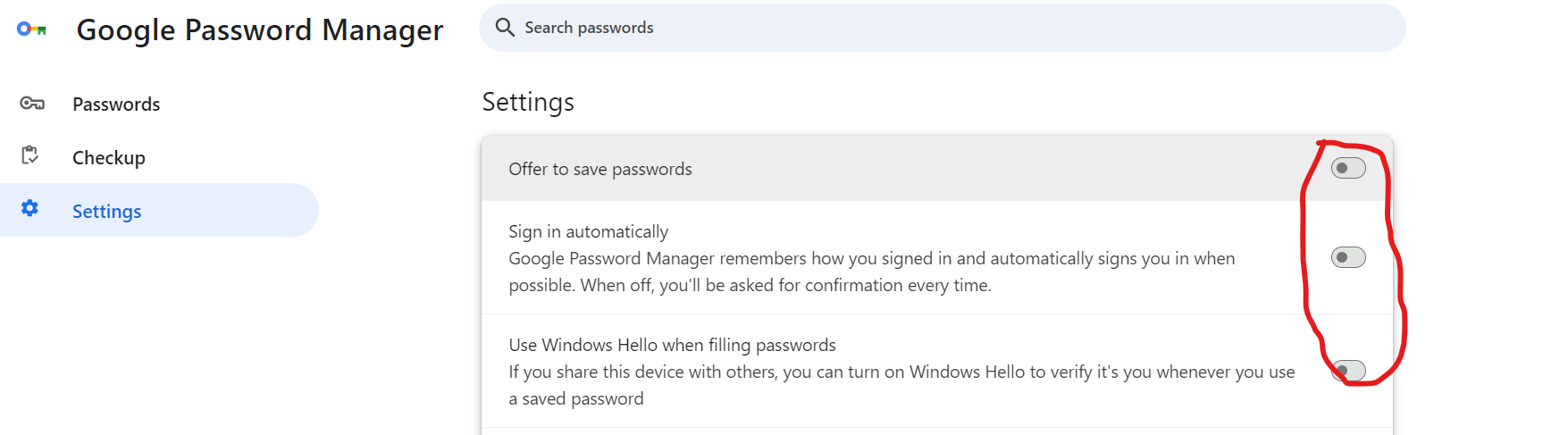
On Password Manager page

Make sure all three of these switches are off. This will disable the Google Password Manager.

[![image.png](https://kb.gracechurches.org/uploads/images/gallery/2024-03/scaled-1680-/z8uimage.png)](https://kb.gracechurches.org/uploads/images/gallery/2024-03/z8uimage.png)
# Delete All Saved Passwords in Chrome

Steps to delete all saved passwords in Chrome

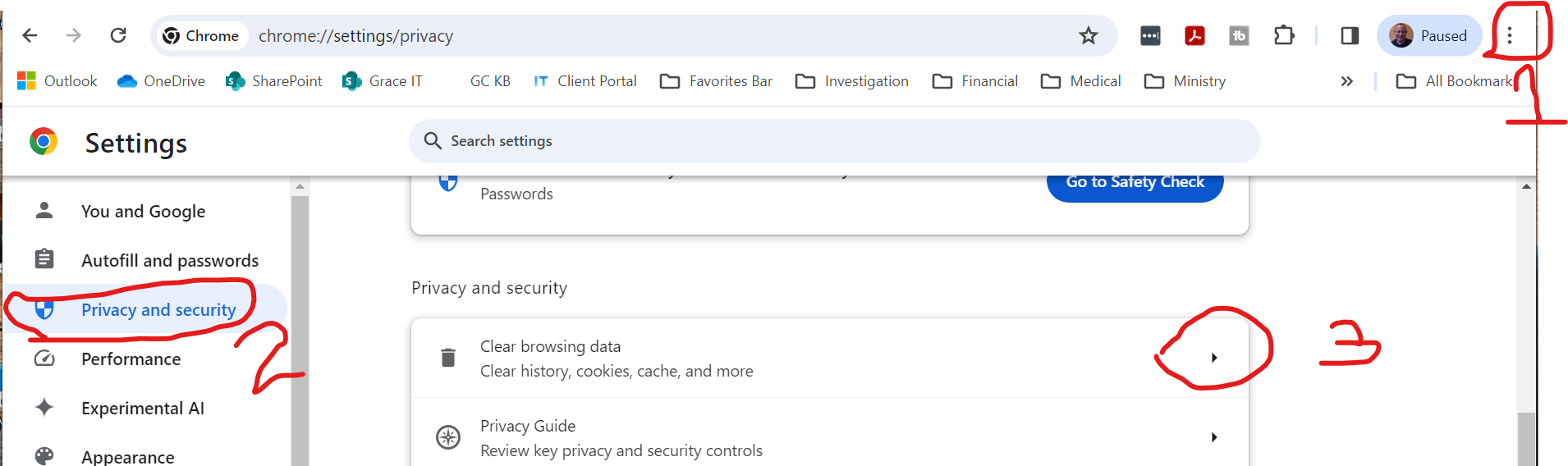
1. Click on Menu ellipses.
2. Click on Privacy and security
3. Click on Clear browsing data.

[![image.png](https://kb.gracechurches.org/uploads/images/gallery/2024-03/scaled-1680-/80Cimage.png)](https://kb.gracechurches.org/uploads/images/gallery/2024-03/80Cimage.png)
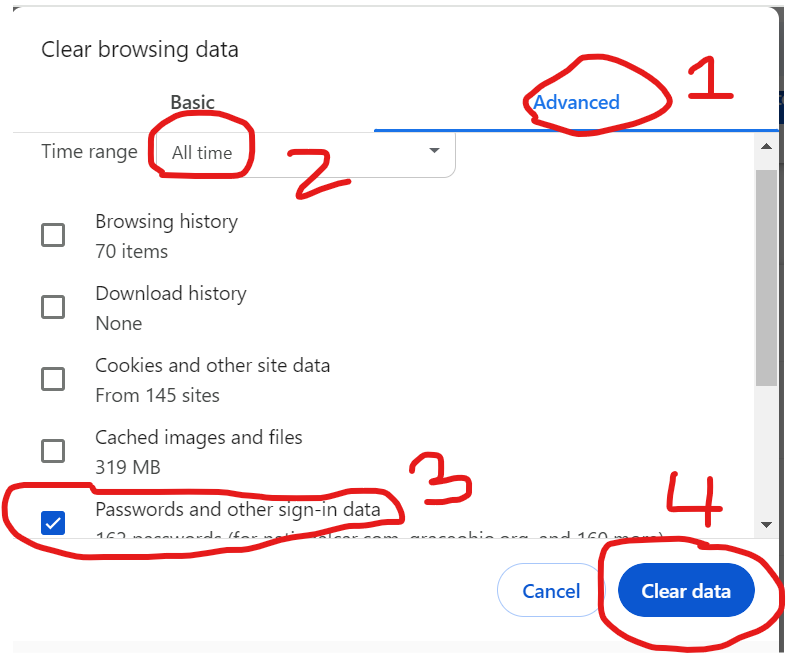
1. Click on Advanced
2. Set Time Range to All Time
3. Uncheck all boxes except Passwords.
4. Click on Clear Data

This will delete all passwords stored in Chrome.

[![image.png](https://kb.gracechurches.org/uploads/images/gallery/2024-03/scaled-1680-/0UMimage.png)](https://kb.gracechurches.org/uploads/images/gallery/2024-03/0UMimage.png)