# Firefox
# How to update Mozilla Firefox
[Update Firefox to the latest release | Firefox Help (mozilla.org)](https://support.mozilla.org/en-US/kb/update-firefox-latest-release)
1. Click the menu button  at the right side of the Firefox toolbar, go to , and select . The *About Mozilla Firefox* window will open.
2. Firefox will check for updates automatically. If an update is available, it will be downloaded. - 
3. When the download is complete, click Restart to update Firefox. - 
# Clear Cookies and Cache - Mozilla Firefox
[How to clear the Firefox cache | Firefox Help (mozilla.org)](https://support.mozilla.org/en-US/kb/how-clear-firefox-cache)
Clearing browser cache and cookies can also help solve GraceLink loading incorrectly.
The Firefox [cache](http://wikipedia.org/wiki/Web_cache) temporarily stores images, scripts, and other parts of websites you visit in order to speed up your browsing experience. This article describes how to clear the cache.
- To clear your history (cookies, browsing history, cache, etc.) all at once, see [Delete browsing, search and download history on Firefox](https://support.mozilla.org/en-US/kb/delete-browsing-search-download-history-firefox).
## Table of Contents
- [Clear the cache](https://support.mozilla.org/en-US/kb/how-clear-firefox-cache#w_clear-the-cache)
- [Automatically clear the cache](https://support.mozilla.org/en-US/kb/how-clear-firefox-cache#w_automatically-clear-the-cache)
# Clear the cache (or Cookies)
1. Click the menu button [](https://kb.gracechurches.org/uploads/images/gallery/2023-11/1o8image.png) and select .
2. Select the panel.
3. In the **Cookies and Site Data** section, click Clear Data…. - [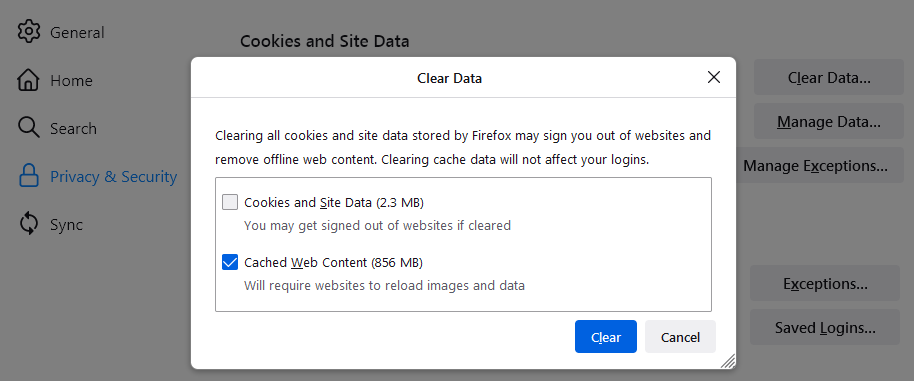](https://kb.gracechurches.org/uploads/images/gallery/2023-11/ySBimage.png)
4. Remove the check mark in front of **Cookies and Site Data** IF you want to only delete cache. Checkmark it if you want to also delete Cookies and Site Data.
- For more information about managing site data, see [Manage local site storage settings](https://support.mozilla.org/en-US/kb/storage).
5. With *Cached Web Content* check marked, click the Clear button.
6. Close the *about:preferences* page. Any changes you've made will automatically be saved.
**Tip:** Here's another way to clear the Firefox cache: 1. Click the menu button [](https://kb.gracechurches.org/uploads/images/gallery/2023-11/dgPimage.png) to open the menu panel.
2. Click and select .
3. Next to **Time range to clear**, choose **Everything** from the drop-down menu, select **Cache** in the items list, make sure other items you want to keep are not selected and then click the OK button. You can also select Cookies if you want to clear them.
See [this article](https://support.mozilla.org/en-US/kb/delete-browsing-search-download-history-firefox#w_how-do-i-clear-my-history) for details.
# Automatically clear the cache (or cookies)
You can set Firefox to automatically clear the cache when Firefox closes:
1. Click the menu button [](https://kb.gracechurches.org/uploads/images/gallery/2023-11/VLwimage.png) and select .
2. Select the panel and go to the **History** section.
3. In the drop-down menu next to **Firefox will**, choose . - [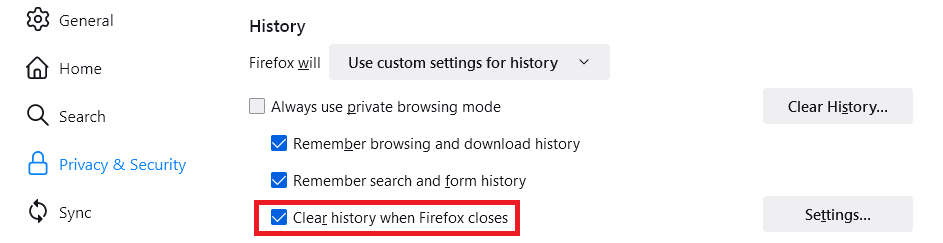](https://kb.gracechurches.org/uploads/images/gallery/2023-11/RMdimage.png)
4. Select the check box for **Clear history when Firefox closes**.
5. Click the Settings… button. The *Settings for Clearing History* window will open.
6. Put a check mark next to **Cache (or Cookies)** and make sure other items you want to keep are not selected. - [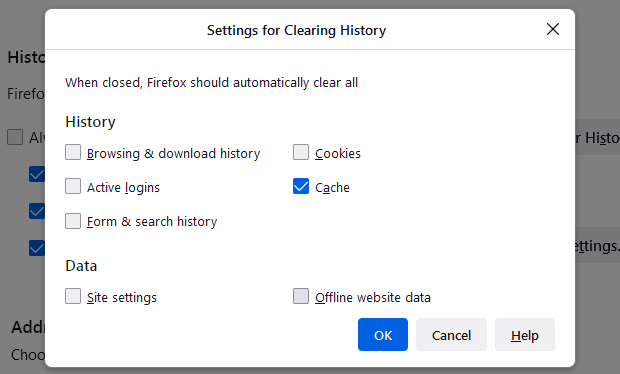](https://kb.gracechurches.org/uploads/images/gallery/2023-11/EKyimage.png)
- For more information about other settings, see [Delete browsing, search and download history on Firefox](https://support.mozilla.org/en-US/kb/delete-browsing-search-download-history-firefox).
7. Click OK to close the *Settings for Clearing History* window.
8. Close the *about:preferences* page. Any changes you've made will automatically be saved.
**Tip**: There are several add-ons available that allow you to clear the cache using an icon on your toolbar. Go to the [Mozilla Add-ons Web Page](https://addons.mozilla.org/firefox/) to do a search. The Mozilla community is not responsible for maintaining and supporting third-party add-ons. Please contact the add-on developer directly if you need assistance with an add-on.
# Enable TouchScreen KeyBoard in FireFox
source: [How to Display On-Screen Keyboard in Mozilla Firefox (trishtech.com)](https://www.trishtech.com/2015/12/how-to-display-on-screen-keyboard-in-mozilla-firefox/)
Enabling this setting is useful for our Touchscreen enabled GraceLink CheckIn stations:
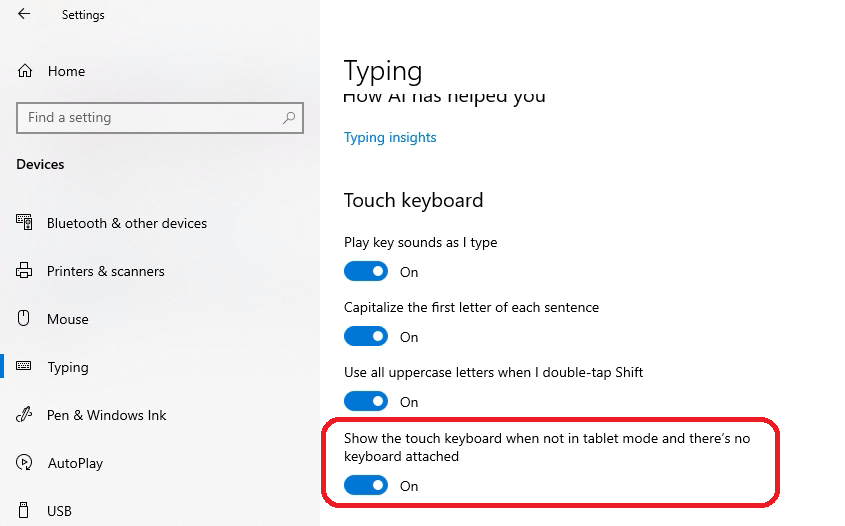
- First Go into the settings App in Windows. On Windows 10, Navigate to Devices, Typing.
- Enable "Show the touch keyboard when not in tablet mode and there's no keyboard attached" setting.
[](https://kb.gracechurches.org/uploads/images/gallery/2023-11/RXbimage.png)
- Now Open Firefox
- enter in the address field *about:config*
- search for *detect* or *keyboard*. You will need to change the ui.osk.detect\_physical\_keyboard config to ***false***.
[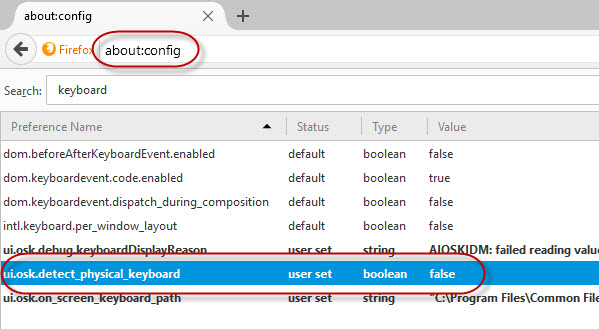](https://kb.gracechurches.org/uploads/images/gallery/2023-11/image.png)
- Restart Firefox and the onscreen Keyboard should show up when you tap on a text field in FireFox.